

Applying metadata templates
To apply a metadata template:- Select the file to which you want to add metadata.
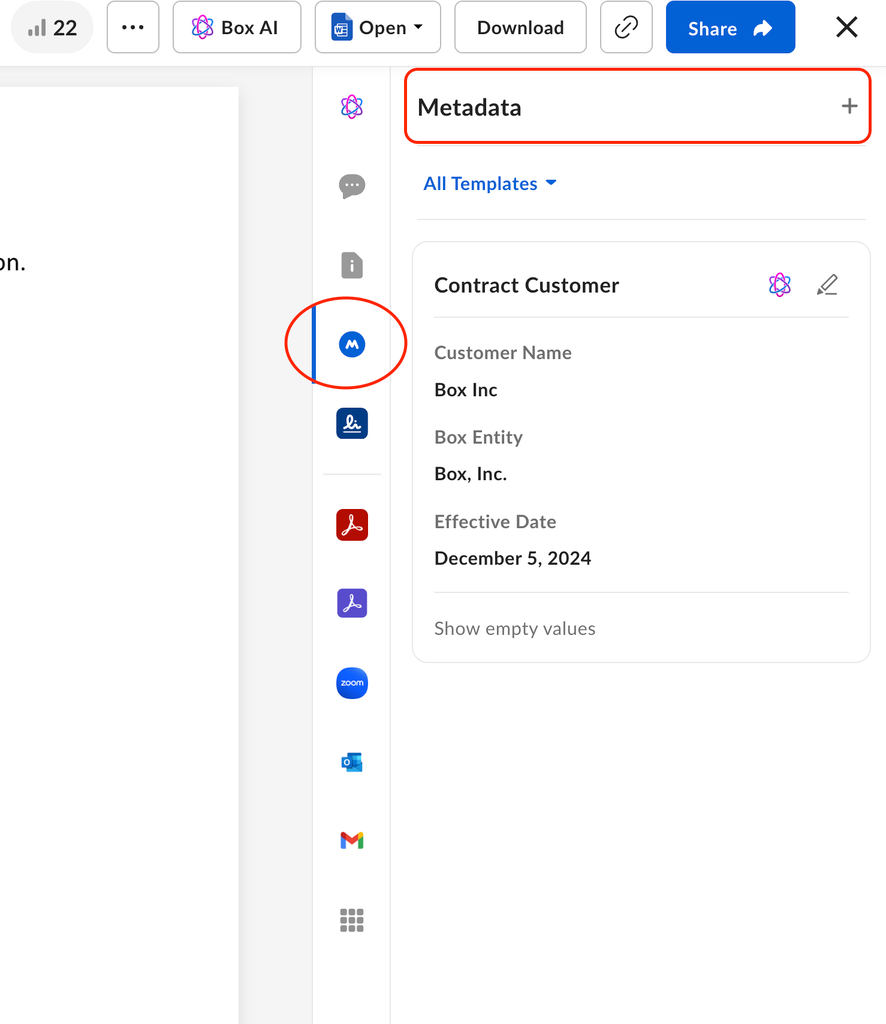
- In the file’s preview screen, select the Metadata icon in the right-hand sidebar.
-
Next to Metadata, select +, then choose the metadata template you want to use.
Custom metadata
If no relevant metadata template exists, you can create a custom template for a particular file. When choosing a template, select Custom Metadata. Enter an Attribute Name and select Add to create a custom attribute. Once you are done, select Save. You can add as many custom attributes as you need. These additional attributes are not shared across any other files. You can also use metadata without templates. For accounts that have metadata activated, you can always add metadata in the custom metadata section.You can assign up to 100 metadata templates to a specific item.
Editing metadata values
To edit metadata values:- Select the metadata instance you want to edit. Box displays a pencil icon to the right of the template’s name.
- Select the pencil icon. Box displays the attribute values in text entry boxes.
- Select the attribute value you want to edit.
- Edit the attribute’s value.
- Select Save.
While editing a saved custom instance, you can still add attributes by selecting +.
Autofilling metadata in templates
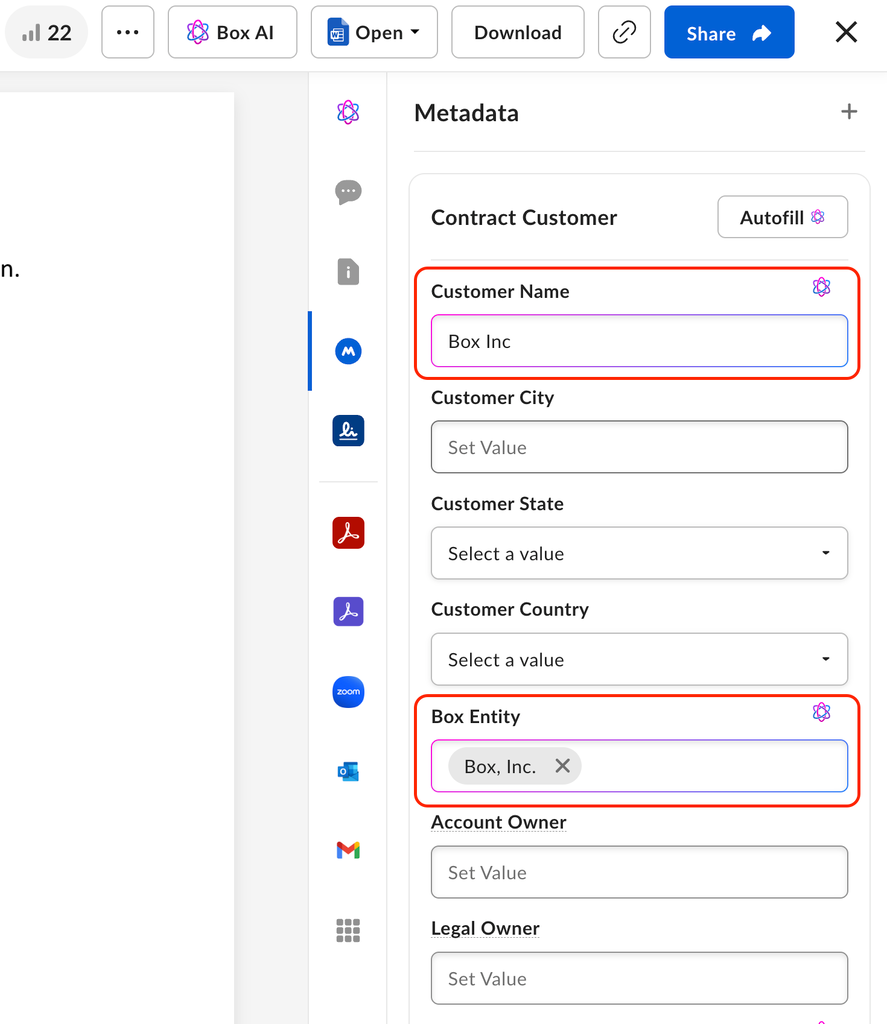
With this feature enabled, Box account holders in Enterprise Advanced accounts can use Box AI to extract metadata from supported file types, such as .pdf, .tiff, .png, .jpeg, that have one or more attached metadata templates, and automatically add that metadata, as suggested values, into the metadata template. Box provides two metadata extraction agents for autofilling metadata templates: Standard and Enhanced. Both extraction agents use Large Language Model (LLM) processing to extract contextual data.Bulk extraction of up to 25 files is available through the API only. The Box web application does not support bulk file extraction.
Enabling autofill for your enterprise
If you are a Box admin, autofill metadata is available when the Box Files setting is enabled for your enterprise. To enable or disable autofill, go to Admin Console > Box AI > Files.Autofilling metadata from a file
If your enterprise’s Box admin has enabled the Box Files setting, you can use Box AI to automatically add a file’s metadata, as suggested values, into the file’s metadata templates. To autofill metadata from a file:- In your Files window, double-click a file that has at least one metadata template. Box opens the file in the Preview window.
- In the Preview window’s sidebar, select the Metadata icon.
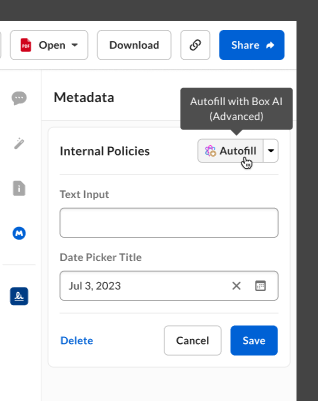
- In the Metadata panel, select Autofill. Box displays the metadata extraction agents available to your organization’s account.
- Select a metadata extraction agent.
Deleting a metadata instance
To delete a metadata instance from a file:- Select the metadata instance you want to delete. Box displays a pencil icon to the right of the instance’s name.
- Select the pencil icon.
-
In the bottom of the pane, select Delete.
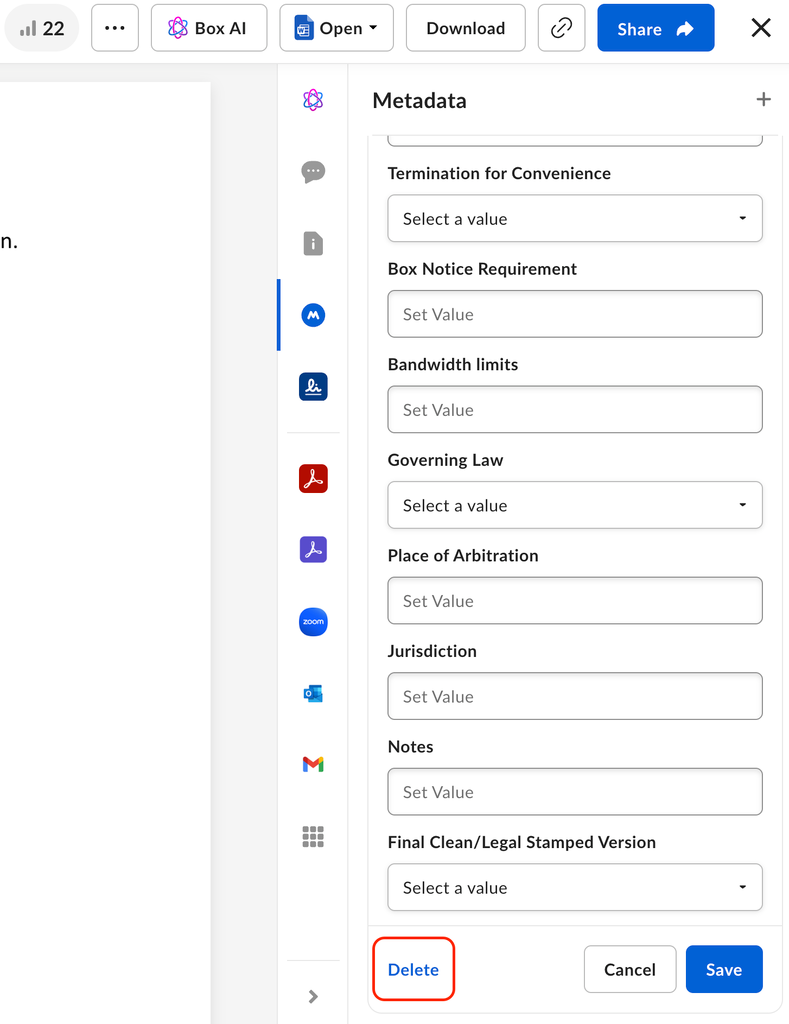
- Select the Confirm deletion of Metadata instance checkbox and select Delete.
Using advanced search with metadata templates
Metadata values are indexed by the Box search engine. If you perform a search, the search engine treats metadata values similarly to how file titles or file text are treated. If a match on metadata is made, it influences the search results returned to you using Box’s search relevance algorithm. You can also use advanced search to filter results within specific metadata templates. To search using specific metadata templates:- Select the Advanced Search icon in the Search box at the top of the screen.
- Select Metadata and choose the template you want to use for your search.
- Enter the values you want to search for, then press enter to search.
Permissions and collaboration
Metadata adheres to folder-level permissions. A collaborator with permission to view items can view metadata, and a collaborator with upload permissions can edit metadata values. For example, if a collaborator is a viewer in a folder, that person can only view metadata and not edit it. If a collaborator is a previewer uploader, they can both view and edit metadata. Refer to the permissions chart for details on which permissions are granted to each collaborator role.External collaborators
Metadata is available for external collaborators who collaborate in a folder where the folder owner has enabled metadata on their account. External collaborators can see and edit metadata instances and attributes in parity with file metadata. Read and write access of existing instances adheres to standard folder collaborator settings. New instances can be applied only by users within an enterprise in the web application; external collaborators outside the enterprise cannot add instances to a file in the web application. The metadata template owner enterprise owns the metadata template and all values of the template. If the metadata template changes, this affects any values of metadata that are collaborated with external collaborators.Shared links
For details on how metadata works with shared links, refer to the shared links chart.Encryption
All metadata is encrypted.Metadata is not deleted unless a user deletes the metadata directly off the item. If an account activates and deactivates the metadata feature, or if an item with metadata is deleted, metadata is still retained.