Box enables you to add metadata instances to a folder, and automatically cascade them to the folder’s contents so you don’t need to add the instances individually. Using cascading metadata, you can quickly add metadata to multiple files and sub-folders at one time.When you add a metadata instance to a folder and enable a cascade policy, Box:
adds that instance and its values to each of the folder’s files and sub-folders, and
propagates edits of the template to every instance of that template in the folder.
Box also enables you to resolve metadata instance conflicts by either retaining or overwriting current attribute values.
To request enablement of this feature for your enterprise, contact your admin.
If you’re an admin, learn how to enable this feature here.
Initial application: when you enable a cascade policy, Box applies the metadata template and values to all existing files and sub-folders in the folder. This is an offline process; the time required depends on the size of your folder hierarchy and system load. An additional delay may occur for folders with a long sub-tree path.
Ongoing application: while the policy is active, new content added to the folder automatically inherits the metadata template and values.
When you disable a cascade policy, only the ongoing behavior stops. Metadata already applied to files and sub-folders persists. New content added to the folder no longer inherits the metadata automatically.You can cascade an empty metadata instance with no values. You do not need to fill in all attributes in order to cascade, but you cannot cascade only certain attributes of a metadata instance. Cascading applies an instance in its entirety.
After you cascade a metadata instance in a folder, you cannot undo or cancel the action. No option is available to bulk-remove instances that have been cascaded down to sub-files and folders. If you want to remove the instance, you must remove instances from individual files and folders.
Hover on More Actions and select Metadata. Box displays the Metadata window.
In the top of the Metadata window, select Add and choose a metadata template. Box displays the template’s name in the Metadata window.
Select the edit icon beside the chosen template’s name. Box displays the metadata editing window.
Edit the instance’s attributes, if you wish.
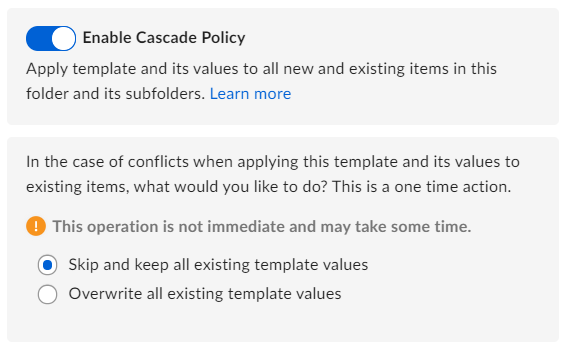
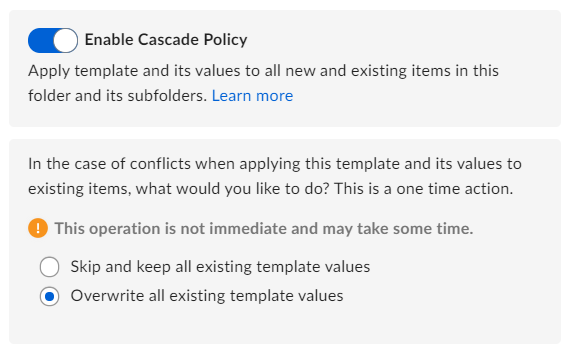
Select the Enable Cascade Policy slider button. Box displays the conflict resolution pane.
In the conflict resolution pane, select the resolution policy you want to enforce.
In the bottom of the metadata editing window, select Save.
If you select Overwrite all existing template values, any attributes left blank in the cascade source overwrite existing values with blank entries. If you delete a metadata instance from a folder, Box does not delete the template’s values from the folder’s contents.
To stop a cascade policy, select the Enable Cascade Policy slider button again. After you stop a folder’s cascade policy, new content added to the folder does not automatically inherit the cascade policy. Metadata values within files and sub-folders persist even after the cascade policy is stopped.
Metadata cascade policies do not overwrite any existing metadata by default. If a conflict occurs, existing metadata values persist on the file. If you want to overwrite the existing metadata, you can use the force-apply metadata cascade policy to force all metadata within that folder to have that folder’s metadata.To overwrite in the UI, select Overwrite all existing template values within the cascade conflict subsection and re-apply the policy. You need to be in edit mode, and may need to first toggle the policy off and back on to see the conflict subsection.
Moving a file out of a folder with cascade enabled:
Metadata remains with the file, no matter where it is moved.Moving content into a folder with cascade enabled (no conflict):
The file or folder that’s moved into the folder with the cascade policy enabled inherits the instance and its attributes.Moving content into a folder with cascade enabled (with conflict):
If a file has the same metadata template applied, the cascade policy skips that file. If you want to overwrite existing metadata instances and values, select Overwrite all existing template values within the cascade conflict subsection and re-apply the policy.
External collaborators can see and edit metadata instances and attributes in parity with file metadata. External collaborators whom you invite into files and folders can see that content’s applied metadata templates and attributes.When you attempt to apply metadata on externally-owned content, you are not able to see the other enterprise’s metadata templates. You are, however, still able to apply custom metadata.When ownership of a folder previously owned by one enterprise (with that enterprise’s templates applied) is transferred to a user in another enterprise, metadata instances and metadata attributes remain on the content.
Last modified on October 12, 2026
Was this page helpful?
Assistant
Responses are generated using AI and may contain mistakes.