

Managing multiple metadata fields in view
- Open your Box App.
- Click the View tile with predefined search configuration.
- Hover over a file to display the More Options menu and a check box.
- Click the check boxes for the files whose metadata you want to edit.
- Click the Metadata button.
- Click the pencil icon and edit the metadata you need.
- Click the cogwheel icon next to the value.
- Click one of the available options:
- Append – add another entry to the existing value.
- Clear All & Replace – remove all entries in the selected value and replace them with the data you want.
- Remove Entered – remove the entered value.
- Replace Entered – replace the entered value with a new one that you can type or choose from a drop-down list.
To add metadata, you can also select files or folders from the File or Folder block.
Applying metadata to single files and folders
To apply metadata to a single file or folder:- Open your Box App.
- Click the View tile with predefined search configuration.
- Find the file or folder you want to apply metadata to on the list.
- Hover over the file or folder to display options.
- Click the check box.
- New action buttons display next to the Save button: Move, Download, and Metadata.
- Click the Metadata button.
- Click Add, then choose the applicable metadata template.
As a Box Apps admin, you can also use the Manage Metadata button on the Apps main screen.
Autofilling metadata from a file
With Autofill Metadata, you can use Box AI to automatically add metadata, as suggested values, into the file’s metadata templates. Your enterprise’s Box admin must enable this feature on your account. See Using Metadata for more information.Editing metadata inline
You can edit metadata inline if this option is enabled for your app.- Open your Box App.
- Click the View tile with predefined search configuration.
- Find the file or folder you want to edit metadata for on the list.
- Click the value you want to edit.
- Go to Display Settings > Columns.
- Find the column name and click it.
- Toggle the Inline Editing option on.
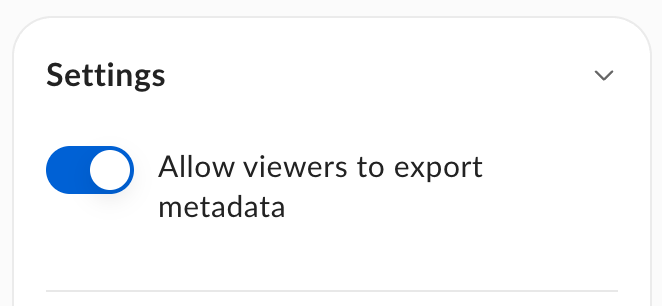
Exporting metadata to CSV
To export metadata from your app:- Open your Box App.
- Click the View tile with predefined search configuration.
- Click the More Options (ellipsis) menu.
- Click Export and choose a location where you want to save the CSV file.
- Confirm by clicking the Export button.
Your export can take some time. You receive an email when your export is ready.
Known limitations
- You cannot pick a shared folder for the exported file.
- You can export up to 10,000 items in a view.