

This article is about Box Shuttle in the Admin Console. If you’re using legacy Box Shuttle, a standalone tool, see legacy migration guides.
Box Shuttle only supports migrations from OneDrive for Business, Dropbox for Business, SharePoint Online, and Google Drive as a part of Google Workspace (Google Admin console access is required). If you have content in personal accounts in these systems, consider Box Shuttle content migration services. Box Shuttle supports Analysis jobs for the resident Box account. Analysis jobs report the contents of selected Box accounts, but do not transfer any data.
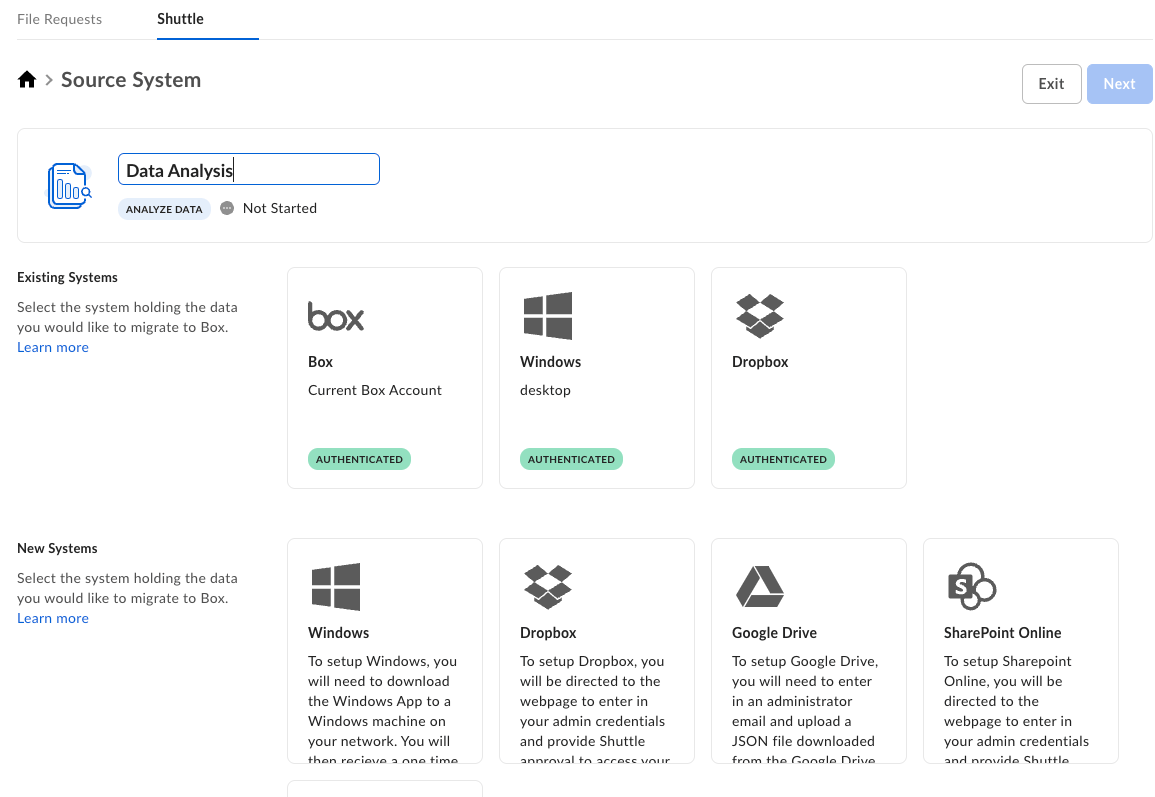
- Existing Systems lists already authenticated and configured source systems. There is no need for additional configuration.
- New Systems lists the source systems that require additional setup before you can use them in the migration process.
Configuring the source system is a one-time action. However, a source system can get disconnected (for example, when the authentication key expires), and you then need to update the configuration.
Source systems
For information on how to set up a particular source system, use the following references. For details on standard and advanced sources, see Box Shuttle standard and advanced tooling.When you map data, the Search Source box filters only the items that are currently loaded in the source tree. By default, this is the first layer of items (those at the top level of the selected source system), so a search matches only those items. To search within a subfolder, first expand its parent folders so that the nested items load into the view. The search then filters across all items expanded in the current session. Items that have not been expanded are not included in the results.
Before deleting or removing any content from the source system, validate that the migration completed successfully and that all content is present in Box or backed up elsewhere.
Standard Shuttle sources
Advanced Shuttle sources
Advanced tools are not available to all users by default.
Source system authorization status
Depending on the authorization outcome, the process can have one of the following statuses:- Authenticated: Authorization was successful and the source system is ready to use.
- Pending: Authorization is in progress.
- Failed: Authorization failed.
- Disconnected: The system was disconnected. In some cases, you might need to re-authorize the system to connect.
Next steps
Use the following guides to perform the migration process:- Jobs Dashboard to get started
- Data analysis if you want to analyze your source system data
- Data-only migration if you want to create a job that migrates your data only
- Data migration with permissions if you want to create a job that migrates data along with permissions such as folder or file ownership