

Modifying Collaborator Access Levels
If you are an editor, owner, or co-owner of a file or folder, you can modify the access levels of other collaborators. To modify a collaborator’s access level in a folder:- Open the appropriate folder.
- In the right sidebar, select the Sharing tab to view the collaborators.
- Select a collaborator’s name to view all collaborators in the folder.
- Find the collaborator whose access level you want to modify. To search by name, use the Filter Collaborators search box in the upper-right corner.
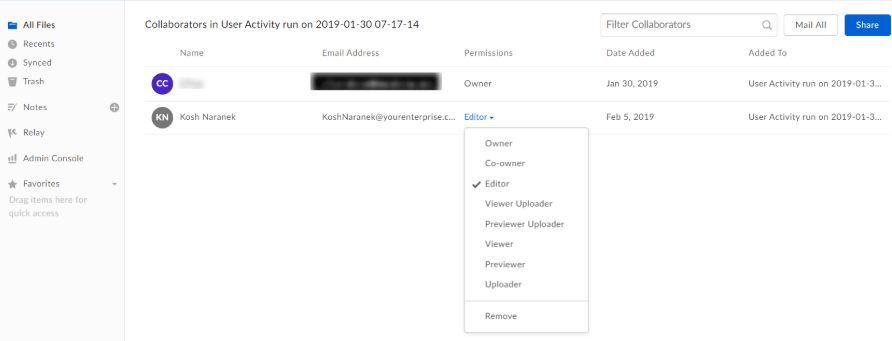
- In the Permissions column, select the user’s access level, then select the appropriate access level from the menu. If the access level is unavailable, you may not have permission to modify it.
The Sharing tab in the right sidebar lists all users and groups that have access to a folder, including deactivated users.
- Locate the appropriate file.
- Select the Collaboration icon to the right of the file name.
- Alternatively, you can open More Options > More Actions and select Manage Collaborators.
- Find the collaborator whose access level you want to modify. To search by name, use the Filter Collaborators search box in the upper-right corner.
- In the Permissions column, select the user’s access level, then select the appropriate access level from the menu. If the access level is unavailable, you may not have permission to modify it.
Collaborators on individual files can have only Editor or Viewer access.
Viewing references
The References tab on the Collaborators page lists every Box item that references a file or folder. A Box item is a file, folder, Hub, Automate workflow, Extract Agent, or web link. People and groups with direct access to the file or folder remain on the People & Groups tab.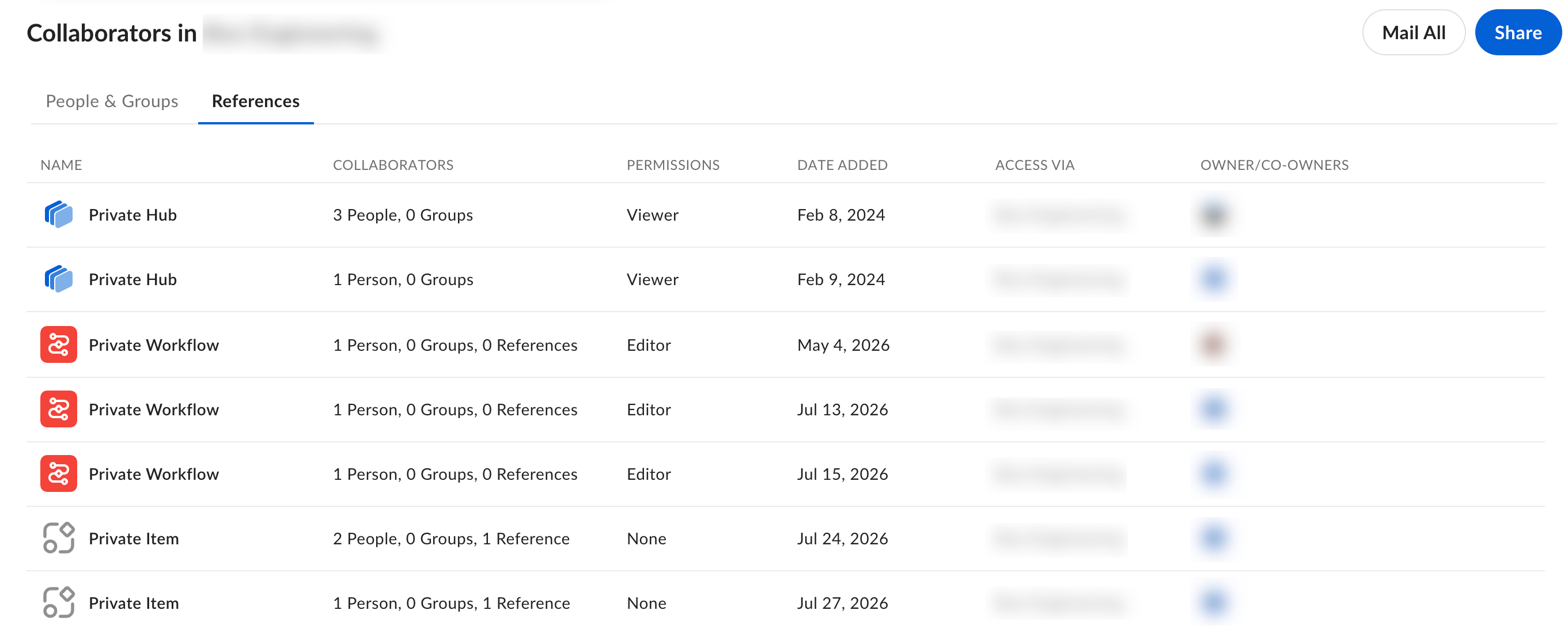
- Open the file or folder. On the Sharing tab in the right sidebar, locate the References count. The count indicates how many Box items reference the file or folder.
- Select the References count . The References tab on the Collaborators page opens.
- Select the name of a Box item to open it.
- Name: The type and name of the Box item that references your file or folder.
- Collaborators: The number of people and groups with access through that Box item, and the number of references the Box item contains.
- Permissions: The access level that collaborators on the Box item have to your file or folder.
- Date added: The date your file or folder was added to the Box item.
- Access via: The file or folder the Box item references. This is either the file or folder you opened, or a parent folder that passes access down to it.
- Owner/Co-owners: The people who manage the Box item. Hover over an avatar to view a name. If no owner or co-owner is available, this column displays None.
Box items you do not have permission to view display a generic name, such as Private Hub, Private Workflow, or Private Item.
Removing Item References
Content owners and co-owners can remove a file or folder from any Box item that references it, including Box Hubs. This gives you more control over your content and helps keep sensitive or regulated content from remaining visible in Box items where it should not be. To remove an item reference:- Open the file or folder. On the Sharing tab in the right sidebar, locate the References count.
- Select the References count . The References tab on the Collaborators page opens.
- Find the Box item you want to remove the file or folder from.
- Select Remove next to the item name, then confirm the action.
If a Box item references folders at multiple levels of a hierarchy (for example, a grandparent folder, a parent folder within it, and files within the parent folder), removing a file reference does not remove access to the file if any of its parent folders remain referenced.
Transferring folder ownership
If you own a folder, you can transfer ownership to a collaborator at any time. Follow the instructions for modifying access levels, then select Owner from the access level menu. Only folder owners can view this option. The collaborator becomes the folder owner, your access level changes to Editor, and the folder contents no longer count against your account’s storage allowance. Before transferring a personal folder (a folder with no collaborators), invite the new owner to collaborate on it. For larger transfers, we recommend completing the transfer at the end of the day to avoid disrupting users. If you experience issues, submit a Box support case. If the new owner belongs to a different enterprise, Box clears any custom shared link URLs. If you move a folder you own into a folder owned by someone else, ownership of the moved folder transfers to the owner of the destination folder. For example, if you move Folder A into Folder B, the owner of Folder B becomes the owner of Folder A. You can transfer folder ownership only to a user who is a direct collaborator on the folder. For example, if you invite a user to Folder A, which contains Folder A-1, the user inherits access to Folder A-1. You can transfer Folder A to the user, but you cannot transfer Folder A-1 because the user is not a direct collaborator on it. When you transfer folder ownership, Box displays the following warning: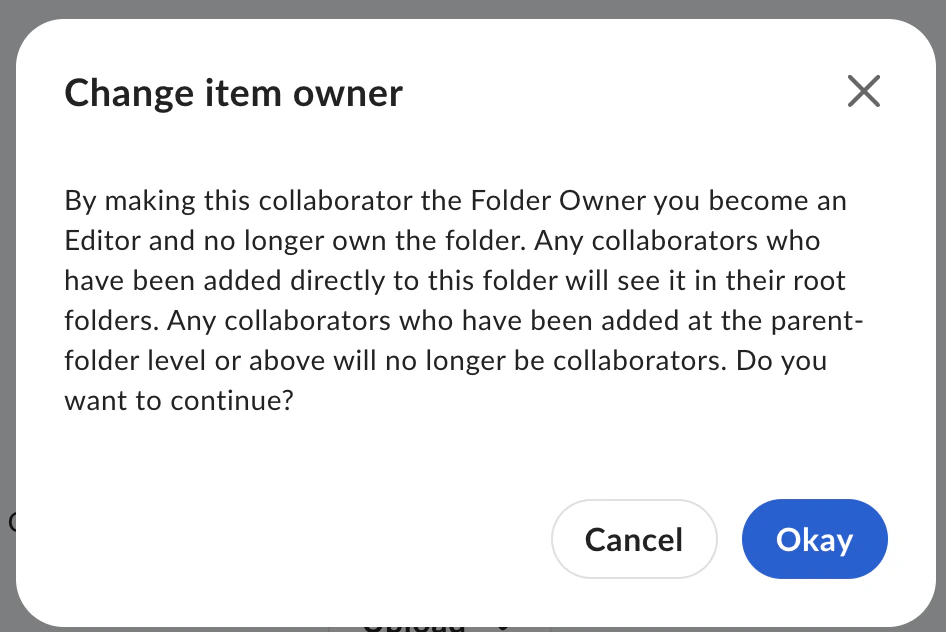
Removing collaborators
If you are an editor, owner, or co-owner of a folder, you can remove collaborators from it. To remove a collaborator from a folder:- Open the appropriate folder.
- View the list of collaborators in the right sidebar.
- Select a collaborator’s name to view all collaborators in the folder.
- Find the collaborator you want to remove. To search by name, use the Filter Collaborators search box in the upper-right corner.
- In the Permissions column, select the user’s access level, then select Remove. If the option is unavailable, you may not have permission to remove that collaborator.
- Locate the appropriate file.
- Select the Collaboration icon to the right of the file name.
- Alternatively, you can open More Options > More Actions and select Manage Collaborators.
- Find the collaborator you want to remove. To search by name, use the Filter Collaborators search box in the upper-right corner.
- In the Permissions column, select the user’s access level, then select Remove. If the option is unavailable, you may not have permission to remove that collaborator.
Hiding Collaborators
Folder owners and co-owners can hide collaborators. When this setting is enabled, collaborators with Editor access or lower cannot view the names of other collaborators in the folder. Co-owners can still view all collaborators. Box replaces hidden names with Someone. To hide collaborators:- Right-click the folder, or select the ellipsis (…), to open the More Options menu.
- Select Settings to open Folder Settings.
- In the Privacy section, select Hide collaborators and their activity from non-owners.

Collaborator Auto-Expiration
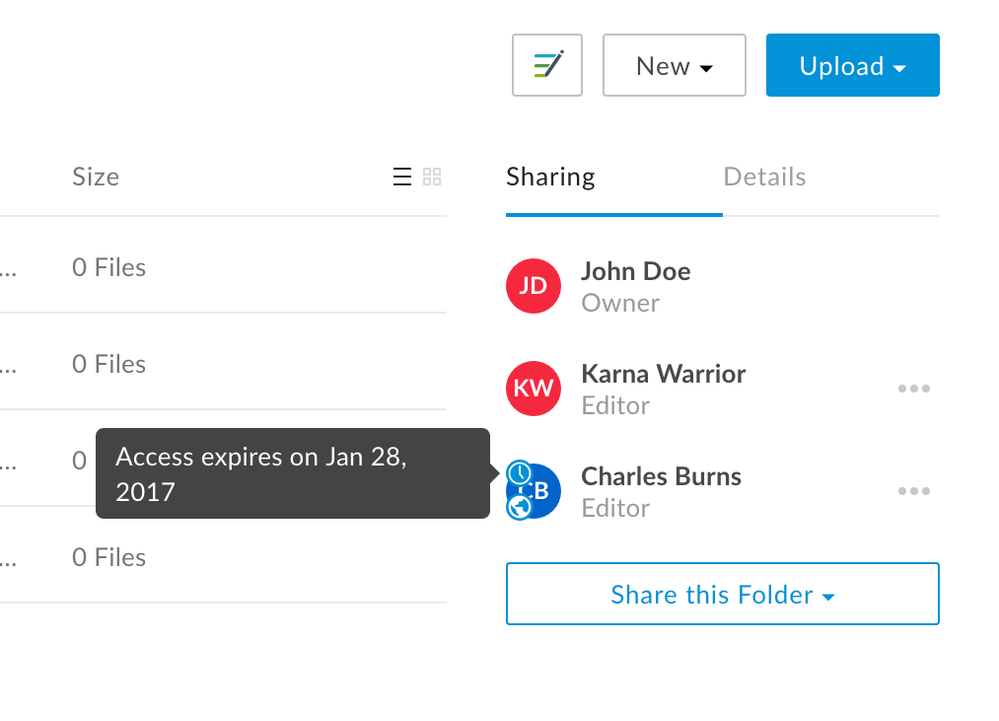
- Collaborator auto-expiration applies to individual collaborators, but not to groups. When you add a group as a collaborator, a clock icon can display next to the group name, but auto-expiration does not apply to the group.
- The collaboration can be auto-deleted prior to the expiration date if 30 days have passed after the collaboration was set to pending status. More information is available here.
Extending collaborator auto-expiration
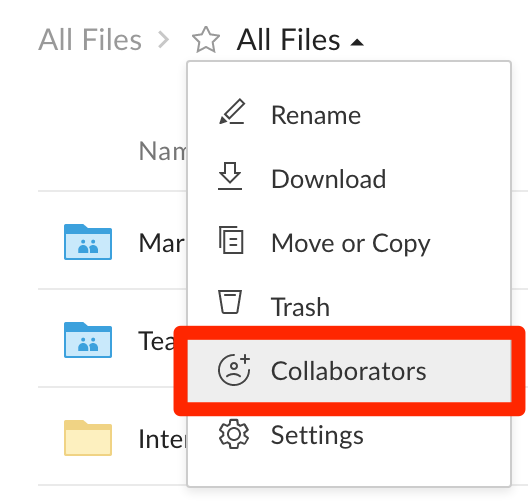
Folder owners can extend a collaborator’s auto-expiration date. To extend a collaborator’s auto-expiration date:- Select a collaborator’s name to open the Collaborator Management page. Alternatively, select the folder name in the folder tree, then select More Options > More Actions > Manage Collaborators.
- Select the clock icon beside the collaborator whose auto-expiration date you want to extend. To filter a long list of collaborators, use the search bar in the upper-right corner.
- Select Extend Access.
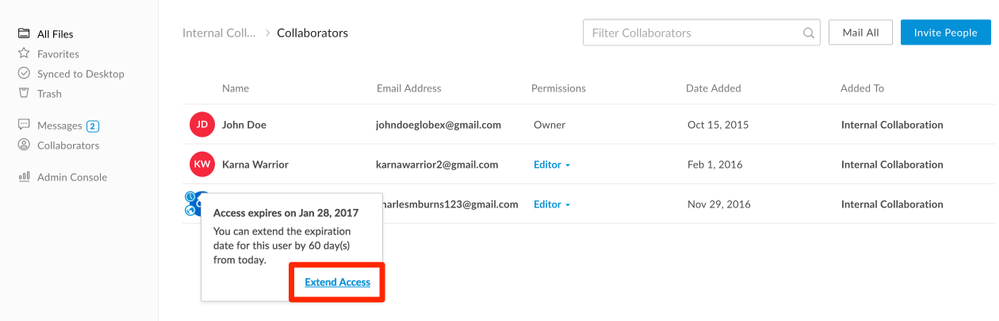
- A confirmation message displays the new expiration date.