

Box AI Home and across platforms
AI Home provides a full-page workspace accessible from the left navigation. This option offers the most complete feature set:- View and resume previous sessions from session history
- Add sources from Box or from your device
- Select from available agents, including custom agents from Box AI Studio
- Access the prompt library and agent gallery
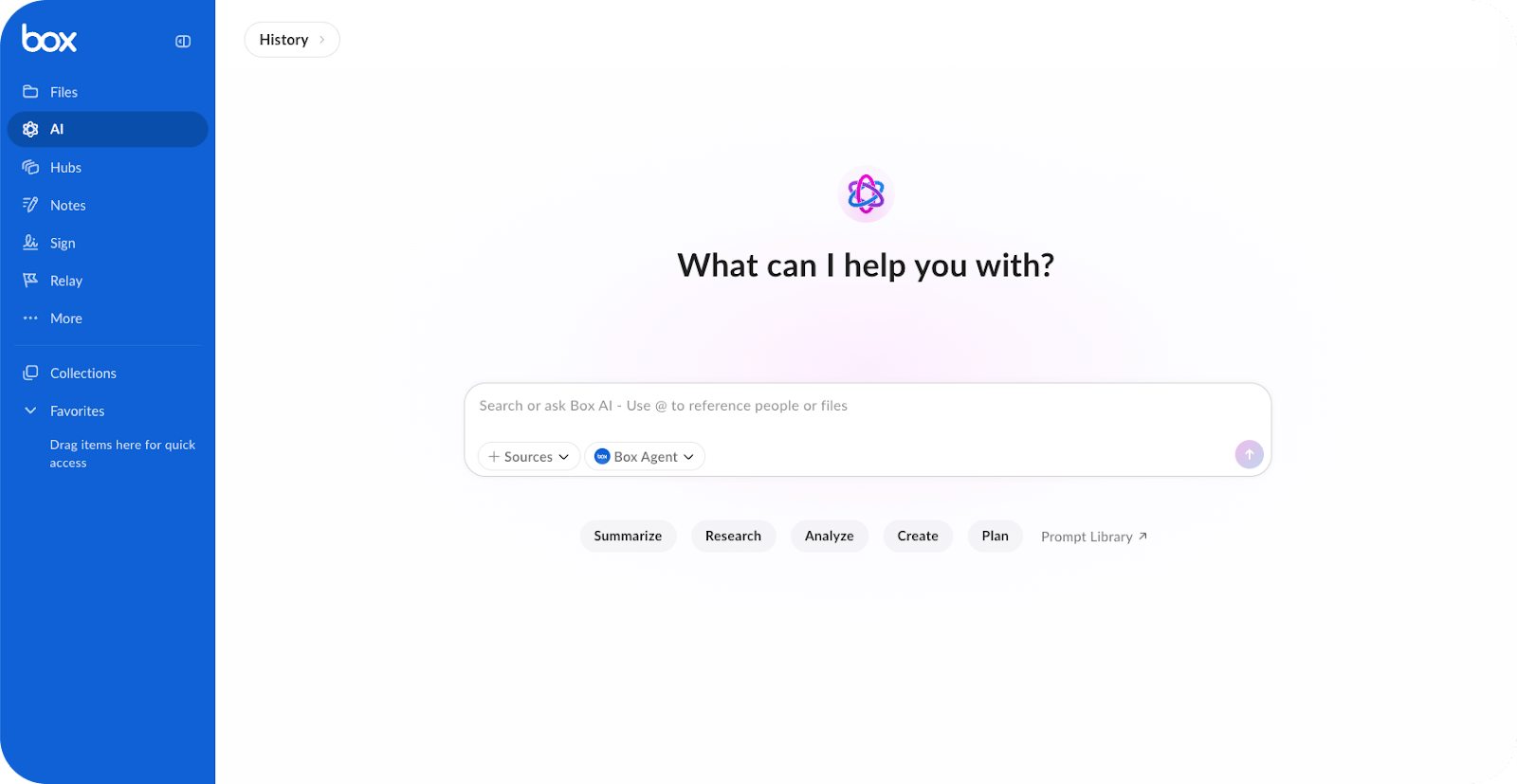
Working with Box AI
When starting, you can begin working on your content by entering your prompt or request into the text box and pressing Enter. After you submit your request, the Box Agent searches through all content accessible to you through permissions and collaboration settings and provides a response to which you can continue to work on, or clear to begin again. See working with responses to see more options. To specify how you want to work on your content, you can use the prompts below the text box to:- Summarize content
- Research files
- Analyze patterns
- Create templates, drafts, outlines, etc.
Pro mode
Users can enable Pro Mode by using the toggle in the prompt entry box. When Pro Mode is enabled, the agent uses deeper reasoning for tasks like strategic analysis or complex coding. Responses can take longer to generate as the Box Agent is creating more robust plans and executing tasks using increased reasoning capacity.
Adding sources
If you need to narrow down what exactly the Box Agent uses as reference, you can add sources to your questions by:- Dragging and dropping from your device or external drive
- Dragging from left navigation (Recents or from Collections)
- Upload from your device or external drive
- @ mention to choose a user or content
Working with responses
After submitting the question or request, Box AI generates responses in real time. Following a response, you can ask follow-up questions to gain better insights. These questions help build context and narrow down results. Saving response To save a response, select Copy. It is sent to your clipboard, and you can then paste it elsewhere. You can review past responses and prompts by clicking on the History button in the top left corner of the model, where you can see recent chat logs or view full history. Giving Feedback To give feedback on a response, see Giving Feedback on AI Responses. Clearing Sessions To clear the chat history, click on the edit icon on the top right corner of the page. To delete the session, click on the trash icon in the far right corner of the page. Doing so permanently deletes the chat history and cannot be undone. Sources and citations To review citations, showing which parts of the source document were referenced when generating the response, hover over the number(s) in the bottom left corner of the response. A small window shows the source text from the document.Agent and model selection
Choosing your own model is available only for Enterprise Advanced tier customers.
- Click on the Agent button next to the sources button.
- From the list, select from available provider models and custom agents.
- Begin prompting the selected agent.
As part of processing your query, Box can choose the best available model from the list of enabled models; however, the final generated answer always uses the user-selected model.
Troubleshooting
If you are unable to use Box AI, check the following with your admin:- Has your organization been provisioned for Box AI?
- Is AI Home enabled in your organization?
- If the Pro toggle is missing, check if your organization is on the Enterprise Advanced tier or if the specific agent creator has disabled Pro Mode for that agent.