

Box AI for Notes is available in all Box tariffs Business and above.
Using Box AI
Get started creating or refining content with Box AI for Notes by opening a new or existing note.One Box AI Conversation Per Note
While a note is open, the inline Box AI composer and the Box AI sidebar panel share a single conversation. You can start a request on one surface and continue it on the other without repeating context. For example, ask Box AI about a highlighted passage inline, then open the sidebar to ask a follow-up that builds on that same exchange. The sidebar holds the full conversation, including the requests you made inline.Content Generation
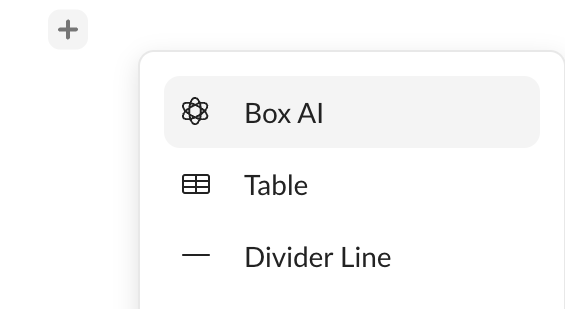
- Select the plus icon and select Box AI from the context menu.
- Alternatively, you can use keyboard shortcut ⌘/Ctrl + Shift + I.

- Enter a request in the textbox and press enter or select the “Ask” button. After submitting the request, Box AI generates the response in real time.

-
- Sample prompts to use:
- Create a meeting agenda for [topic]
- Draft a blog post for [topic]
- Generate a template for meeting regarding [topic]
- Sample prompts to use:
- To use the text, select “Add to Note”. If you need to improve or change the response, see the Content Refinement below.
Content Refinement
If you need to improve upon the responses, follow these steps:- After a response, or if for other text, highlight the text to edit and select the Box AI button .
-
Ask to refine the selected text and include these parameters for better results:
- Length
- Tone
- Details
- Reading level
- After two revisions, you can select the arrow button to see previous questions.
-
Once you’re satisfied with the results, select
- Add to Note
- Replace
- Copy ()
Content Questions
In addition to refining text, you can ask questions on the highlighted content such as:- What is the summary of the text?
- Can you list what the key points are?
- What is the central theme of the text?
Asking AI Queries from the Side Panel
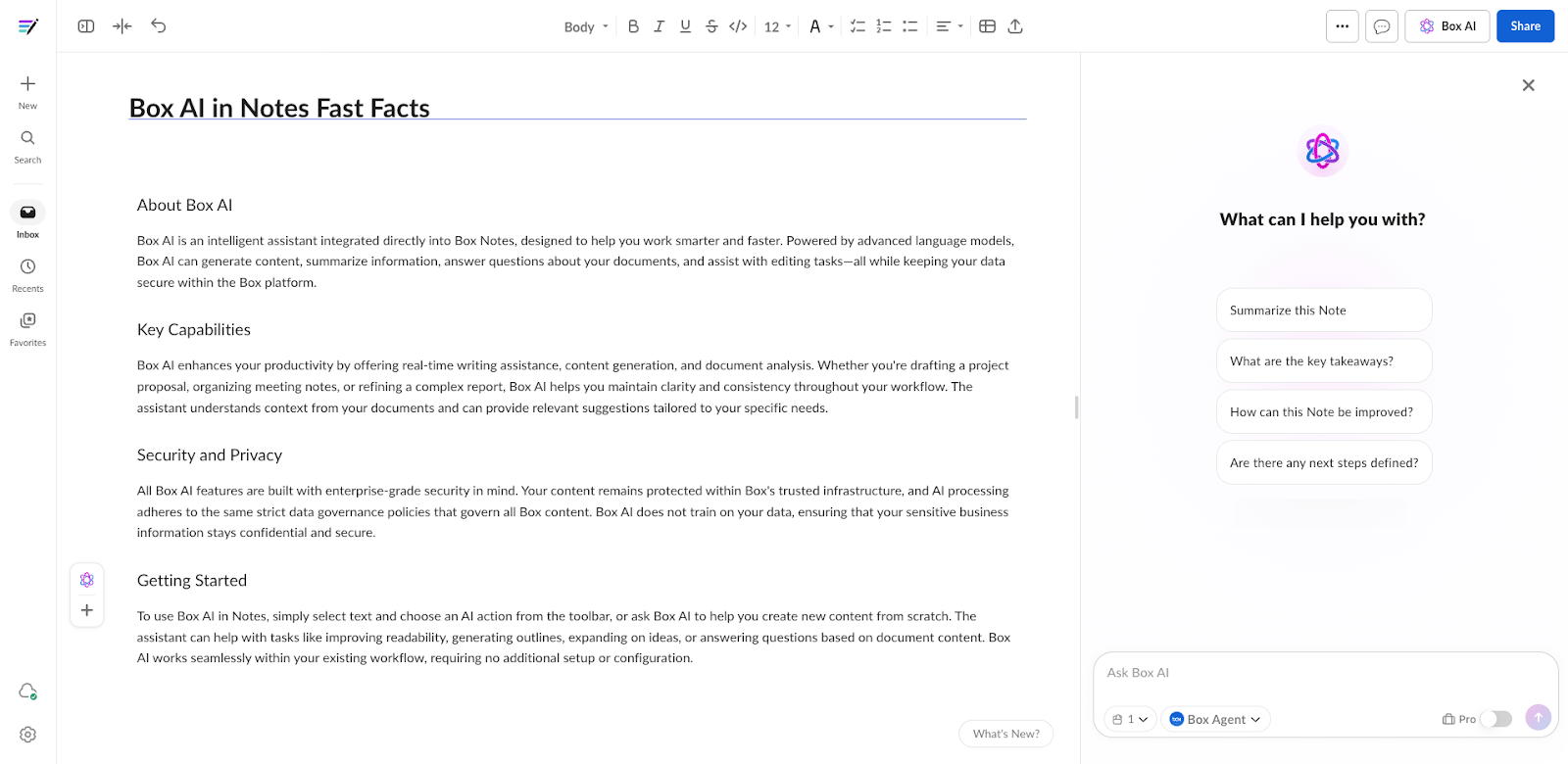
In the Box AI sidebar panel, you can select one of the suggestions provided for quick document insights. The suggestions are based on the document type and can include:- Summarize this document
- What are the key takeaways?
Adding Sources
If you need to narrow down what exactly the Box Agent uses as reference, you can add sources to your questions by:- Dragging and dropping from your device or external drive
- Dragging from left navigation (Recents or from Collections)
- Upload from your device or external drive
- @ mention to choose a user or content
Working with Responses
After submitting the question or request, Box AI generates responses in real time. Following a response, you can ask follow-up questions to gain better insights. These questions help build context and narrow down results. While Box AI is generating a response on one surface, you cannot submit a new request from the other until that response finishes. If you ask a question from the sidebar while the inline composer is open, the composer closes. To save a response, select Copy (). It is sent to your clipboard, and you can then paste it elsewhere. To give feedback on a response, see Giving Feedback on AI Responses. To clear the chat history, select Clear conversation (), which gives you the option to start a new topic, or exit out of the document. Your chat history is refreshed when you reopen the document. If you want to add the results to your note, select Add to Note. The results, including text, tables, bullet points, and diagrams, are added to the note where your text cursor is located. To review citations, showing which parts of the source document were referenced when generating the response, hover over the number(s) in the bottom left corner of the response. A small window shows the source text from the document.Agents Selection
Box AI Studio is available only for Enterprise Advanced accounts.
- Select the Agent button next to the Box AI icon.
- From the list, select from available agents.
- Ask Box AI your questions to test responses.
Pro Mode
Box AI Studio is available only for Enterprise Advanced accounts.

Guidelines for Box AI inquiries
Box AI for Notes can generate, refine, and analyze text within a note. As you ask Box AI to generate text, consider these suggestions:- Be as specific as possible. Use parameters, such as asking for numbered lists, brevity, tables, and central themes or key points. For example:
- OK: list some ideas on [product];
- Better: Can you create a numbered list of ideas for advertising [product]?
- OK: draft an email on [topic]
- Better: Can you draft an outline for an email to my team regarding our recent quarterly earnings?
- OK: generate a job description template
- Better: Can you generate a template for a job posting on software development?
- Stay within the scope of the document.
- Always refine your response if it’s not exactly what you’re looking for, as it may take a few reiterations to get the results you want.
Box AI Unit Usage
For pricing information and AI unit usage rules, contact your Box account executive or visit our pricing page.Troubleshooting
If you are unable to use Box AI, check the following with your admin:- Has your organization been provisioned for Box AI?
- Is Box AI for Notes enabled in your organization?
Known Limitations
- Questions on, or including, these topics or commands return mixed and inaccurate information:
- Calculations, table structures, and numbers
- Counting words or phrases
- Images, videos, charts, graphs, etc. within text documents
- Video and images
- When asking questions in the side panel, Box AI answers questions based on the whole document and not highlighted text. Highlight text to ask questions on specific content.
- Depending on custom agents, questions are limited to:
- 1,000 characters for legacy agents
- 64,000 characters for new agents
- Limit of selecting 10,000 characters for content refinement
- Non-English languages may produce lower quality results
- The shared conversation lasts only while the note is open. Switching to another note clears it.
- Refreshing the page does not resume the previous conversation.