

Access Permissions
Within the Admin Console, go to the Box AI section and then the Settings tab and set the permissions for both users and groups. If your organization has not fully enabled Box AI, you can select Enable Box AI to do so for all services.
Business, Business Plus, and Enterprise plans will only have access to Box AI for Documents and Notes when Enable Box AI is toggled. Box AI APIs are available upon purchase of Box AI Units for Business, Business Plus, and Enterprise plans.
- AI Home
- Box Preview
- Box Notes
- Box Hubs
- Box Extract
- Box AI API
- Official Box Integrations
- To enable Box AI for Slack for your users and for further configuration, see Deploying the Slack Integration in your Enterprise – Box Support.
- You can enter up to 100 names/email addresses and up to 100 groups. If you want to enable or disable more, you have to enable or disable Box AI for the entire organization.
- You can only select groups that have a Permission Setting set to Admins Only. For details, see Creating and managing groups.
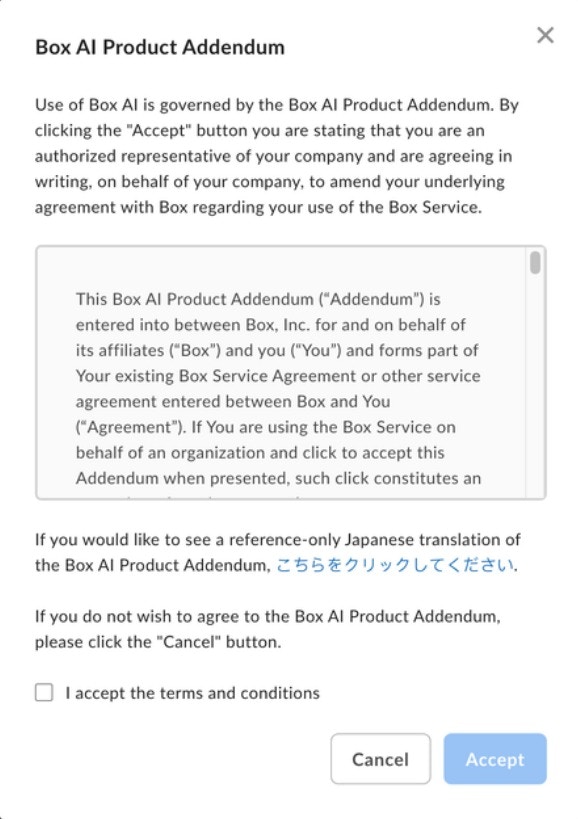
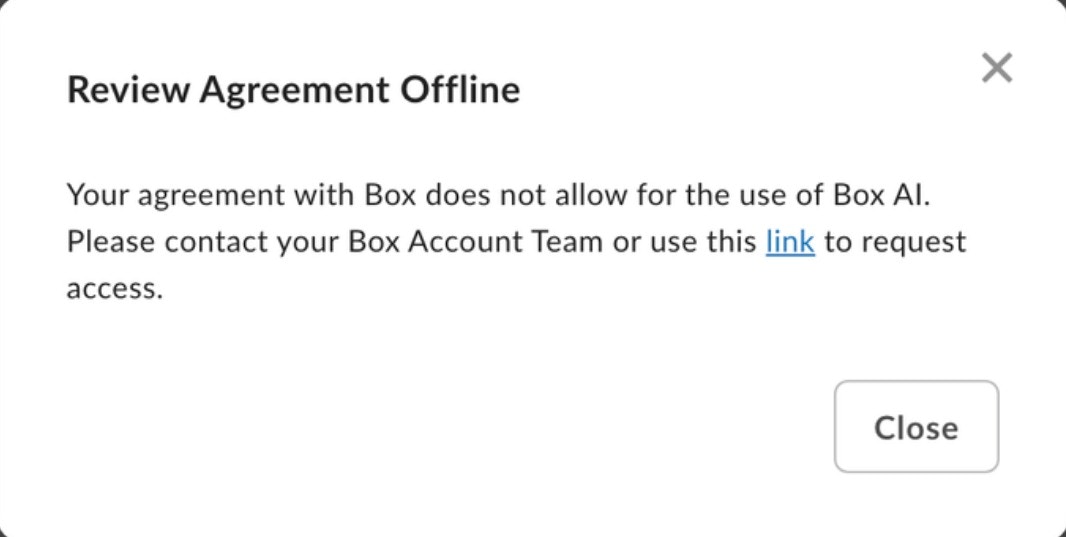
Configuring Box AI for users and groups
Box AI for AI Home
Defines who can use Box AI. Select configure and then select:- Disable for all managed users
- Enable for all managed users (Default)
- Enable for select users and groups, and then enter one or more user names, email addresses, or groups
- Enable for everyone except select users and groups, and then enter one or more user names, email addresses, or groups
Box AI for Files
Defines who can use Box AI. Select configure and then select:- Disable for all managed users
- Enable for all managed users (Default)
- Enable for select users and groups, and then enter one or more user names, email addresses, or groups
- Enable for everyone except select users and groups, and then enter one or more user names, email addresses, or groups
- Enable File Q&A — allow users to ask questions about the file content
- Enable File Metadata Autofill — allow users to extract metadata using the Standard and Enhanced Extract Agents in Box Preview
- Enable references — allow users to locate the supporting information for extracted metadata values, highlighted in the source document
- Enable confidence levels — allow users to see how confident Box Extract is in each extracted metadata value
The Enable File Metadata Autofill option and its sub-options are disabled by default.
Box AI for Notes
Defines who can use Box AI. Select configure and then select:- Disable for all managed users
- Enable for all managed users (Default)
- Enable for select users and groups, and then enter one or more user names, email addresses, or groups
- Enable for everyone except select users and groups, and then enter one or more user names, email addresses, or groups
Box AI for Hubs
Defines who can use Box AI. Select configure and then select:- Disable for all managed users
- Enable for all managed users (Default)
- Enable for select users and groups, and then enter one or more user names, email addresses, or groups
- Enable for everyone except select users and groups, and then enter one or more user names, email addresses, or groups
Box AI APIs
Defines developer users who can extend Box AI capabilities via AI API to their organization’s ecosystem. Select configure and then select:- Enable for all
- Disable for all
Box AI for Official Box Integrations
Defines who can use Box AI. Select configure and then select:- Disable for all managed users
- Enable for all managed users (Default)
- Enable for select users and groups, and then enter one or more user names, email addresses, or groups
- Enable for everyone except select users and groups, and then enter one or more user names, email addresses, or groups
Box AI Studio Configurations
Defines who can use Box AI Studio. Select configure and then select:- Enable for all
- Disable for all
Box Extract
Box Extract is Box’s AI-powered solution for automatically and accurately extracting structured data from unstructured enterprise content at scale. Extracted data can be saved as metadata in Box or delivered through APIs to downstream systems and custom applications. Box Extract also enables users to create Custom Extract Agents, complete with sample documents, metadata templates, field settings, AI-powered instructions and prompts, choice of the Standard or Enhanced Extract Agent, extraction policy, and more. Custom Extract Agents can be applied to specific root/parent folders, as well as the subfolders within root/parent folders, to automate data extraction at scale.Bounding boxes and confidence levels are controlled by toggles on each Custom Extract Agent, one for bounding boxes and one for confidence levels. Both are off by default. No additional admin controls apply for Box Extract. To turn them on for an agent, see Enable references and confidence levels.
- Disable for all managed users
- Enable for all managed users (recommended) (default)
- Enable for select users and groups, and then enter one or more user names, email addresses, or groups
- Enable for everyone except select users and groups, and then enter one or more user names, email addresses, or groups
- You can enter up to 100 names/email addresses and up to 100 groups. If you want to enable or disable more, you’ll have to enable or disable Box Extract for the entire organization.