

Box AI Studio is only available for Enterprise Advanced accounts.
Creating a New Agent
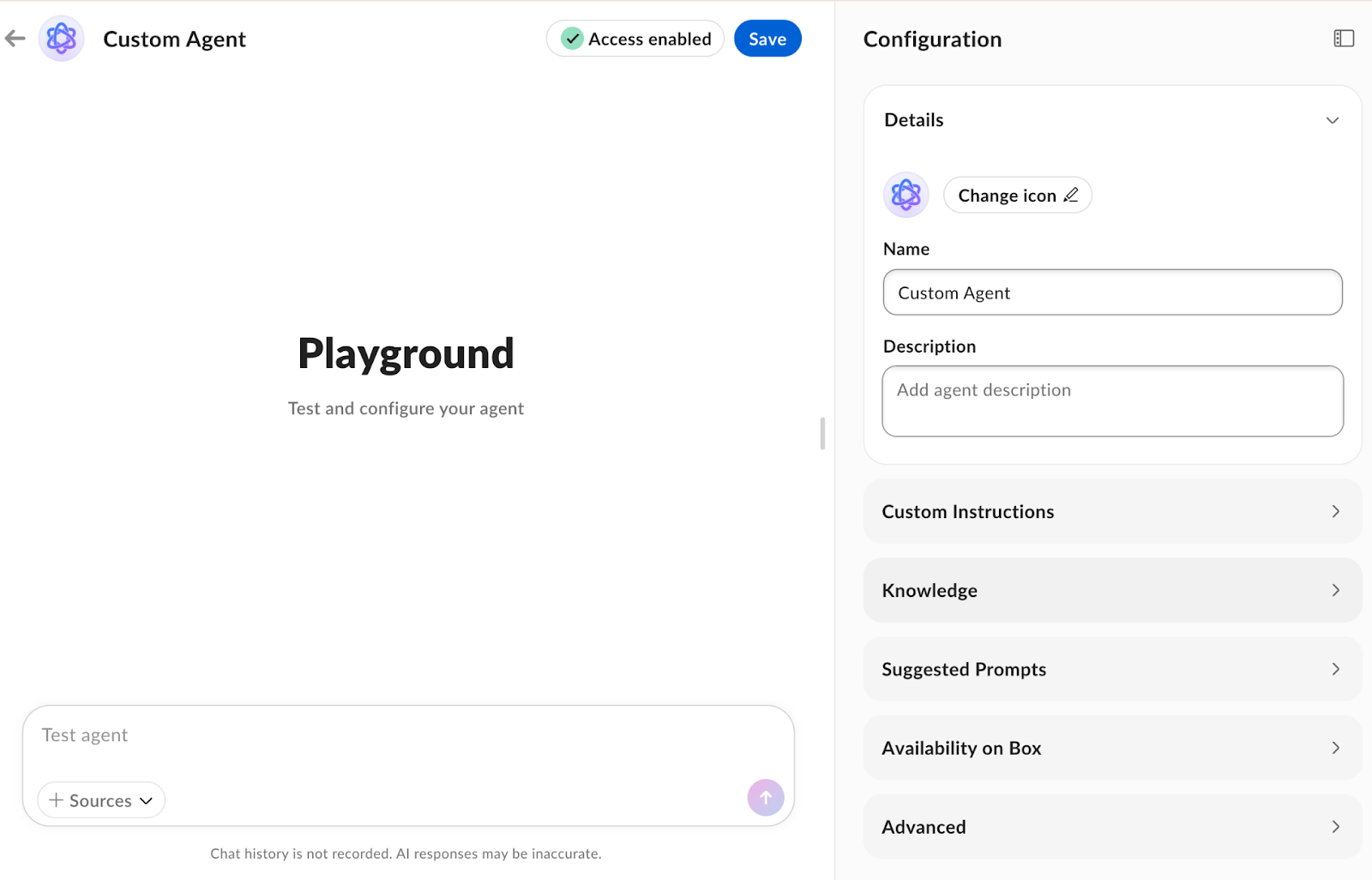
Core Configuration Elements
Every agent requires a Name and can be enhanced with several optional configurations:Agent Configuration
From the right side panel, customize the agent settings:Details
From here you can:- Change the icon of the agent
- Set the name for the agent
- Explain the use and intent of the agent and its capabilities
Custom Instructions
Custom instructions shape how your agent behaves including its reasoning style, communication norms, and task approach. What custom instructions can do:- Set personality, tone, and voice
- Enforce step-by-step workflows (“First analyze, then propose, then act”)
- Prioritize verification before responding
- Specify output formats (headings, bullets, citations, structured JSON)
- Encourage or discourage risk-taking (“When unsure, always ask a question”)
- Direct the agent to favor certain tools when multiple are available
- Override human approval workflows
- Break safety policies enforced in code
- Access restricted data or classifications
- Force tool execution when permissions block them
Guidelines for Box AI Questions
Box AI pulls information only from the document you loaded in preview. If you ask questions outside the scope of the document, Box AI informs you that it cannot answer with the information provided. Best practices:- Be as specific as possible. Use parameters such as numbered lists, brevity, tables, and central themes or key points.
- OK: “List key points”
- Better: “Can you list the key points in a numbered list?”
- OK: “What’s the point of this document?”
- Better: “Can you briefly and succinctly outline only the most important points with a list?”
- Stay within the scope of the document
- Focus on text-based responses only
- Custom instructions
- Model type
- Custom system prompts
Attaching Knowledge Sources
Reference knowledge using @mentions within custom instructions to specify what content the agent uses and how it should be applied. This approach ensures agents remain grounded in authoritative sources. Single source example: Reference the example below using @mention for a single sources: When answering policy questions, reference @Company_Handbook as the single source of truth. If information isn’t found, acknowledge this and offer alternatives. Multi-source with priority: Reference the example below using @mention for multiple sources: For product questions, combine information from:- @ProductSpecs (highest priority)
- @ReleaseNotes (secondary)
- @FAQ (lowest priority)
Attaching Content
You can attach files and Hubs as knowledge, with explicit priority rules for handling conflicts between sources. Knowledge can also be used for transformation tasks—summarizing, simplifying, or rewriting content while maintaining factual accuracy. To attach content:- Click Select Content
- From the file viewer, select the files and/or Hubs you want to add
Suggested Prompts
Create custom prompts to use with your agent. You can add up to 4 custom questions that appear when users interact with Box AI. To add suggested questions:- Toggle on Use custom suggestions
- Click Add +
- Add your custom question (click the X icon to remove)
- What are the top 3 differentiators of [Product Name] for an enterprise buyer?
- How does [Product Name] compare to [Competitor Name] for [Use Case or Industry]?
- Write a 3-sentence value proposition for [Product Name] tailored to [Persona, e.g., IT leaders or CMOs].
Availability on Box
Configure where your agent appears across Box through the Availability on Box settings. Platforms include:- AI Home
- Files
- Hubs
Usage
Expanded Mode is enabled by default for all Custom Agents in AI Studio, allowing queries to exceed standard capability limits for optimal results. Agent creators can disable this feature at any time.- After enabling, set a maximum limit for AI Units; default value is 1,000.