Box AI is available throughout the Box web application, giving you consistent access to document analysis in the AI Tab, Preview, Hubs, and Notes. Each platform adapts to the experience to fit how you work while maintaining the same core capabilities.
Accessing Box AI in Box Web App
AI Home
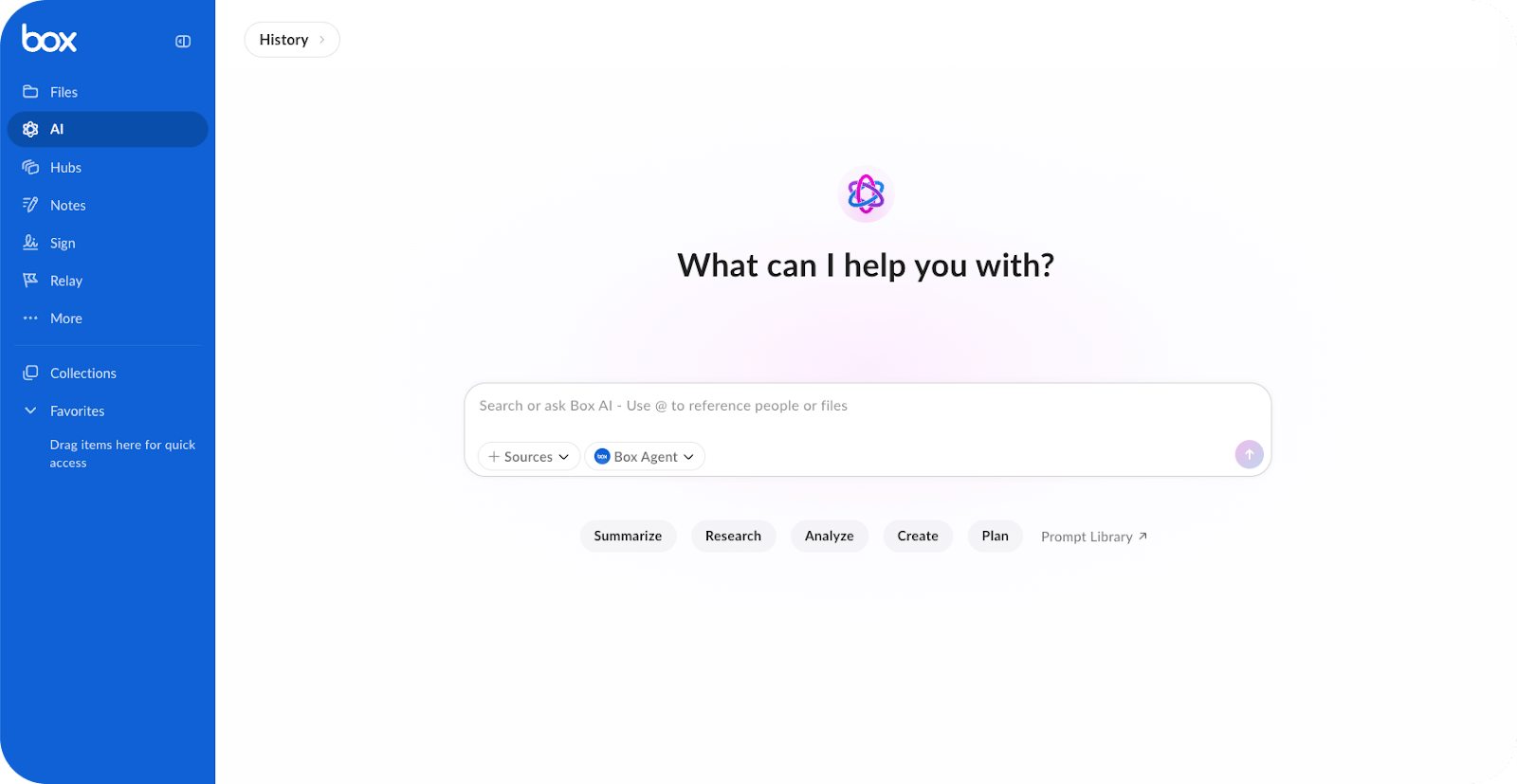
AI Home provides a full-page workspace accessible from the left navigation. This option offers the most complete feature set:
- View and resume previous sessions from session history
- Add sources from Box or from your device by dragging files to session, using the @ mention, or browsing Box
- Select from available agents, including custom agents from Box AI Studio
- Access the prompt library and agent gallery
- Add files, folders, or a Hub as sources for your queries.
Preview
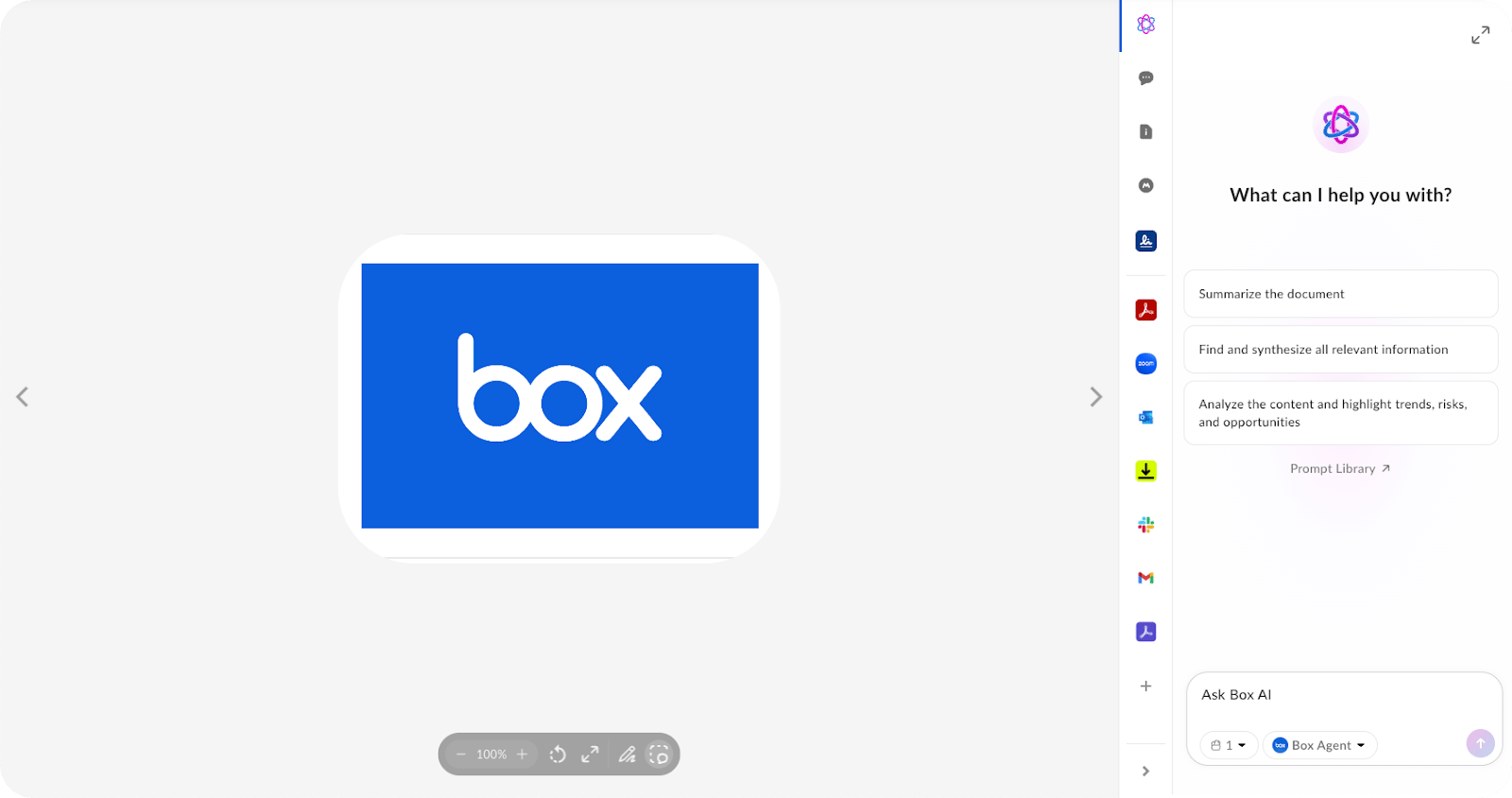
When viewing a file, select the Box AI icon from the Preview toolbar to open the sidebar. For complex responses containing tables or lengthy content, select Switch to modal view to expand into a larger format.
The file you’re previewing automatically serves as a source. Add files, folders, or a Hub for broader context. Agent selection and the prompt library are available in both sidebar and modal views.
Multi-doc
Select multiple files from the Files page, a folder, Collections, or search results, then click the Box AI button. A full-screen modal opens where you can query across all selected documents.
Hubs
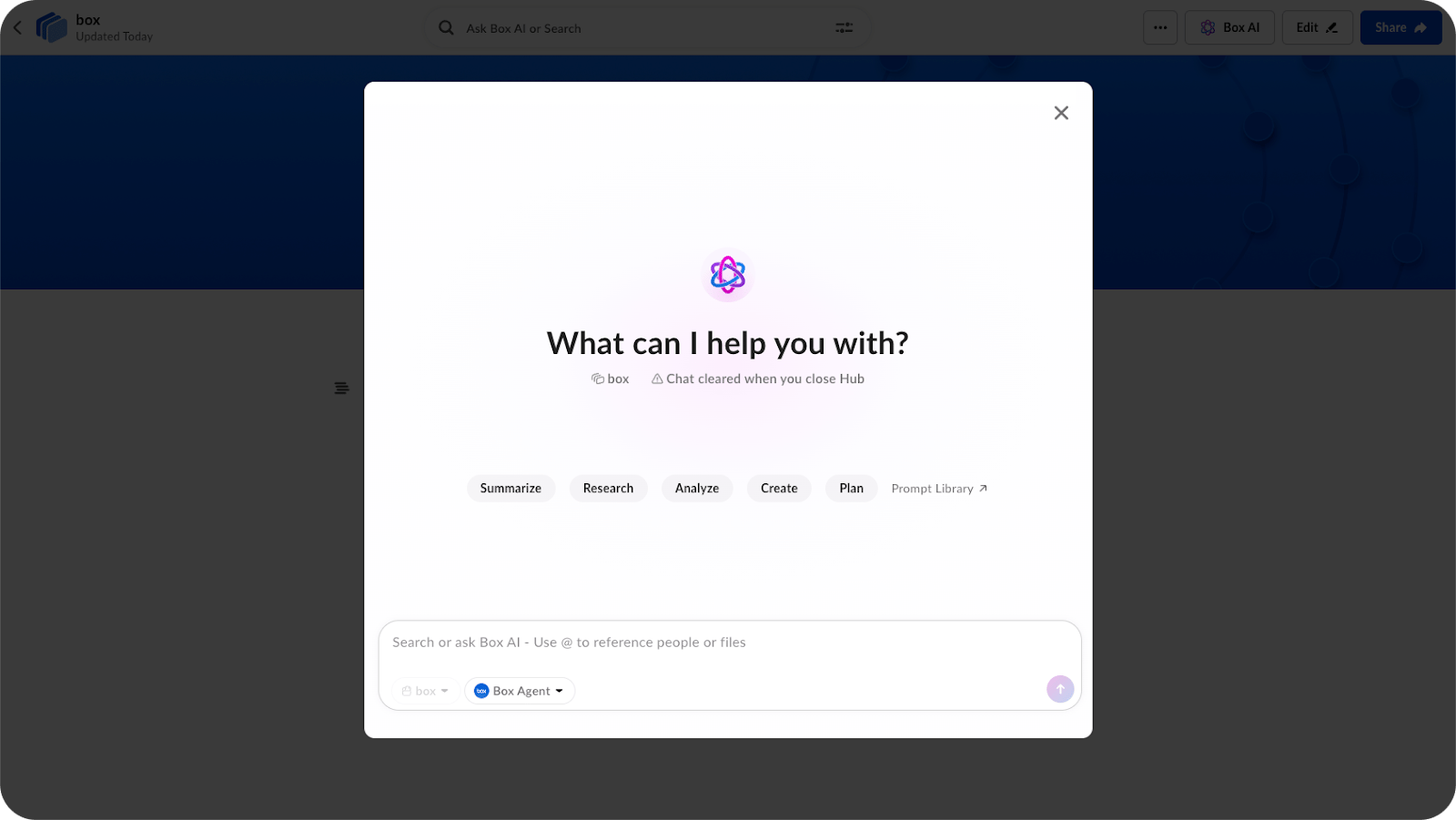
Type your query directly into the Hub search bar. Box AI opens a modal using the hub’s content as your source. You cannot add sources outside the current Hub.
Notes
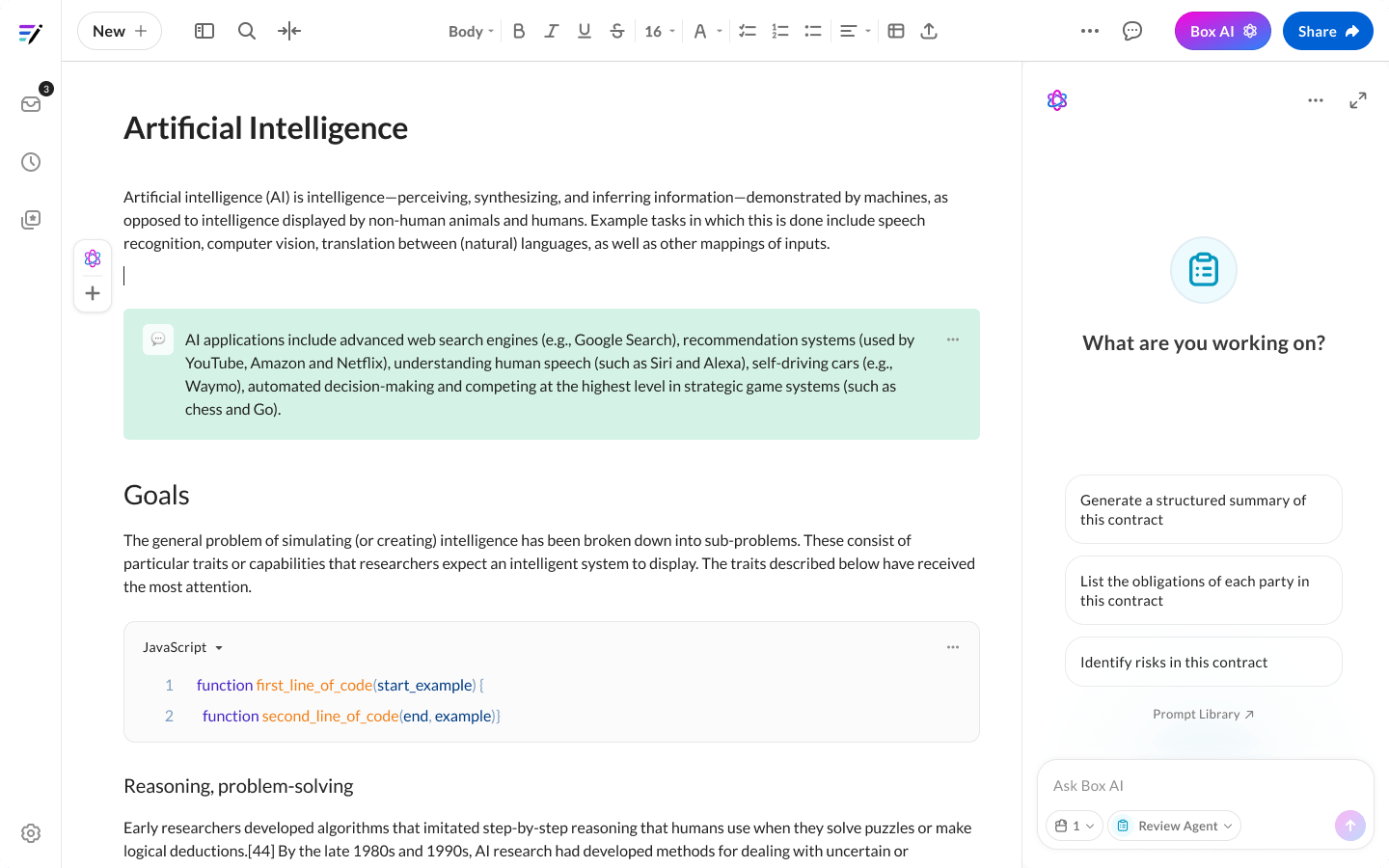
Box AI integrates with Notes through three methods:
- Sidebar: Select the Box AI icon to open a conversation panel alongside your Note
- Modal: Expand to a larger view for reviewing detailed responses
- Inline: Highlight text or position your cursor to invoke Box AI with that context
The current Note serves as your source. Add files, folders, or a Hub. Use the Add to Note feature to insert AI-generated content directly into your document.
Working with Responses
Each modal creates a new session when you open content. Select New Session to clear the conversation and start fresh.
Available actions for responses:
- Copy: Send the response to your clipboard
- Save as Note: Create a new Note from the response
- Feedback: Rate responses with thumbs up or down
- Citations: Hover over numbered references to see source text
Known Limitations
- Session history is visible only in the AI Tab
- 2MB text content limit per file
- 1,000-character query limit
- Non-English languages may produce lower quality results
- Hubs: 40,000 file limit per Hub; 10 million file limit across all Hubs in an organization
Last modified on July 10, 2026