

Box AI for Hubs is available only for Enterprise Plus and Enterprise Advanced accounts.
Use Box AI in a Hub
Box AI opens in a panel on the right side of the Hub. The panel stays open while you read and move through the Hub, so you can check content without losing your conversation. To open Box AI:- In the left sidebar, select Hubs.
- In the Hubs gallery, select the Hub you want.
-
In the Hub header, select Box AI. The Box AI panel opens next to your Hub content.
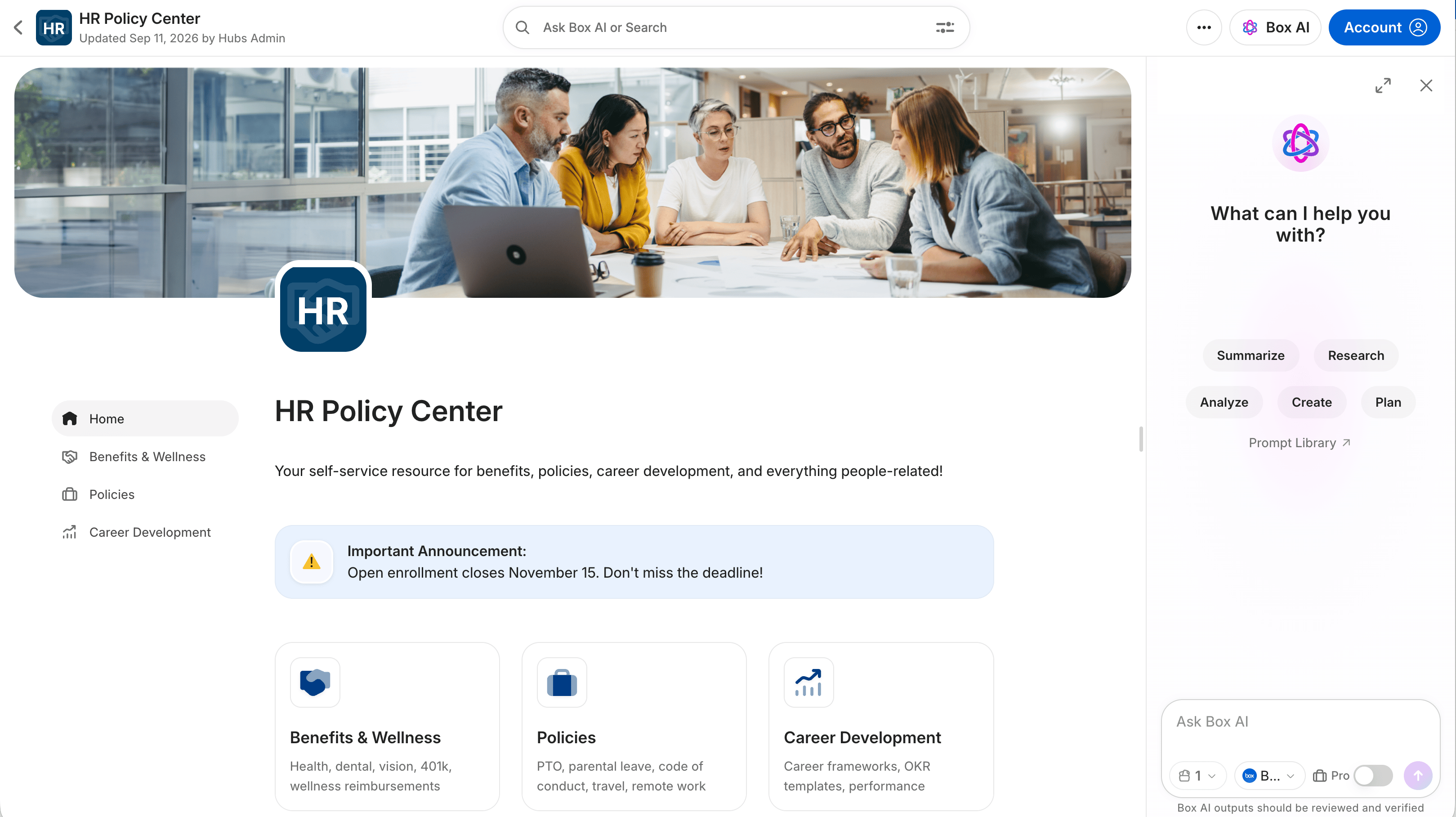
- In the Box AI panel, select a suggested prompt, such as Summarize this Hub, or enter your own prompt in the Ask Box AI field and press Enter. To find more prompts, select Prompt library.
Work with the Box AI panel
- Resize the panel: Drag the divider between the Hub content and the panel to make the panel wider or narrower.
- Keep working in the Hub: Scroll, select pages in the Hub navigation, and open content while the conversation stays open.
- Close the panel: In the upper-right corner of the panel, select Close (X), or press ⌘ / Ctrl + J. Your conversation is still there when you reopen the panel.
- Reopen the panel: In the Hub header, select Box AI, or press ⌘ / Ctrl + J.
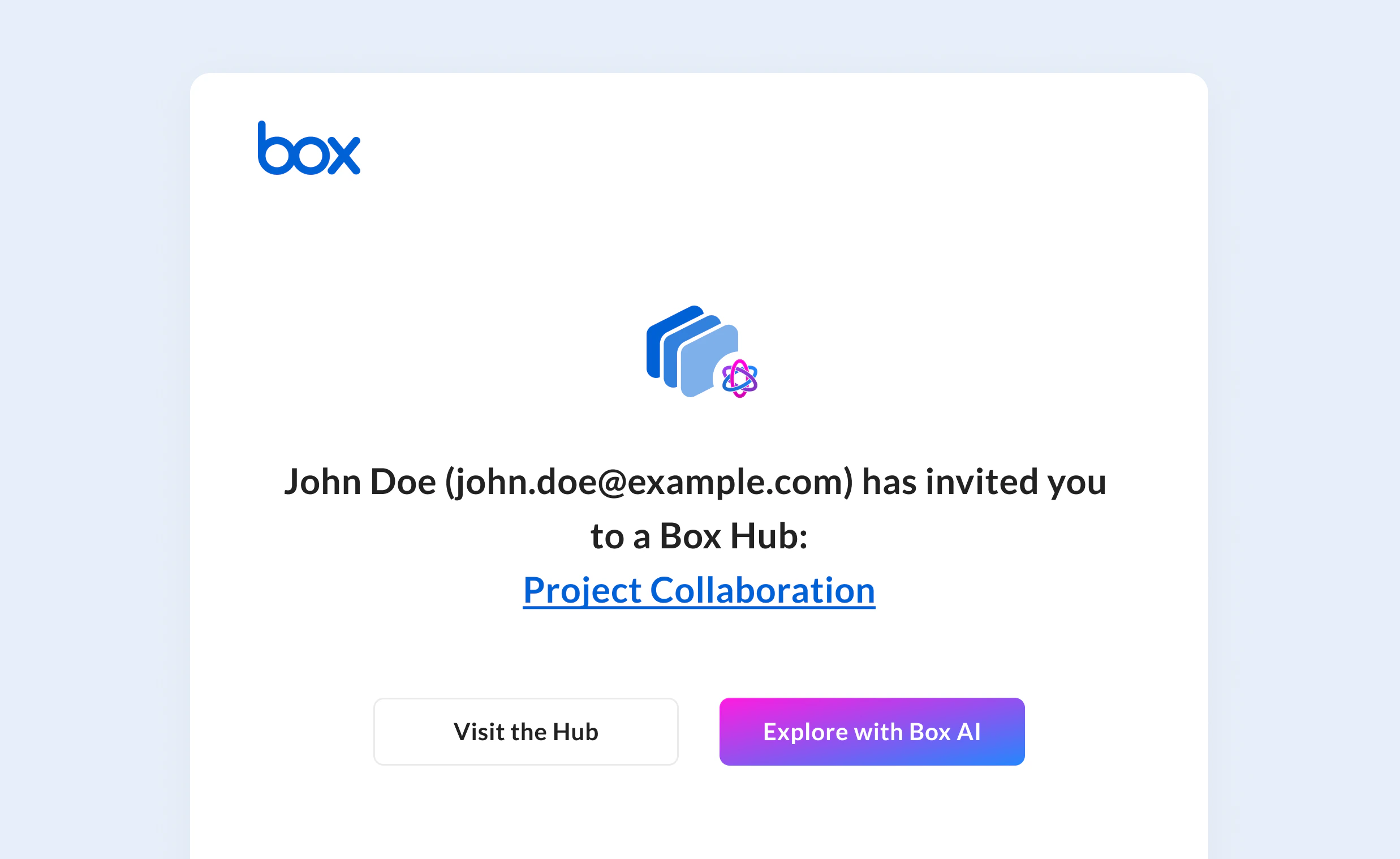
The Explore with Box AI button displays in the collaboration email only when Box AI for Hubs is enabled for your enterprise.
Adding sources
To narrow down which content Box AI uses as a reference, add sources to your question. Type @, and then select a user or content.Working with responses
After submitting the question or request, Box AI generates responses in real time. Following a response, you can ask follow-up questions to gain better insights. These questions help build context and narrow down results. To save a response, select Copy (). Box AI copies the response to your clipboard, so you can paste it elsewhere. To give feedback on a response, see Giving Feedback on AI Responses. To start a new topic, select Clear conversation (). This clears the chat history in the Box AI panel. Box AI also clears the chat history when you reload the page or leave the Hub. Closing the panel doesn’t clear it, so you can reopen the panel and continue the same conversation. To review citations, showing which parts of the source document were referenced when generating the response, hover over the number(s) in the lower-left corner of the response. A small window displays the source text from the document.Agent selection
Box AI Studio is available only for Enterprise Advanced accounts.
- Select the Agent button next to the Box AI icon.
- From the list, select an agent.
- Ask Box AI your questions to test responses.
Pro Mode
To enable Pro Mode, use the toggle in the prompt entry box. When Pro Mode is enabled, the agent uses deeper reasoning for tasks like strategic analysis or complex coding. Responses might take longer to generate because the agent creates more robust plans and executes tasks with increased reasoning capacity.
Guidelines for Box AI questions
Box AI pulls information from the files in the Hub you are viewing. If you ask any questions about information not contained in the Hub, Box AI informs you that it cannot answer the question based on the information in the Hub. As you ask Box AI to analyze information in your Hub, consider these suggestions:- Be as specific as possible.
- Use parameters, such as:
- Numbered lists
- Length
- Central themes
- Key points
- Tables
- Stay within the scope of the documents in the Box Hub.
- Focus on text-based responses only.
Box AI unit usage
For pricing information and AI unit usage rules, contact your Box account executive or visit our pricing page.Troubleshooting
If you are unable to use Box AI, check the following with your admin:- Is Box AI enabled for your organization?
- Is Box AI for Hubs enabled in your organization? (Enterprise Plus and Enterprise Advanced)
- Do you have the correct permissions to view the files and folders?
File indexing delays
Files added to a Hub can take up to an hour to be indexed. Most files are indexed within minutes, but larger Hubs might experience some delay. This delay in indexing may cause a temporary pause when using Box AI. Wait a few moments and retry your questions.Known limitations
Supported file types:- Box AI for Hubs supports the following file types:
- Text files (up to 4 MB of text representation per file)
- Spreadsheet files
- Box AI for Hubs doesn’t support spreadsheets that are embedded within text files.
- Questions about the following topics or commands can return mixed and sometimes inaccurate information:
- Calculations, table structures, and numbers
- Counting words or phrases
- Document metadata, such as page number, authors, file size, word count, and collaborators
- Images, videos, charts, and graphs
- File names
- List-type questions, such as “please provide a list of [your condition]”
- Following up on chat history from a previous session is not supported
- Box AI can’t use questions or answers from an earlier session, because the chat history is cleared when you reload the page or leave the Hub
- Non-English languages might produce lower-quality results
- Questions or requests in Japanese might not cite the intended document
- 20,000 file limit per Hub
- 10 million file limit across all Hubs in the organization