This article is about Box Shuttle in the Admin Console. If you’re using legacy Box Shuttle, a standalone tool, see legacy migration guides.
- By time. Schedule jobs to run at specific times or on a recurring basis.
- By job. Queue jobs to start automatically when another job completes.
Schedule by time
- In the Jobs Dashboard, locate the job you want to schedule.
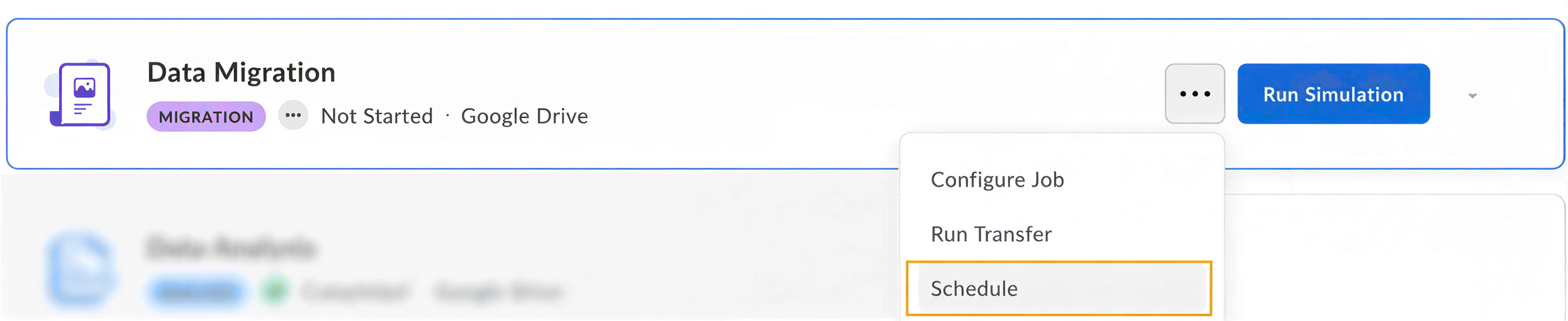
- Select the More menu (three dots) for the job > Schedule.
- In the Schedule Job dialog, select Time.
- Configure when the job should run:
- Start Date: Date when the job should run.
- Start Time: Time when the job should run.
- Repeat Job: Optional recurring schedule (daily, weekly, Monday to Friday, or Saturday and Sunday).
Start Date and Start Time match the operating system’s time zone.
- For migration jobs, select Simulation or Transfer.
- Set completion conditions (see Completion conditions below).
- Select Schedule.
Schedule by job (Queue)
- In the Jobs Dashboard, locate the job you want to schedule.
- Select the More menu (three dots) for the job > Schedule.
- In the Schedule Job dialog, select Queue.
- Select the job that will trigger this schedule.
- For migration jobs, select Simulation or Transfer.
- Set completion conditions (see Completion conditions below).
- Select Schedule.
Completion conditions
You can define conditions that must be met before a scheduled job runs, based on the outcome of either the previous run of the same job (for time-based schedules) or the triggering job (for by-job schedules):- No conditions (default): The job runs regardless of the previous job’s outcome.
- Successfully completed: The job runs only if the previous job completed without errors.
- Completed, possibly with errors: The job runs if the previous job completed, even with errors. The job won’t run if the previous job failed or didn’t complete.

Schedule status indicators
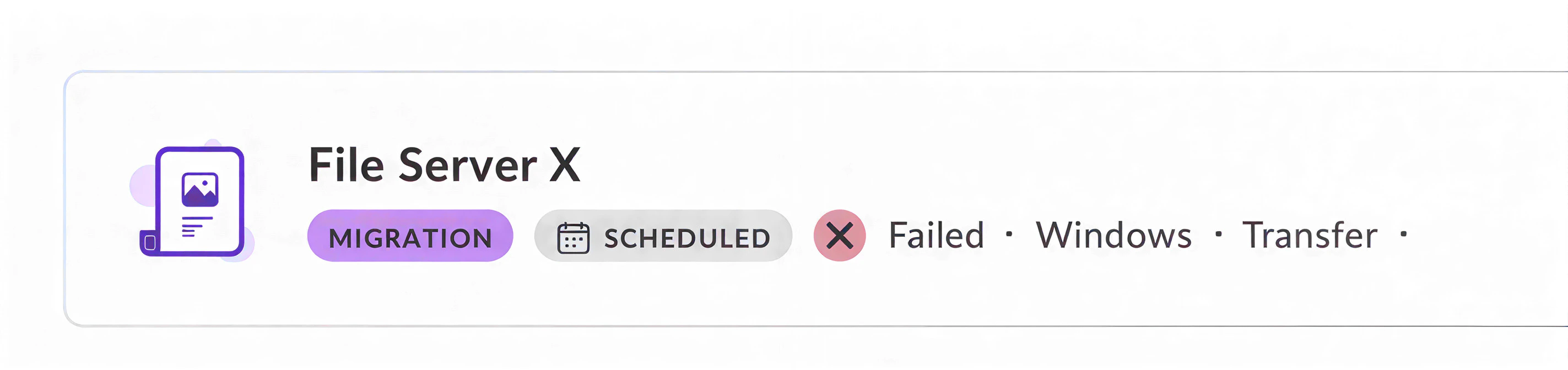
After scheduling, jobs display one of these status indicators:- Scheduled: the job was scheduled to run one time only.
- Recurring: the job was scheduled to run periodically.
- Paused: the job was paused and it won’t run until resumed.
- Invalid: the schedule is no longer valid. This primarily occurs when a triggering job for a by-job schedule is deleted.
Manage scheduled jobs
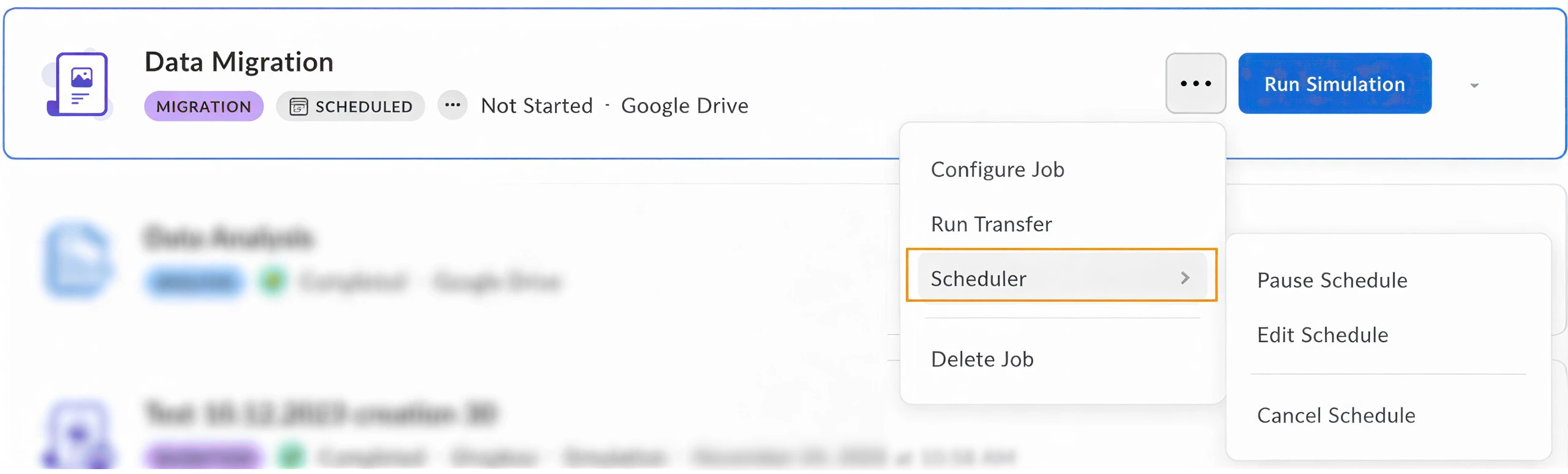
You can manage the already scheduled jobs using the Scheduler menu. The options allow you to:- Pause Schedule or Resume Schedule
- Edit Schedule
- Cancel Schedule
Scheduler limitations
There are certain limitations you need to have in mind when using the scheduler.General
The scheduler may be unable to start a job for a number of reasons that are out of Shuttle’s control:- The job status may change to Invalid due to reconfiguration or changed source system credentials
- Windows source system may disconnect.
Windows source system
Scheduler only runs one job for a Windows source system at a time. This ensures that each job has sufficient memory, CPU and other resources to transfer data to Box at optimal speeds. This does not affect cloud-sourced systems.- If you have a migration job already running for any reason, the scheduler will fail any additional jobs set to run while the first job is running.
- If a job is already running when another job is scheduled to run, it will mark the second job as failed before it actually starts.
- If you have two jobs scheduled for a Windows source system at the same time, it will run the first one and fail the second one.