

Before you begin
To organize a Hub, you must have co-owner or editor permissions. For details, see Box Hubs Permissions.Edit your Hub
To open a Hub in edit mode:- Go to the Hubs gallery.
- Select the Hub you want to edit.
- In the upper-right corner, select Edit.
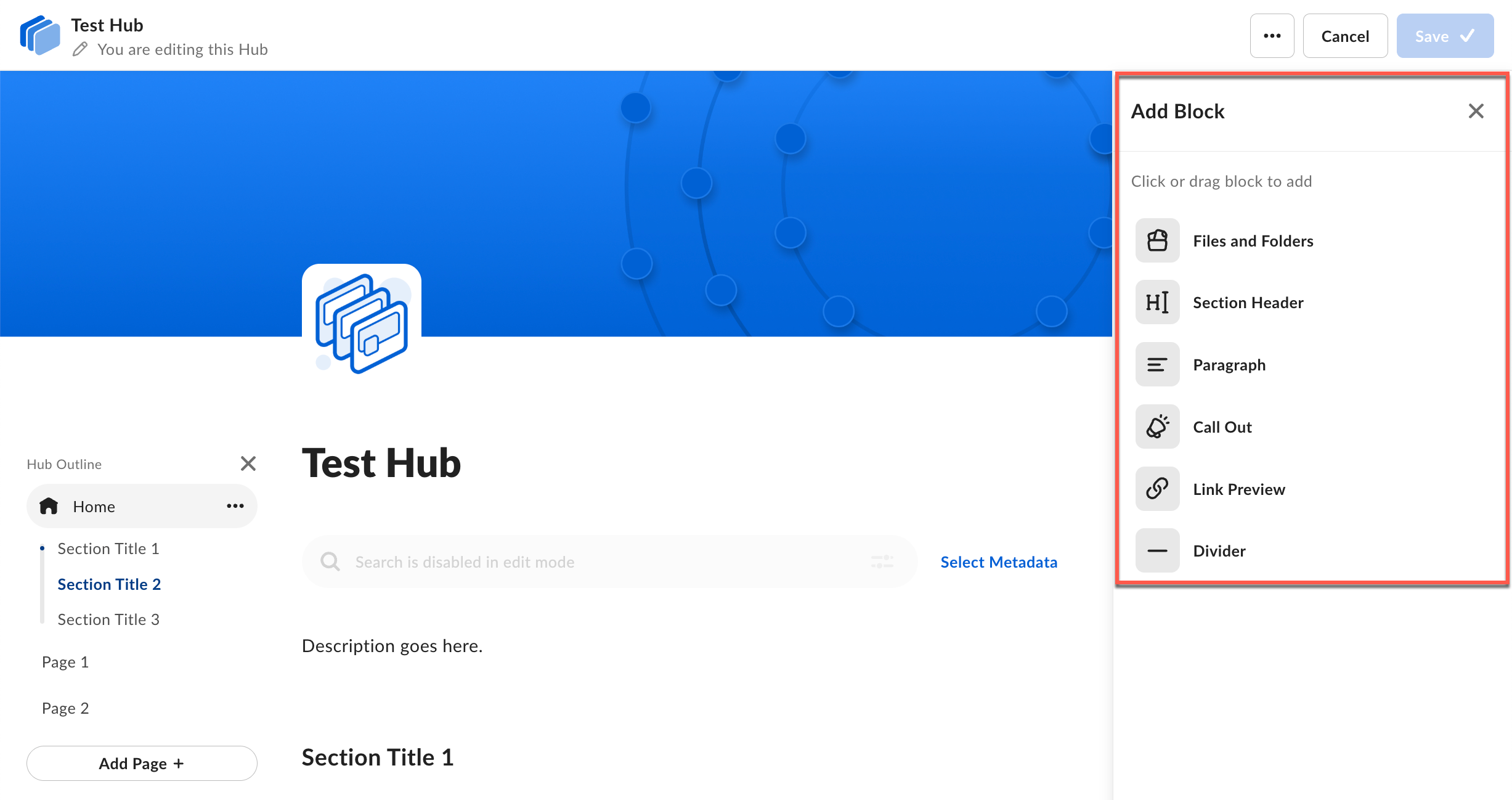
- Blocks lists all available content block types you can add to your Hub.
- Layouts lists predefined layouts for arranging blocks in columns.
Logo and header alignment
You can center-align the logo in the Hub builder. When you center-align the logo, the Hub name and description are also center-aligned.Content blocks
Content blocks are the building blocks of your Hub. Each block type serves a different purpose:Add a block
Use either method to add a block: Method 1: Select to add- In the Add Content panel, on the Blocks tab, select the block type.
- The block displays at the end of the page.
- In the Add Content panel, on the Blocks tab, drag the block type onto the page.
- Drop it in the desired location.
Manage blocks
To manage a block:- Select the block on the canvas.
- The context toolbar displays with available options:
- Move up or down
- Move to a Different Page
- Duplicate
- Trash
- Add Items (for Files and Folders blocks)
- Display as grid or list (for Files and Folders blocks)
- Formatting toolbar (for Paragraph and Call Out blocks)
In Files and Folders blocks, individual files become draggable only after you select the block. This prevents accidental movement.
- List view: Drag and drop files or folders to reorder them.
- Grid view: Select a file or folder, select the ellipsis (…) at the bottom of the card, and then select the Move Left or Move Right arrow.
Delete a block
- Select the block.
- On the context toolbar, select Trash.
Link Cards
The Link Cards block displays a row of customizable cards that link to Hub pages, Box content, or external URLs. When you add the block, three empty cards display by default. To configure a card, select it, add a link, and edit the title, description, or background image. When you add a link, the card pulls the title, description, and image from the destination if those details are available. Cards that link outside your enterprise display an external link icon and open in a new tab. To manage cards within the block:- Select Add Card to add a card.
- Select Trash on the card toolbar to remove a card.
- Use the arrows on the card toolbar to reorder cards.
- A Link Cards block must contain at least one card. When you remove the last card, the entire block is deleted from the page.
- If you save the Hub with a card that has no link added, that card doesn’t display when viewers open the Hub.
Images
The Image block adds a graphic directly to your Hub page, so you can include visuals without relying on a link preview. Each image displays inline and keeps its aspect ratio across desktop, tablet, and mobile screens.Add an image
- In the Add Content panel, on the Blocks tab, select Image or drag it onto the page.
- In the Image block placeholder, choose one of these sources:
- Upload from computer — select an image file, such as a JPG, PNG, or GIF, from your device.
- Upload from Box — select an image already stored in Box using the content picker. You need at least Viewer access to the file.
Set the aspect ratio and crop
After you add an image, it displays at its original size. To frame it, select an aspect ratio from the image toolbar:- Original — keeps the image’s original proportions. This is the default.
- Portrait — 3:4
- Square — 1:1
- Wide — 16:9
- Extra Wide — 21:9
Resize an image
To resize an Image block, drag its top or bottom edge up or down. As you drag, the block moves through the preset aspect ratios — Portrait, Square, Wide, and Extra Wide — and snaps to the nearest one when you release. This is an alternative to selecting a ratio from the toolbar.View an image full screen
When viewing a Hub, select an image to open it in full-screen mode.Sections
Sections help you organize related content by creating visual separators on your page. Each section title marks the beginning of a new section.Create a section
- In the Add Content panel, on the Blocks tab, select Section Title or drag it onto the page.
- Enter a section title (up to 100 characters).
- Add content blocks to your section.
Reorder sections
- Select the section title.
- In the context toolbar, select Move Up or Move Down.
- Move the section to the desired position.
Rename a section
- Select the section title.
- Enter the new title.
Delete a section
- Select the section.
- In the context toolbar, select Trash.
Layouts
Use layouts to display blocks in two or three columns. A page can include any number of layouts between full-width blocks. Existing Hubs don’t change until an editor adds a layout.Add a layout
Use either method to add a layout: Method 1: Choose a predefined layout- In the Add Content panel, select the Layouts tab.
- Select a layout. The layout displays on the page with empty placeholder blocks.
- Add content to the placeholder blocks. You can leave a placeholder empty.
- Select the block you want to move.
- Drag it to the left or right edge of another block.
- Drop the block to create a new column beside the other block.
A layout can have up to three columns. You can drop another block beside a block only when the layout has fewer than three columns.
Resize columns
To change how wide each column is, drag the divider between the columns. The columns snap to these widths:Rearrange blocks in a layout
Drag blocks to:- Reorder them within a column.
- Move them to another column in the same layout.
- Move them to a different layout.
- Move them out of a layout so they display at full width.
Block behavior in columns
You can place any block type in a column. The views available for a Files and Folders block depend on the width of its column:
If a Files and Folders block ends up in a column where its current view isn’t available, the block switches to List view. The block stays in List view if you later remove the column.
Empty placeholders
In edit mode, empty placeholders display so you can add content to them. Viewers don’t see empty placeholders:- If a column contains only empty placeholders, the blocks in the other columns align to the left.
- If an empty placeholder sits above a block with content, the block moves up when you save the Hub.
Layouts on smaller screens
In narrow browser windows, columns stack into a single column in reading order. In the Box mobile app, layouts display as a single column.Pages
Pages provide another level of organization in your Hub. You can create multiple pages and nest them to build a clear hierarchy.Display pages horizontally or vertically
As an editor, you can display your Hub’s pages vertically or horizontally. Choose the option that fits your Hub:
Switching between display options changes only how viewers navigate. Your page content and hierarchy stay the same.
To switch, open your Hub in edit mode and select the display icon next to the page list. Its tooltip displays the option it switches to:
- Display pages horizontally () — moves the pages into a tab bar across the top.
- Display pages vertically () — returns the pages to the outline along the side.
- Nested pages display indented under their parent page.
- To reorder pages, drag a page up or down.
- To open a page, select it in the outline.
- Nested pages display under their parent tab.
- To reorder pages, drag a tab left or right.
- To open a page, select its tab.
Add a page
- In the Hub outline panel (when pages display vertically) or tab bar (when pages display horizontally), select Add Page (+).
- Replace the default title with your page name.
Add a nested page
Nested pages (subpages) display under a parent page in the hierarchy.- In the Hub outline panel (when pages display vertically) or tab bar (when pages display horizontally), hover over the parent page.
- Select the ellipsis (…) to open the page options.
- Select Add Nested Page.
- Enter a title for the nested page.
Duplicate a page
- In the Hub outline panel (when pages display vertically) or tab bar (when pages display horizontally), hover over the page.
- Select the ellipsis (…) to open the page options.
- Select Duplicate Page.
Change page hierarchy
You can reorganize your pages at any time:- Reorder pages: In the Hub outline, drag a page up or down. In the tab bar, drag a tab left or right.
- Create nested pages: Drag a page onto another page to make it a subpage.
- Promote nested pages: Drag a subpage into the main page area to make it a top-level page.
Your home page is always the highest page in the hierarchy and can’t be moved.
Delete a page
- In the Hub outline panel (when pages display vertically) or tab bar (when pages display horizontally), hover over the page.
- Select the ellipsis (…) to open the page options.
- Select Delete Page.
- In the confirmation dialog, select Delete.
Notify collaborators of changes
After you make changes to your Hub, you can notify all collaborators through email.Send a change notification
- Make your changes to the Hub.
- In the upper-right corner, select Save > Save & Notify Collaborators.
- In the notification dialog, enter a message describing your changes.
- Select Save & Notify.
Save without notifying
If you don’t want to notify collaborators:- Make your changes to the Hub.
- In the upper-right corner, select Save.