

-
Files supported:
- Images: bmp, cr2, crw, dcm, dicm, dicom, dng, gif, heic, jpeg, jpg, nef, png, raf, raw, svg, tga, tif, tiff, webp
- Design/CAD: ai, dwg, eps, ps, psd, xbd, xdw
- Documents: boxcanvas, boxnote, doc, docx, gdoc, msg, odt, pages, pdf, rtf, webdoc, wpd
- Presentations: gslide, gslides, key, odp, ppt, pptx
- Spreadsheets: csv, gsheet, numbers, ods, tsv, xls, xlsm, xlsx
- Code/text: as, as3, asm, bat, c, cc, cmake, cpp, cs, css, cxx, diff, erb, groovy, h, haml, hh, htm, html, java, js, json, less, log, m, make, md, ml, mm, php, pl, plist, properties, py, rb, rst, sass, scala, scm, script, sh, sml, sql, txt, vi, vim, xhtml, xml, xsd, xsl, yaml
- Enablement: An Enterprise admin must enable Box AI before you can use Box Extract
- Agent types: Standard Extract Agent and Enhanced Extract Agent
-
Sources per agent: Up to 10 folders
- For each folder, choose Selected folders only to extract from files in the root folder, or Selected folders and all subfolders to extract from files throughout the folder hierarchy.
- Agent limit per user: 100
- You cannot share Custom Extract Agents with other users. Only the user who creates a Custom Extract Agent can create, configure, and deploy it at scale.
Create a Custom Extract Agent
- Navigate to Automate and select the Extract tab.
- Click New+ and select Custom Extract Agent.
- Select up to 10 sample files to reference and test your Custom Extract Agent with.
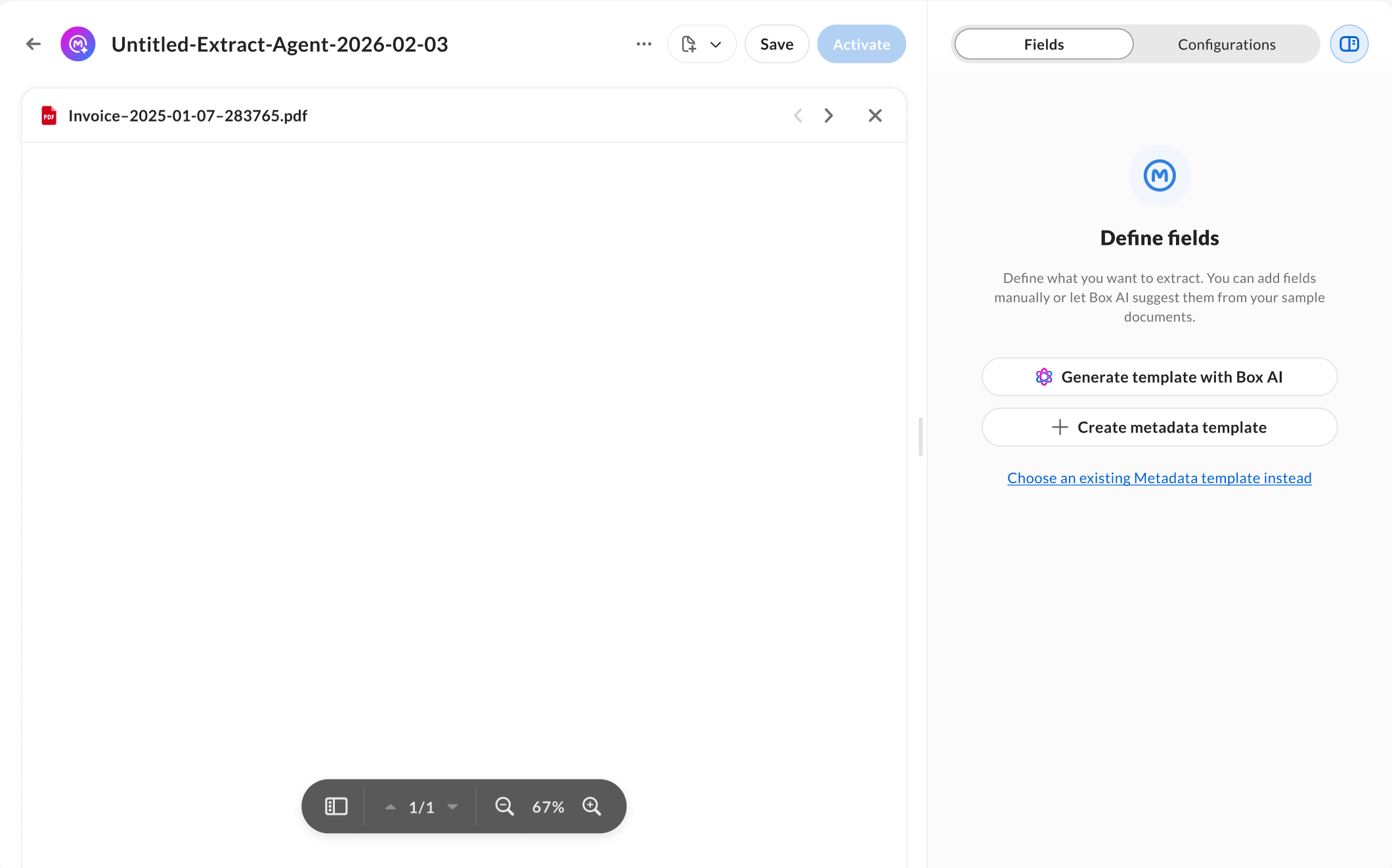
- Automatically generate a new metadata template with AI using up to 10 sample files for reference.
- Create a new metadata template and configure metadata fields and field properties manually.
- Use an existing metadata template.
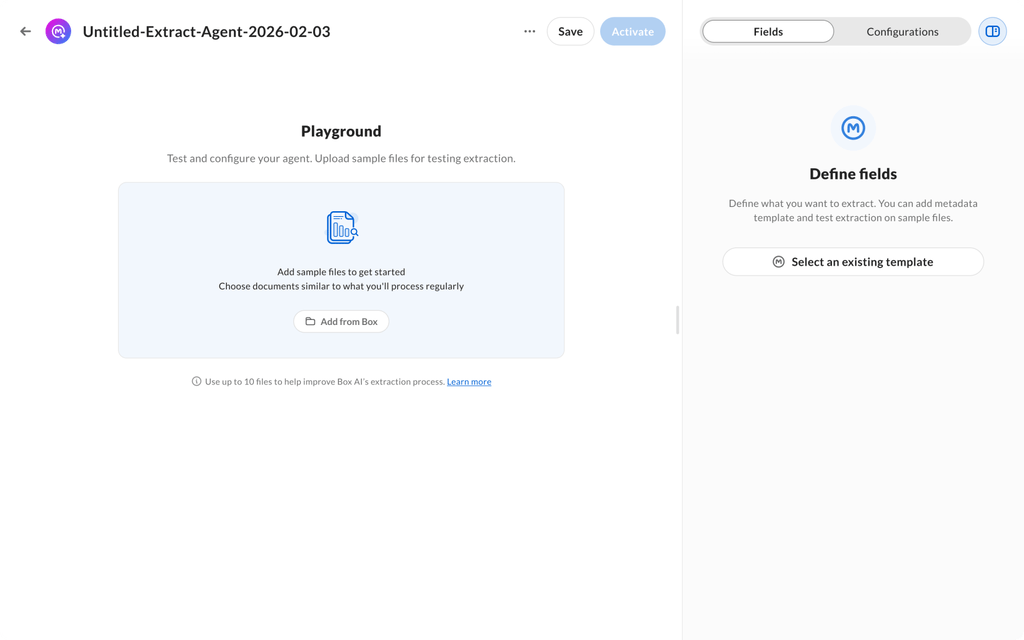
- AI-generated metadata templates and manual template creation are available for admins and co-admins only.
- Metadata templates are configured by admins or co-admins in the Admin Console. See Managing metadata templates to learn more.
- Managed users can use or replace an existing metadata template, but cannot create, generate, or edit metadata templates. The template … menu is streamlined for managed users to remove those options.
Generate a new metadata template with Box AI
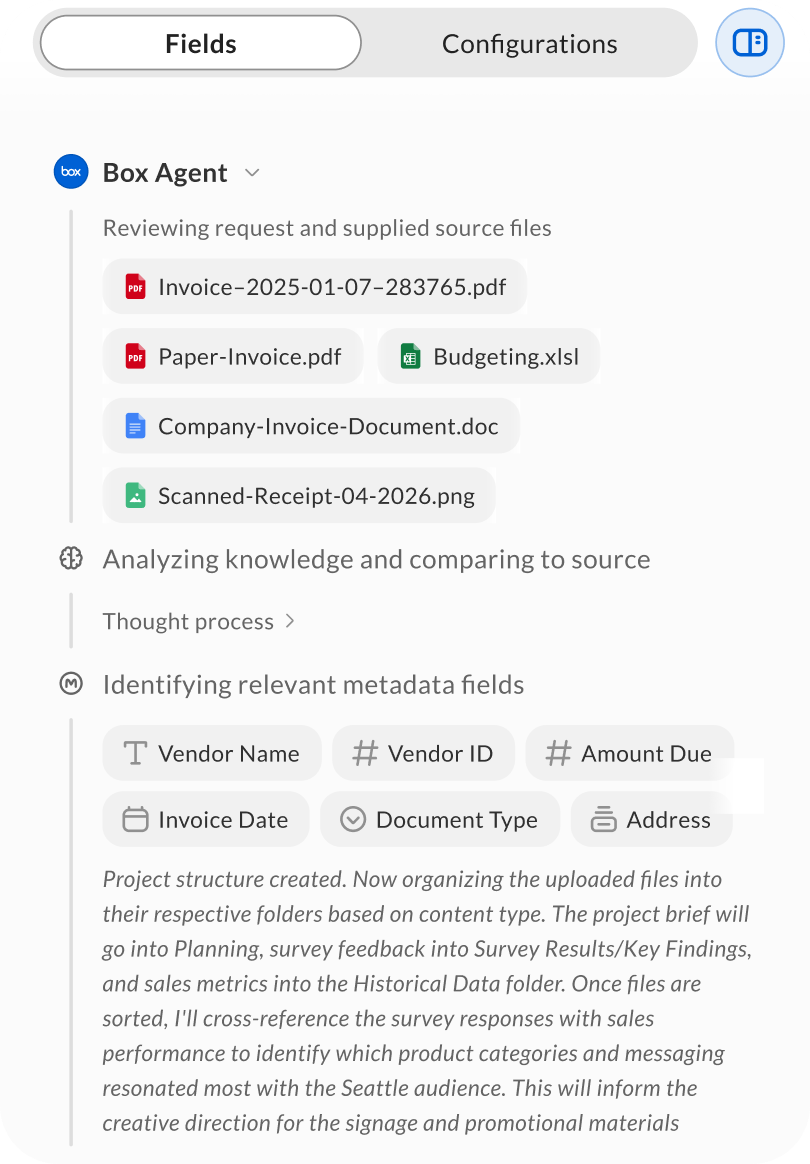
- Generating a new metadata template with Box AI is a paid feature that uses premium models only. See Box AI pricing to learn more.
- Selection of the Box AI Standard or Box AI Enhanced Extract Agent applies only to data extraction processes. It does not apply to AI-generated metadata template creation.
Create a new metadata template manually
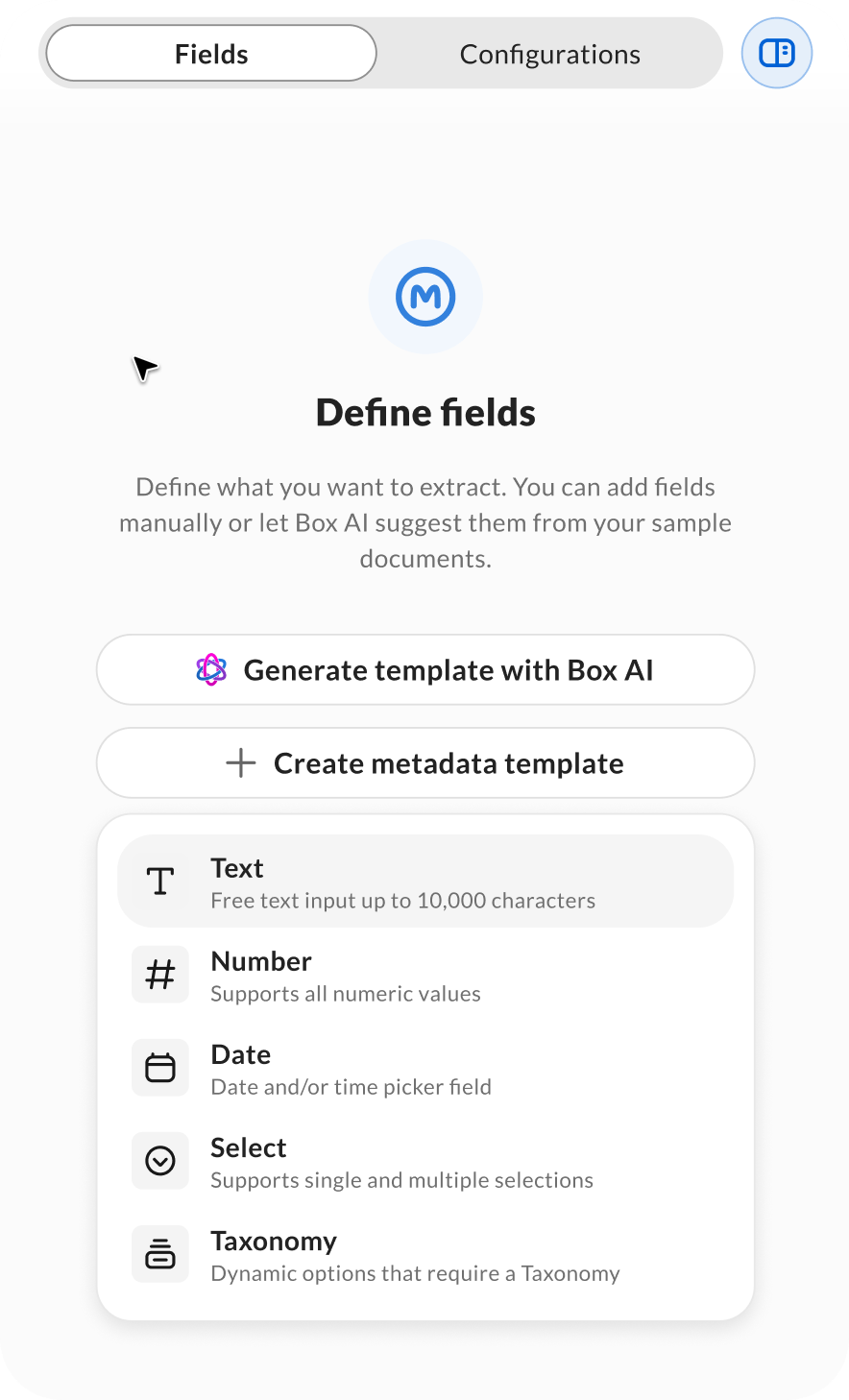
- Text
- Number
- Date
- Dropdown
- Taxonomy
Use an existing metadata template
From the configuration page of the Custom Extract Agent, choose a Metadata Template from a list of available templates. This option is available for all users and groups.- By default, all fields are selected. However, you can select or deselect which fields from the selected metadata template you want to extract data to.
- On existing Custom Extract Agents, managed users do not see the Add field and Save template buttons on the side panel.
- After a template is saved, the field name and field type are read-only for managed users. To change field definitions, an admin or co-admin must edit the template in the Admin Console.
Configure the agent
- After you choose a metadata template and fields, rename the Custom Extract Agent by clicking the ellipsis (…) and then selecting Rename. The character limit for the name is 255 characters.
- Select the AI Agent you want to use:
- Box AI Standard Extract Agent: Recommended for high-volume, structured or semi-structured documents with 50 pages or less and fewer than 20 extraction fields.
- Box AI Enhanced Extract Agent: Recommended for complex, large, or unstructured documents with 50 pages or more and more than 20 extraction fields for advanced use cases requiring deep insights and precision.
- Enable the metadata fields you want to extract. At least one field must be enabled to save the Custom Extract Agent. You can also toggle all metadata fields on for extraction. Supported field types include:
- Text
- Number
- Date
- Dropdown
- Taxonomy
- Add AI Instructions (recommended) for more accurate and precise extraction results. Attach short, structured prompts per field including details such as where the field is located, expected format, validation rules, edge cases, and more. The current prompt limit is 5,000 characters.
- Select the extraction policy that determines whether the extraction process preserves existing metadata or overwrites it entirely.
Add and save a metadata template before you attach source folders. After a source folder is attached, the metadata template is locked and you cannot change or replace it.
Activate and attach source folders
- After you save the Custom Extract Agent, you can activate or deactivate it and apply it to up to 10 source folders by clicking the ellipsis (…) and selecting Add Source Folder.
- You can add folders to inactive Custom Extract Agents.
- Choose Selected folders only to extract from files in root folders, or Selected folders and all subfolders to extract from files at every level in each folder’s hierarchy. You can change this setting for any folder after you add it.
- When the Custom Extract Agent is active and a source folder is attached, Box Extract automatically extracts data from uploaded files and applies that data as metadata.
- Monitor the source folders for newly uploaded files to confirm extraction completes as expected.
- Custom Extract Agents can automatically process files that already exist in a folder. This option doesn’t contain a file limit.
- Deactivating the agent stops new extraction processes. Previously extracted data remains as metadata on the associated files.
Enable references and confidence levels
You can enable references and confidence levels for metadata extracted by a Custom Extract Agent. These capabilities can be enabled independently. Both are off by default.- References help users verify extracted values by identifying where the supporting information is in the source document.
- Confidence levels indicate how confident Box Extract is in each extracted metadata value and can help identify values that might require additional review.
Resolve folder conflicts
Box Extract processes source folders using metadata cascade policies. A cascade policy is applied using a unique combination of metadata template and folder properties, so only one Custom Extract Agent or cascade policy can use a given template on a given folder. A conflict occurs when:- Two Custom Extract Agents that use the same metadata template target the same folder
- A Custom Extract Agent and an existing metadata cascade policy use the same metadata template on the same folder
Test and run extraction
Select Test Extraction on the Custom Extract Agent configuration page to test the agent against sample files before activating it. For managed users, the button displays on the side panel, outside the template ellipsis (…) menu, so you can add sample files and validate results before running the agent at scale. For admins, the button displays as Run extraction inside the template ellipsis (…) menu.Testing a Custom Extract Agent consumes AI Units. See Understanding Box AI Usage: Daily Quotas and AI Units to learn more.
- Upload a file to an agent that already has a template selected.
- Replace a template on an existing agent.
Troubleshooting
- If the template has been deleted or is inaccessible, select another template or contact your administrator for assistance.
- If enabled template fields have been removed, update and save the agent configuration.
- If the source folder or file has been deleted or you lost permission, restore the content or source manually.
- If activation fails due to missing configuration, ensure at least one field is enabled and that the template is valid.
- If a folder is blocked by a conflict, detach the folder from the other agent or remove the conflicting cascade policy, then add the folder again.
Best practices
- Use consistent, descriptive naming when creating or modifying a Custom Extract Agent name to simplify large-scale management.
- In the AI instructions, be as descriptive with as much detail as possible related to the document being extracted for more accurate and precise results.
- If you are not receiving the extraction results you want, try adjusting the AI instructions or revising your prompts until you achieve desired results.
- Use the Box AI Standard Extract Agent for consistent, high-volume extraction or the Box AI Enhanced Extract Agent for more complex documents requiring higher accuracy.
- Confirm folder permissions and template visibility with Admins or Co-Admins before activating agents.
- Use Selected folders only when you only need the files at a folder root. Using Selected folders and all subfolders on a deep hierarchy processes every file it finds, which increases extraction volume and AI unit consumption.