When you mark Box Drive folders available for offline work, Box Drive downloads this content to your device. If you unintentionally make too much content available offline, you can exceed your device’s available storage capacity.
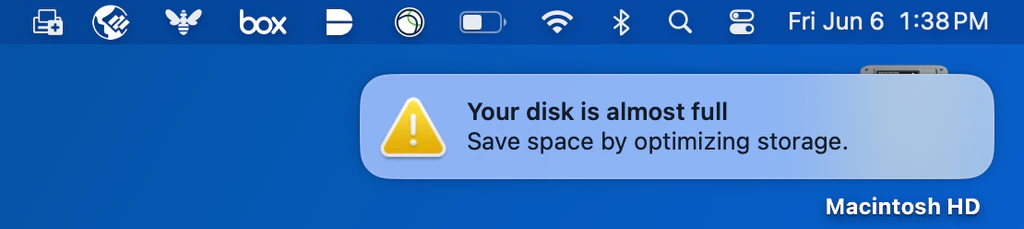
Here’s how Box Drive alerts you that your hard drive has filled up, and what you can do about it.
If the file you are trying to download is larger than your remaining eligible hard drive space Box Drive aborts the download, marks the file as a “problem item,” and displays a corresponding alert on your desktop.
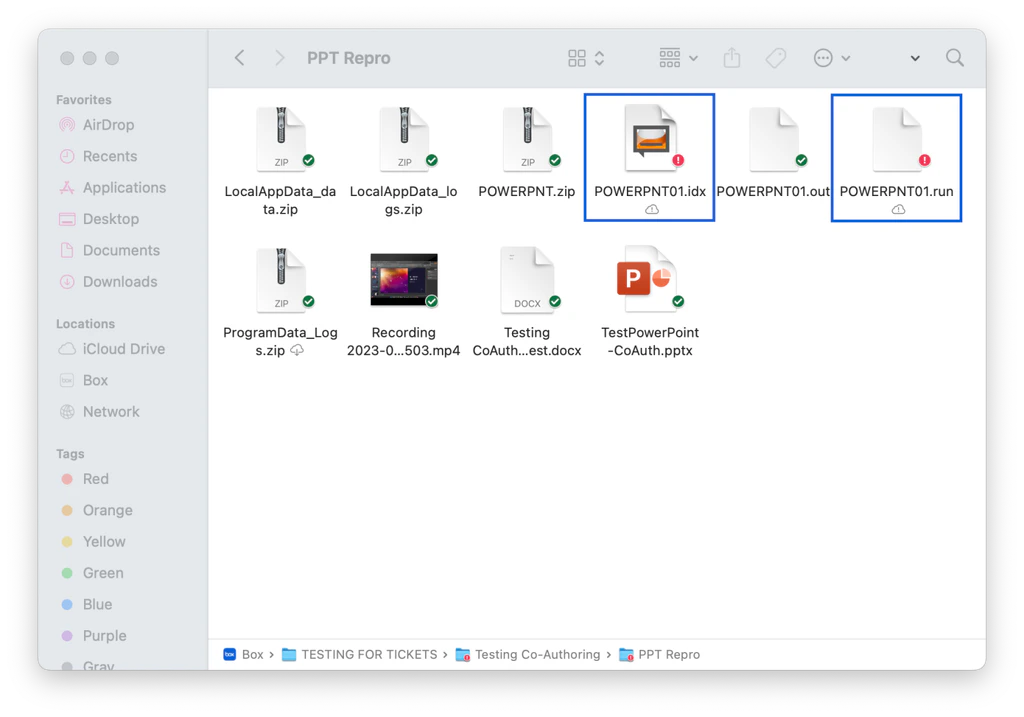
To find out where the download process stopped, open the folder you were trying to download. Files that Box Drive successfully downloaded display with a check mark in a green circle. Files that Box Drive could not download display with an exclamation point in a red circle. Drive refers to these as “problem items.”
At this point you can either:
- Cancel the remainder of the download by making the queued folders available online only again.
- Change other folders that are available offline to a status of available online only to clear space and then retry your problem items.
To determine how much space you must clear to finish downloading problem items, you must examine the files on Box.com.
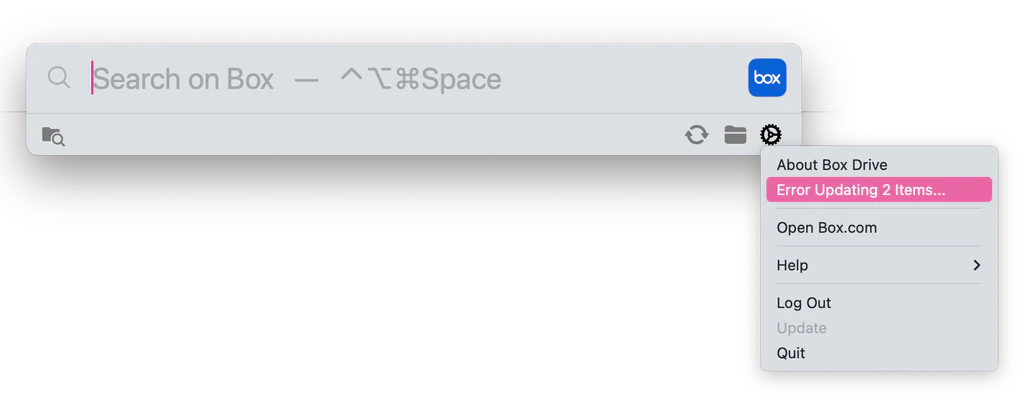
To see which files did not download
- Go to the Box Drive sub-menu. Click Error Updating xx Items.
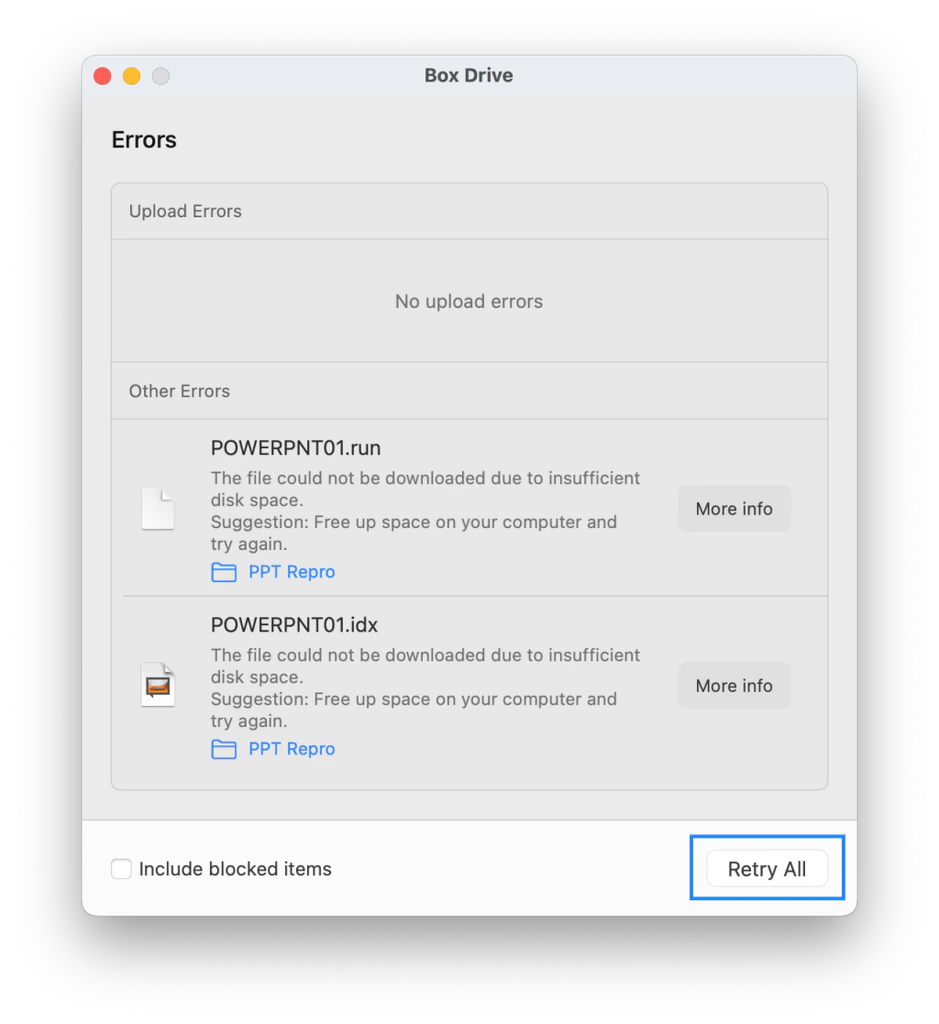
Box Drive displays a list of all problem items. (This list may not be limited to files that could not be downloaded due to insufficient disk space.)
- Clear at least enough disk space on your device to complete the pending file downloads by marking offline folders as online only again or clearing up other content outside of Box Drive if possible.
- In your list of problem items, click Retry All. Box Drive will also reattempt queued download failures every time you restart it.
You cannot retry downloading select items. You can only retry all of them as described in step 3.
If you log off of Box Drive before the download process is complete, Box Drive deletes from your device all of the downloaded content you had marked for offline availability. In the process this clears up hard disk space on your device. Logging off also returns to an online-only state all of the content you made available offline. You will have to repeat the process of marking folders for offline availability.