

Why connect your AI apps?
Connecting your AI agents gives your agents the connectivity and collaboration benefits from using Box Drive. Box Drive holds a wealth of knowledge across the files you store in it. When an AI app can read that content, you get to insights and actions faster. An agent can draft a presentation, build a spreadsheet, or answer questions about a project, all grounded in your Box content. This article covers two ways to make that connection: pointing an app at a Box Drive folder on your computer, and connecting the app directly to Box. In this article, we will cover a few examples of how to connect your AI apps to Box Drive.Pointing an AI app at a Box Drive folder
You can give your agent access to folders in Box Drive for it to work in for a session. The agent will then be able to comb through the files in your given directory to use as context for your workflows. Windows Users For those on Windows, moving to the new Windows architecture for Box Drive improves how Box Drive interacts with local applications that read and write files directly on your device, including local agents. The new architecture ensures Box Drive behaves similarly to a standard local drive, so your agents can reliably utilize Box Drive. If you are not already on the new architecture, follow the steps here to opt into the new architecture. Getting Started In setting up a workflow, applications typically allow you to scope the directory in which the agent will get its context from. With Box Drive set up, the specific folders on Box Drive can be selected as the working directory for the agent, which will allow it to sift through content on your Box Drive to retrieve information, work on files, and more. The examples below use a folder named Acme in Box Drive that contains files such as Q4 2025 Results.pptx.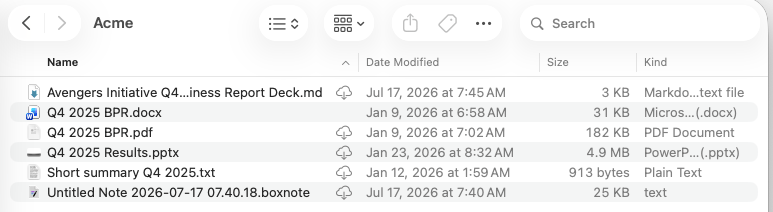
ChatGPT
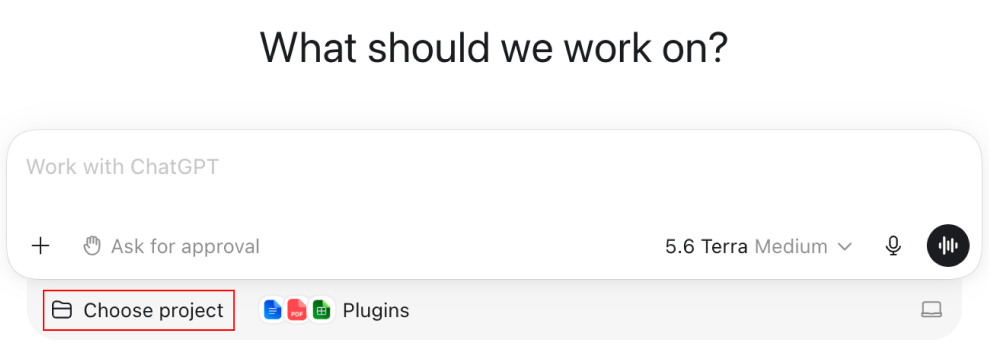
- In ChatGPT, select Choose project.
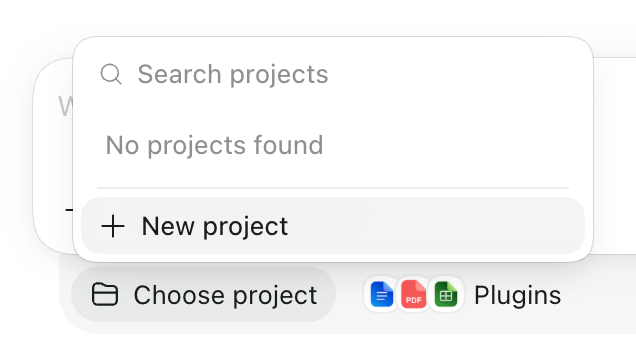
- From the menu that displays, select New project.
- Add a new source folder to the project.
- In Finder, locate your Acme folder in Box Drive, then select Open.
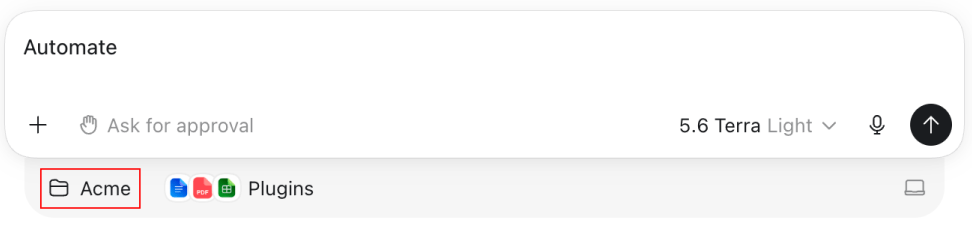
- With the folder loaded, select Create project.
Claude Cowork
- Launch Claude, then select Work in a project or folder.
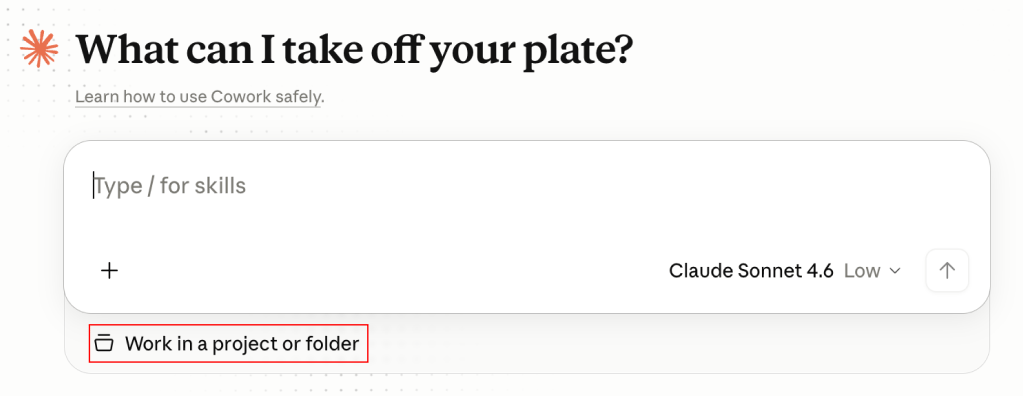
- In Finder, locate your Acme folder in Box Drive, then select Open.
Cursor
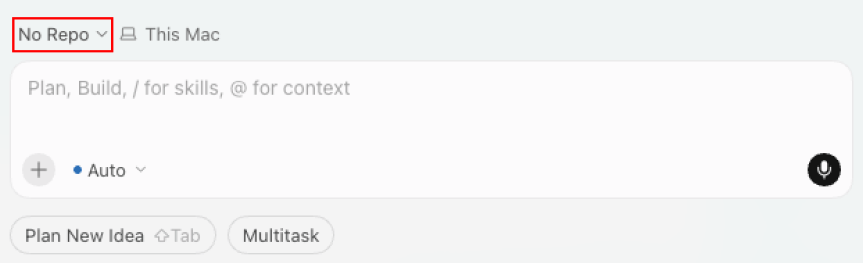
- In Cursor, select the repository menu, which reads No Repo when no folder is selected.
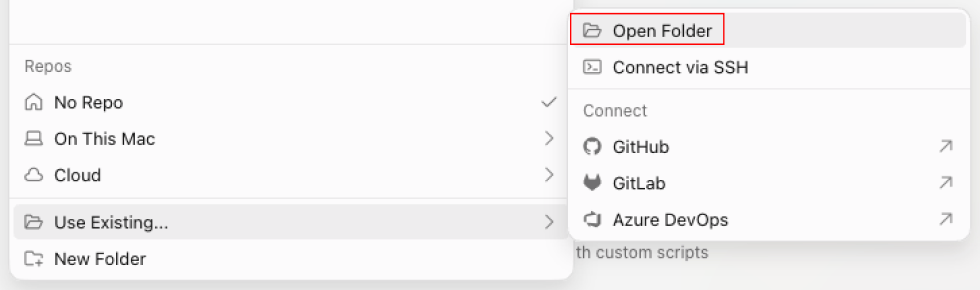
- If your folder is not in the list of recent repositories, select Use Existing… > Open Folder.
- Locate your Acme folder in Box Drive, then select Open.
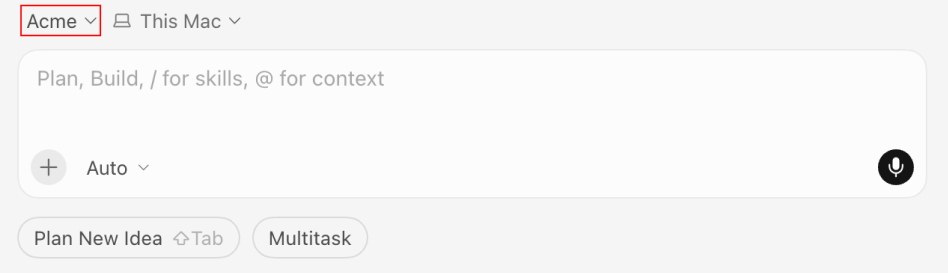
An AI app reads only the folder you point it at. To change its scope, select a different Box Drive folder.
Connecting an AI app directly to Box Drive
For users with the respective AI agent already on their desktop, Box Drive also supports the ability to send specific folders and files straight to these agents from the context menu. Users can right-click on the file or folder of their choice, and select one of the Open with _ _ _ _ options available to them. This option will set the selected file or folder as the context right in the agent.Connecting directly to Box
Box Drive syncs your files to Box, where they are stored in the cloud and covered by Box security and compliance protections. For more on those protections, see the Box Trust Center. Box supports three integration types for connecting an app directly to Box:- AI Search
- AI Indexing
- Box MCP Server