

Adding a connector line
To add a connector to your Canvas:- Click the connector icon in the Canvas toolbar.
- Choose the type of connector you need - line or arrow.
- Click anywhere on your Canvas to place the connector.
The default connector is a black arrow.
Connecting objects
There are two ways to connect objects.From object
- Select the first object.
- Click one of the blue dots that appear on each side of the object.
- Click and drag the connector to the second object.
- Attach the connector to one of the blue dots that appear on the second object.
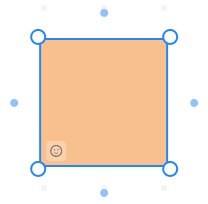
From connector
- Place the connector on the Canvas.
- Click one of the dots at the end of your connector.
- Drag the dot to the first object you want to connect.
- Drag the opposite dot to the second object and attach it to one of the blue dots that appear on the second object.
When you select the dot, your cursor changes to a hand.
Editing
To edit the connector, click on it.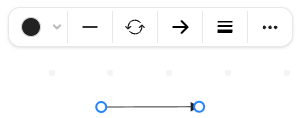
- choose the connector color,
- change the connector type on its left and right side,
- swap connector end styles,
- choose connector options: style, curve, and weight,
- open more options: copy, send to front, send to back, delete.