

Supported file types
- Documents: All supported document types
- Presentations: Presentations
- Text-based: .csv, .txt
Basic outline of sending a signature request
- Preview Mode: Open the document, select the Box Sign icon in the right-side application bar, and select one of the options from the drop-down list. Options are Request Signature and Sign Myself.
- Files: Hover on the document, then select the ellipsis button (…) and select Sign. Select one of the options: Request Signature or Sign Myself.
- For multiple files, select the documents and select the ellipsis button (…) in the top right corner of your screen. Select Sign and choose one of the options: Request Signature or Sign Myself.
- Home Window: Select the Box Sign icon in the left sidebar. The instructions in the following sections follow this route.
- Assign each recipient a role.
- Choose whether to apply an additional recipient authentication control.
- Specify the order of signature for each recipient.
Sending a signature request
Step 1: Uploading a document for signature
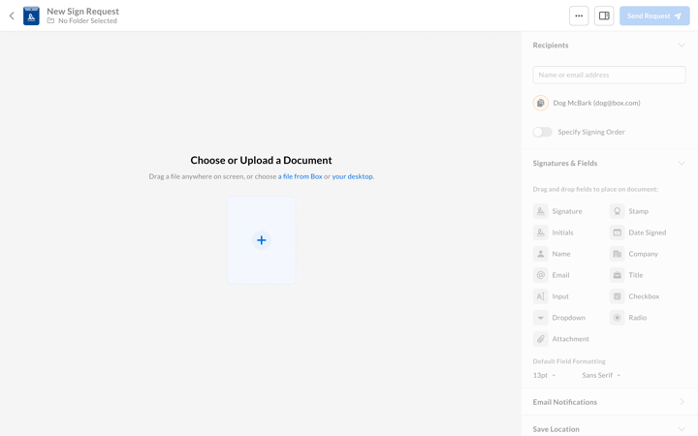
- From the Files page, select Sign from the left-hand pane.
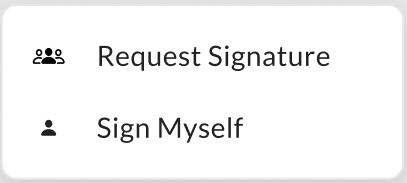
- In the top right corner, select Request Signature to start a signature request, or select additional options from the drop-down menu:
- Request Signature (Several Signers including yourself): Select this option for signature requests that require multiple recipients, including yourself if needed.
- Sign Myself (Only you): Select this option for individual signing or approval.
- On the New Sign Request screen, add a file to submit by:
- Selecting + and then either Choose from Box or Upload File
- Selecting the choose a file from Box or your desktop links
- Dragging and dropping files onto the screen
- Select a file.
Steps 2 and 3: Adding and modifying a recipient
Define who receives the request for signature.From Sign home page
- Under Request Signature, select one of the following:
- Sign Myself (only you): You are the only signer of the request. The following items are displayed for the signer to complete:
- Signature
- Stamp
- Initials
- Date signed
- Name
- Company
- Title
- Text input
- Checkbox fields
- Sign Myself (only you): You are the only signer of the request. The following items are displayed for the signer to complete:
- Request Signature (several signers including yourself): The request requires one or more other people to sign. After you upload the document(s), Box Sign displays a preview of the document(s), enabling senders to:
- Add or remove additional files.
- Replace, rename, or delete files.
- Add or modify recipients and recipient groups, including recipient roles and authentication.
- Drag and drop fields.
- Determine save location once the request is completed.
- Modify email notifications, including automatic reminders.
- Set a customized expiration date and adjust file name.
- Select Send Request when the request is ready to be sent to the designated signers in the order specified, or select Sign & Finish if you chose the Sign Myself option.
The Request Signature option offers senders all of the same fields as a Sign Myself request, but also includes radio buttons, dropdown menus, and signer attachment fields.
From Files folder
- Hover over the file and select the checkbox. Repeat for each file you want to send for signature.
- In the top right corner of your screen, select the ellipsis button (…).
- Choose Sign from the drop-down list.
- Select one of the options: Request Signature or Sign Myself.
- Add your recipients in the New Sign Request screen.
From Preview
- Select the document and, from the right-side application bar, select the Box Sign icon.
- Select Request Signature or Sign Myself.
- Under Where should the request be saved?, select the location where you want to save the request in Box.
- Select Continue.
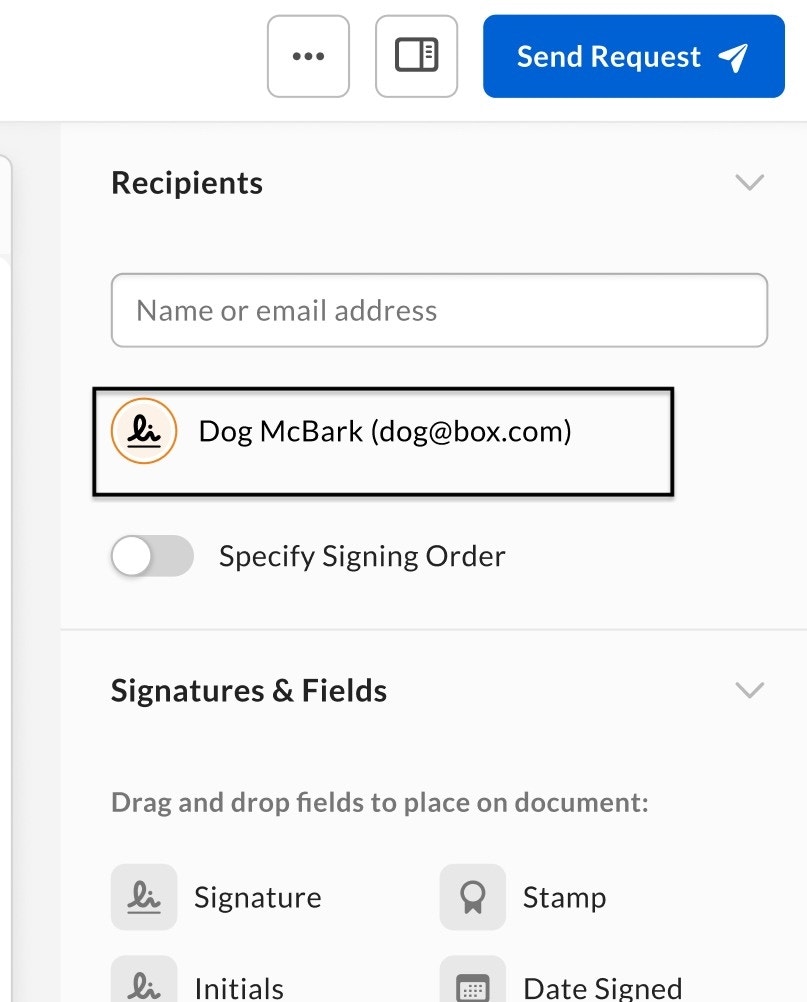
- In the document preview window, select a recipient’s email address. In the right sidebar, Box Sign displays the Modify Recipient panel.
- Under Role, assign a role to the recipient. Choose one of the following:
- Signer to request a signature from the recipient.
- Get a Copy to send the recipient a copy of the finalized request after everyone has signed.
- Approver to request approval of the file but not a signature.
- In-Person to require the recipient to sign on your device. This process does not include steps for recipient authentication, and the signing log indicates “not verified by Box Sign.” Immediately after document preparation is done, Box Sign prompts in-person signers to sign, regardless of the selected signing sequence.
- Apply Additional recipient authentication:
- Optionally select one authentication method from the dropdown:
- Box Login (Available only on Enterprise Plus and Enterprise Advanced accounts)
- SMS Authentication
- Optionally, also turn on Require Password (Optional)
- Optionally select one authentication method from the dropdown:
- Select the left arrow at the top of the page.
- To enforce a signing order, under Recipients, turn on the Specify Signing Order toggle.
- In the right sidebar beside each recipient’s email address, Box Sign displays a number indicating the order in which the recipient receives the document for signature. To alter this order, select the number and change it.
- Select Send Request once you have fully prepared your file for signing.
- To remove a recipient, select the recipient’s email and select Remove Recipient.
Assigning different roles to the same signer
You can add a recipient multiple times to the same document if you need to assign different roles to that recipient or if you need the same recipient before and after another signer. However, you need to toggle Specify Signing Order and assign the recipient to a different number than their first assigned number. For example, if the recipient is first added as second in the list, then their number is 2 and must be a different number when adding them again to the list.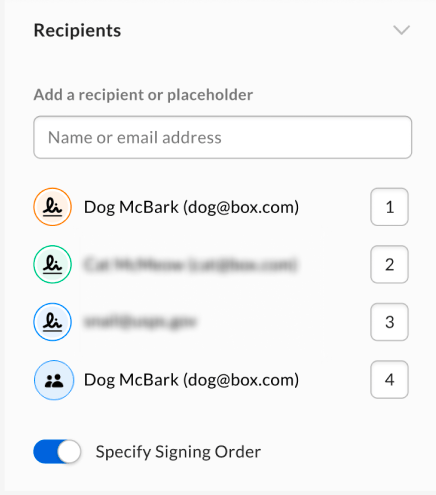
Adding a recipient group
As a signature request sender, you can use the recipient group feature to add single recipients and create a group out of them. Only the first person from the recipient group to take action can sign or approve the document.Adding a recipient group in Box Sign is available to all customers on Enterprise, Enterprise Plus, and Enterprise Advanced plans.
- You know of multiple authorized signers within one organization
- Some signers or approvers of the document are absent or unavailable
- Add your first recipient in the Add Recipients field on the signature request creation page.
- Select the checkbox Add as a recipient group.
- If needed, add individual recipients in the Recipients field.
- Assign the correct role to the recipient group. Available options are:
- Signer
- Get a Copy
- Approver
- You can add recipient groups to Box Sign templates. For more information, see Creating, using, and sharing templates.
- For recipients assigned the Get a Copy role, Box Sign automatically saves a copy of the completed signature request to their My Signed Documents folder. However, the admin can change this setting to ensure that such recipients only receive a link to the completed signed documents. See Enabling recipient controls for more information.
Recipient restrictions
Number of recipients in a group: You can add a maximum of 35 unique email addresses to the signature request. Each individual in a recipient group counts towards this total. When you try to add more than 35 recipients to the group, Box Sign displays the following error message: Failed to add user because it exceeds the maximum 35 unique users per signature request. Adding the same recipient multiple times: You can add the same recipient more than once (for example, once in a recipient group and once as a required individual signer), but the signing order needs to be different. Otherwise, Box Sign displays an error message like this when you send the request: Failed to send because user user@example.com has been added multiple times with the same signing order. To proceed, recipients need to have a different signing order to be used multiple times in the same request.Step 4: Preparing the request
To prepare the signature request, you can add signature fields, text fields, dates, checkboxes, groups of radio buttons, and dropdown menus to the request, as well as provide instructions and choose to send automated reminders. A group of radio buttons enables the recipient to select one button from the group, and each group must contain at least two radio buttons. Dropdown menus enable recipients to select one option from a list of at least two options.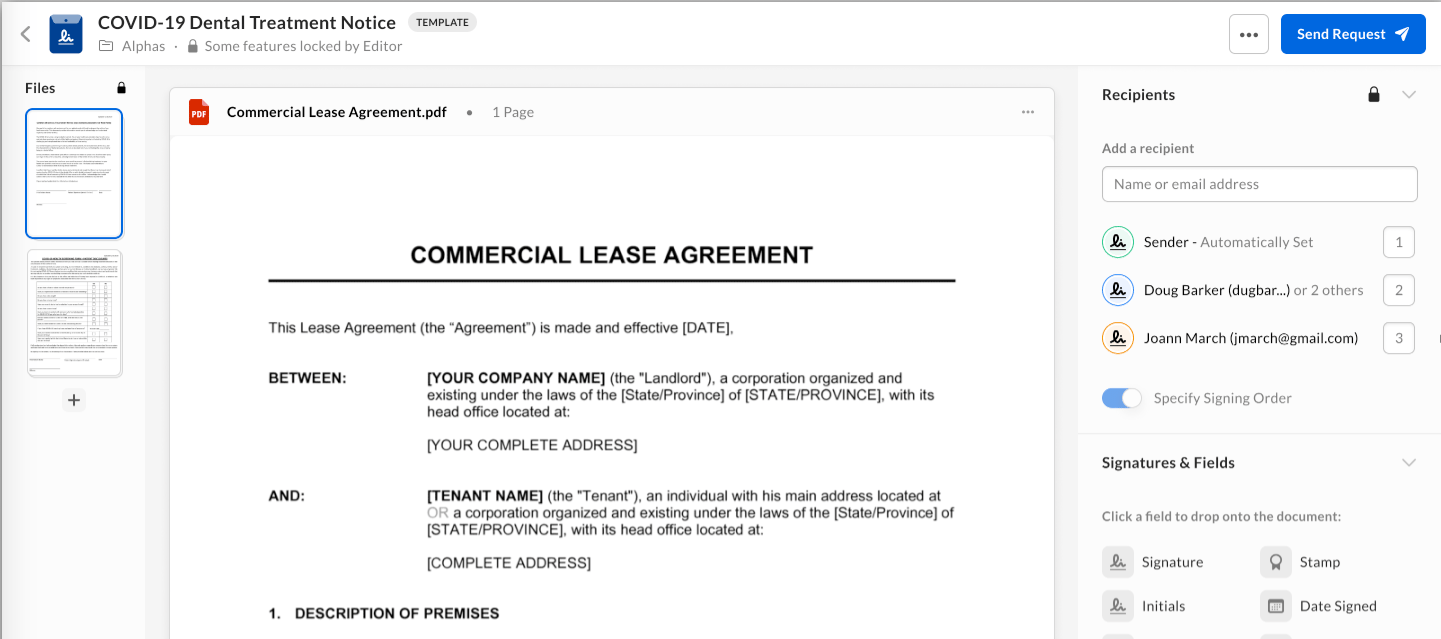
- In the right sidebar, under Signatures & Fields, select a field you want to include in the signature request. You can include a field for any of the following:
- Signature
- Date Signed
- Text Input (custom text entry)
- Checkbox
- Name
- Company
- Title
- Initials
- Stamp
- Attachments
- Groups of radio buttons
- Dropdown menus
If your admin has restricted certain field types for your account or group, those fields aren’t displayed in the Signatures & Fields list. For more information about field restrictions, see Enabling sender controls.
- Hold down the mouse button and drag the field onto the document. Hover over the area where you want to add the field, and release the mouse button.
- After adding the field, right-click to open the shortcut menu:
- Cut
- Copy
- Duplicate
- Duplicate on All Pages
- Delete
- After adding the field, right-click to open the shortcut menu:
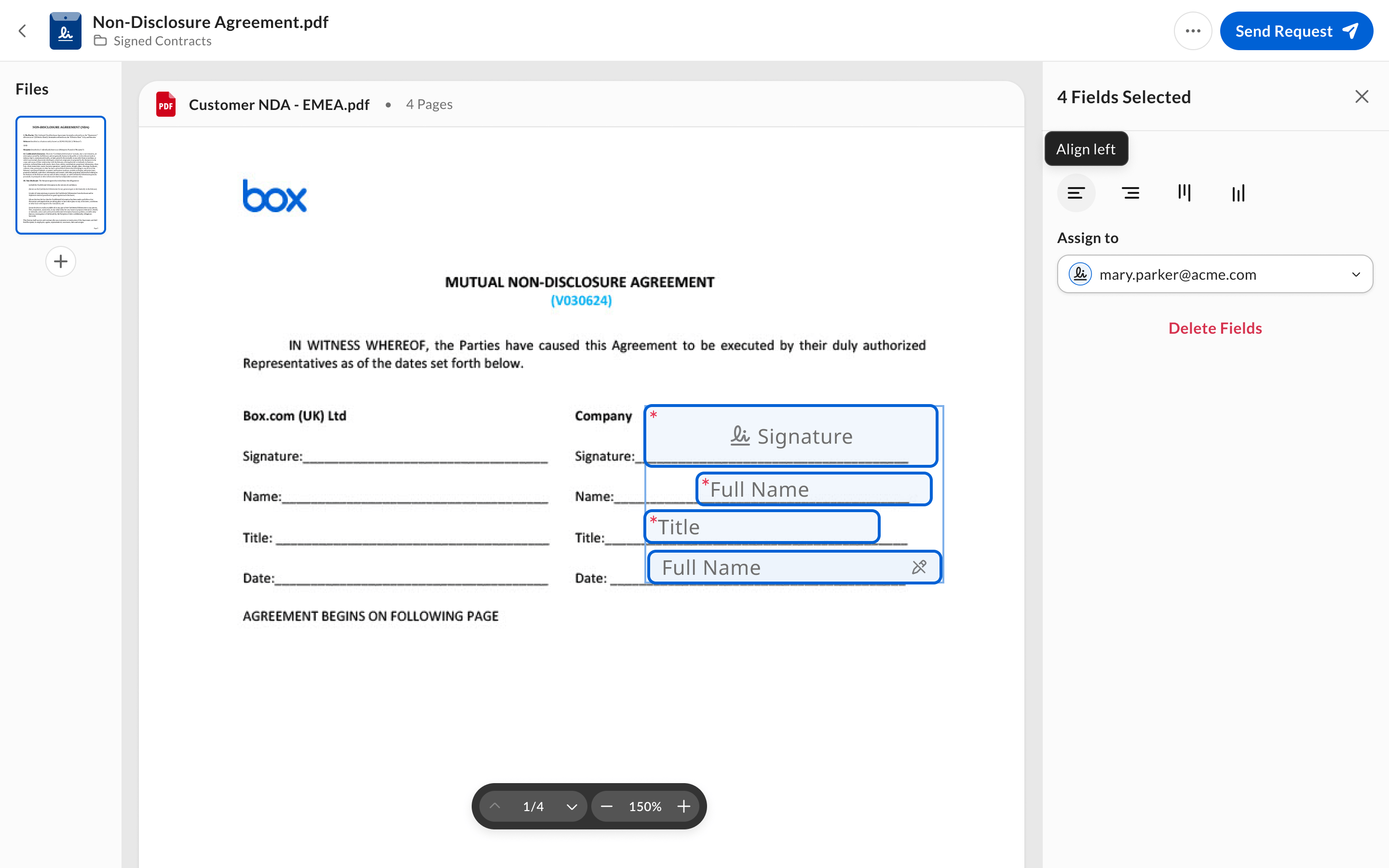
- To select multiple fields, left-click and hover over the fields you want to modify. After selecting the fields, you can drag and drop the fields in your document or align them using the alignment options in the right sidebar.
- Select the newly added field. Box Sign displays a configuration window. Select the options you want to apply to the field.
- To define a date, checkbox, text field, radio button, or dropdown menu as required information to be provided by the recipient, select the field, then select Required Field. By default, Box defines signature fields as required.
- To make a text field span multiple lines, select the text field, then turn on the Allow Multiple Lines toggle.
- To add an external ID, use the External Identifier section. Use the external ID to pre-fill data from another application. Also use an external ID to export into an Excel file the data that users filled in during signing. Add an ID to the fields by adding
id:examplename. For example, to add an ID to a text field, use[[t|1|id:examplename]].
- To move the field, select the middle of the field and drag it. To resize the field, select the bottom-right corner of the field and drag it.
Duplicating fields
To copy a field and its settings in one step, right-click the field and select Duplicate, or press ⌘ / Ctrl + D. Box Sign adds the copied field on the same page, next to the original field. Duplicated fields keep the configuration of the original field, including the assigned recipient and settings such as Pre-filled Text, Read-Only, Required Field, and External ID. Conditional logic is not copied. To make a duplicated field conditional, apply conditional logic settings to the duplicated field separately. Name, Company, and Title fields stay linked to their duplicates. If you change a setting on one of these fields, the change applies to the original field and all its duplicates. For example, if you duplicate a Company field and change the pre-filled text of the duplicate to ACME Apparel, both fields display ACME Apparel.Duplicating fields on all pages
When a request needs the same field in the same position on every page, such as initials or a signature at the bottom of each page, you can add the field once and duplicate it on all pages. Duplicate on All Pages keeps the same settings as the original fields and copies the selected fields to the same position on every other page of every document in the request. Duplicate on All Pages is available when you prepare signature requests and templates, but not Sign Myself requests. The option is unavailable when:- The request contains only a single-page document.
- The selected fields are on different pages or in different documents within a multi-document request.
- The field is locked in a template.
- The documents are still uploading.
- Add the fields to a page of a document and configure them.
- Select the field or fields you want to duplicate on all pages. All selected fields must be on the same page.
- Right-click one of the selected fields and select Duplicate on All Pages, or press ⌘ / Ctrl + Shift + D.
- Pages with different dimensions: Box Sign places each duplicated field in the closest valid position on the page. If you duplicate multiple fields at once, Box Sign positions them relative to the size of each page. Check the position of the duplicated fields and adjust them if needed.
- Repeating the action: Box Sign adds fields only to pages where they are missing, for example, after you delete a duplicated field or add a new document to the request. Pages that already have the fields don’t change.
Pre-filled text
To prepopulate a field with text, you can add the text in the Pre-Filled Text field. If text is pre-filled in a field, signers can see and edit the text if needed.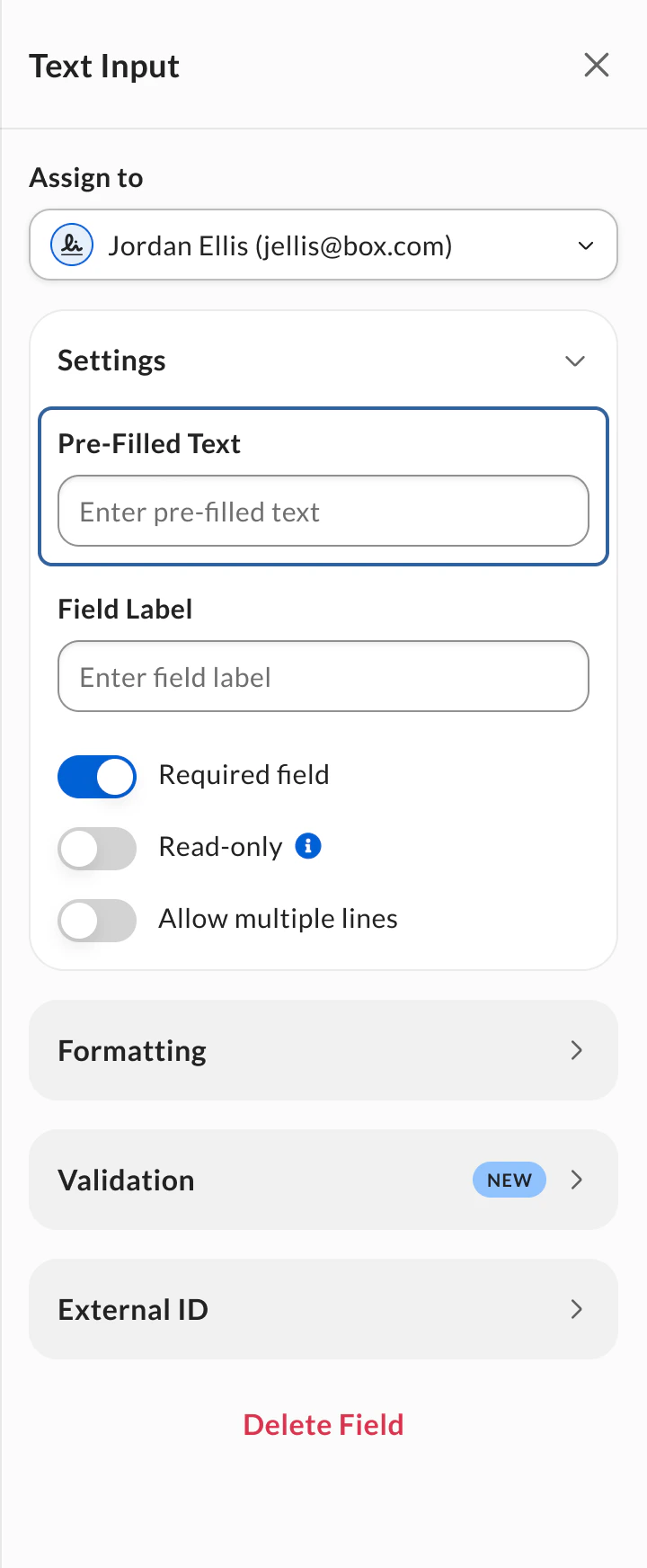
- Name Field
- Company
- Title
- Text Input
Read-only fields
To lock a field’s value and prevent changes by signers, enable Read-Only under the field settings in the field’s option menu.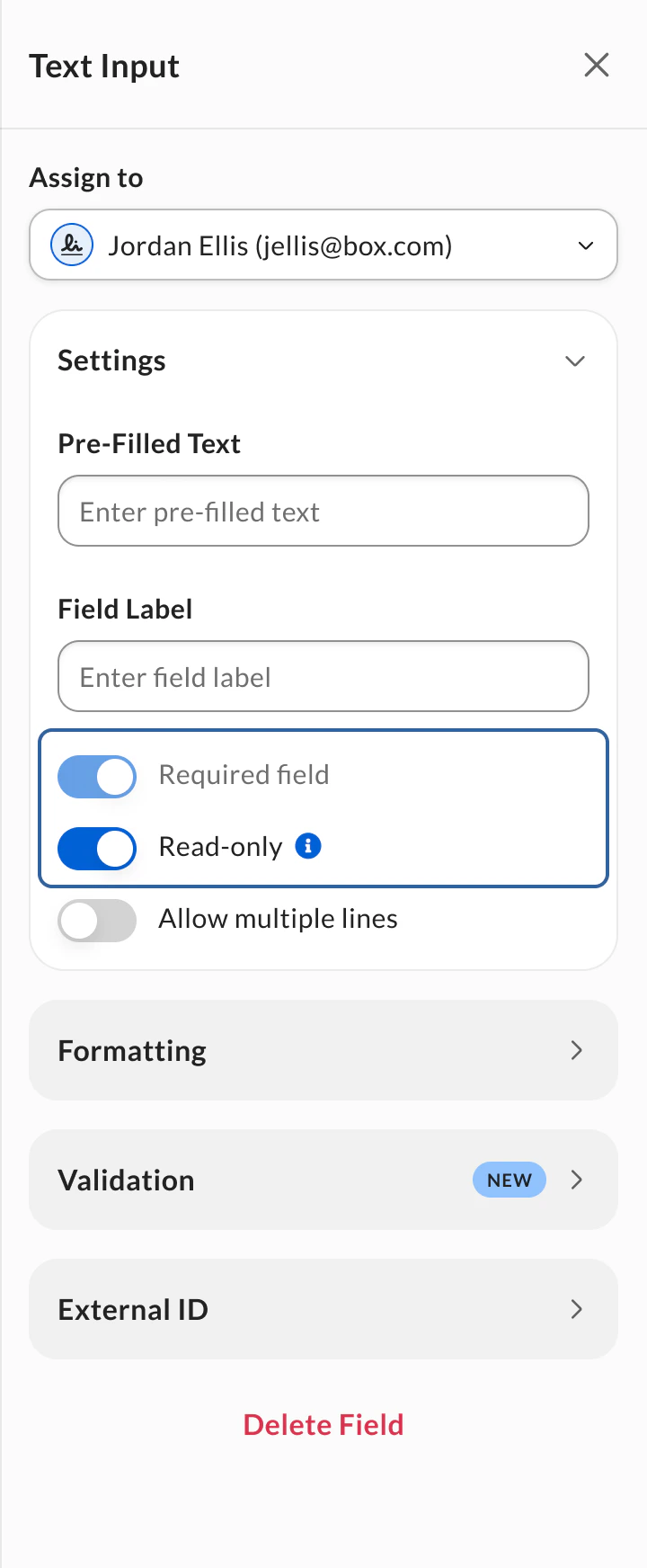
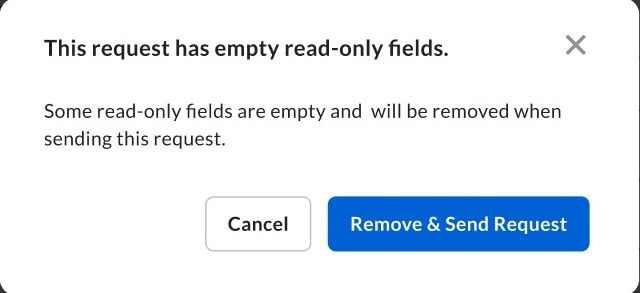
- Name Field
- Text Input
- Company
- Title
- Checkbox
- Radio Button
- Drop-down
Fields alignment
When you select multiple fields at one time while preparing or revising a signature request or template, alignment options display in the right sidebar as soon as the selection is complete. Use them to quickly align selected fields to your preferred position and arrangement. You can select fields using your mouse or keyboard shortcuts. Once the fields are selected, choose one of the four alignment options:- Align left - Aligns the selected fields along their left edge.
- Align right - Aligns the selected fields along their right edge.
- Align top - Aligns the selected fields along their top edge. Fields might overlap as a result.
- Align bottom - Aligns the selected fields along their bottom edge. Fields might overlap as a result.
Changing font size and style
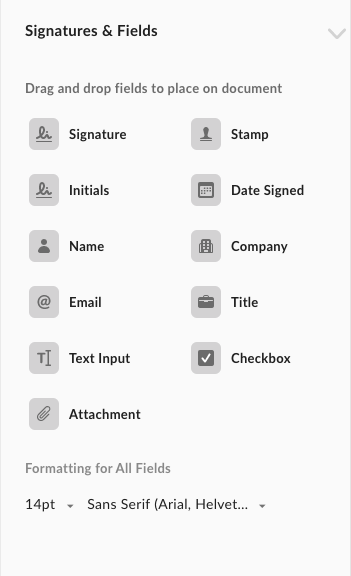
- Senders can change the font size and font style across all text-based fields on the document using the Formatting section in the sidebar.
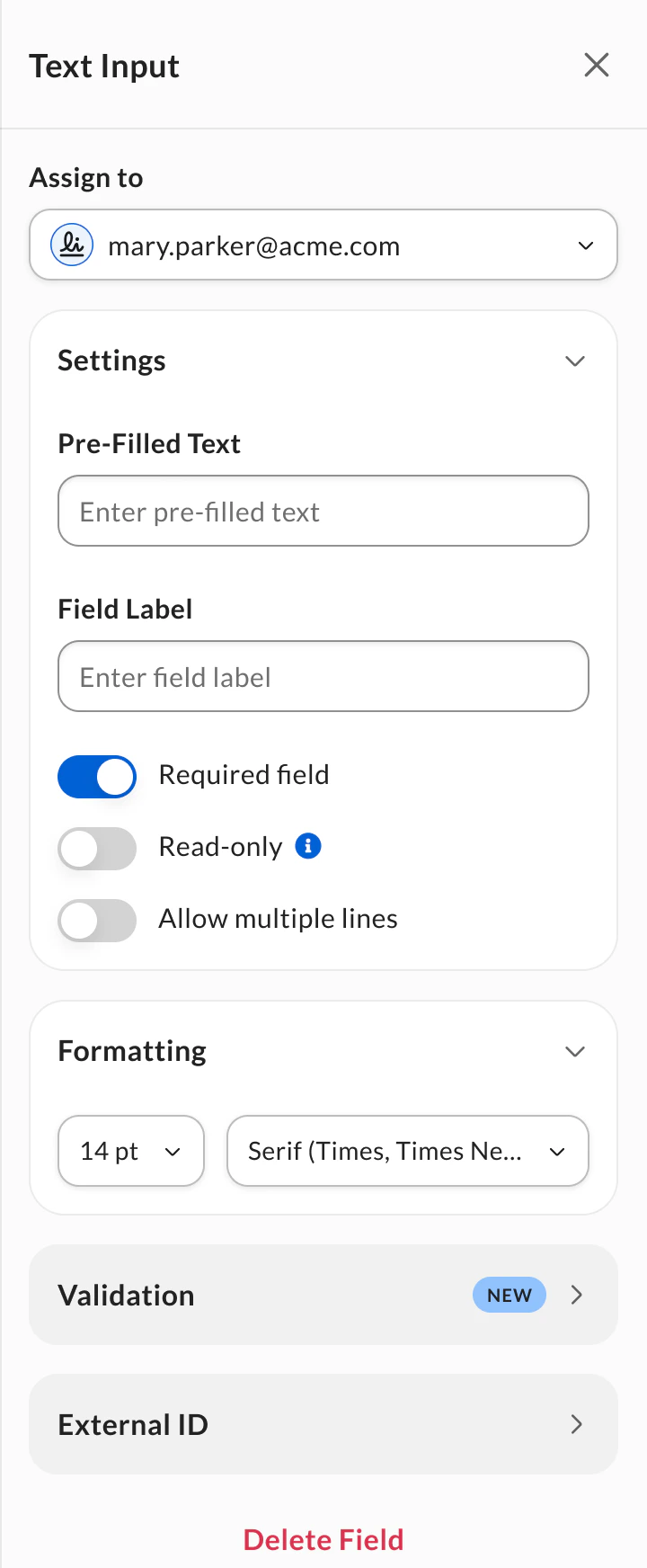
- Senders can also change the font size and font style of an individual text-based field in its settings panel. These changes apply only to that field.
Configuring email notifications
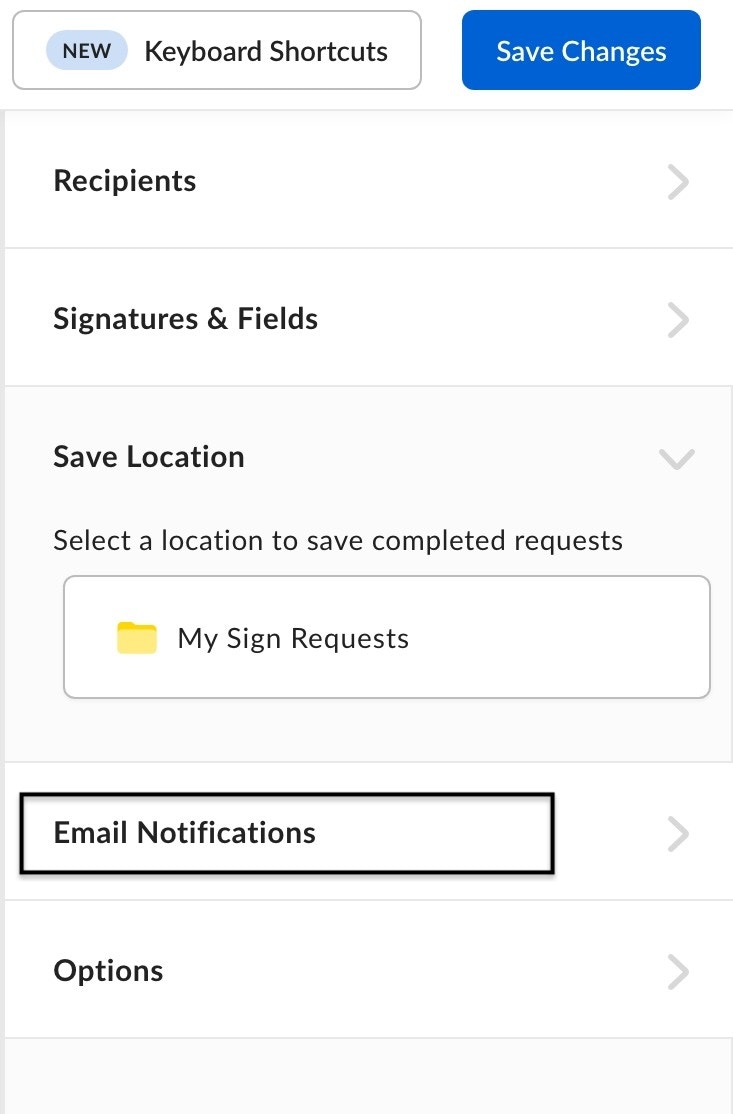
- In the right sidebar, under Email Notifications:
- In Subject, type a description of the request.
- In Message, type instructions or other information for the recipient.
- To send automatic reminders, select Send automatic reminders. Box Sign sends reminders 3, 6, 11, and 16 days after sending the signature request.
- Now set an optional expiration.
Step 5: Setting an expiration
When you prepare a signature request, you can choose to include an expiration for the request. When you set an expiration date, the request expires at midnight, GMT, on the date you select.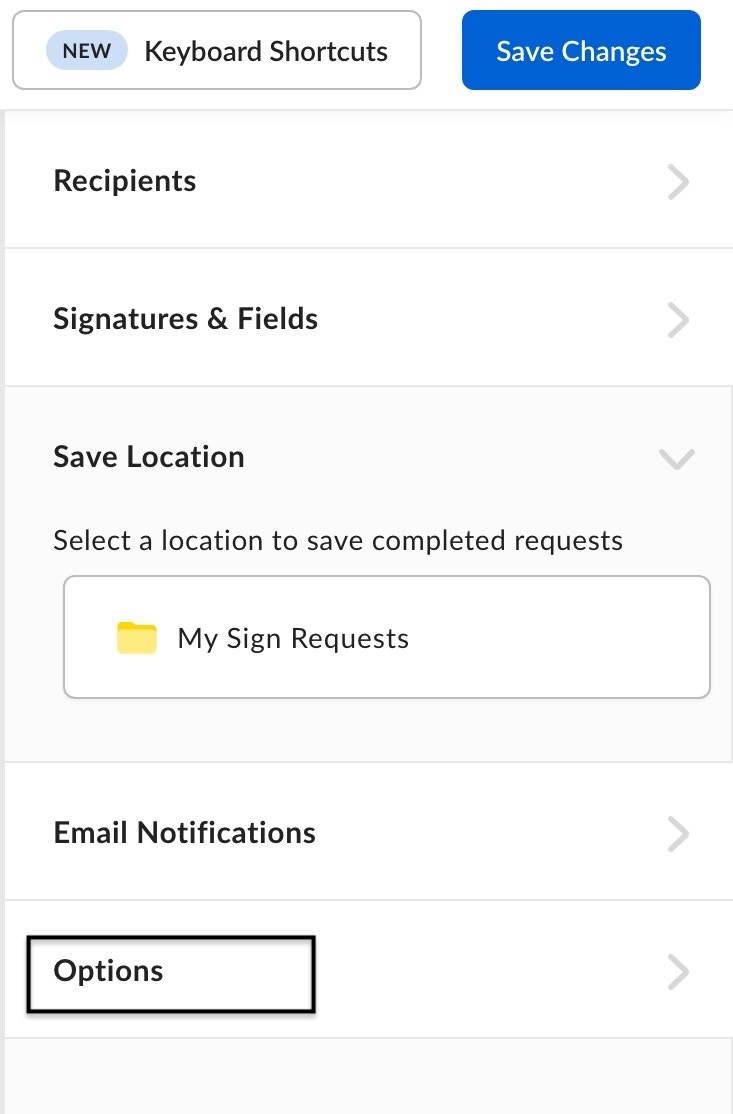
- In the right sidebar, select Options.
- Turn on the Set Expiration toggle.
- Under Days to Expiration, type the number of days to specify when the signature request expires.
- For example, if you enter “1” and send the request on January 1, 2025, at 7:00 p.m. GMT, the request expires on January 2, 2025, at 7:00 p.m. GMT.
You must manually notify the recipients of the expiration date.
Step 6: Sending a request for signature
To send a request for signature:- In the top-right corner of the document preview window, select Send Request.
Sending manual reminders
After you send a signature request, Box Sign also enables you to send manual reminders. When you send a manual email reminder, Box Sign immediately resends the original signature request email to all required signers who have not yet signed the document. To send a manual reminder:- In your Sign window, select the title of an unsigned document.
- Select the ellipsis button (…).
- Select Send Reminder.
Attaching files to a signature request
To add the attachment field to a signature request:- In the document prep screen, drag the attachment field to where you want it in the document.
- Fill out the file name “label” and description text boxes, and then assign the attachment field to your selected recipient.
- Select if you want the field to be required or not.
The attachment size limit for signature requests is 30 MB.