Configuring access to Box Sign
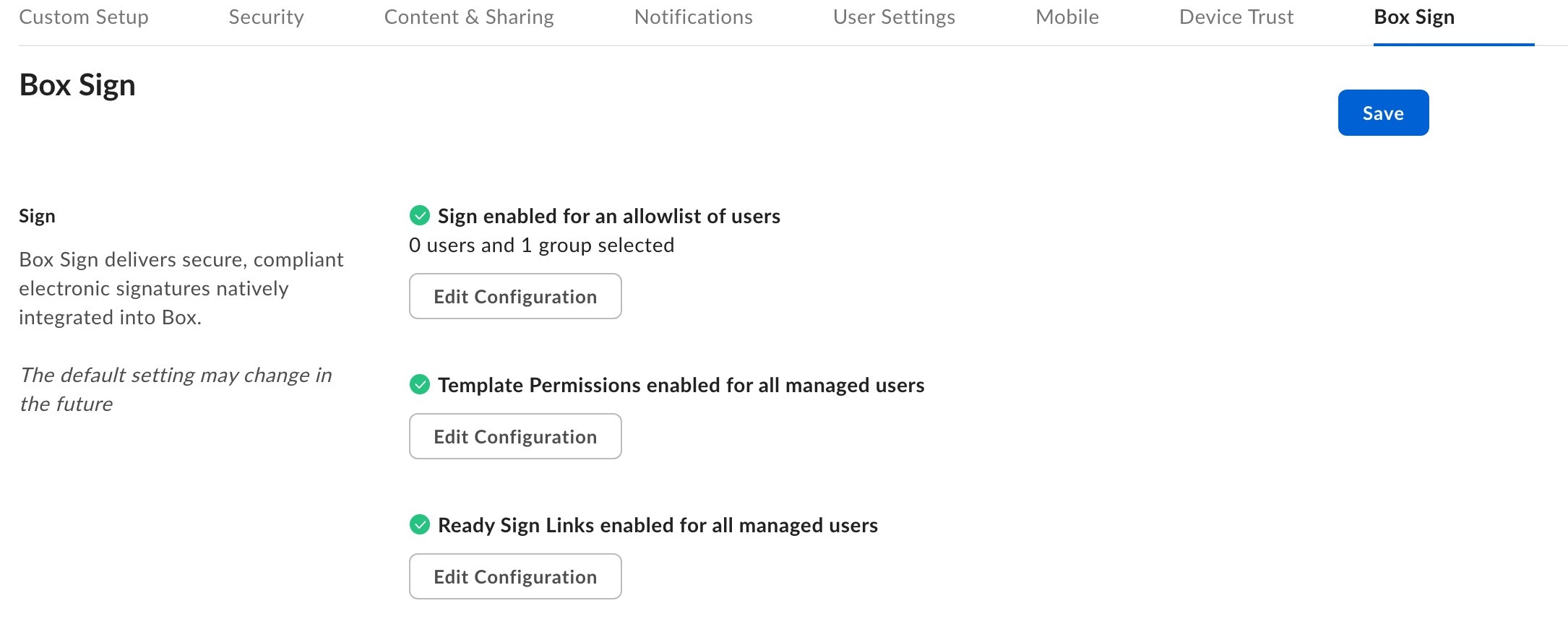
To change which of your users have Box Sign enabled or disabled:- In the left sidebar of the Admin Console, select Enterprise Settings.
- In the top bar, select Box Sign.
- Select Edit Configuration from the Configure Sign section.
- Select the enablement option.
- If you enable or disable Sign for select users or groups, type the user names, email addresses or names of groups you want to allow or deny.
- Select Save.
If a user or group of users have Box Sign disabled, they cannot initiate signature requests.However, such users can still use Box Sign to sign a document sent by someone else.Additionally, if a user accesses files or folders associated with Box Sign target folders, they can see the status of sent signature requests, including the recipients, along with recipient actions on such requests.
Enabling Box Sign for specific users has the following limitations:
- You can enter up to 100 names/email addresses and up to 100 groups. If you want to enable or disable more, you have to enable or disable Sign for the entire organization.
- Go to Admin Console > Users & Groups.
- Select the Managed Users tab.
- Select the name of the co-admin to whom you want to grant access permissions for Box Sign legal settings.
- Open the Role and Access Permissions section.
- Select Edit.
- Enable all of the following Co-Admin Permissions:
- Reports and Settings
- View settings and apps for your company
- Edit settings and apps for your company
- Run new reports and access existing reports
- Sign
- View and edit Sign permissions
- View and edit Sign legal settings
- Reports and Settings
- Select Save.
Configuring Box Sign template permissions
Enable templates for users to create, edit, or delete Box Sign templates. To configure Box Sign template permissions for your managed users:- In the left sidebar of the Admin Console, select Enterprise Settings.
- In the top of the window, select Box Sign.
- Select Edit Configuration from the Template Permissions section.
- Select the enablement option.
- If you enable or disable Box Sign templates for select users or groups, type the user names, email addresses or names of groups you want to allow or deny from creating, editing, or deleting Box Sign templates.
- Users or groups with template permissions disabled for creating, editing, or deleting templates can still view and use Box Sign templates that are shared with them.
- Select Save.
Configuring Box Sign ready-sign links
This feature is only available to Enterprise Plus and Enterprise Advanced accounts.
- In the left sidebar of the Admin Console, select Enterprise Settings.
- From the top of the window, select Box Sign.
- Select Edit Configuration from the Ready Sign Links permissions section.
- Select the enablement option.
- If you enable or disable Sign for selected users or groups, type the user names, email addresses or names of groups you want to allow or deny from creating ready-sign links.
- Select Save.
Enabling or disabling Box Sign metadata
Box Sign automatically saves the key details of each signature request as Box Sign metadata on the completed signature request files. This makes signed files searchable and ready to use in Box Automate workflows. This setting is enabled by default for your organization. You can disable Box Sign metadata for your entire organization. When it is disabled, Box no longer applies Box Sign metadata to new signature requests. To enable or disable Box Sign metadata:- In the left sidebar of the Admin Console, select Enterprise Settings.
- In the top bar, select Box Sign.
- Locate the Box Sign Metadata setting and toggle it on or off.
- Select Save.
Box Sign access for developers
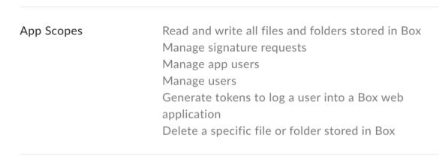
If your enterprise has access to Box Sign, any developer can build an app that makes requests with the Box Sign API. You can use the Custom Apps tab in the Admin Console to manage which apps have access to your enterprise. For details, see Managing custom apps.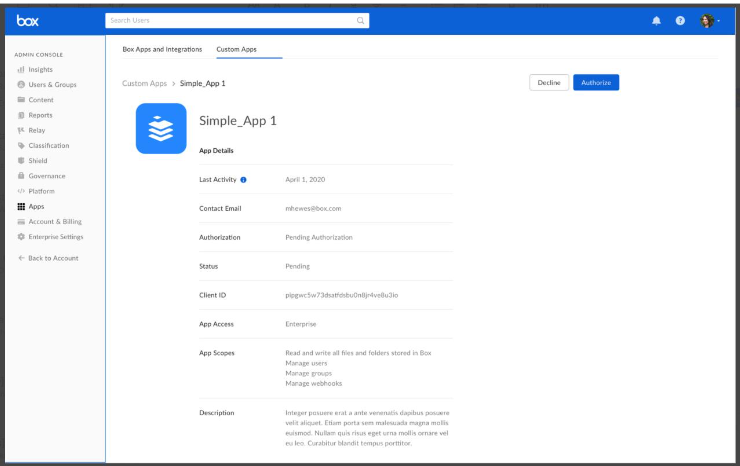
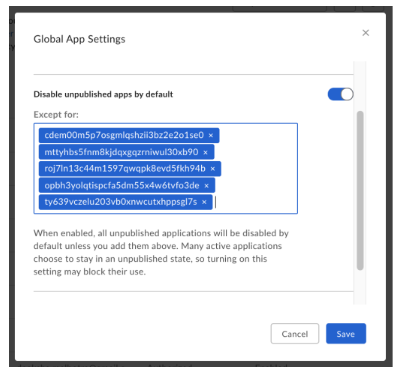
If you have OAuth 2.0 apps that are active within your enterprise, you need to add their client IDs to the Disable unpublished apps by default setting to keep them enabled.