

This article is about Box Shuttle in the Admin Console. If you’re using legacy Box Shuttle, a standalone tool, see legacy migration guides.
A recommended size of an Excel report should not exceed 5 million items (paths) in your job. Excel files that exceed this number are several hundred MB in size and are difficult to open and manipulate for most computers. To limit the size of your export, use the filters available in Job History, or export the report as a folder of CSV files instead.
Export a report
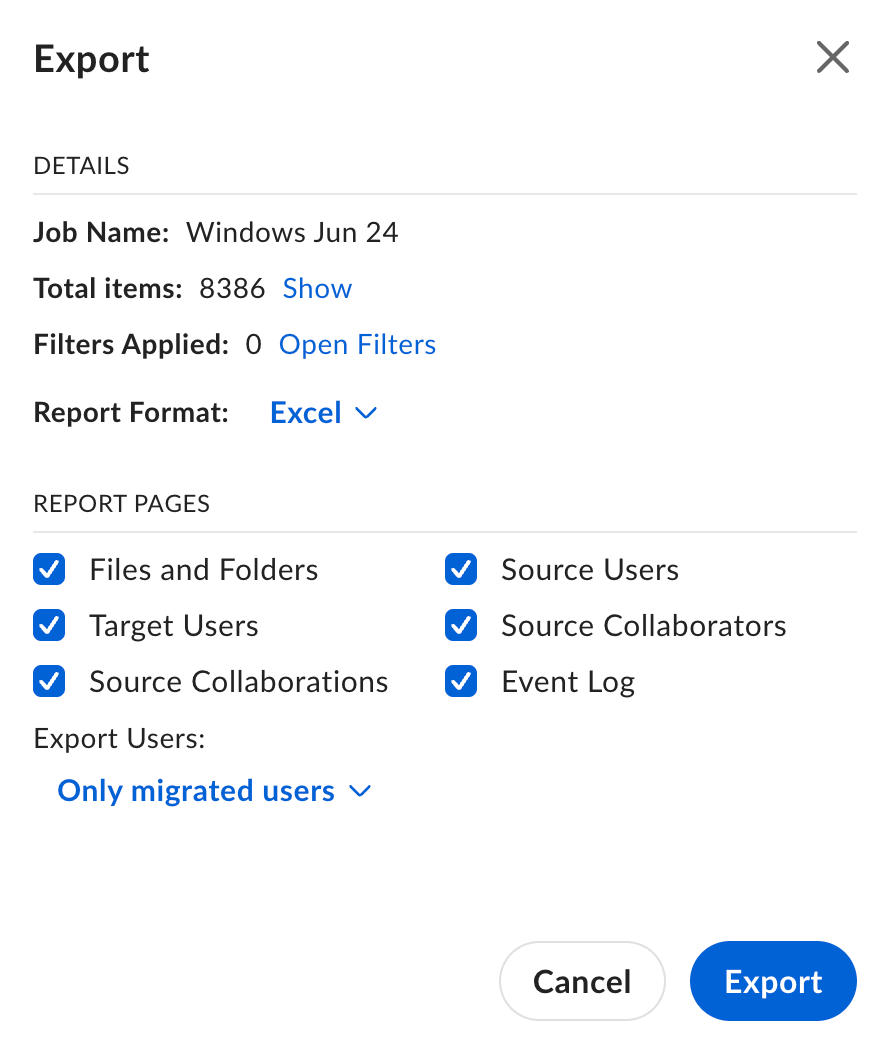
- In the Job Report section, select Export. If you want to export a report for a past job, go to the report list and select View Job Report.
- In the Report Format drop-down list, select Excel or CSV. The default format is Excel.
- Select the data you want to include in the report and confirm with Export. Bear in mind the following rules:
- If the file name exceeds 207 characters, the report name is truncated to comply with this setting. The file name is truncated to 207 characters so it can be opened in Microsoft Excel.
-
All forward and backslashes in the file title are replaced with underscores.
- If you selected Excel, the report is saved as an .xlsx file.
- If you selected CSV, the report is saved as a folder of .csv files. Each CSV export has a timestamp, so a new folder is always created for the export.
If you delete the folder, exported reports are lost. If you delete a given report in the folder, that report is lost. The folder is automatically recreated when you export the next report.