

This article is about Box Shuttle in the Admin Console. If you’re using legacy Box Shuttle, a standalone tool, see legacy migration guides.
Statistics
The Statistics report displays the job details:- How many files transferred, with how many errors (if any)
- File metrics, such as the distribution of file sizes
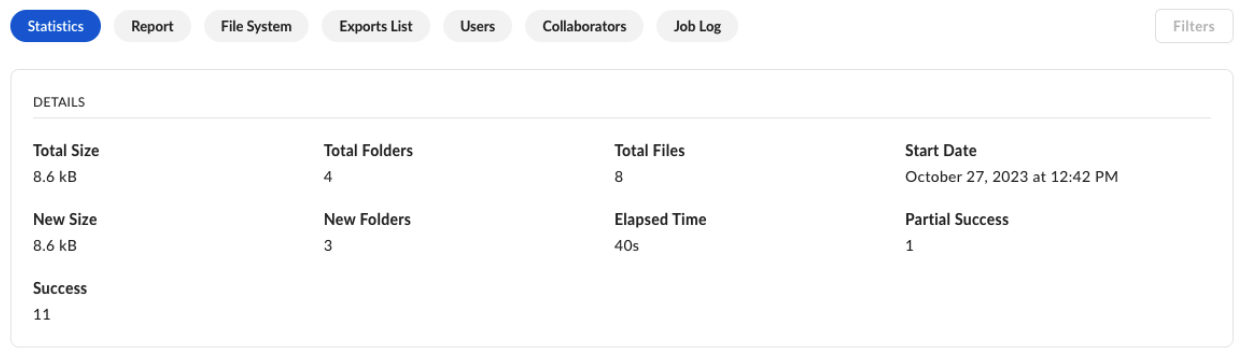
Report
The Report type lists paths to the analyzed files and folders. The Details panel for each entry allows you to verify information such as Source Account, Target Account, Status and more. You can also see who collaborated on a particular file or folder. To do so, select Collaborators.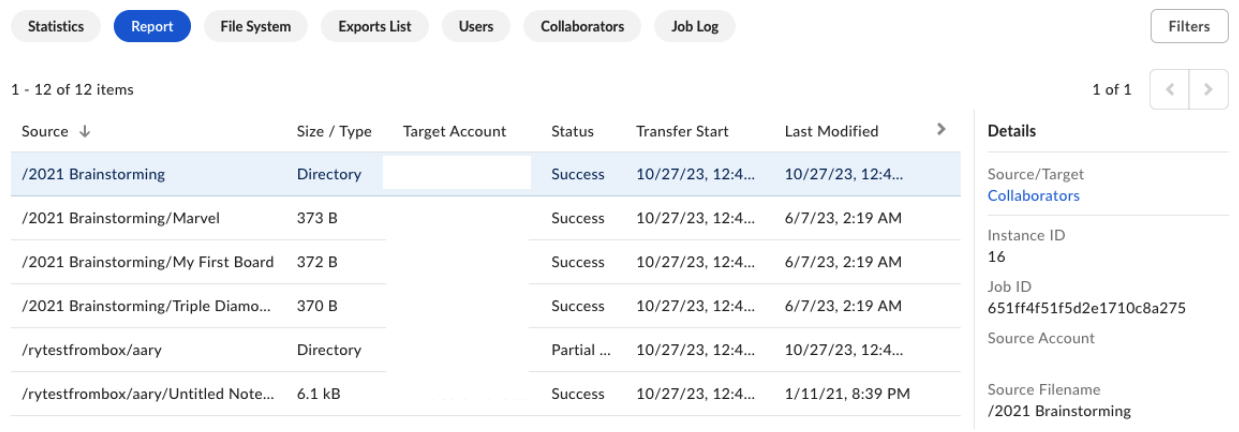
File System
Displays the details on how your data is structured by showing how many total files and bytes are in each of the root folders. Drilling down into the folders allows you to determine where the biggest clusters of data are. Use Filters and Source/Target switcher to view specific data sets.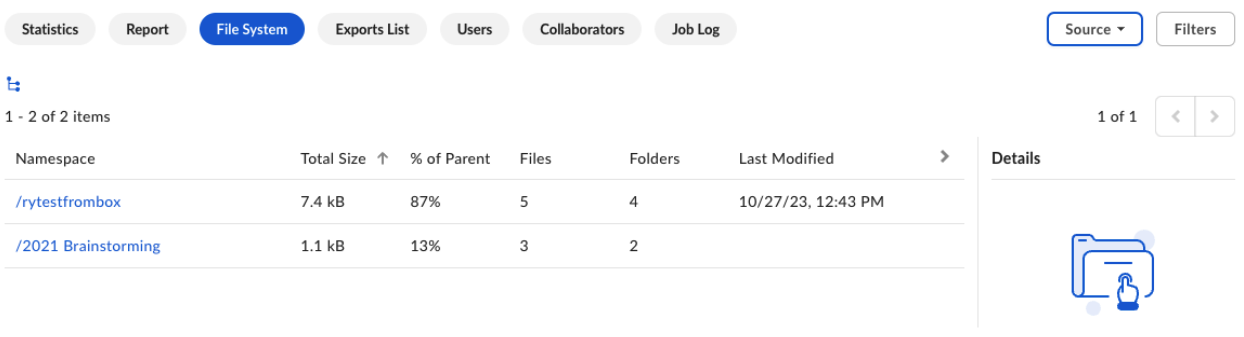
Exports List
Lists the exported reports. You can go through them and download the ones you need. The Report Format column shows the format of each export, either Excel or CSV.
Users
Lists the owners of files and folders subject to migration. Use Source/Target switcher to view the list of users as they exist on the source (Source tab), or as they will exist on Box (Target tab).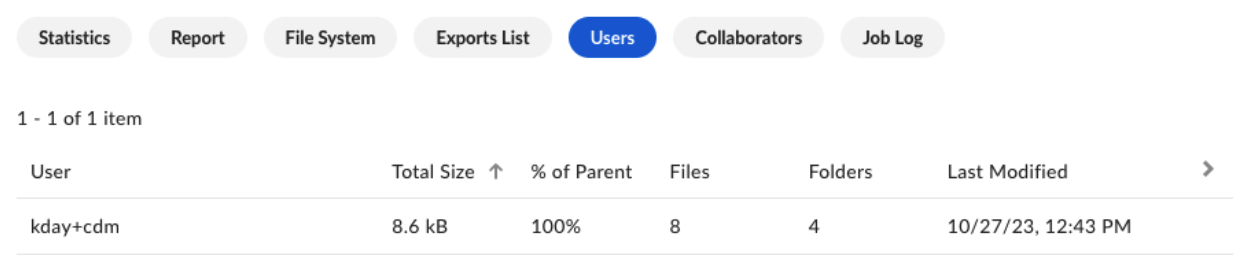
Collaborators
Lists the collaborators (users or groups) on files and folders subject to migration. Use Source/Target switcher to view the list of collaborators as they exist on the source (Source tab), or as they will exist on Box (Target tab).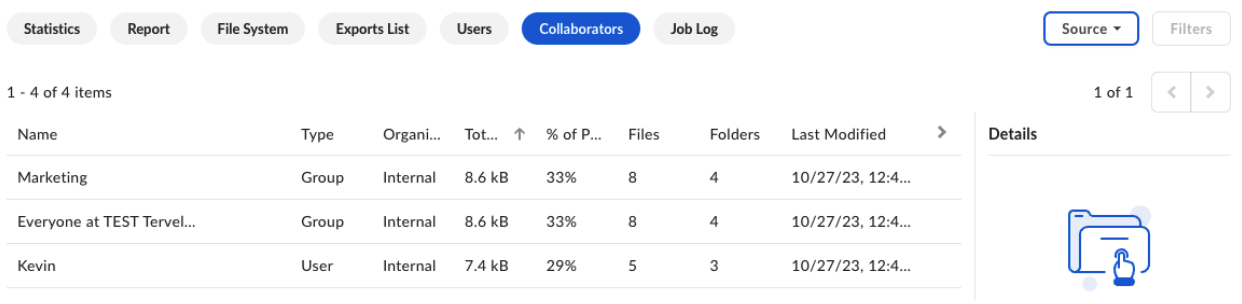
Job Log
Provides comprehensive information on all files that failed to transfer in your job.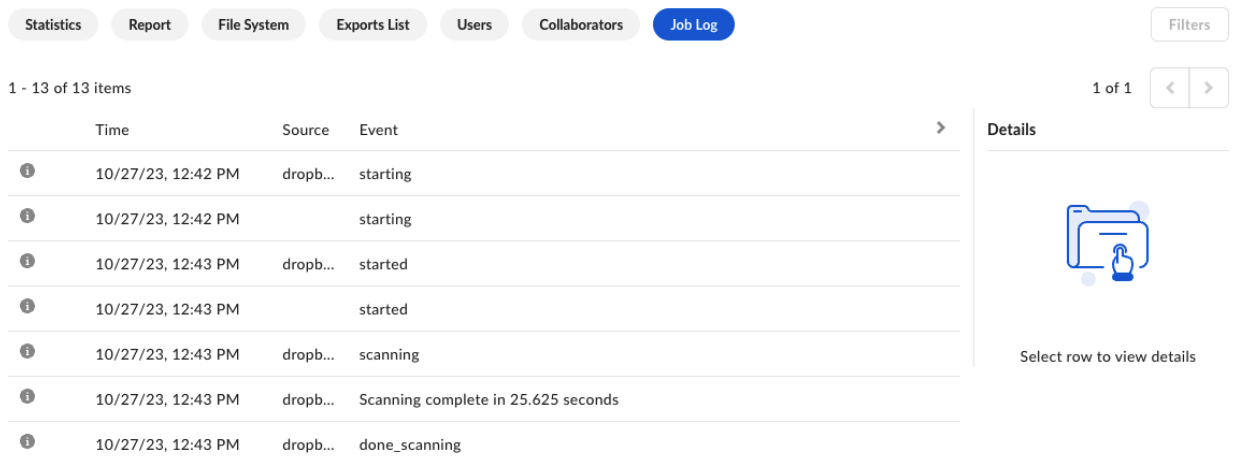
Job Log errors
Sometimes errors can occur during the transfer. Such errors fall into several categories:- Read / transmit errors: the file may have a permissions issue, it may be left opened, or the file may be copy protected. Read errors typically require user intervention, for example closing files or fixing permissions so a file can be accessed and transferred.
- Transmission errors: the file may not transfer completely, or there may be a discrepancy between how the file is read on the source and target. If the file does not transfer completely, Shuttle will reject it and re-try the transfer.
- Write errors: an example of a write error is that some cloud providers place a limit on the number of bytes in a single file or in the total bytes in the account. If you try to transfer a file to that cloud provider that is too big, you will generate a write error.
Charts
Displays the job data as charts, such as file size distributions, files per owner, and transfer rates over time. You can choose which of the 19 available charts to display. For details, see Viewing Box Shuttle job report charts.Additional settings
Filters
Specific report types, such as File System and Report, use the Filters button to activate a side panel you can use to narrow down the results.Source / Target switcher
Collaborators and Users reports allow you to switch between the source and target files, showing the information as it is on the source or as it will be on the target. These are often similar but not exactly the same. A few examples of how these two options differ:- Two source users are being merged and their information ends up in one Box account. In this case, the source view would show both users and their counts separately. The target view would show one user and the combined total file size, file, and folder counts.
- Some content is skipped and will not be transferred to Box. In this case, the source view would show more files and folders than the target view.
- One or more collaborators are skipped. In this case, the source view would show both collaborators, and the target view would not show any skipped collaborators.