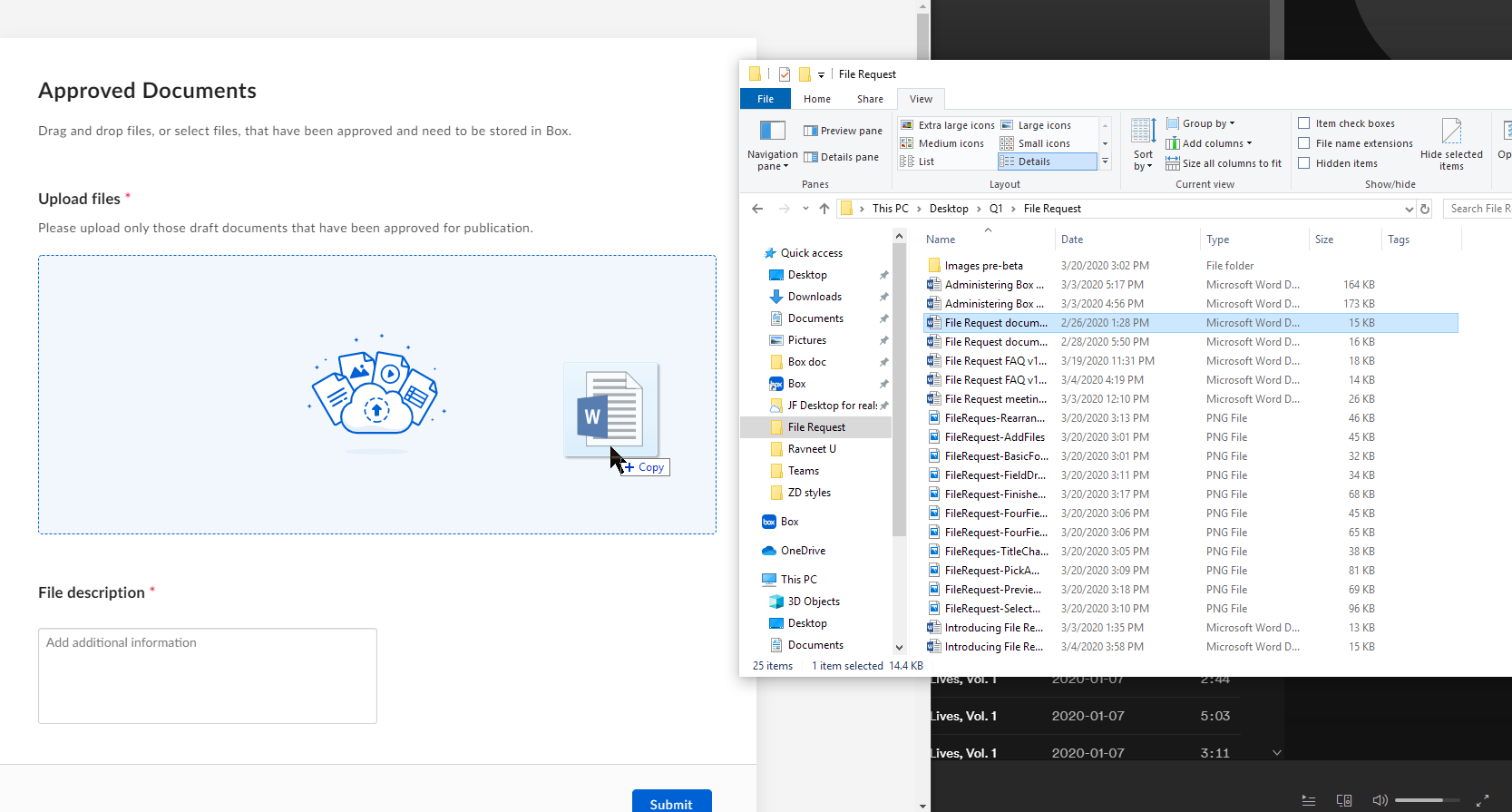
End users who receive a File Request link may not know where the content and data they upload through the link is stored. They cannot see content uploaded by other users, and information about the File Request folder is not obviously visible in the preview experience. That’s why it’s important for your form to be clear, unambiguous, and organized. You may find it helpful to understand what the experience is like from your content submitter’s perspective.When people click the link you send out, a dedicated Web page opens. The page displays only your File Request form, exactly as you have built it. This is why it’s important to preview your form before sending out the link. (The exception would be if you’re creating an embed widget from your File Request, in which case it displays within a pre-configured web page.)The below image displays a simple File Request form – one upload zone and one field – with someone in the act of dragging a Word document into the upload zone.
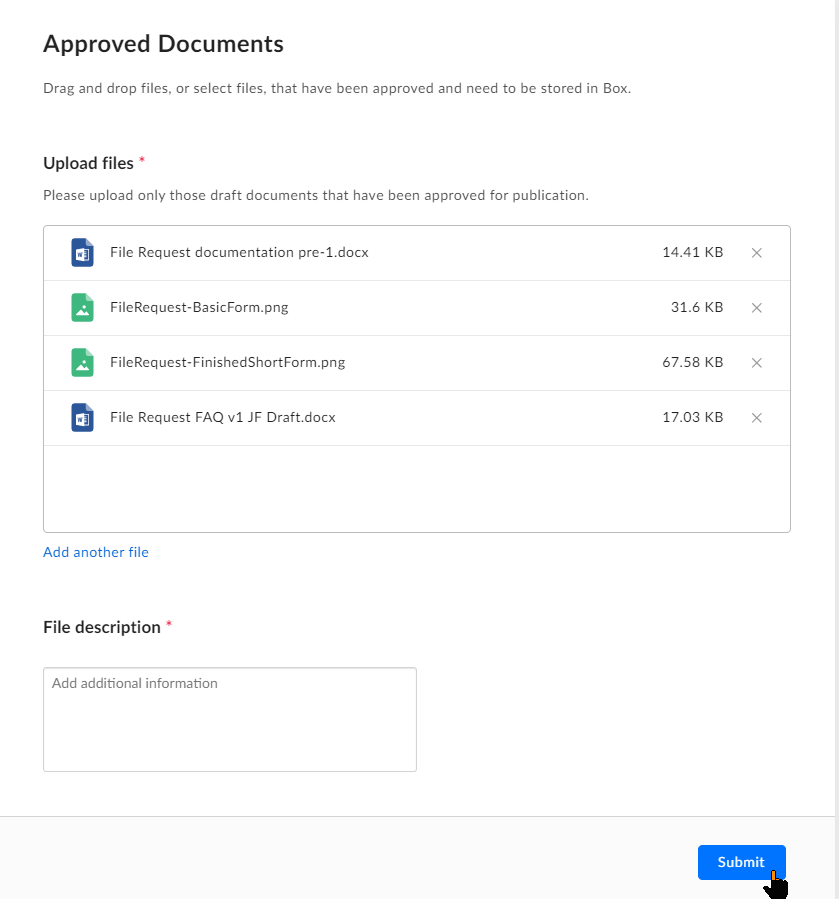
When people begin uploading files, Box displays the file names in a list over the upload zone.
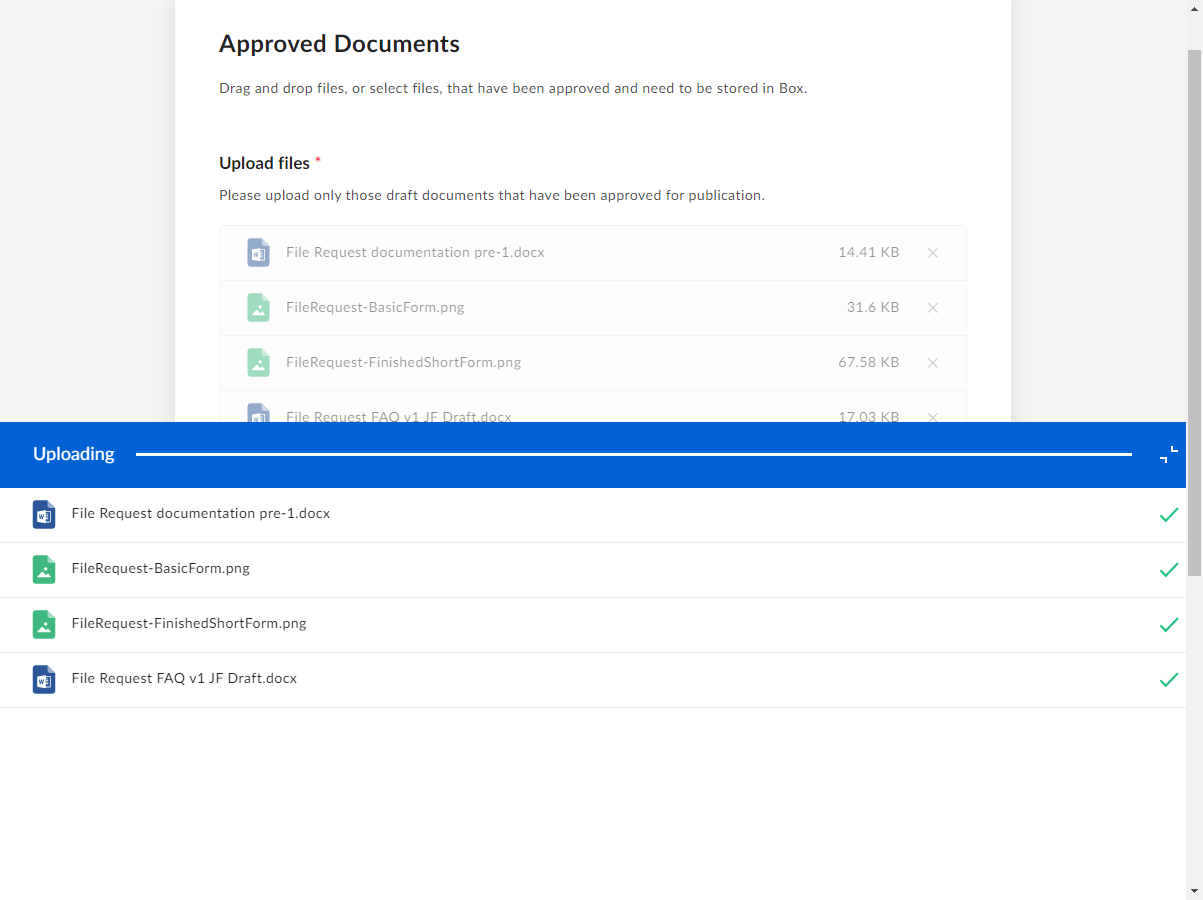
This helps people confirm they’ve uploaded all of the files you’re asking for. If they make a mistake or change their minds, they can decide to remove a file from the list before uploading it. To do this, they click the x to the right of the file.If you or your Box administrator are requiring content submitters to log in to their Box account before they can submit, Box also displays an option for them to log in. If they do not have a Box account, Box displays a link they can use to sign up for one.If they already have an active instance of Box open, they do not need to log in again.When they’re done, they click Submit. With each file upload Box automatically captures the email address used to log in. And at the bottom of the form Box displays the progress of the upload.
When the upload completes Box displays a confirmation message. If one or more files fail to upload, the submitter can simply try again.
You cannot upload folders via the File Request form. You can only upload files.
The size limit on uploaded files depends on the limit set by the requester’s enterprise.
You can upload up to 500 files per submission.
People who have access to a File Request link may view the folder owner’s metadata via the API, even if the metadata is not obviously visible in the preview experience.
When Require uploaders to log in to Box is enabled, file request links embedded in external webpages cannot be loaded.