When the Invite Groups to folder feature is enabled, end users can invite a group (within an enterprise) to collaborate on a folder owned by the same enterprise, instead of inviting each member individually.
The folder and the group must be part of the same enterprise. When you invite a group to collaborate, Box grants the group collaboration access. Group members do not receive emailed invitations to collaborate, nor notifications in the Box Notification Center.
This feature is available only for Enterprise and Business accounts. The Invite Groups to folder setting does not supersede other folder collaborations restrictions.
Prerequisites
Before end users can invite groups, an admin must configure the following. The first two settings are enabled by default.
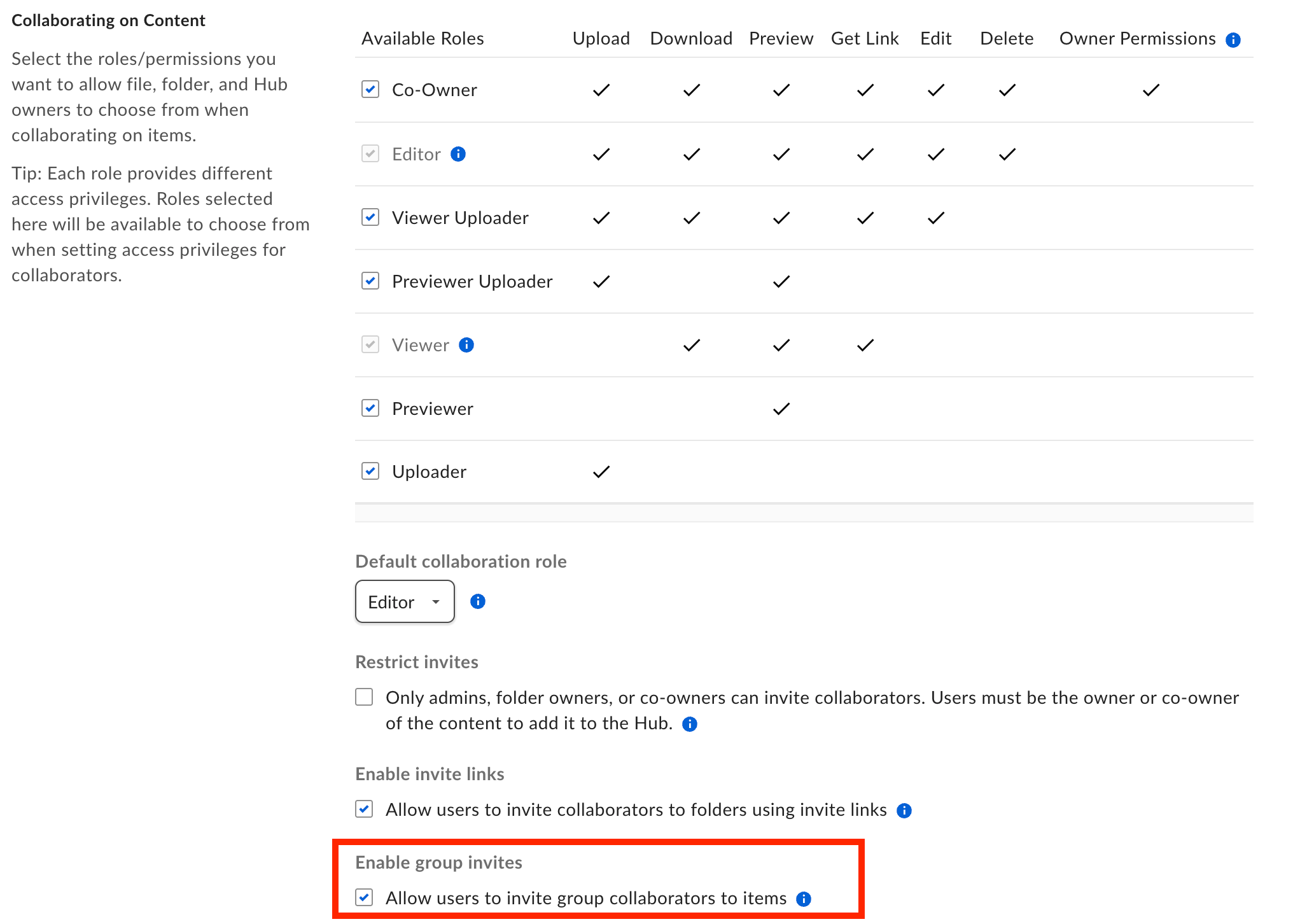
- Enable group invites for the enterprise. In the Admin Console, go to Enterprise Settings > Content & Sharing > Collaborating on Content and select Allow users to invite group collaborators to items. This allows end users to invite groups from non-admin pages.
- Allow the specific group to be invited. Admins have granular control over who can invite individual groups into shared folders. To allow end users to invite a particular group, go to Users and Groups > Groups > Select the group, click Edit in the Group Details section, and make sure Company is selected under Permission Setting.
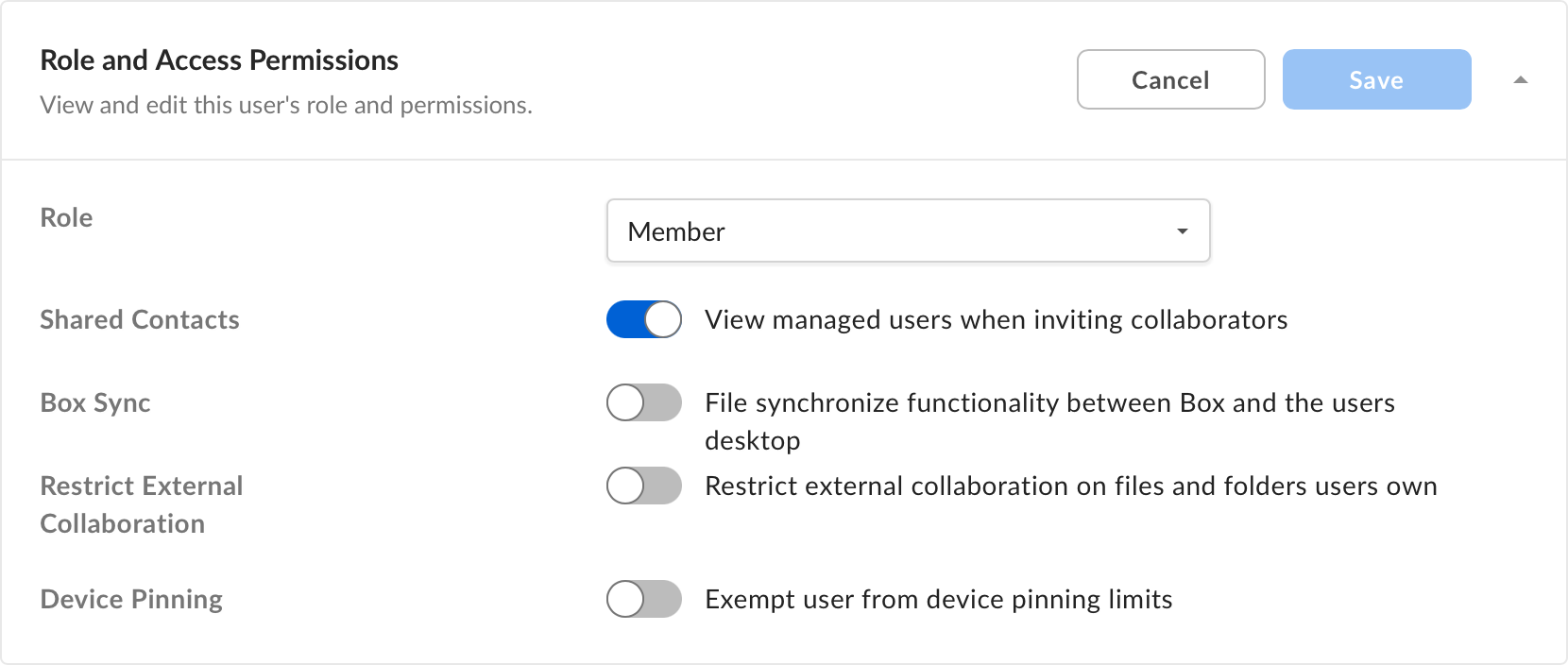
- Enable Shared Contacts for the inviting user. Go to Users and Groups > Managed Users > Select a user > Role and Access permissions section, and select the View managed users when inviting collaborators check box. This setting is enabled by default when a new user is created, but can be enabled or disabled per user.
Invite groups to a folder
You must be an owner, co-owner, or editor of the folder to invite collaborators.
- Hover on the folder you want to share, click Share. You can also right-click and select Share.
- In the Invite People field, type the group name and see the auto-complete group list.
- Select the group.
- Click Send.
- Auto-complete is designed for short search queries, so the group name search is limited to 100 characters. Entering more than 100 characters returns no results in the auto-complete list. To find a longer-named group, type only the first part of the name and select the group from the suggestions.
- To change a group’s access level or remove a group after inviting it, see Managing Collaborators.
- If you transfer a group-collaborated folder outside the Enterprise, all group collaborations are removed.
Other References
Last modified on July 10, 2026