

End of Life (EOL) has been announced for Box Sync effective December 2026. For more information visit the official announcement page.
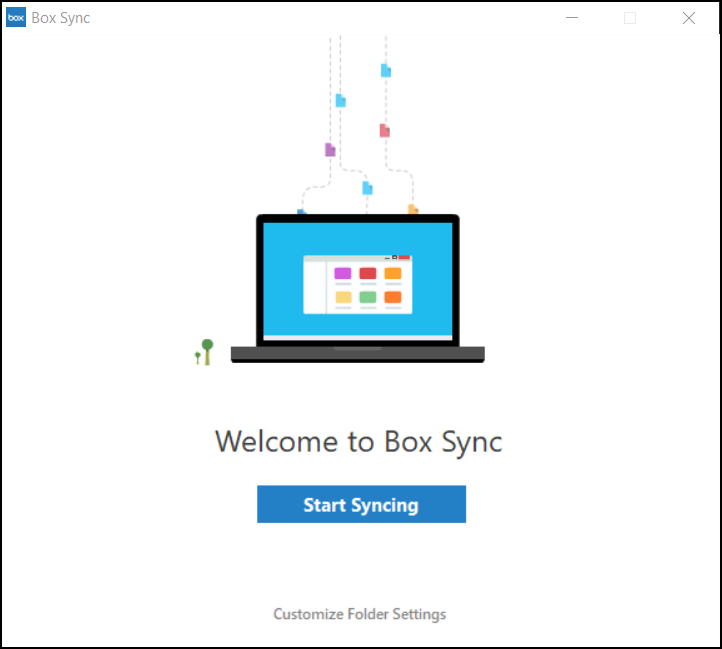
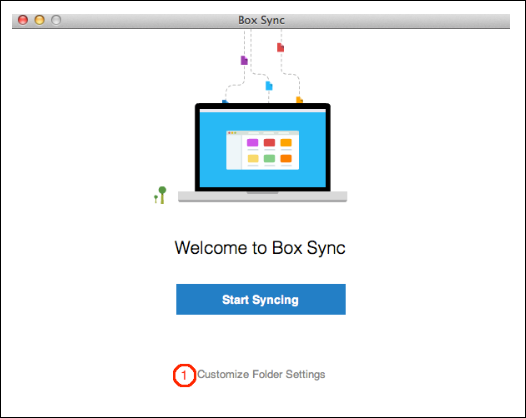
- Click the Customize Folder Settings link on the Welcome to Box Sync page. You cannot customize the folder location after clicking Start Syncing.
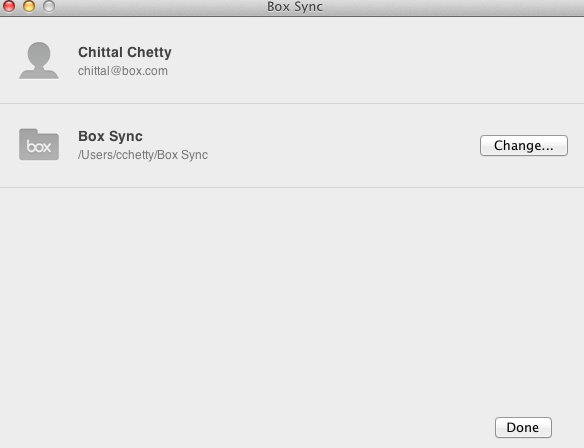
- Click the Change… button to select an alternate folder location.
- If your administrator has already customized the Box Sync folder location, you will not be able to override your administrator’s changes. You will see an error message if you attempt to change the location.
- Select the parent location for the “Box Sync” folder. Note: you are selecting the folder where Box Sync will create the “Box Sync” folder. For example, if you select C:\Users, then Box Sync will sync your files to C:\Users\Box Sync.
- You can only change the name of the “Box Sync” folder via administrator customization options.
- You cannot have an existing folder called “Box Sync” in the location you select
- The Box Sync settings window automatically displays the newly-selected folder location for Box Sync. Click Done. The Box Sync settings screen reverts to the Box Sync home screen.
- Click Start Syncing to begin syncing your items to the new location.