

- Use a built-in “pen,” the Apple Pencil, or even your finger (for touch screen-enabled devices) to write or draw in free hand.
- Choose from a range of colors.
- Erase your annotation.
- Add comments to your annotation to provide clarity and context.
- Automatically notify one or more collaborators via Box’s “@ mention” feature.
- As with all Box annotations, you can only share your annotations with people who are collaborated on the file.
- Box annotations essentially are an overlay in Box Preview – that is, they are not added to the actual file contents. If you open the file in its native application, your annotations do not display.
-
Open the file you want in Box Preview.
- The annotation toolbar displays at the bottom of the screen.

-
Click the drawing icon; it looks like a scribble (). The full annotations toolbar displays.

-
Do one of the following:
- For a marker effect, click or tap the marker ().
- For more precision, or to write, click or tap the fine point pen ().
- (Optional) The default drawing color is red. To change it, click or tap the color circle (). When the color palette displays, click or tap the color you want.
-
When you select your tool, you can draw your annotation in several ways, depending on your device:
- Mouse or trackpad
- Apple Pencil
- Your finger
-
When you stop drawing (for example, by lifting your finger), the Comment toolbar displays. Here you can explain and add context to your annotation.
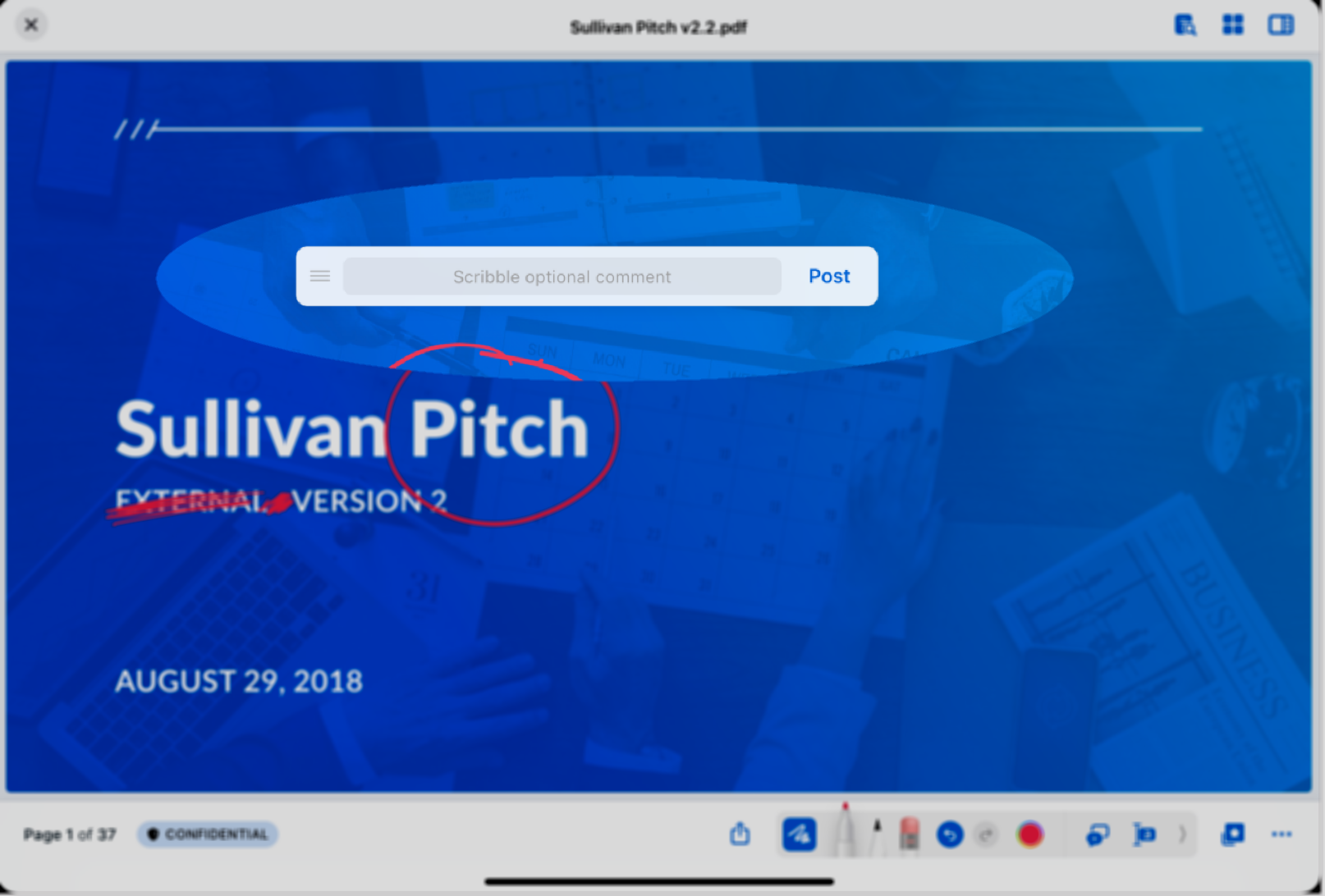
-
To save your annotation, click or tap Post.
On iPhone, if the comment field is empty, Box does not save the annotation. To save the annotation, type at least one character and click or tap Post.
-
Click or tap into the blank line. As before, the tool you use to enter your comment may change, depending on your device and your preference:
- Type using a real or virtual keyboard
- Write freehand with your Apple Pencil; Apple Scribble recognizes your handwriting and converts it into text. Instructions for using Apple Pencil.
-
When you’re done, click or tap Save. From here you can:
- View your comment as it will display in the File Activity sidebar on the right. To do this, click View Comment.
- Delete your comment. To do this, click Delete.
- Begin another annotation.
You can move the Comment toolbar anywhere on the screen. To do this, click or tap and drag the lines on the left portion of the toolbar () to wherever you like.
- A segment extends continuously from the time you begin drawing to the time you raise your finger or pencil. For example, you draw a single unbroken line in one segment. A dotted line requires multiple segments.