Configure Notification and Security Settings on Box for Android
Access your app settings (Settings in the main menu) to set your notification and security preferences for the Box app. You will also find the amount of storage you have used listed at the top of the settings screen.
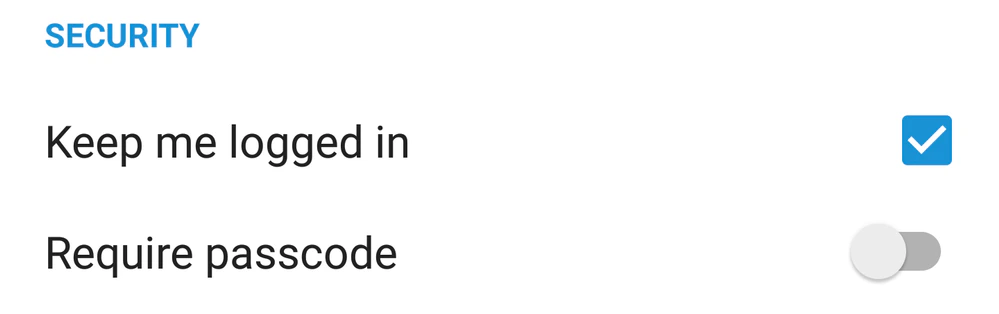
Clear Keep me logged in if you would like to be logged out of your Box account every time you close the Box app.
If you use the back key to exit the app, Box logs you out. Exiting the app by any other way, or by stopping the app, does not log you out.
Enable Require passcode to set a four-digit passcode that you will be required to enter each time you open the Box app.If your device has fingerprint scanning capabilities (Android 6.0 and up), you can choose to unlock the app using your fingerprint instead. Enable the Require passcode setting and if your device has the capability, the fingerprint option will be displayed.After enabling Require passcode, you cannot take screenshots or screen recordings within the Box for Android application.
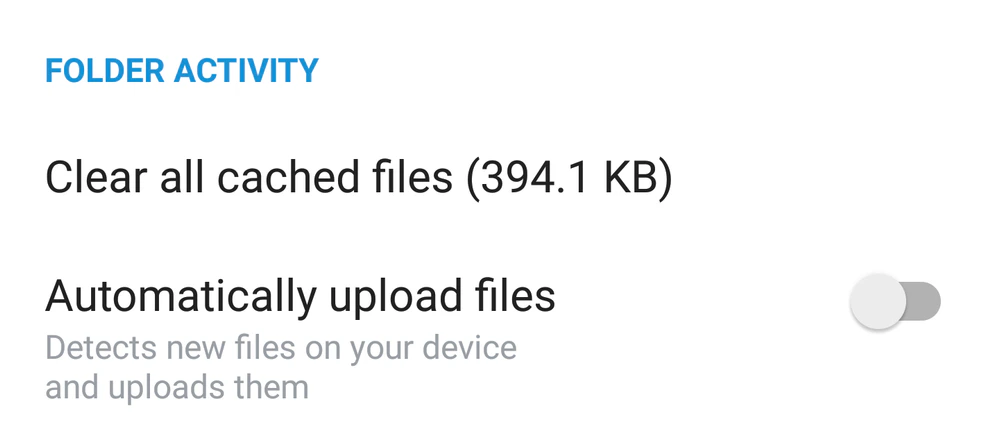
Under Folder Activity, you can remove any Cached Files from your device. Cached files are temporary files that are created when you preview a file, and save you time when you preview the file again. Removing cached files will clear some storage space, but will also mean that you will need to re-load any previewed items.If you enable Automatically upload files, Box will detect files stored on your device and upload them to Box automatically.
Last modified on July 8, 2026
Was this page helpful?
Assistant
Responses are generated using AI and may contain mistakes.