

- The captions/subs exist as a separate text track in the video file.
- The captions are contained in the video stream/track. The data is tightly coupled with the actual video picture data (but can still be toggled on/off).
This feature is only available to Business-Plus users or higher.
Enabling Subtitles/Closed Captions
When you preview a video file that includes a subtitle track/closed captioning, you will see a button marked CC in the preview window. Clicking this button will toggle captions on or off. If your video includes multiple subtitle/caption tracks for different languages, you can select a specific subtitle track by opening the Settings menu (Gear icon) and clicking Subtitles/CC. Select the appropriate subtitle track and subtitles will be displayed at the bottom of the screen.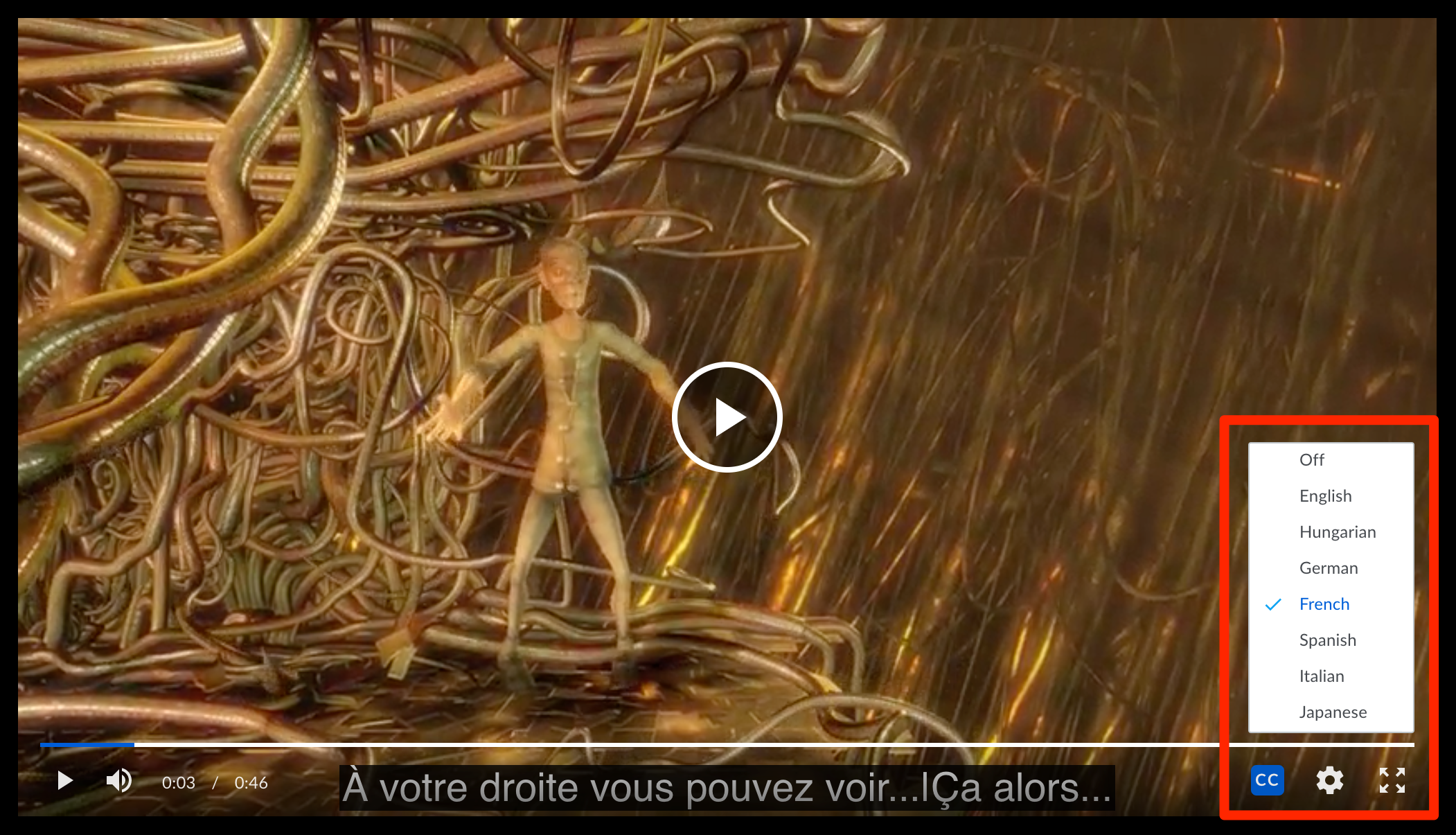
- We do not yet honor positional and style cues. CC/Subtitles will be overlayed at the bottom of the video.
- CC/Subtitles do not yet show on mobile devices.
- This is only supported in our HD Video player. You must be at least in the Business-Plus tier to get HD video, and it is only supported on modern browsers (for IE11, only on Windows 8.1+).
How to prepare Box-supported Closed Captioned/Subtitled videos
If you have a video file and a separate SRT or VTT file for that video, there are a couple of different solutions to view those subtitles in Box. General Tip: For both options below, we recommend that the CC/Subtitles be encoded in UTF-8 and specify a language for the text track. Specifying a language will lead to a more user-friendly Preview experience in Box when the viewer is choosing subtitles for the video. Option 1: Request a 3rd-party service to include the CC/subs in a self-contained video file. This is the easiest solution. A 3rd-party captioning service may be willing to prepare the Box-required delivery format for you. The deliverable would be a single, self-contained video file with the captions inside (usually as a separate text track). Be sure to be clear that these need to be closed-captions, NOT open-captions (where the captions are burned into the video and cannot be hidden). Option 2: Use a software tool to embed the SRT/VTT file into the video file. If you have an existing workflow that produces an SRT/VTT file as a sidecar file, you can follow up that step by embedding the file into the video file to produce your final, self-contained captioned video. There are a few free software tools that make it easy to embed the SRT/VTT file into the video file as a separate track. We recommend you use a tool that does not require re-encoding the video file, as this will likely lead to fewer issues and complete nearly instantly.
There are also proprietary software options particularly for generating video with CEA-608/708 captions. These tools generally support more complicated workflows, and might make sense to use if you already have a workflow set up with them.