Box stores items you place in Trash for a certain period of time. That default period is 30 days, although Box administrators of business and enterprise accounts can shorten or lengthen it. While items are in your Box Trash, you can recover and restore them to their original locations in your Box account. You can also search your Trash to locate specific items you can recover or delete manually.
When items are deleted from a collaboration folder, both the owner and the person who deleted the item can recover the items from the Trash.
If you are removed as a collaborator from a file or folder that you’ve deleted, you no longer see that item in Trash. To see the item in Trash, you must be again added as a collaborator to that item.
Storage AllocationItems in your trash do not count towards total storage allocations.Accessing the TrashTo open the Trash page, in the left-hand sidebar, hover over the More option and click Trash.
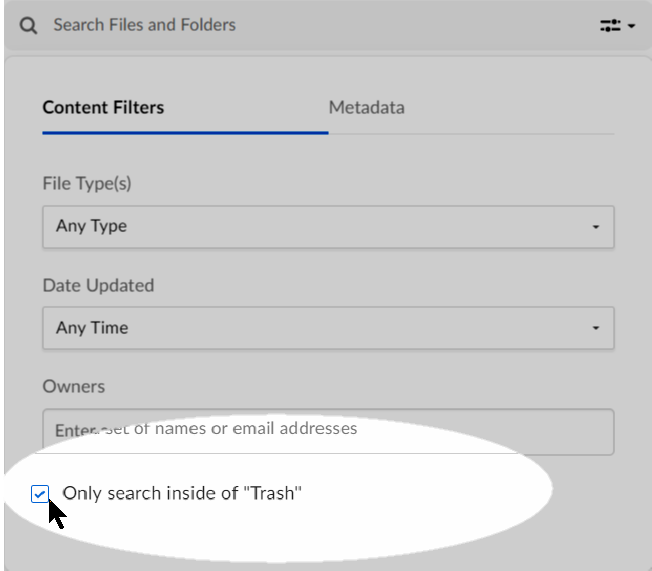
You can search for specific files or folders in Trash. Search through your Trash folder the same way you would search any other Box folder. The trash search returns items in the trash that the user has Viewer Uploader access to. The results include “Items I own,” “Items I deleted” and also other trashed items that the user has edit access to.
AI Sessions, Extract Agent, and Automate workflows do not currently display in the search results.
To search through your Trash folder:
Navigate to your Trash folder.
Toward the top, click the Search Files and Folders.
In the box that displays, enter any search parameters.
Check Only search inside of “Trash”.
Press Enter.
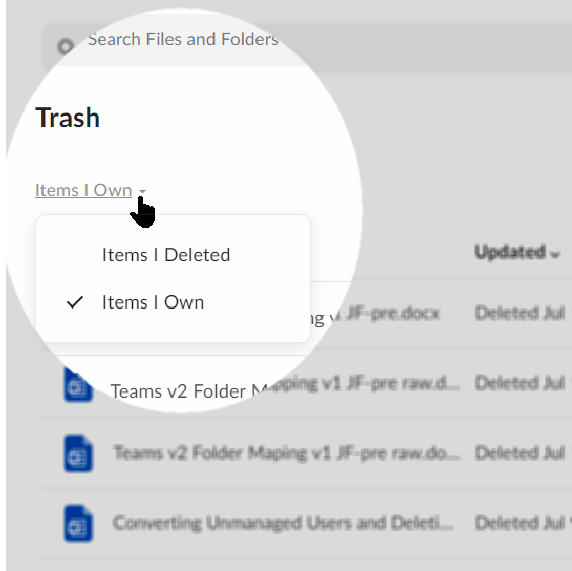
To sort and filter all items within the trash folder:You can filter content by items you own, or by items you’ve deleted. To do this, directly beneath the folder label (Trash), click the Items I Own (or Items I Deleted) down arrow. Then click the option you want.
The Items I deleted filter displays all items you have deleted, regardless of who created or owns the item.
The Items I own filter displays all deleted items you own, regardless of who deleted the item.
Filtering by Items I Own is helpful when trying to track down content that may have been deleted by a collaborator in a folder you own.
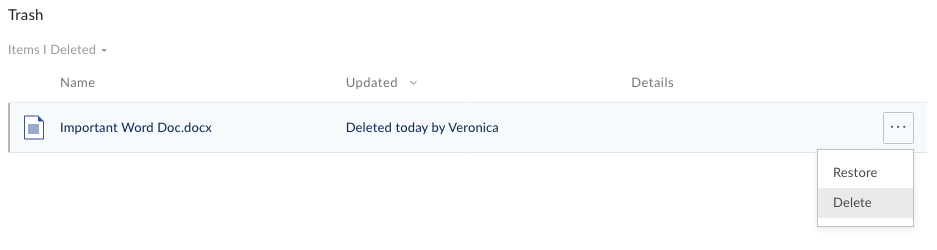
You can manually restore or permanently delete any file or folder in your trash. To delete an item, however, you must have permission to do so.To restore or permanently delete specific items in Trash:The steps below apply whether you’re selecting from search results or from all Trash items.
Hover to highlight the row of the item you want. The More Options ellipsis (…) displays.
Click the ellipsis (…). Then:
To return the item to its original location in Box, click Restore.
To delete the item permanently, click Delete.
At the prompt, click Okay.
When you delete an item, Box removes it from your Trash folder and starts the 14-day grace period.Box does not delete content to which a Governance or Retention policy is applied. Due to asynchronous processing, some deleted items may return to your trash if Box determines that they cannot be deleted due to a Retention or Legal Hold policy. For these items, Box displays a message in the Details column of the Trash window. Open the side panel for the selected item to see more Retention policy details.
Content under Retention and deleted from a user’s trash will be returned to the folder structure from which it was deleted in that user’s trash.Additionally, users can delete content under Legal Hold. Thus, preserving content in Box does not alert end users to the fact that content is being held for legal preservation; this is known as a silent legal hold. Content under Legal Hold and deleted from a user’s trash remains accessible to admins via the Content Manager. Deleted content under Legal Hold will be returned to the folder structure from which it was deleted in that user’s trash.
Contact Box Product Support immediately if the content you deleted is no longer in your Box Trash. When Box purges your trashed content there is still a 14-day grace period for paying customers, during which Product Support can recover your content. Beyond this 14-day grace period, however, content purged from your Box trash may not be recoverable and may be lost forever.Please note that this recovery grace period does not apply to Free accounts. We are unable to support file recovery for our Free Individual plan.
You can also act on multiple items at once. To do this, use the multi-select key combination for your OS (Windows or Mac). When you have selected all the items you want, right-click anywhere in a selected area. Then click either Restore or Delete.When you restore content from the trash, Box restores most of its details as well, including any:
Description
Tags
Comments
Tasks
Share state (whether the shared link is enabled or disabled)
Expiration setting on shared links
Collaborators
Box does not restore:
Expiration settings for deletion
Certain application-specific configurations or associations linked to the item.
You can also restore or delete the entire contents of the Trash folder. To do this, open your Trash folder. Then:
To restore the entire contents of your trash, towards the top-right, click Restore All.
To permanently delete the entire contents of your trash, towards the top-right, click Delete All.
Both Restore All and Delete All affect all items in your trash, not just those displayed.
The Delete All option does not display if you do not have permission to delete items from your trash.
Restoring a parent folder doesn’t restore any sub-items that were deleted before the parent folder was deleted.
Last modified on September 14, 2026
Was this page helpful?
Assistant
Responses are generated using AI and may contain mistakes.