- Marking an existing file already stored in your Box account as a Doc Gen template.
- Uploading a template.
Prerequisites
To generate documents automatically, the template must already contain Box Doc Gen template tags. Use one of the following approaches to add the tags:- Use the Box Doc Gen Template Creator add-in for Microsoft Word to create a Box Doc Gen template without any code.
- Use the Box Doc Gen tagging script to manually author the template.
Marking an existing document in Box as a Doc Gen template
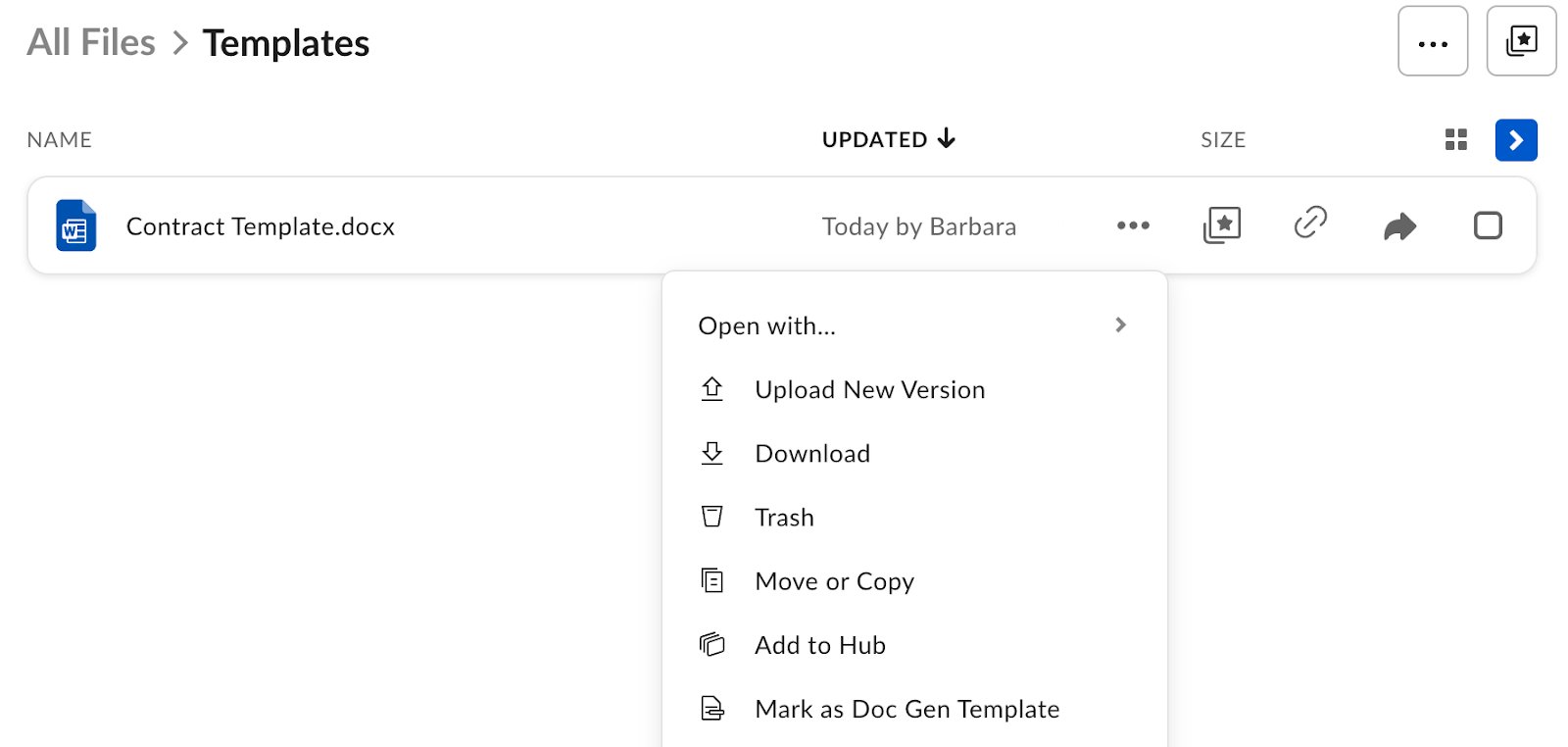
You can leverage an existing .docx file within your Box account as a Box Doc Gen template by marking it as a Box Doc Gen template. To mark an existing document as a Doc Gen template:- Right-click the file to open the menu.
- Select Mark as Doc Gen Template.
You can access the template from the folder where it is stored, and the Doc Gen tab in Automate.
Unmarking Box Doc Gen templates
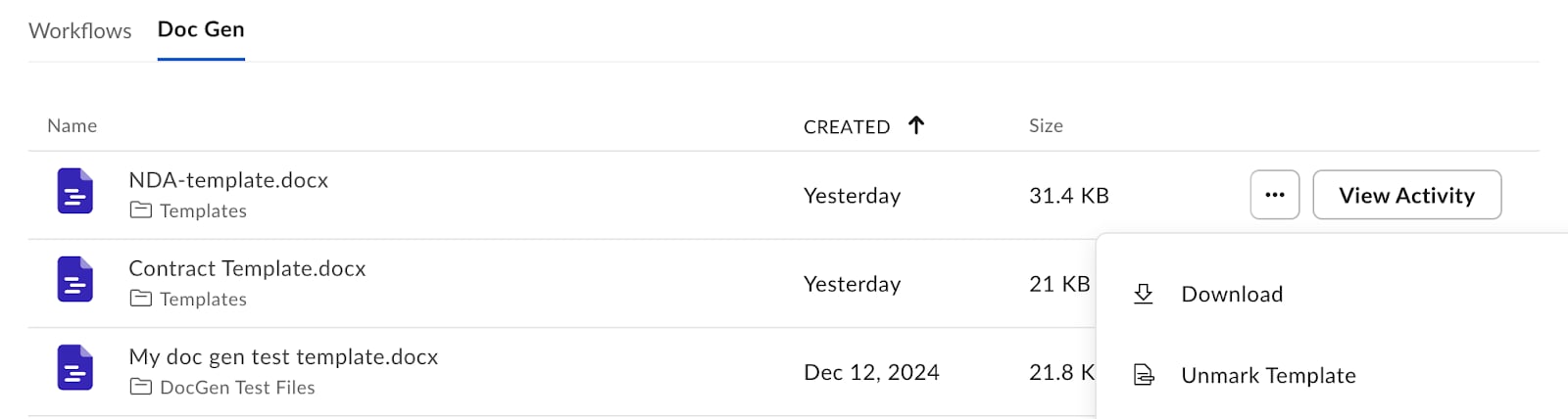
To unmark the template:- Go to Automate > Doc Gen.
- Hover over the template you wish to unmark and select the ellipsis ().
- Select Unmark Template.