The Box Doc Gen Template Creator add-in for Microsoft Word enables teams to create and author Box Doc Gen templates that use Box Doc Gen placeholder tags to dynamically generate content and automatically format the generated document with data from custom and third-party applications through the Box Doc Gen API.
With the add-in you can create conditional logic, arithmetic calculations, and dynamic, self-formatting tables and lists when dynamically generating custom documents.
When configuring Box Doc Gen templates, you can either upload structured JSON data to populate content with tags or create the tags manually.
This article covers how to generate insertable tags manually.
Prerequisites
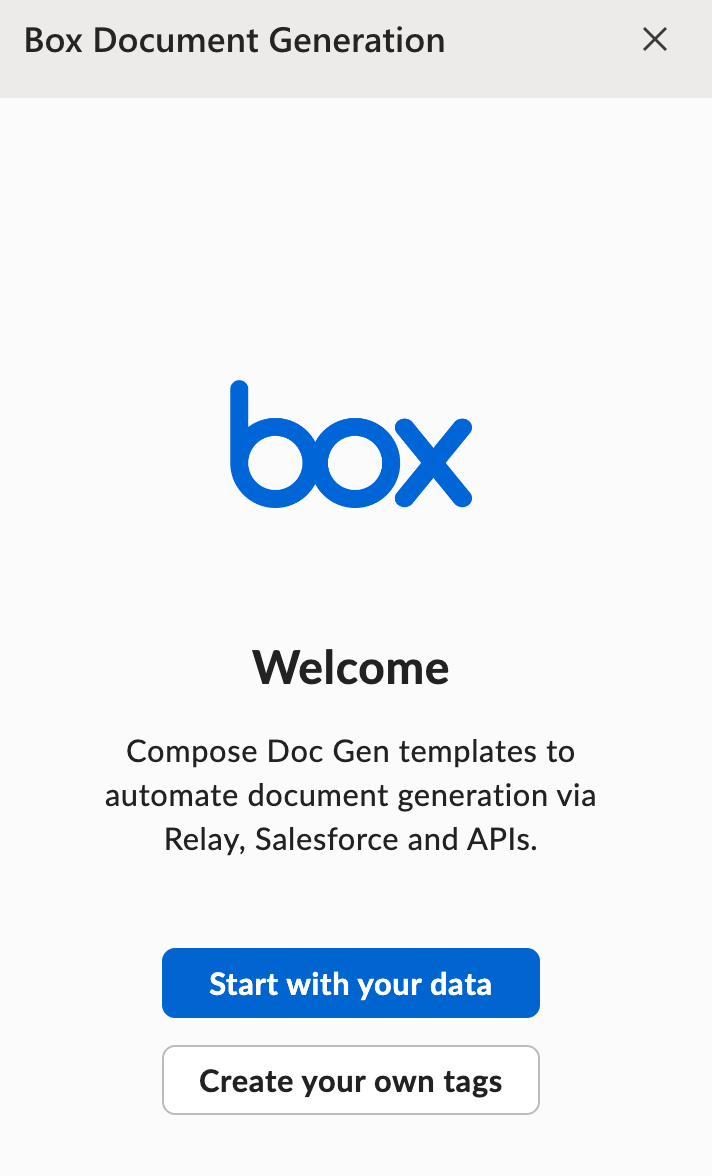
Before you begin creating Box Doc Gen templates, make sure you installed the Box Doc Gen Template Creator add-in for Microsoft Word. After successfully installing the add-in, it is available in the menu ribbon within Microsoft Word. Once selected, the Box Document Generation panel appears on the right.
Create a Box Doc Gen template
Follow these steps to create a Box Doc Gen template:
- Open an existing Microsoft Word document or create a new document. You can either use the Microsoft Word desktop application or Microsoft Word Online.
- Begin drafting and configuring content as part of your Box Doc Gen template.
- Once you complete the draft, insert the Box Doc Gen variables using the Box Doc Gen Template Creator add-in. Select Create your own tags to create tags from scratch.
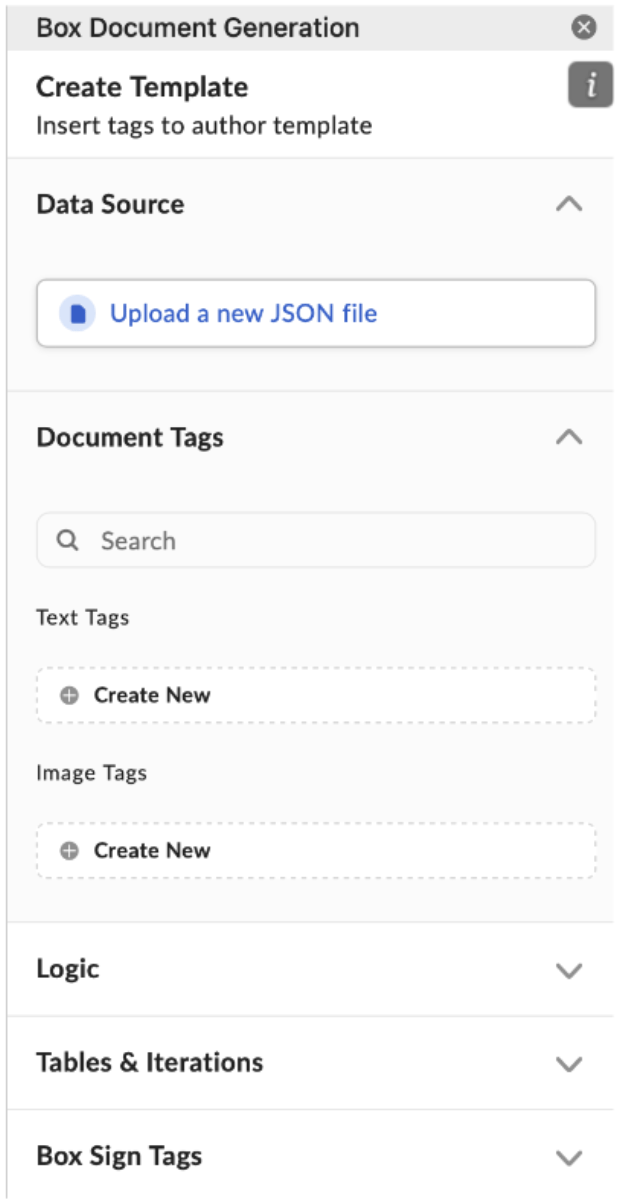
Within the Box Doc Gen template creation experience, you can use Document Tags, Logic, Tables & Iterations, as well as Box Sign Tags.
Text tags
Text tags can be added to the Box Doc Gen template, and can be dynamically auto-populated by Box Doc Gen during the document generation process.
Text tag types include: Text, Date, and Number.
To create a Text tag:
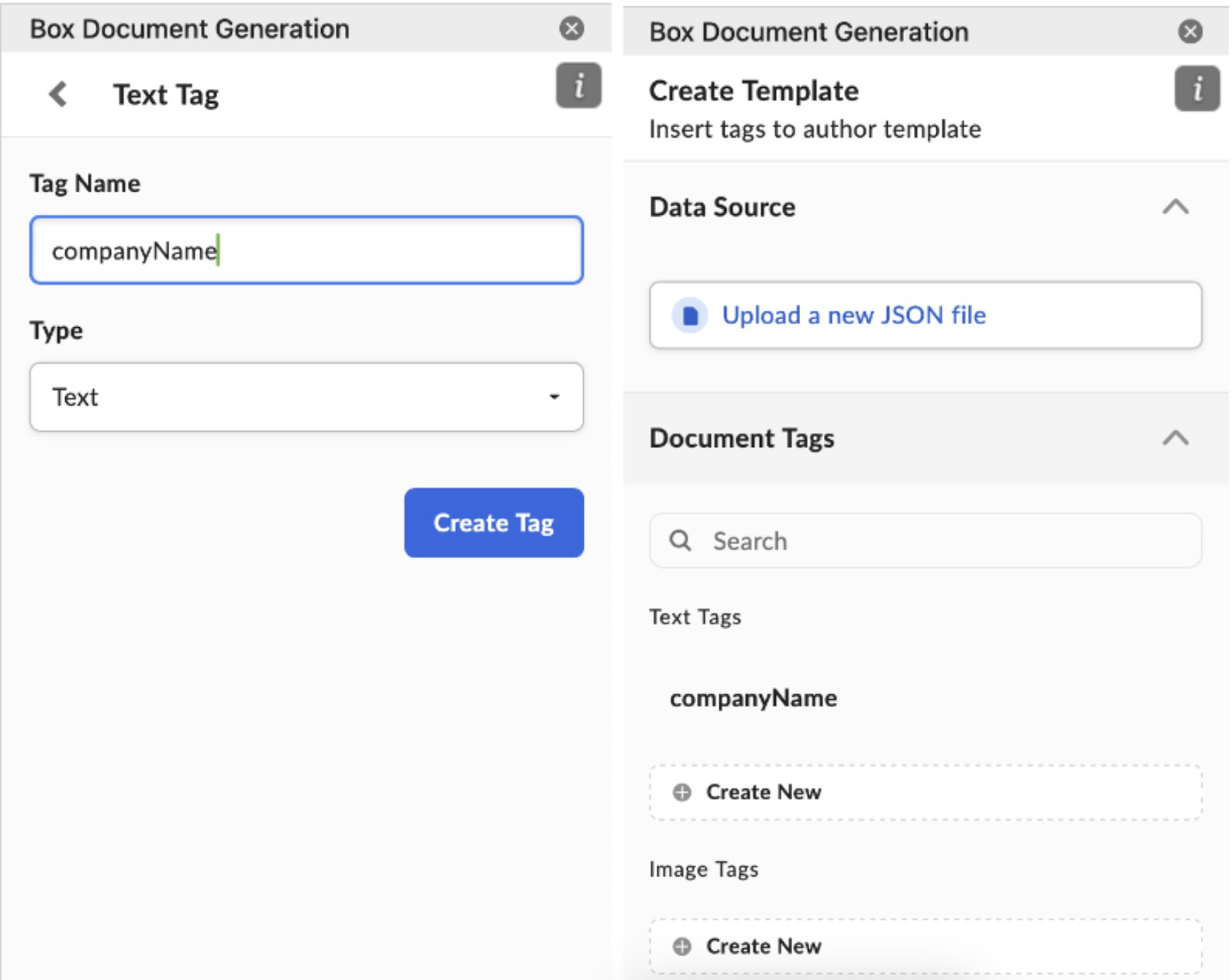
- In the Text Tags section, select Create New.
- Specify a Tag Name (for example, companyName).
- Select the Type (for example, Text).
- Select Create Tag.
This will create a Text Tag (companyName), as shown below. To add the tag to the Microsoft Word document, move the cursor to the insertion point where you want the dynamic text to be inserted and select the text tag name to apply the tag.
Box Doc Gen template tags do not support spaces or hyphens between key words in the tag. For Example, {{company name}} or {{company-name}} is not supported.
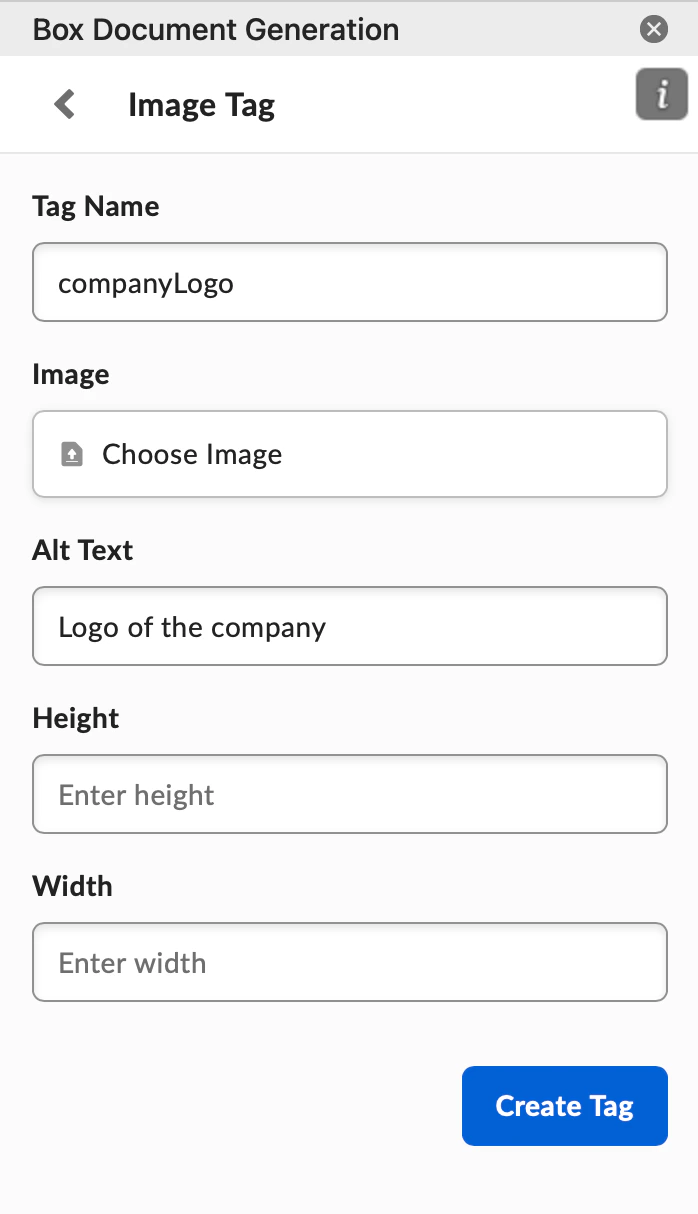
- In the Image Tags section, select Create New.
- Specify a Tag Name (for example, companyLogo).
- Select and upload the image from your local device.
- (Optional) Specify an ALT text, height, and width.
- Select Create Tag.
This will create an Image Tag (companyLogo). To add the image tag to the Microsoft Word document, move the cursor to the insertion point where you want the image to be inserted and select the tag to apply it. A placeholder image with the specified dimensions will be inserted into the document.
When viewing the Alt text of the placeholder image, the Alt text of the placeholder contains an image-path of companyLogo, along with the Alt text that you specified. When you create an API request to generate a document, the JSON data against companyLogo will contain your image values in base64.
Example:
Next steps
The next step is to add the created Box Doc Gen tags to your template. The Box Doc Gen tags can be used to insert dynamic texts, images, tables, lists, calculations, blocks of content, conditional logic, and more. Last modified on July 24, 2026