

Box AI for Drive is available for Enterprise Plus and Enterprise Advanced accounts. For details, see Box AI Features in Business Plans.
Requirements
- Box Drive 2.49.257 or later for Ask Box AI
- Box Drive 2.50 or later for Summarize with Box AI
- Box AI enabled for your organization by your admin
Supported file types
Box AI for Drive supports the same file types as Box AI on the web, including text documents, PDFs, presentations, spreadsheets, and images. For the full list of supported file types, see Box AI for Documents. If you select an unsupported file type, Box AI Home notifies you in the browser.Ask Box AI
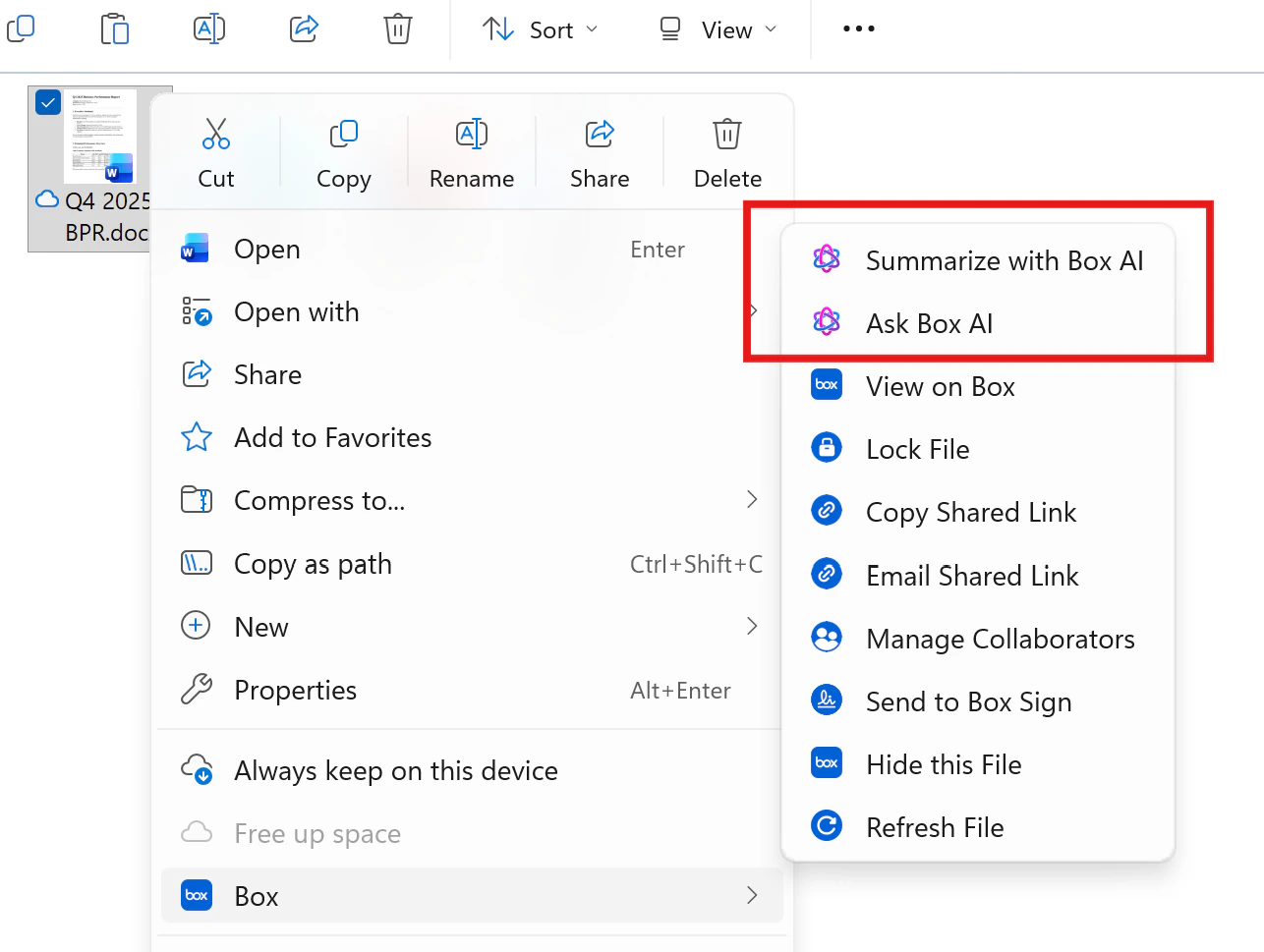
Use Ask Box AI to ask questions about one or more files or folders stored in Box Drive. To ask Box AI a question from Box Drive:- In Finder (macOS), File Explorer (Windows), or Box Drive Search, navigate to the file or folder you want to query.
- Right-click the item to open the context menu.
- Select Ask Box AI. Box AI Home opens in your browser, scoped to the selected item.
- In the message box, type your question and press Enter or select Ask.
Summarize with Box AI
Use Summarize with Box AI to generate a summary of one or more files without entering a prompt. Box AI Home opens in your browser, automatically runs the summarization, and displays the result. To summarize content from Box Drive:- In Finder (macOS), File Explorer (Windows), or Box Drive Search, navigate to the file or folder you want to summarize.
- Right-click the item to open the context menu.
- Select Summarize with Box AI. Box AI Home opens in your browser and begins generating the summary automatically.
Multi-file summarization follows the same selection rules as Ask Box AI. You can select up to 10 items (files or folders).