

Supported field types
Box Doc Gen supports the following field types in a PDF template:- Text fields
- Radio buttons
- Check boxes
- Drop-downs
Support by generation method
Support for each field type depends on how you generate the document.PDF templates are not supported in the Box for Salesforce app.
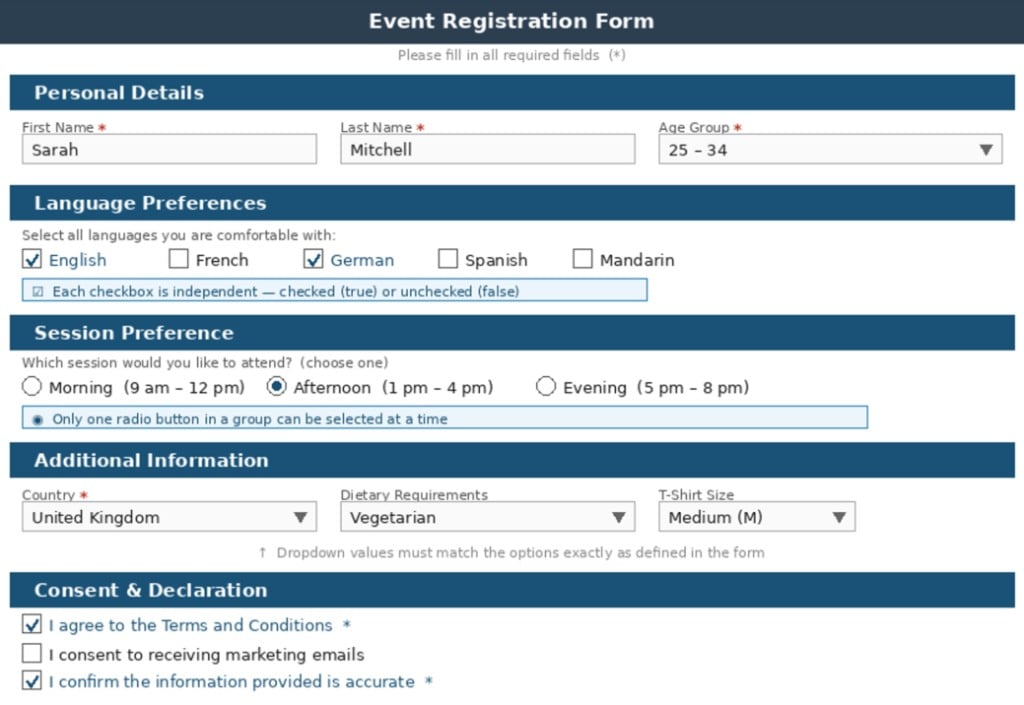
Text fields
Box Doc Gen replaces a text field in a PDF template with the value you provide. Pass the field name and its value as part of the document generation request. To generate a document using the API, pass the field name and its value in the JSON schema used in the API call. For example, to fill a text field namedfirstname:
Radio buttons
With radio buttons, you can select exactly one option from a group. In the example form, Session Preference uses radio buttons: Morning, Afternoon, or Evening. Selecting Afternoon automatically deselects the others. How it works:- Provide the group name and the option you want selected. The value must match the option exactly as defined in the PDF, and it is case-sensitive.
- One option from the group is selected.
- The previously selected option, if any, is automatically deselected.
- Selecting more than one option in the same group. Radio buttons are single-selection only.
- Deselecting all options. If you omit the field, the template default stays selected, with no warning.
- Approximate matches. For example,
afternoondoes not matchAfternoon.
SessionPreference radio button group:
Check boxes
With check boxes, you can select or clear one or more options in a PDF form. In the example form, Language Preferences uses check boxes: English and German are selected, while French, Spanish, and Mandarin are cleared. How it works:- Set each check box by name to
true(selected) orfalse(cleared). Each check box is a separate field. - You can select or clear each check box independently.
- You can select multiple check boxes at the same time, unlike radio buttons.
- Setting a check box to
falseexplicitly clears it, even if the template selects it by default.
- Passing anything other than
trueorfalse. Box Doc Gen does not recognize values such asyesor1. - Controlling multiple check boxes with a single field name. Each check box must have its own entry.
English and clear a check box named French:
Drop-downs
Box Doc Gen can fill an option in a drop-down menu in a generated document. With a drop-down field, you can select a value from a fixed list. In the example form, Country, Dietary Requirements, and T-Shirt Size are drop-downs. You can select only values already in the list. You cannot type a custom entry. How it works:- Provide the field name and the option you want selected. The value must match one of the available options exactly, and it is case-sensitive.
- A single option from the list is selected.
- If you do not supply a value, Box Doc Gen uses the template default, with no warning.
- Selecting more than one option. Only single selection is supported.
- Free-text entries that are not in the predefined list.
- Approximate matches. For example,
united kingdomdoes not matchUnited Kingdom.