> ## Documentation Index
> Fetch the complete documentation index at: https://docs.box.com/llms.txt
> Use this file to discover all available pages before exploring further.

# Dropbox for Business

<div className="article_labels_list" style={{display: 'none'}} dangerouslySetInnerHTML={{__html: "Admin , New , Box Shuttle"}} />

<Warning>
  これは、管理コンソールのBox Shuttleに関する記事です。 スタンドアロンツールである旧バージョンのBox Shuttleを使用している場合は、[旧バージョンの移行ガイド](/ja/box-shuttle/box-shuttle-legacy)を参照してください。
</Warning>

## ソースシステムとしてDropbox for Businessを設定する

1. ジョブに一意の名前を付けます。
2. \[**Dropbox**] を選択します。
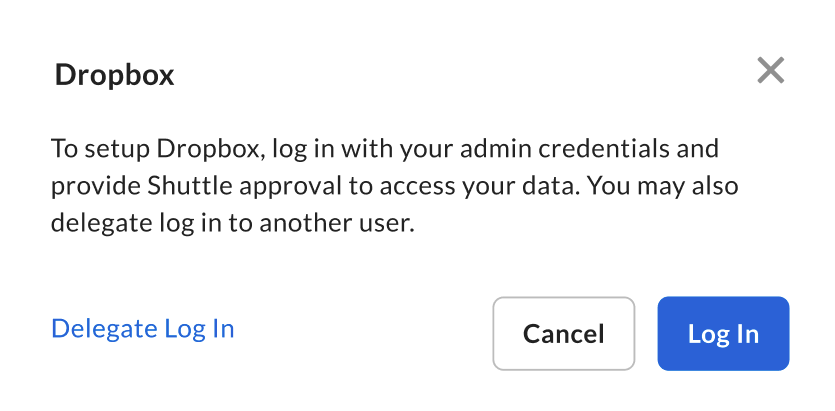
3. 画面上の手順に従ってDropbox for Businessを接続します。
   1. 管理者資格情報を使用してログインします。
   2. データにアクセスできるようにBox Shuttleを承認します。

      <Frame>
        <img src="https://mintcdn.com/product-docs/EF357czNLKLYERuD/images/box-shuttle/37127567838995.png?fit=max&auto=format&n=EF357czNLKLYERuD&q=85&s=8c5b7be74de5b0b6abb54c648cf8b2e4" width="835" height="411" data-path="images/box-shuttle/37127567838995.png" />
      </Frame>

*Box Shuttleは、個人用Dropboxアカウントからの移行をサポートしていません。Businessアカウントからの移行のみサポートしています。*

## Dropbox for Businessの移行の詳細

### 一般的なエラーとトラブルシューティング

次の表では、移行に関する一般的なエラーとその解決方法を説明します。

<table border="1" style={{borderCollapse: 'collapse', width: '100%'}}><tbody><tr><td style={{width: '28.5715%'}}><strong>エラー</strong></td><td style={{width: '29.9999%'}}><strong>原因</strong></td><td style={{width: '41.4286%'}}><strong>解決方法</strong></td></tr><tr><td style={{width: '28.5715%'}}>You aren’t a member of this shared folder. (この共有フォルダのメンバーではありません。)</td><td style={{width: '29.9999%'}}>OAuthユーザーは、チームフォルダの最上位にアクセスできますが、サブフォルダに対する権限は削除されました。</td><td style={{width: '41.4286%'}}>Dropboxの管理コンソールの \[<strong>Content (コンテンツ)</strong>] で、OAuthユーザーを編集者レベルのコラボレータとしてサブフォルダに追加します。 ジョブを再実行すると、対象となるサブフォルダが転送されます。</td></tr></tbody></table>

### その他の考慮事項

移行時にDropbox Paperファイルは転送**されません**。
