> ## Documentation Index
> Fetch the complete documentation index at: https://docs.box.com/llms.txt
> Use this file to discover all available pages before exploring further.
# Amazon S3
このドキュメントでは、[Advanced Tooling](/ja/box-shuttle/about-box-shuttle/box-shuttle-standard-and-advanced-tooling)について説明します。これは、デフォルトですべてのユーザーが利用できるわけではありません。
Amazon S3 (Simple Storage Service) は、[Amazon Web Services](http://aws.amazon.com/)で使用される独自のストレージサービスです。Amazon S3を設定するには、アクセスキー、シークレット (アクセス) キー、S3バケットが必要です。
## アクセスキー
アクセスキーおよびシークレット (アクセス) キーを取得するには、[こちらの手順](https://docs.aws.amazon.com/powershell/latest/userguide/pstools-appendix-sign-up.html)に従ってください。
キーに必要な権限を以下に示します。
```json theme={null}
{
"Version": "2012-10-17",
"Statement": [{
"Sid": "VisualEditor0",
"Effect": "Allow",
"Action": "s3:ListAllMyBuckets",
"Resource": "*"
},
{
"Sid": "VisualEditor1",
"Effect": "Allow",
"Action": ["s3:GetObjectAcl",
"s3:GetObject",
"s3:ListBucketVersions",
"s3:GetObjectVersionAcl",
"s3:GetObjectTagging",
"s3:ListBucket",
"s3:GetBucketAcl",
"s3:GetBucketLocation",
"s3:GetObjectVersion"],
"Resource": ["arn:aws:s3:::your-bucket",
"arn:aws:s3:::your-bucket/*"]
}]
}
```
## S3バケット
S3バケットを作成するには:
1. [console.aws.amazon.com](http://console.aws.amazon.com/) にアクセスし、アカウントにログインします。
2. コンソールのメニューから \[S3] を選択し、[バケットを作成](https://docs.aws.amazon.com/AmazonS3/latest/userguide/creating-bucket.html)します。
## ソースシステムとしてAmazon S3を設定する
1. ジョブに一意の名前を付けます。
2. \[**Amazon S3**] を選択します。
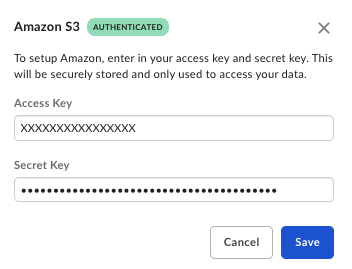 3. **アクセスキー**および**シークレットキー**を入力してAmazon S3に接続します。
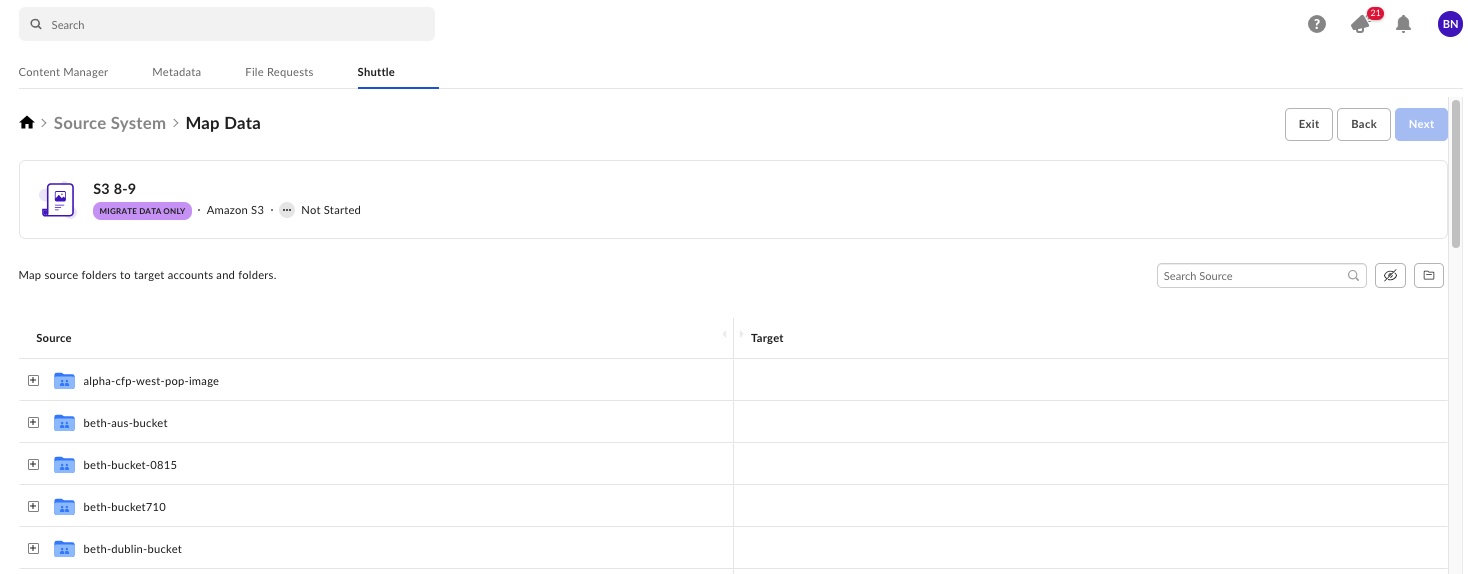
Box ShuttleがAmazon S3に接続されると、データマッピングのステップで、ファイルやフォルダとともにバケットが表示されます。
3. **アクセスキー**および**シークレットキー**を入力してAmazon S3に接続します。
Box ShuttleがAmazon S3に接続されると、データマッピングのステップで、ファイルやフォルダとともにバケットが表示されます。