> ## Documentation Index
> Fetch the complete documentation index at: https://docs.box.com/llms.txt
> Use this file to discover all available pages before exploring further.
# Box NotesのInboxへのアクセス
export const InlineImage = ({src, alt = "", height = "1em"}) => {
return  ;
};
Box NotesのInboxを使用すれば、コラボレータが最近編集したBox Noteをすぐに表示できます。Box NotesのInboxを表示するには、任意のBox Noteの左側のナビゲーションにあるInboxアイコン () をクリックします。
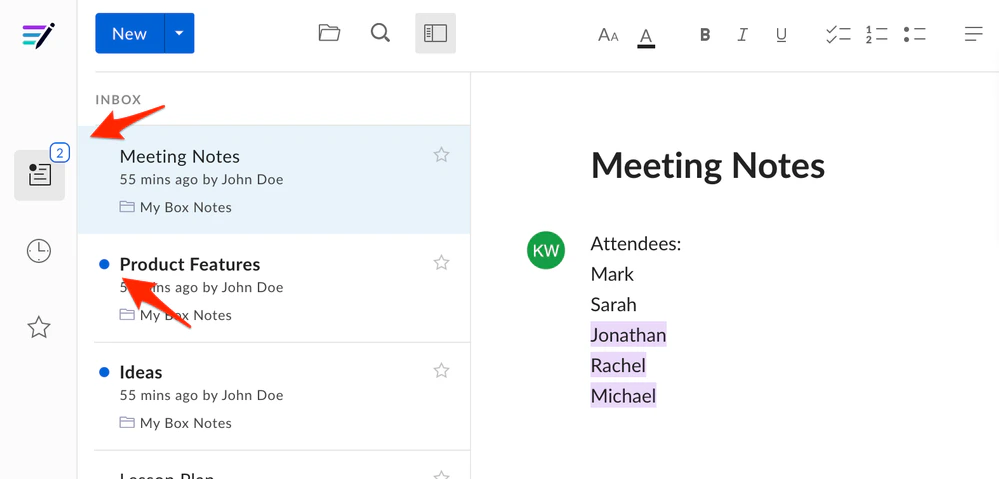
Box Notesを最後に開いた後に更新されたBox Noteは、リストの先頭に、青い点付きで表示されます。Inboxアイコンには、まだ閲覧されていない更新済みのBox Noteの数も表示されます。 それらのBox Noteを閲覧すると、青い点と数は表示されなくなります。
;
};
Box NotesのInboxを使用すれば、コラボレータが最近編集したBox Noteをすぐに表示できます。Box NotesのInboxを表示するには、任意のBox Noteの左側のナビゲーションにあるInboxアイコン () をクリックします。
Box Notesを最後に開いた後に更新されたBox Noteは、リストの先頭に、青い点付きで表示されます。Inboxアイコンには、まだ閲覧されていない更新済みのBox Noteの数も表示されます。 それらのBox Noteを閲覧すると、青い点と数は表示されなくなります。