> ## Documentation Index
> Fetch the complete documentation index at: https://docs.box.com/llms.txt
> Use this file to discover all available pages before exploring further.

# Box for iOSでのBox Notes

export const InlineImage = ({src, alt = "", height = "1em"}) => {
  return <img noZoom src={src} alt={alt} style={{
    display: "inline-block",
    verticalAlign: "middle",
    height: height,
    width: "auto",
    margin: "0"
  }} />;
};

<div className="article_labels_list" style={{display: 'none'}} dangerouslySetInnerHTML={{__html: "has_image , End User , Box Notes , Users , Share , Article , Product Utilization , Established , Mobile - iOS , Instruction"}} />

Box Notesは、Box for iOSモバイルアプリで利用できます。Box Notesはウェブベースのドキュメントで、追加のソフトウェアは必要ありません。Box Notesを使用して、コラボレータとリアルタイムでアイデアを作成、編集、共有できます。

**Box Notesの作成**

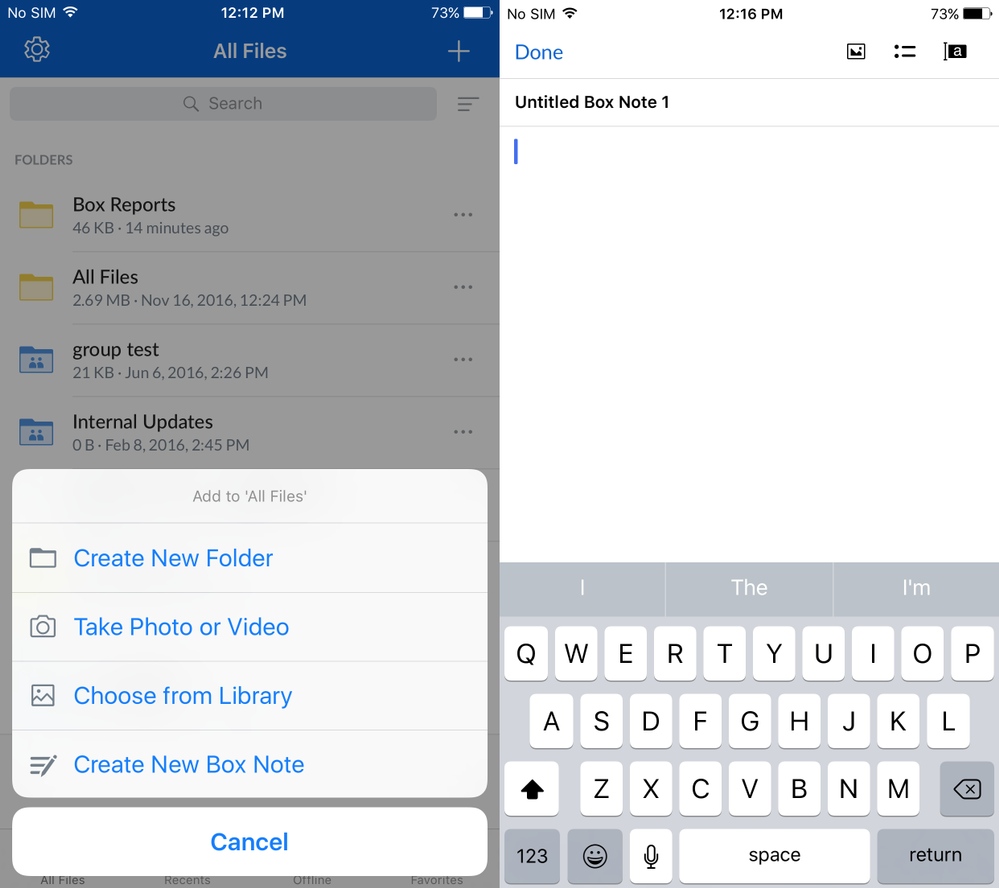
新しいメモを作成するには、デバイスでBox for iPhoneまたはBox for iPadアプリケーションを開き、次の手順に従います。

* 新しいBox Noteを作成するフォルダに移動します。
* 右上の\*\*+\*\*アイコンをタップします。
* \[**新しいBox Noteを作成**] をタップします。新しいメモがすぐに読み込まれます。

<Frame>
  <img src="https://mintcdn.com/product-docs/w-T_6NPwQG7Ze9eT/images/box-notes/ios-6.png?fit=max&auto=format&n=w-T_6NPwQG7Ze9eT&q=85&s=cde9789972c18515270b47281d7eb8bd" alt="ios-6" width="497" height="438" data-path="images/box-notes/ios-6.png" />
</Frame>

* タイトルをタップして編集し、このメモに新しいタイトルを割り当てます。
* 新しいBox Noteで入力を開始します。Box Noteには注釈を追加できます。注釈を追加するには、テキストをハイライトし、下部のメニューにある \[**注釈**] アイコンをクリックします。コラボレータが残した注釈を表示するには、ハイライトされているテキストをタップします。
* \[**完了**] をタップすると、キーボードが非表示になります。

**Box Notesの編集**

他のBoxドキュメントと同様に、メモを追加したフォルダでそのメモを検索できます。Box Noteは開いて編集できます。変更内容はすべて自動的に保存されます。

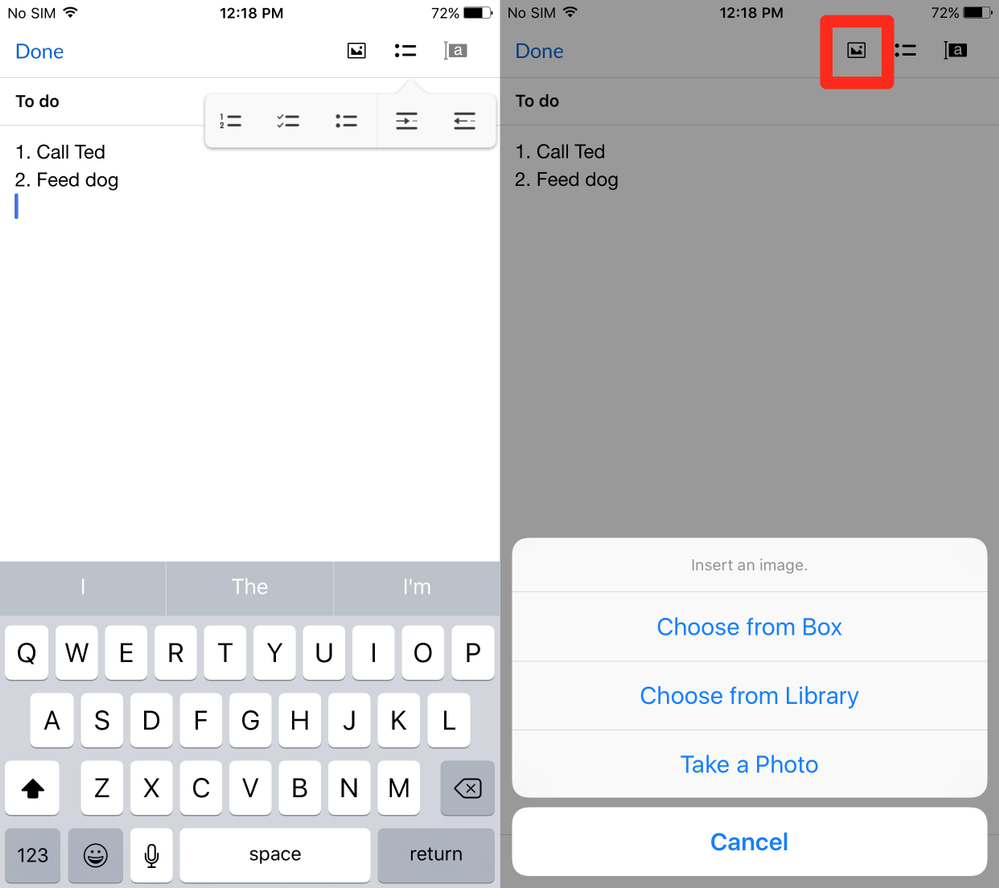
Box Noteを編集するときは、下部のツールバーを使用してテキスト書式を変更できます (下記のスクリーンショットを参照)。既存のテキストに変更を適用するには、ハイライトしてから書式設定オプションを選択します。
<Frame>
  <img src="https://mintcdn.com/product-docs/w-T_6NPwQG7Ze9eT/images/box-notes/ios-7.png?fit=max&auto=format&n=w-T_6NPwQG7Ze9eT&q=85&s=416e7d59190d69600c73a9a4b9c8a351" alt="ios-7" width="496" height="437" data-path="images/box-notes/ios-7.png" />
</Frame>

Box Noteに画像を追加するには、右上にある**画像\*\*\*\*アイコン** (上記スクリーンショット) をタッチし、追加する画像を選択します。BoxやiOSライブラリから画像を追加するか、新たに写真を撮ってBox Noteに追加することができます。

**Box Notesの共有**

デバイスの下部に表示されるツールバーの共有リンクアイコン<InlineImage src="/images/box-notes/ios-8.png" alt="ios-8" />をタップして、Box Noteへの[共有リンク](/ja/box-fundamentals/for-users/collaborating/using-shared-links/creating-shared-links) を生成できます。Box Notesを変更できるのは、編集者または共同所有者の [アクセスレベル](/ja/box-fundamentals/for-users/collaborating/collaborating-by-inviting-others/understanding-collaborator-permission-levels) を持つコラボレータのみです。その他すべてのコラボレータは表示専用アクセスになります。共有リンクは、メールまたはメッセージでコラボレータに直接送信するか、リンクをクリップボードにコピーして後で貼り付けることができます。
