> ## Documentation Index
> Fetch the complete documentation index at: https://docs.box.com/llms.txt
> Use this file to discover all available pages before exploring further.
# Box Notesへの目次の挿入
見出しに基づいて作成する目次を使用すると、特に長いページにおよぶBox Noteの場合に、ユーザーやコラボレータは探している情報をすばやく見つけることができます。
**目次を挿入するには:**
1. 左側のコンテキストメニューをクリックして、\[**目次**] を選択します。
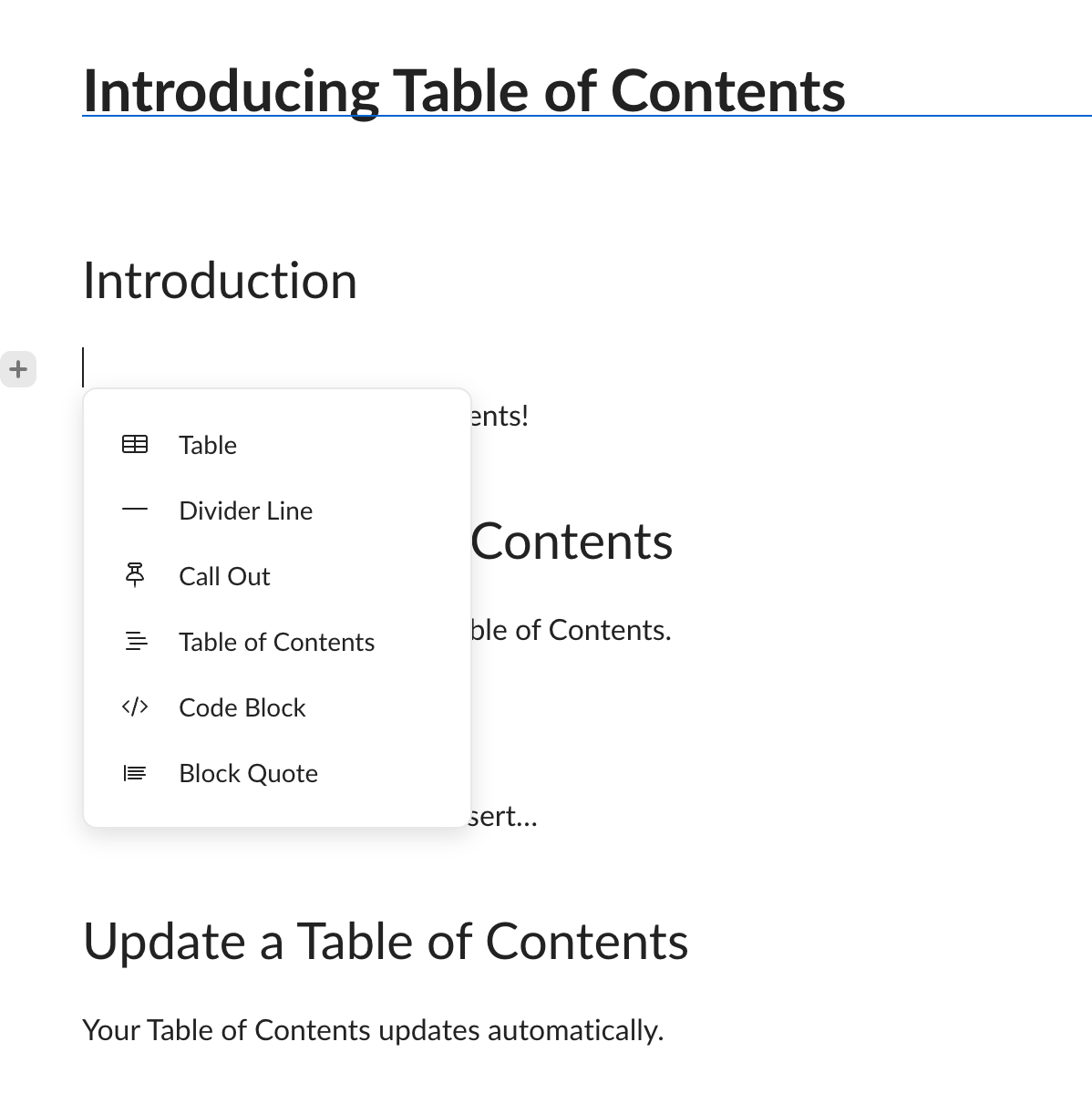 2. 目次の構造は、見出しに基づいて決まります。 見出しを追加または削除したり、見出しの種類を変更したりすると、目次は自動的に更新されます。
**注:**
目次の構造は、見出し1、見出し2、見出し3を使用して作成されます。 その他の種類はサポートされていません。
**目次をカスタマイズするには:**
1. 目次の上にある3つの点のアイコンをクリックし、ポップアップメニューを表示します。
2. 目次の構造は、見出しに基づいて決まります。 見出しを追加または削除したり、見出しの種類を変更したりすると、目次は自動的に更新されます。
**注:**
目次の構造は、見出し1、見出し2、見出し3を使用して作成されます。 その他の種類はサポートされていません。
**目次をカスタマイズするには:**
1. 目次の上にある3つの点のアイコンをクリックし、ポップアップメニューを表示します。
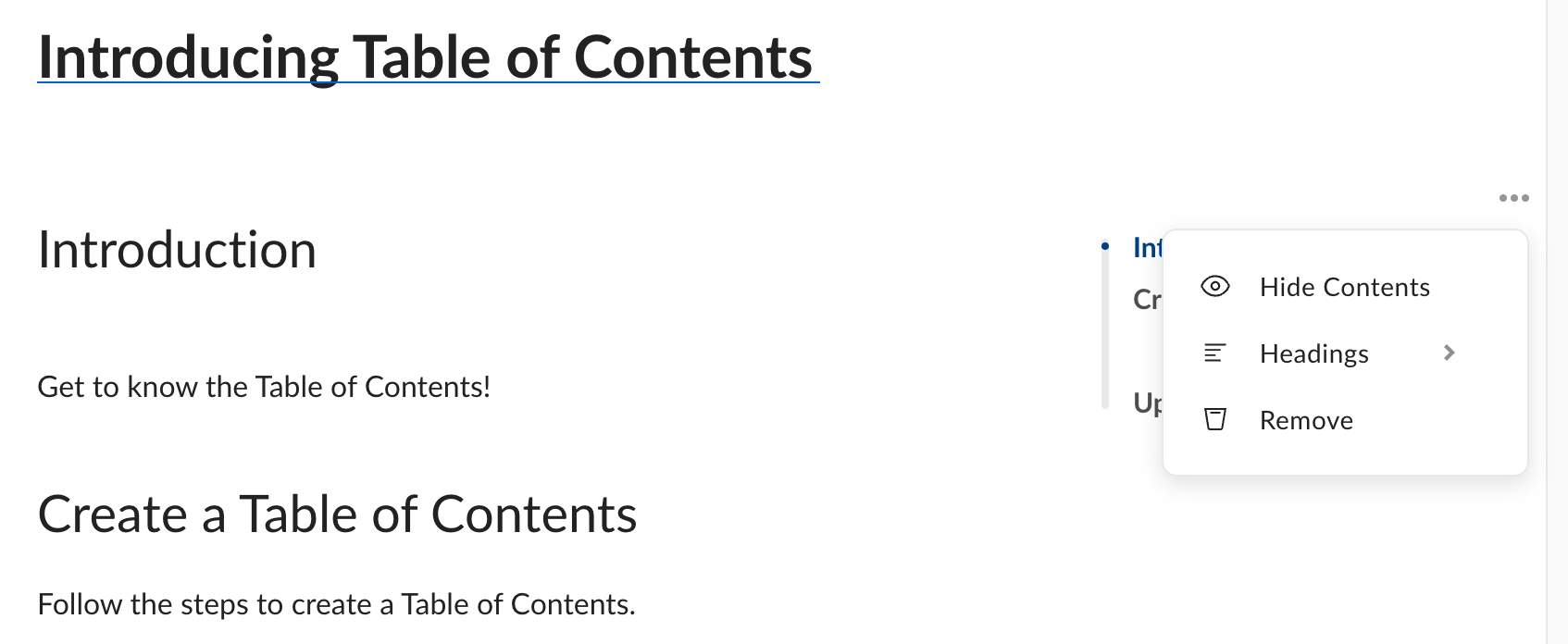 2. 以下のオプションを使用して、目次をカスタマイズします。
* \[**目次を非表示**]: 目次を折りたたみます。
* \[**見出し**]: 表示する見出しを選択することで、構造を変更できます。
* \[**削除**]: 目次を削除します。
2. 以下のオプションを使用して、目次をカスタマイズします。
* \[**目次を非表示**]: 目次を折りたたみます。
* \[**見出し**]: 表示する見出しを選択することで、構造を変更できます。
* \[**削除**]: 目次を削除します。