> ## Documentation Index
> Fetch the complete documentation index at: https://docs.box.com/llms.txt
> Use this file to discover all available pages before exploring further.
# 共有リンクのコンテンツの並べ替え基準をカスタマイズする
Boxフォルダへの**共有リンク**を開くと、デフォルトでは、**更新日時**が新しいものから順番にコンテンツが表示されます。
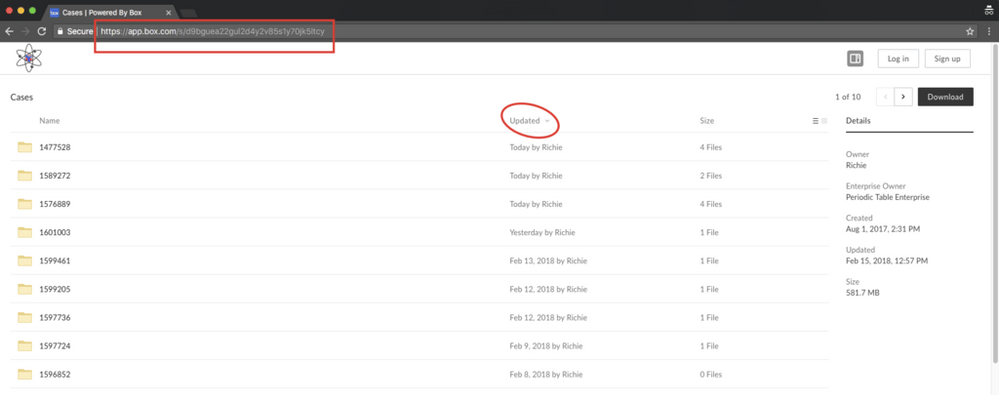 ただし、共有リンクを開いたときに、\[**名前**] や \[**サイズ**] など、別の列を基準にしてコンテンツを自動で並び替えることもできます。
**別の列を基準にしてコンテンツを並べ替えるには:**
1. [**共有リンクをクリックします。**](/ja/box-fundamentals/for-users/collaborating/using-shared-links/creating-shared-links)
2. 並べ替えの基準にする列の名前をクリックします。この操作により、URLバーの共有リンクが変更されます。
ただし、共有リンクを開いたときに、\[**名前**] や \[**サイズ**] など、別の列を基準にしてコンテンツを自動で並び替えることもできます。
**別の列を基準にしてコンテンツを並べ替えるには:**
1. [**共有リンクをクリックします。**](/ja/box-fundamentals/for-users/collaborating/using-shared-links/creating-shared-links)
2. 並べ替えの基準にする列の名前をクリックします。この操作により、URLバーの共有リンクが変更されます。
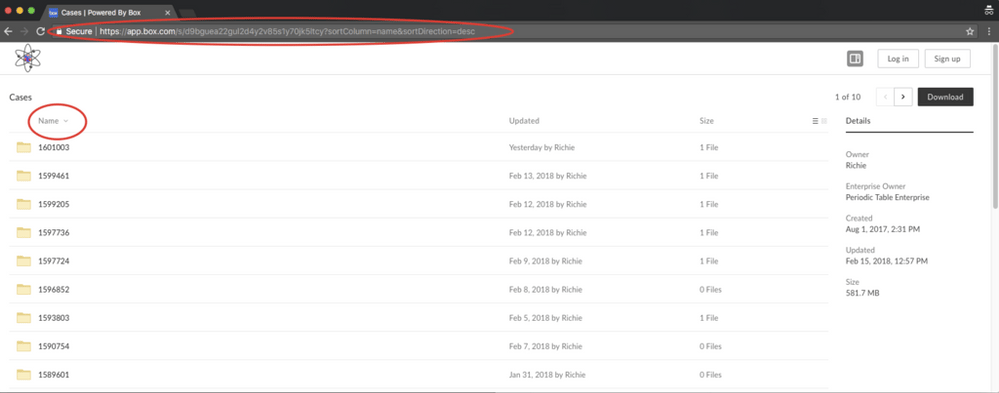 変更後の新しいURLを共有リンクとして使用すれば、このリンクにアクセスするたびにコンテンツが指定した順番で表示されます。
たとえば、元の共有リンクが次のようなURLであるとします。
[https://app.box.com/s/\<---ランダム文字列--->](https://app.box.com/s/\<---ランダム文字列--->).
この場合、変更後の共有リンクは次のようになります。
`https://app.box.com/s/?sortColumn=name&sortDirection=desc`
どちらの場合も、「\<---ランダム文字列--->」の部分は自動で生成されます。
変更後の新しいURLを共有リンクとして使用すれば、このリンクにアクセスするたびにコンテンツが指定した順番で表示されます。
たとえば、元の共有リンクが次のようなURLであるとします。
[https://app.box.com/s/\<---ランダム文字列--->](https://app.box.com/s/\<---ランダム文字列--->).
この場合、変更後の共有リンクは次のようになります。
`https://app.box.com/s/?sortColumn=name&sortDirection=desc`
どちらの場合も、「\<---ランダム文字列--->」の部分は自動で生成されます。