> ## Documentation Index
> Fetch the complete documentation index at: https://docs.box.com/llms.txt
> Use this file to discover all available pages before exploring further.

# Box Canvasの作成と共有

<div className="article_labels_list" style={{display: 'none'}} dangerouslySetInnerHTML={{__html: "End User , Overview , Box Canvas , Article , New , Product Utilization , P2"}} />

ウェブアプリからCanvasを作成する方法を以下に示します。

* 左側のメニューの \[Box Canvas] の横にある \[+] アイコンをクリックする
* ホーム画面の \[新規+] をクリックして \[Canvas] を選択する

さらに、現在のCanvasから別のCanvasを作成する場合は、ページの右上にある \[...] をクリックし、\[新しいCanvas] を選択します。

Canvasを作成すると、ファイルのタイトルは自動的に「Canvas \{YYYY-MM-DD HH:MM:SS].boxcanvas」となります。 左側のナビゲーションメニューでBox Canvasの横にある \[+] をクリックして最初のCanvasを作成するか、既存のCanvasで \[...] をクリックしてCanvasを作成すると、「My Canvases」という名前の新しいフォルダが自動的に作成されます。 この方法で作成された新しいCanvasはすべて、デフォルトの「My Canvases」フォルダに保存されます。 このフォルダは、ページの左上にある戻るボタンをクリックすると表示できます。

<Note>
  **注:** トップレベルフォルダでのコンテンツの作成を会社で制限されている場合は、最初のCanvasがデフォルトの「My Canvases」フォルダに保存されません。Box Canvasと左側のナビゲーションメニュー、または既存のCanvasファイルの \[...] から作成すると、新しいCanvasを保存するデフォルトのフォルダを選択するよう求められます。x
</Note>

## 共有

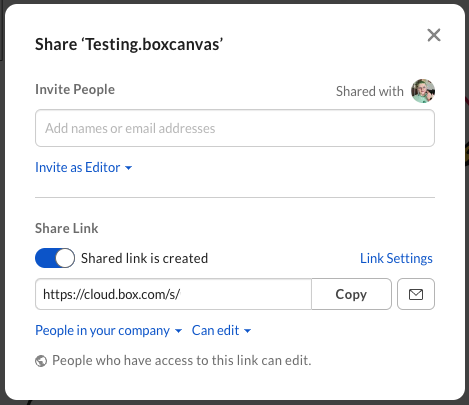
Canvasを共有するには、画面の右上にある \[**共有**] ボタンをクリックします。 Canvasは、コラボレータを招待するか、共有リンクを作成して各オプションで特定のアクセスレベルを選択することで、他のBoxファイルと同様に共有できます。

<Frame>
  <img src="https://mintcdn.com/product-docs/DTOHMH05H6pIRQke/images/box-canvas/screenshot-2023-03-29-at-19-04-37.png?fit=max&auto=format&n=DTOHMH05H6pIRQke&q=85&s=dca329a004e49017bc26fce0950ac548" alt="screenshot-2023-03-29-at-19-04-37-png" width="469" height="405" data-path="images/box-canvas/screenshot-2023-03-29-at-19-04-37.png" />
</Frame>

## Canvasのエクスポート

Canvasをメールで共有したり、他のアプリケーションにアップロードしたりするには、.PNGファイルにエクスポートします。

Canvasをエクスポートするには、以下の手順を実行します。

1. \[**その他のオプション**] メニューを開きます。
2. ドロップダウンリストから \[**エクスポート**] を選択します。

   <Frame>
     <img src="https://mintcdn.com/product-docs/DTOHMH05H6pIRQke/images/box-canvas/the-more-options-menu.png?fit=max&auto=format&n=DTOHMH05H6pIRQke&q=85&s=c4cfcbaf5e6818ba3fdaff86f0eb1e26" alt="[その他のオプション] メニュー" width="658" height="620" data-path="images/box-canvas/the-more-options-menu.png" />
   </Frame>
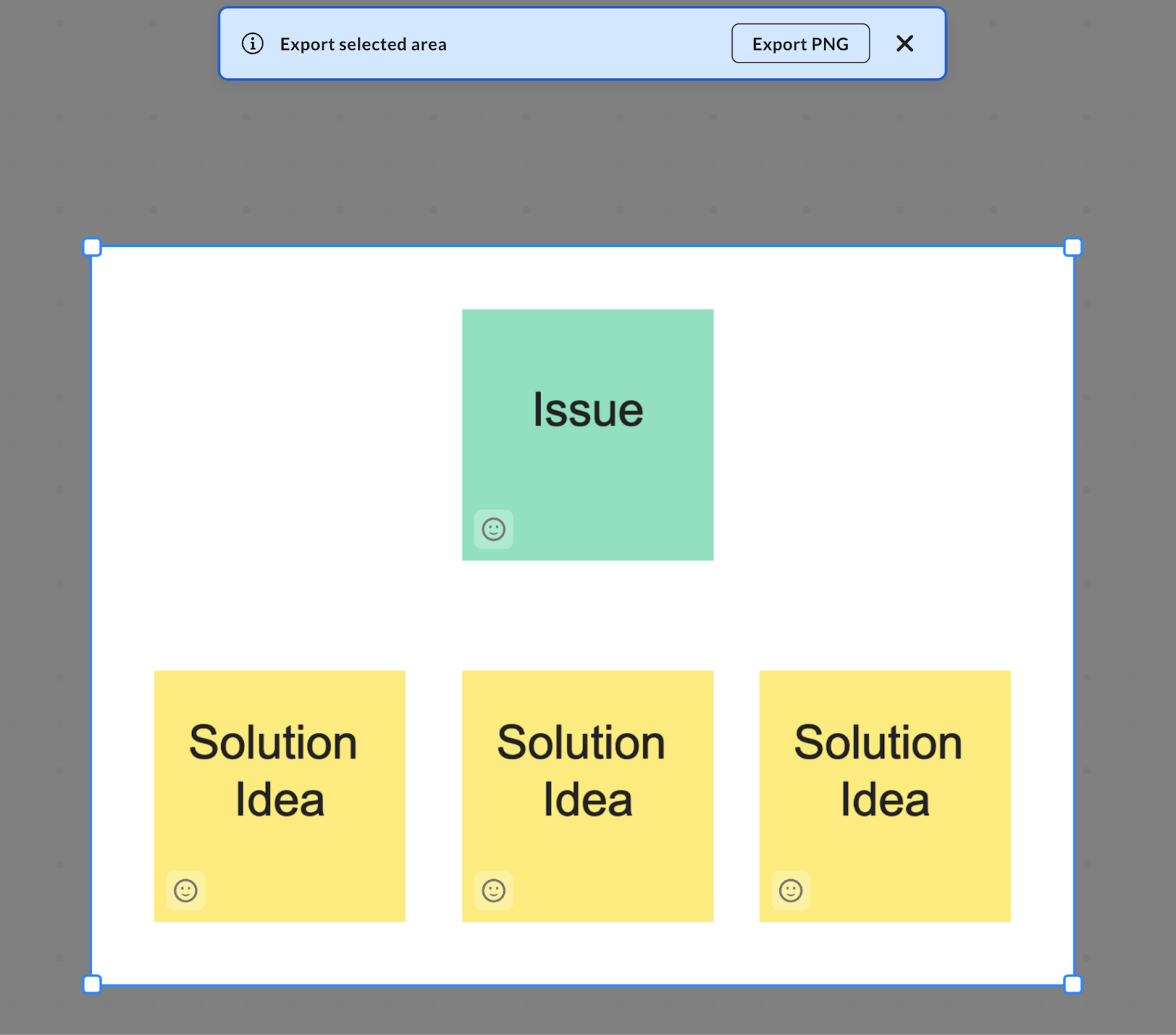
3. エクスポートする範囲を選択します。 デフォルトではCanvasのコンテンツがすべて選択されていますが、選択範囲は、Canvasの一部だけが含まれるようにトリミングすることも、Canvas全体が含まれるように拡大することもできます。
   <Frame>
     <img src="https://mintcdn.com/product-docs/DTOHMH05H6pIRQke/images/box-canvas/part-of-canvas-selected.png?fit=max&auto=format&n=DTOHMH05H6pIRQke&q=85&s=03001864dec867948dcf9e12f058dd62" alt="canvas" width="1600" height="1408" data-path="images/box-canvas/part-of-canvas-selected.png" />
   </Frame>
4. \[**PNGをエクスポート**] をクリックして、選択範囲を保存します。
