 If you decide to change your folder settings, follow this procedure:
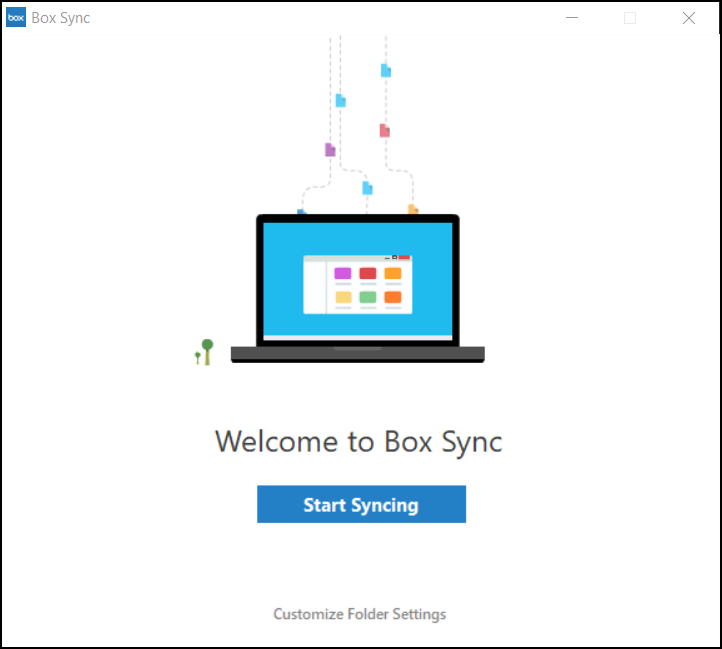
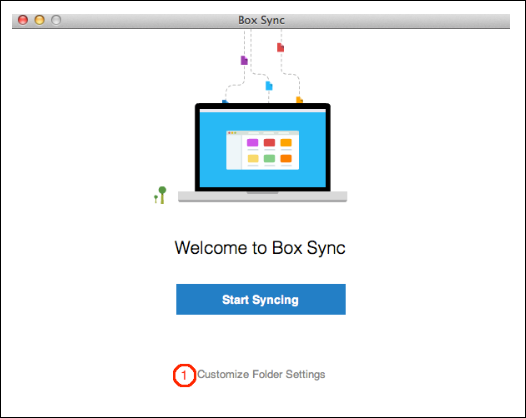
1. Click the **Customize Folder Settings** link on the **Welcome to Box Sync** page. You cannot customize the folder location after clicking **Start Syncing**.
If you decide to change your folder settings, follow this procedure:
1. Click the **Customize Folder Settings** link on the **Welcome to Box Sync** page. You cannot customize the folder location after clicking **Start Syncing**.
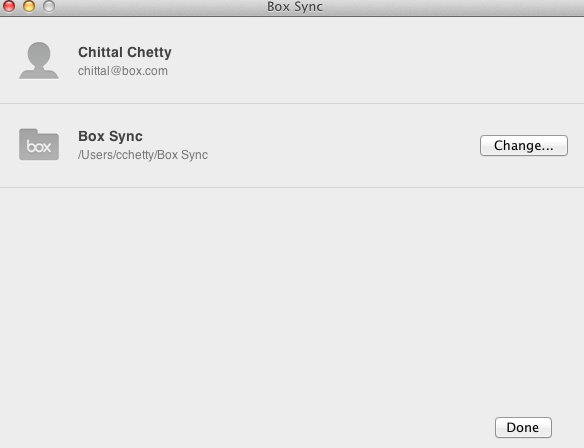 2. Click the **Change...** button to select an alternate folder location.
* If your [administrator has already customized the Box Sync folder location](/en/box-sync/using-box-sync/for-box-admins-changing-the-default-location-for-the-box-sync-folder), you will not be able to override your administrator's changes. You will see an error message if you attempt to change the location.
* Select the parent location for the "Box Sync" folder. Note: you are selecting the folder where Box Sync will create the "Box Sync" folder. For example, if you select C:\Users, then Box Sync will sync your files to C:\Users\Box Sync.
* You can only change the *name* of the "Box Sync" folder via [administrator customization options](/en/box-sync/using-box-sync/for-box-admins-changing-the-default-location-for-the-box-sync-folder).
* You cannot have an existing folder called "Box Sync" in the location you select
* The Box Sync settings window automatically displays the newly-selected folder location for Box Sync. Click **Done**. The Box Sync settings screen reverts to the Box Sync home screen.
* Click **Start Syncing** to begin syncing your items to the new location.
2. Click the **Change...** button to select an alternate folder location.
* If your [administrator has already customized the Box Sync folder location](/en/box-sync/using-box-sync/for-box-admins-changing-the-default-location-for-the-box-sync-folder), you will not be able to override your administrator's changes. You will see an error message if you attempt to change the location.
* Select the parent location for the "Box Sync" folder. Note: you are selecting the folder where Box Sync will create the "Box Sync" folder. For example, if you select C:\Users, then Box Sync will sync your files to C:\Users\Box Sync.
* You can only change the *name* of the "Box Sync" folder via [administrator customization options](/en/box-sync/using-box-sync/for-box-admins-changing-the-default-location-for-the-box-sync-folder).
* You cannot have an existing folder called "Box Sync" in the location you select
* The Box Sync settings window automatically displays the newly-selected folder location for Box Sync. Click **Done**. The Box Sync settings screen reverts to the Box Sync home screen.
* Click **Start Syncing** to begin syncing your items to the new location.