> ## Documentation Index
> Fetch the complete documentation index at: https://docs.box.com/llms.txt
> Use this file to discover all available pages before exploring further.
# Viewing the Signing Log
export const InlineImage = ({src, alt = "", height = "1em"}) => {
return  ;
};
The signing log is the audit trail of a transaction completed via Box Sign. It provides a record of the electronic signatures and or approvals on the document, and information about the sender and recipient(s) which supports the authentication of the completed document.
The Signing Log may include information such as:
* Document ID
* Secure hash code
* Electronic Record and Signature Disclosure or the selected custom disclosure
* Sender name and email address
* Recipient name(s) and email address(es)
* File name
* Signature request initiated date
* Subject and message field
* Signatures
* Digital and in-person signatures
* Approvals
* Attachments
* IP addresses
* Signature date(s) and timestamp(s)
* Authentication method (e.g. SMS authentication, password, and/or Box account log-in verification if configured by sender)
* Signature frame ID
* Reason provided by the sender for revising a signature request (when [Sender controls](/en/box-sign/box-sign-for-admins/enabling-sending-settings) are enabled)
* Reason provided by the recipient for declining a signature request (when [Recipient controls](/en/box-sign/box-sign-for-admins/enabling-recipient-controls) are enabled)
Once your signature request is completed by all recipients, you may view the signing log through either your Box account or your email.
**Note:**
Each attachment in the signature request has a secure hash code applied to it and viewable in the signing log.
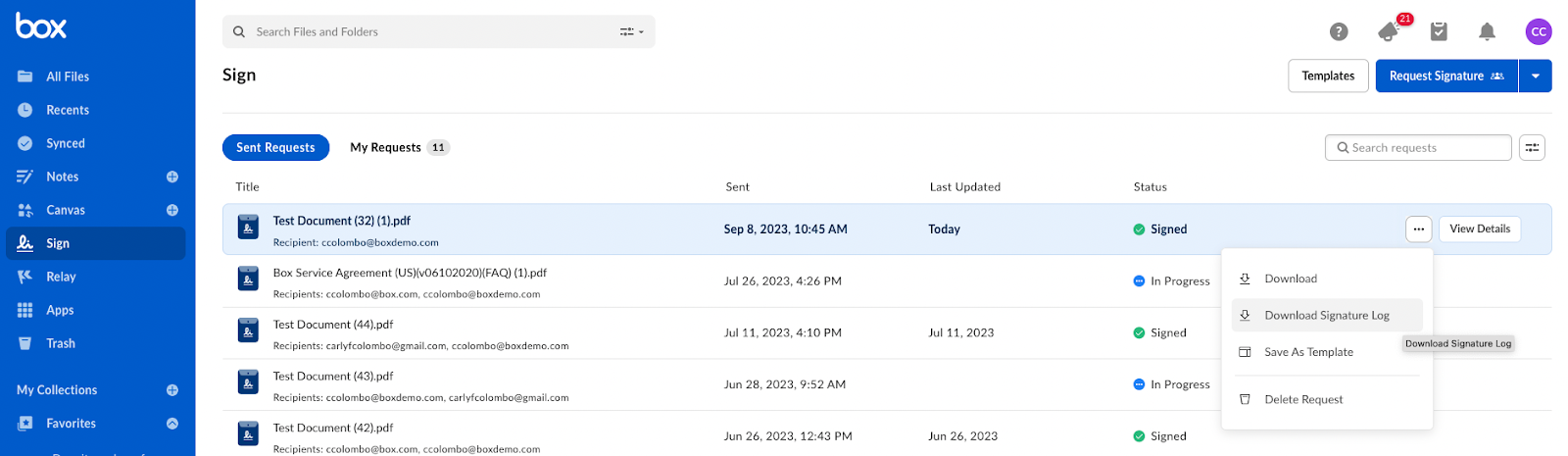
**To view the signing log in your Box Sign page:**
1. In your Box Sign home page, hover over the title of a signed document that is within your Box account.
2. Click the ellipsis button (“**...**”).
3. Click **Download Signature Log**.
;
};
The signing log is the audit trail of a transaction completed via Box Sign. It provides a record of the electronic signatures and or approvals on the document, and information about the sender and recipient(s) which supports the authentication of the completed document.
The Signing Log may include information such as:
* Document ID
* Secure hash code
* Electronic Record and Signature Disclosure or the selected custom disclosure
* Sender name and email address
* Recipient name(s) and email address(es)
* File name
* Signature request initiated date
* Subject and message field
* Signatures
* Digital and in-person signatures
* Approvals
* Attachments
* IP addresses
* Signature date(s) and timestamp(s)
* Authentication method (e.g. SMS authentication, password, and/or Box account log-in verification if configured by sender)
* Signature frame ID
* Reason provided by the sender for revising a signature request (when [Sender controls](/en/box-sign/box-sign-for-admins/enabling-sending-settings) are enabled)
* Reason provided by the recipient for declining a signature request (when [Recipient controls](/en/box-sign/box-sign-for-admins/enabling-recipient-controls) are enabled)
Once your signature request is completed by all recipients, you may view the signing log through either your Box account or your email.
**Note:**
Each attachment in the signature request has a secure hash code applied to it and viewable in the signing log.
**To view the signing log in your Box Sign page:**
1. In your Box Sign home page, hover over the title of a signed document that is within your Box account.
2. Click the ellipsis button (“**...**”).
3. Click **Download Signature Log**.
 **From Files**
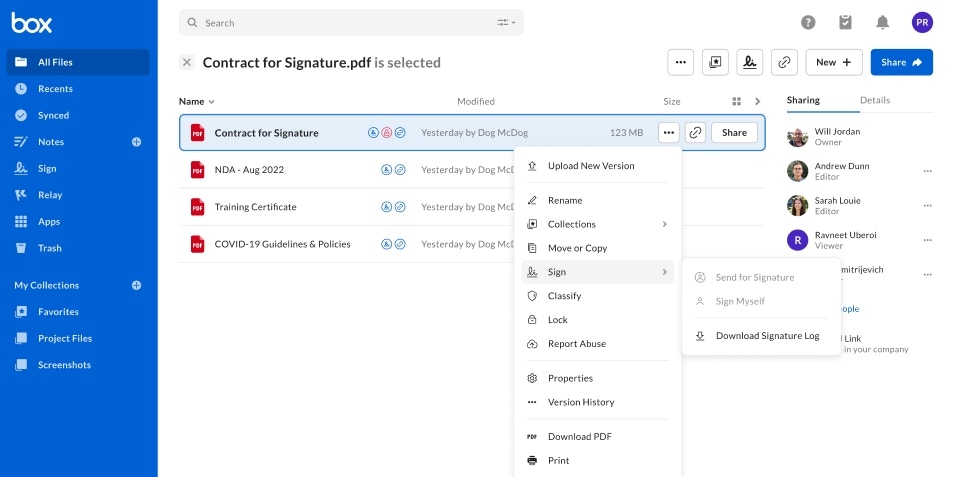
1. In the **Files** home page, hover over the title of a completed document
2. Click the ellipsis button
3. Select **Box Sign**
4. Click **Download Signature Log**
**From Files**
1. In the **Files** home page, hover over the title of a completed document
2. Click the ellipsis button
3. Select **Box Sign**
4. Click **Download Signature Log**
 **To view the signing log in your email:**
By default, whenever a document is signed, all parties involved in the document receive an email with a link to a copy of the final signed document in PDF format, and also to a copy of the signing log, also in PDF format.
You may download the documents directly from these links.
**IMPORTANT:**
For recipients, these links may be active only for a limited time, as described in the email itself.
**From file preview:**
**Note:**
Collaborators with download permissions to a completed signature request can access and download the signing log.
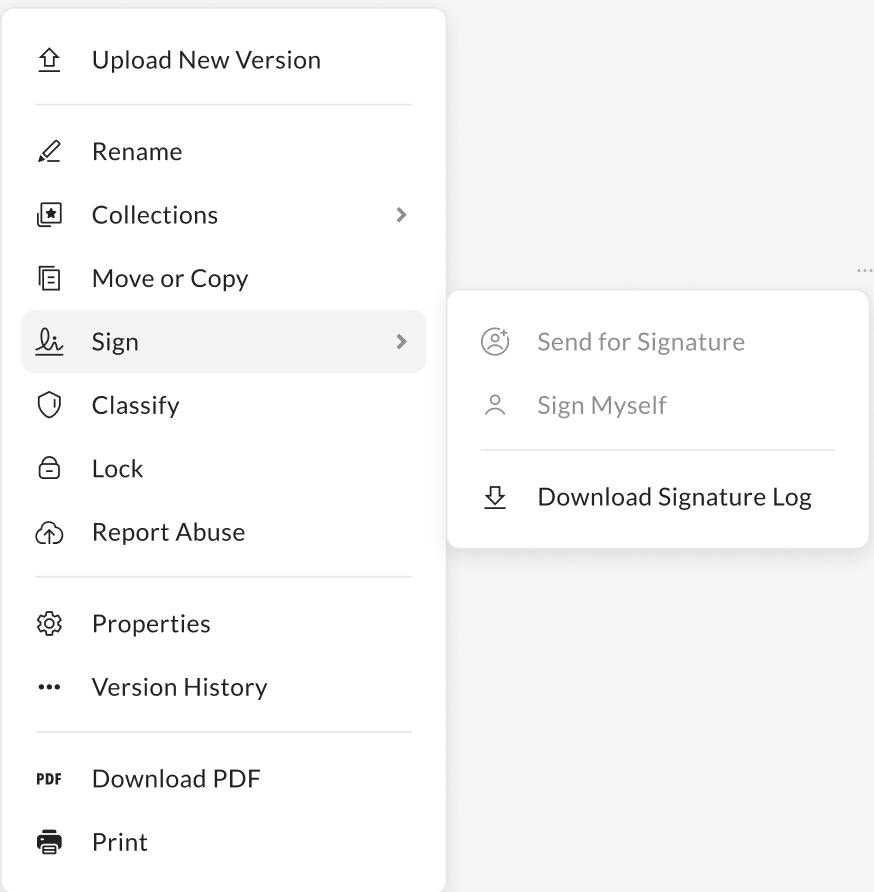
1. Open a completed signature request.
2. In the preview of the completed signature request, click the ellipsis button
* **Signed in accounts**
1. Select **Sign** from the dropdown menu.
2. Click **Download Signature Log**.
**To view the signing log in your email:**
By default, whenever a document is signed, all parties involved in the document receive an email with a link to a copy of the final signed document in PDF format, and also to a copy of the signing log, also in PDF format.
You may download the documents directly from these links.
**IMPORTANT:**
For recipients, these links may be active only for a limited time, as described in the email itself.
**From file preview:**
**Note:**
Collaborators with download permissions to a completed signature request can access and download the signing log.
1. Open a completed signature request.
2. In the preview of the completed signature request, click the ellipsis button
* **Signed in accounts**
1. Select **Sign** from the dropdown menu.
2. Click **Download Signature Log**.
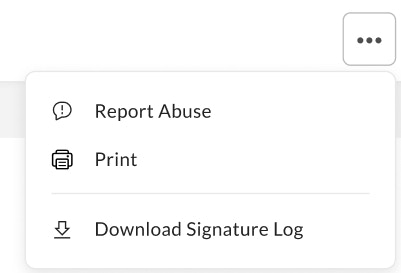
 * **Logged out accounts**
1. Click **Download Signature Log**.
* **Logged out accounts**
1. Click **Download Signature Log**.
 ## Digital certificate
In addition to creating the signing log, Box also applies a digital certificate to tamper-seal your signed documents. This helps to show the integrity of the signed document.
Although you can't view this digital certificate from Box Preview, you can use specialized PDF clients to view it, such as Adobe Acrobat Reader, where the certificate is visible as a green checkmark.
## Digital certificate
In addition to creating the signing log, Box also applies a digital certificate to tamper-seal your signed documents. This helps to show the integrity of the signed document.
Although you can't view this digital certificate from Box Preview, you can use specialized PDF clients to view it, such as Adobe Acrobat Reader, where the certificate is visible as a green checkmark.
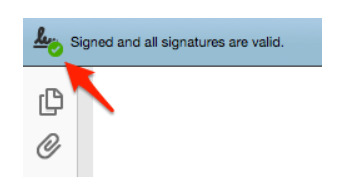 Unfortunately not all PDF readers support digital certificates. Known PDF readers that do not support digital certificates are:
* Firefox web browser
* Foxit PDF reader
* Mac Preview
Unfortunately not all PDF readers support digital certificates. Known PDF readers that do not support digital certificates are:
* Firefox web browser
* Foxit PDF reader
* Mac Preview