> ## Documentation Index
> Fetch the complete documentation index at: https://docs.box.com/llms.txt
> Use this file to discover all available pages before exploring further.
# Using Ready-Sign Links
export const InlineImage = ({src, alt = "", height = "1em"}) => {
return  ;
};
Box's ready-sign link feature allows you to create fillable, signable templates accessible through a shareable hyperlink or embedded on a website, enabling multiple users to easily complete signature requests. The template should need meet certain requirements to be leveraged as a ready-sign link.
Use this link when you want to post a signature request on a public form — such as an email, social media post, or web page — without knowing who the signers will be. Example use cases include:
* Waivers or release forms
* Applications
* Enrollment forms
**Important:** Ready-sign links do not currently support multi-factor authentication or other signer verification features.
When a recipient uses the link to access the signature request, Box prompts this recipient to provide an email address and sends this recipient an email notification with a unique access code. The recipient can then view the signature request in one of the following ways:
* Use the unique access code.
* Click the **Resume Signing** option in the email.
**Note:** The ready-sign link feature is limited to **Enterprise plus and Enterprise Advance** customers and not available to Box Verified Enterprises. To learn more about Box Verified Enterprises, click [here](https://support.box.com/hc/en-us/articles/4401823156883).
## Configuration at Admin level
**As a Box Admin, configure a ready-sign link:**
1. From the **Admin Console**, go to **Enterprise Settings** -> **Box Sign**
2. In the **Box Sign** tab, go to **User Permissions,** select **Edit Configuration** under the **Ready-Sign Links** section
3. Within the **Configure Ready-Sign Links menu**, you can:
* Disable for all managed users
* Enable for all managed users
* Enable for select users and groups
* Enable for everyone except select users and groups
;
};
Box's ready-sign link feature allows you to create fillable, signable templates accessible through a shareable hyperlink or embedded on a website, enabling multiple users to easily complete signature requests. The template should need meet certain requirements to be leveraged as a ready-sign link.
Use this link when you want to post a signature request on a public form — such as an email, social media post, or web page — without knowing who the signers will be. Example use cases include:
* Waivers or release forms
* Applications
* Enrollment forms
**Important:** Ready-sign links do not currently support multi-factor authentication or other signer verification features.
When a recipient uses the link to access the signature request, Box prompts this recipient to provide an email address and sends this recipient an email notification with a unique access code. The recipient can then view the signature request in one of the following ways:
* Use the unique access code.
* Click the **Resume Signing** option in the email.
**Note:** The ready-sign link feature is limited to **Enterprise plus and Enterprise Advance** customers and not available to Box Verified Enterprises. To learn more about Box Verified Enterprises, click [here](https://support.box.com/hc/en-us/articles/4401823156883).
## Configuration at Admin level
**As a Box Admin, configure a ready-sign link:**
1. From the **Admin Console**, go to **Enterprise Settings** -> **Box Sign**
2. In the **Box Sign** tab, go to **User Permissions,** select **Edit Configuration** under the **Ready-Sign Links** section
3. Within the **Configure Ready-Sign Links menu**, you can:
* Disable for all managed users
* Enable for all managed users
* Enable for select users and groups
* Enable for everyone except select users and groups
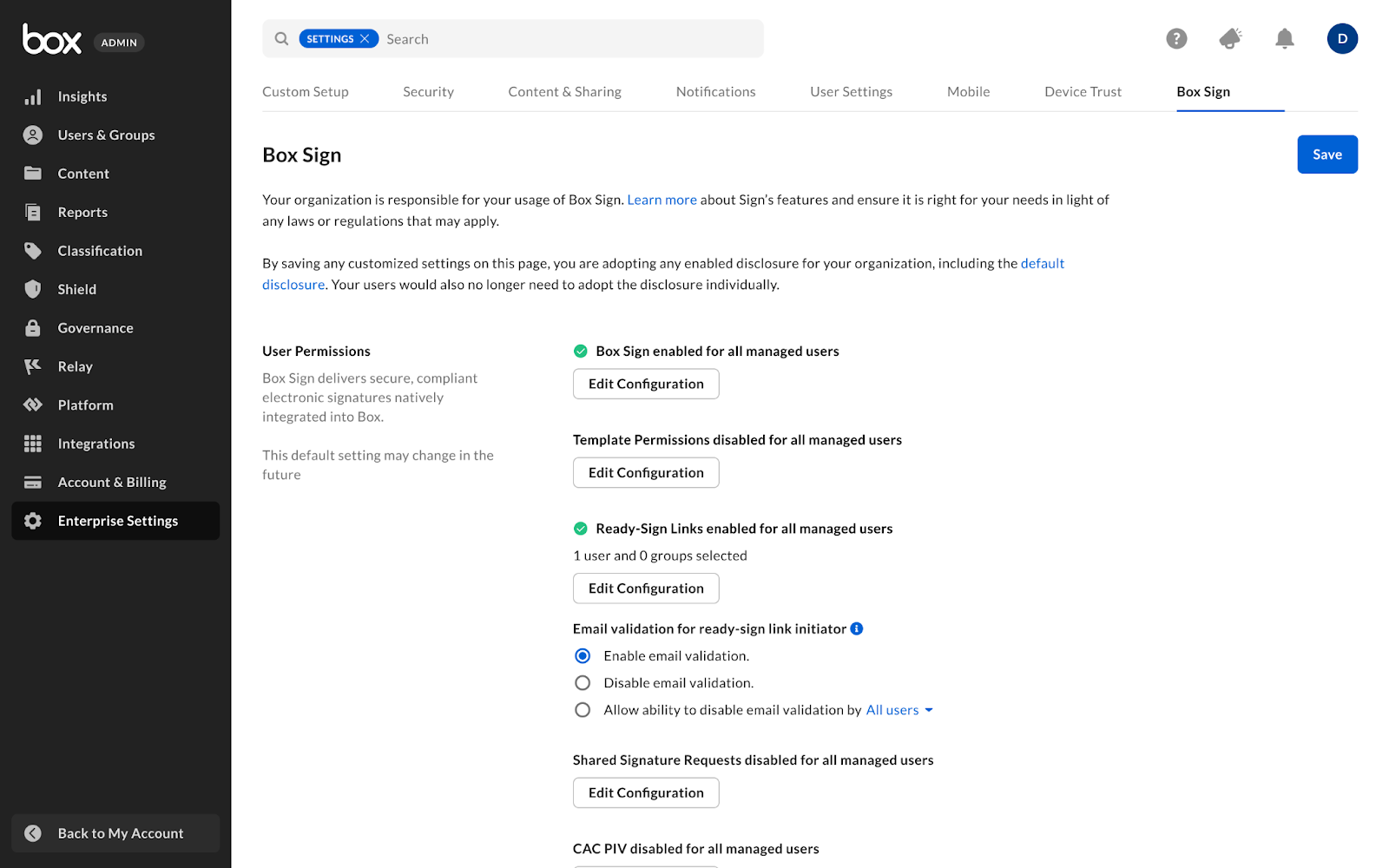 Additionally, you can configure the **Email validation for the ready-sign link initiator,** where you can enable or disable this additional validation for managed users or for selected ones.
The **Email validation for the ready-sign link initiator** is an extra step to verify the first or single recipient before they start the signature request. As the Box admin, you can configure the following settings in the Admin Console:
* **Enable email validation** (default):\
Ensures that all ready-sign links created within your Box enterprise require email validation, which means that **the first** (or only) recipient will receive an email **before** gaining access to the signature request to complete it.
* **Disable email validation**\
Skips the email validation/access code requirement for any ready-sign links created within your Box enterprise.
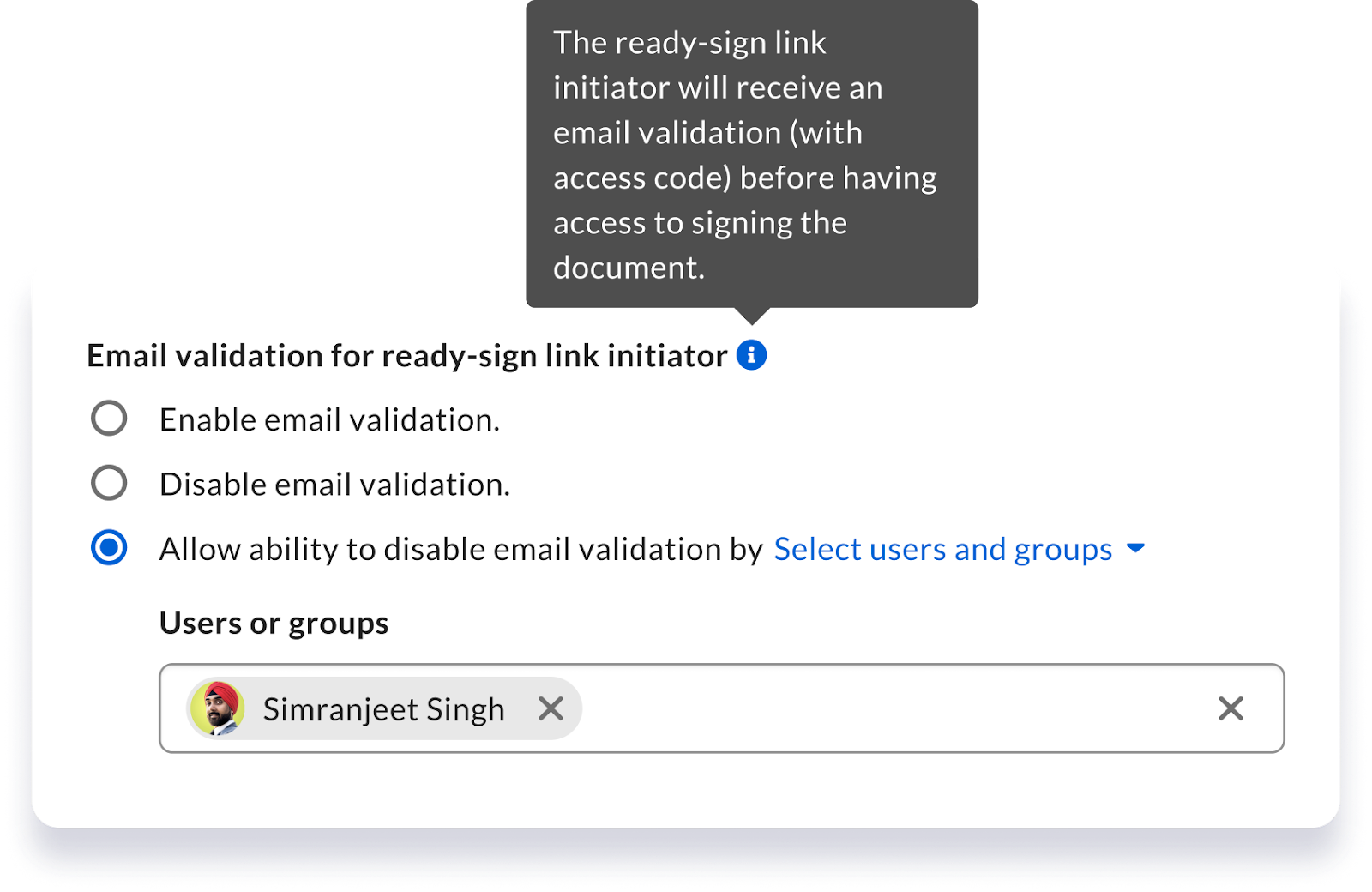
* **Allow ability to disable email validation**\
Provides options to allow for senders to control this feature configuration at a user level:
* **All users** (default) – All managed users will be able to toggle the **Require email validation** option off or on for each ready-sign link created in the ready-sign **l**ink settings.
* **Select users and groups** – Select users and groups will be able to control email validation in the ready-sign link settings.
* **All users except for selected ones** – Identified users and groups will not be able to control this feature in the ready-sign link settings (i.e. The **Require email validation** option will be disabled for them).
Additionally, you can configure the **Email validation for the ready-sign link initiator,** where you can enable or disable this additional validation for managed users or for selected ones.
The **Email validation for the ready-sign link initiator** is an extra step to verify the first or single recipient before they start the signature request. As the Box admin, you can configure the following settings in the Admin Console:
* **Enable email validation** (default):\
Ensures that all ready-sign links created within your Box enterprise require email validation, which means that **the first** (or only) recipient will receive an email **before** gaining access to the signature request to complete it.
* **Disable email validation**\
Skips the email validation/access code requirement for any ready-sign links created within your Box enterprise.
* **Allow ability to disable email validation**\
Provides options to allow for senders to control this feature configuration at a user level:
* **All users** (default) – All managed users will be able to toggle the **Require email validation** option off or on for each ready-sign link created in the ready-sign **l**ink settings.
* **Select users and groups** – Select users and groups will be able to control email validation in the ready-sign link settings.
* **All users except for selected ones** – Identified users and groups will not be able to control this feature in the ready-sign link settings (i.e. The **Require email validation** option will be disabled for them).
 ## Creating and configuring ready-sign links
Before creating ready-sign links, you will need editor permissions prior to selecting a template in addition to the following template requirements:
* Template has recipient placeholders
* Template has ‘Signer’ recipient role configured
* Template does not have recipient security settings applied
**Note:** CFR Part 11 signature requests are not compatible with the ready-sign link feature.
**To create a ready-sign link:**
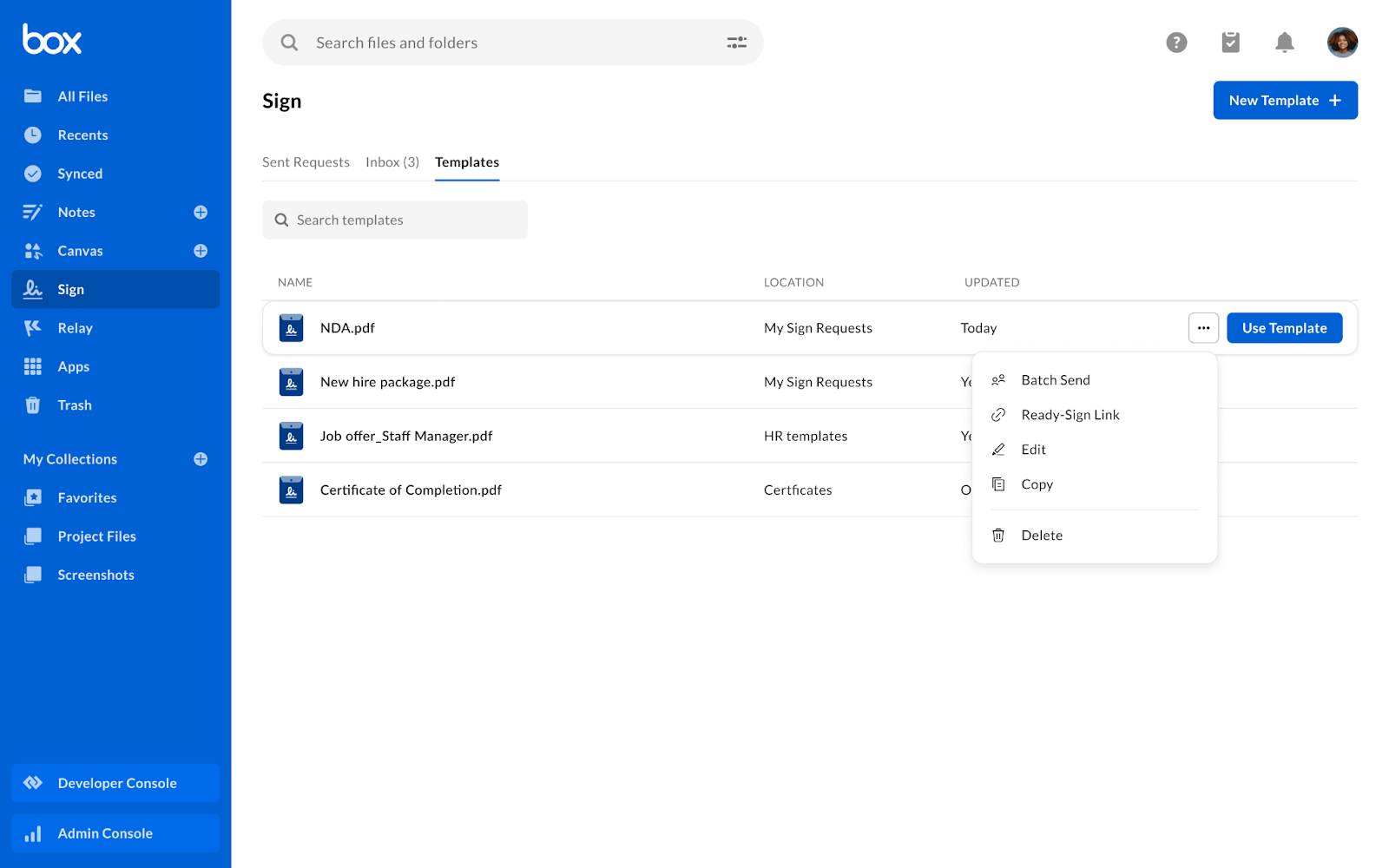
1. From your Box account, go to **Sign** -> then **Template**
2. Select the template to use
3. Click the ellipsis and then select **Ready-Sign Link**
4. Toggle on **Link is active**.
## Creating and configuring ready-sign links
Before creating ready-sign links, you will need editor permissions prior to selecting a template in addition to the following template requirements:
* Template has recipient placeholders
* Template has ‘Signer’ recipient role configured
* Template does not have recipient security settings applied
**Note:** CFR Part 11 signature requests are not compatible with the ready-sign link feature.
**To create a ready-sign link:**
1. From your Box account, go to **Sign** -> then **Template**
2. Select the template to use
3. Click the ellipsis and then select **Ready-Sign Link**
4. Toggle on **Link is active**.
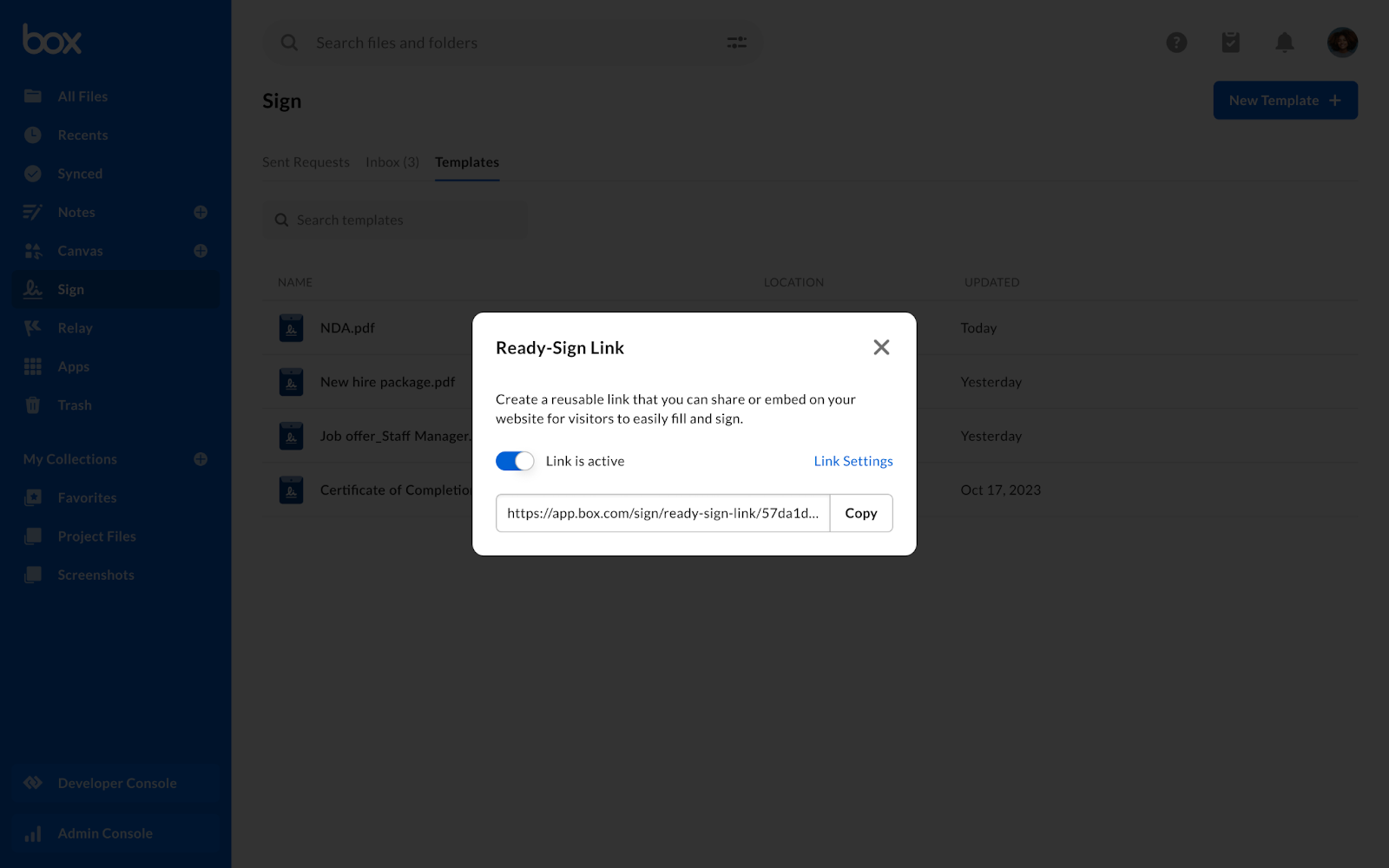 **To configure link settings:**
1. Click **Link Settings** within the **ready-sign link** window to modify the following:**Name**
* **Instructions**
* **Save location**
* **Require email validation** – Dependent on the settings configured by your admin in the Admin Console. **Enabled by default.**
* **Disable notifications for the template owner** – Dependent on whether you want the creator of the template to receive email notifications on incoming signed signature requests. **Enabled by default.**
2. Click **Save**.
**To configure link settings:**
1. Click **Link Settings** within the **ready-sign link** window to modify the following:**Name**
* **Instructions**
* **Save location**
* **Require email validation** – Dependent on the settings configured by your admin in the Admin Console. **Enabled by default.**
* **Disable notifications for the template owner** – Dependent on whether you want the creator of the template to receive email notifications on incoming signed signature requests. **Enabled by default.**
2. Click **Save**.
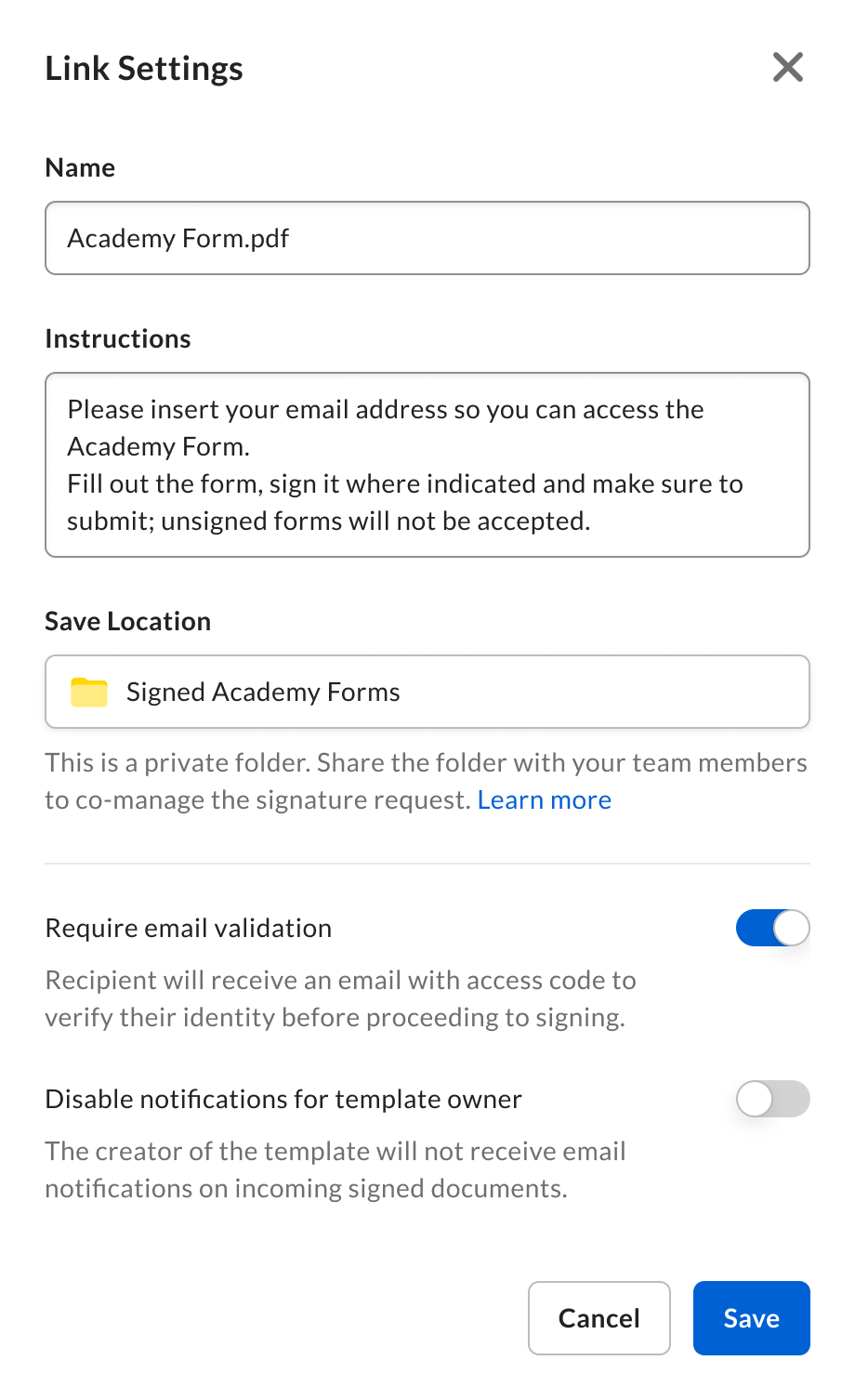 Once you have configured the link, click **Copy** to use the link.
## Signing and managing ready-sign links
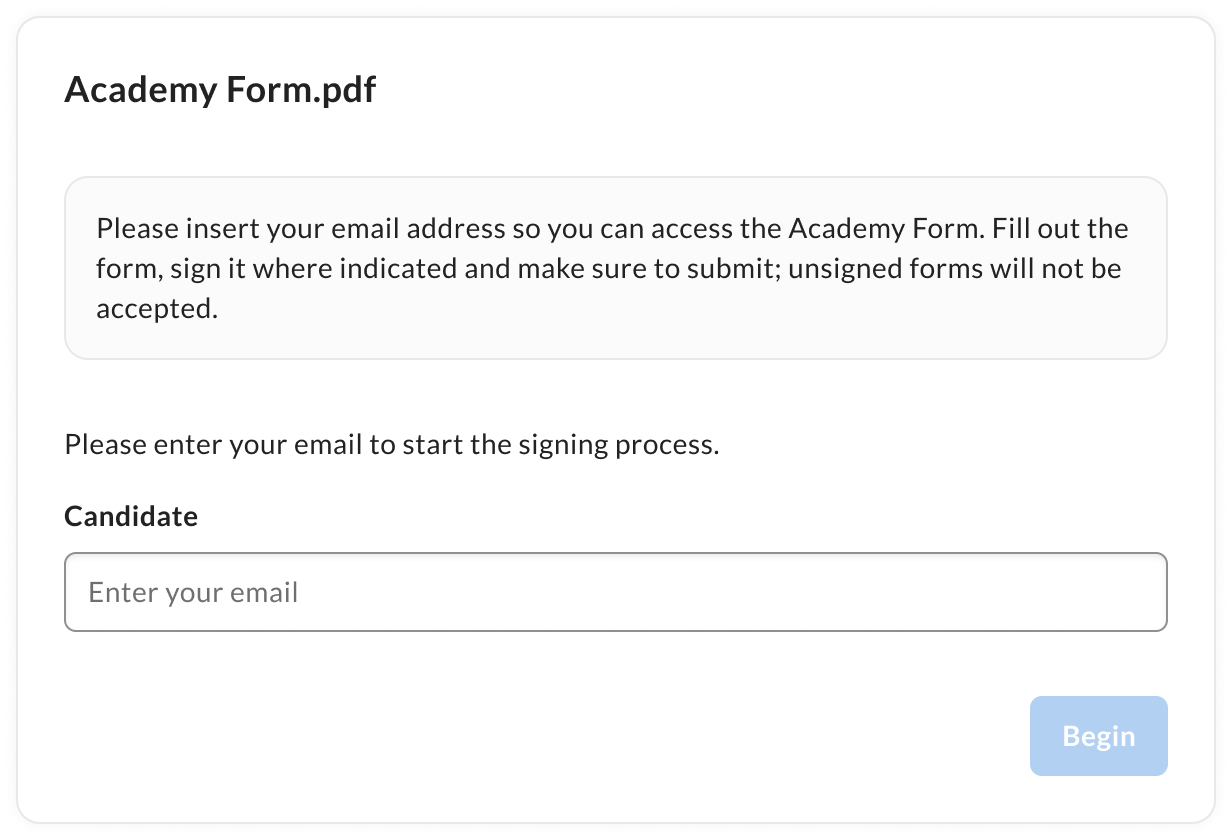
Once a recipient initiates the ready-sign link, they will be prompted to provide their email address and, if applicable, additional email addresses for subsequent recipients.
Once you have configured the link, click **Copy** to use the link.
## Signing and managing ready-sign links
Once a recipient initiates the ready-sign link, they will be prompted to provide their email address and, if applicable, additional email addresses for subsequent recipients.
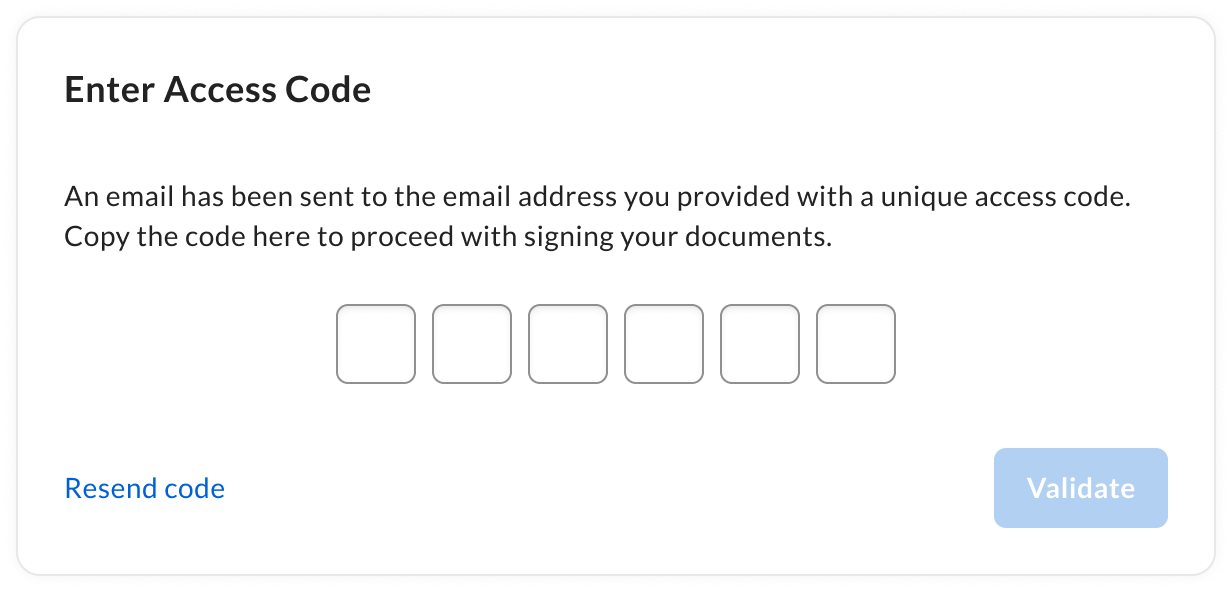
 If the **Require email validation** setting was enabled, then the initiating recipient receives an email with an access code to access the request. Alternatively the recipient can click **Resume Signing** in the same email to gain access to the request. No validation is required if the setting is disabled.
 All other recipients will receive an email notification to access and complete the signature request.
If you are the owner of a Box Sign template used in a ready-sign link, Box enables you to see the status of those signature requests.
**To see the status of signature requests initiated via ready-sign links with a template you own:**
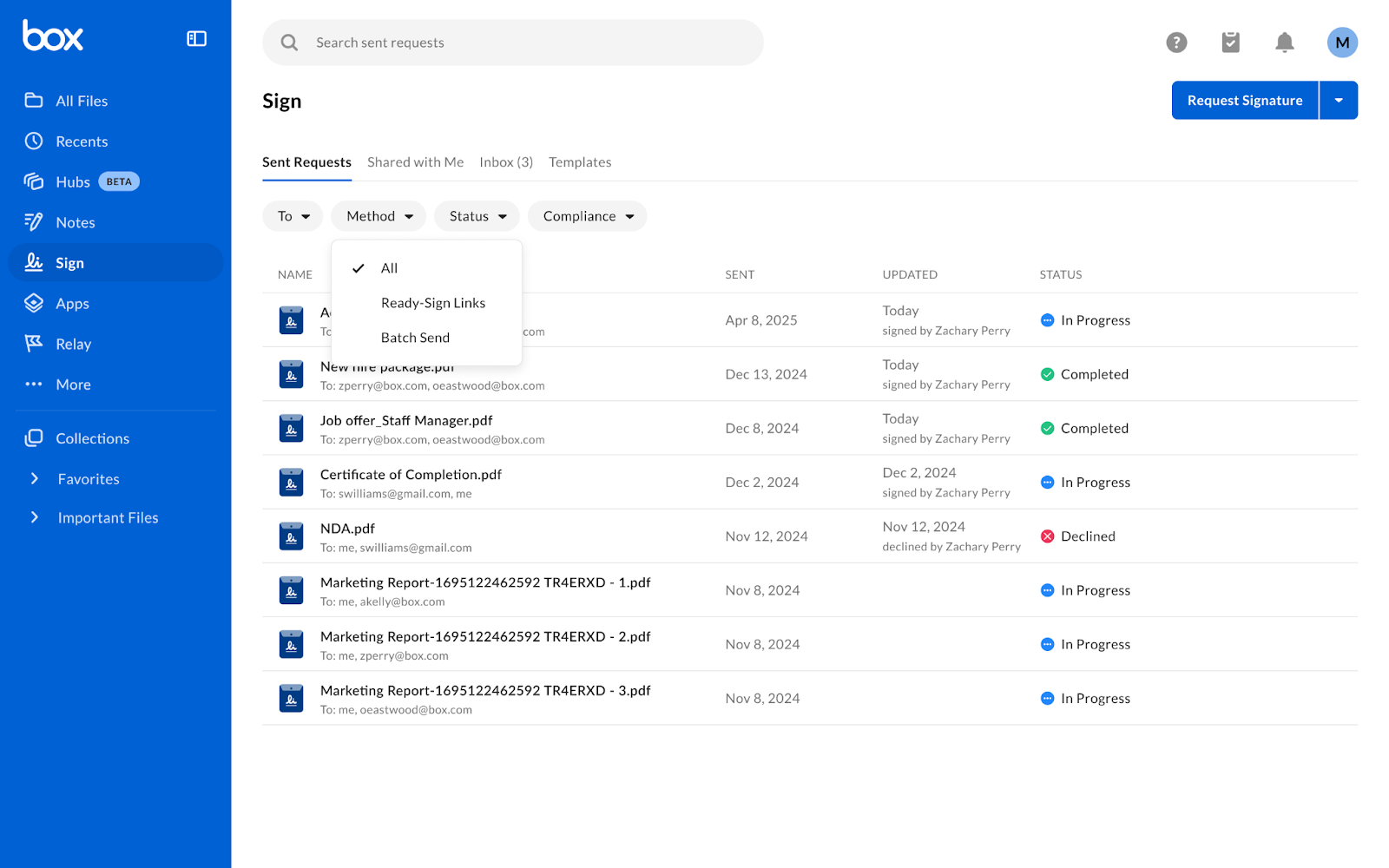
1. From your Box account, go to **Sign** -> then **Sent Requests**
* Box displays a list of sent signature requests that use your template, including those sent as Ready-Sign links.
2. At the top of the signature request list, you can apply filters to sort the requests:
* **Method** to look for ready-sign links, and
* **Status** to check the progress of the request
All other recipients will receive an email notification to access and complete the signature request.
If you are the owner of a Box Sign template used in a ready-sign link, Box enables you to see the status of those signature requests.
**To see the status of signature requests initiated via ready-sign links with a template you own:**
1. From your Box account, go to **Sign** -> then **Sent Requests**
* Box displays a list of sent signature requests that use your template, including those sent as Ready-Sign links.
2. At the top of the signature request list, you can apply filters to sort the requests:
* **Method** to look for ready-sign links, and
* **Status** to check the progress of the request