> ## Documentation Index
> Fetch the complete documentation index at: https://docs.box.com/llms.txt
> Use this file to discover all available pages before exploring further.
# Sending Multiple Files for Signature
Follow the steps below to send a multi-document signature request.
## Adding your files
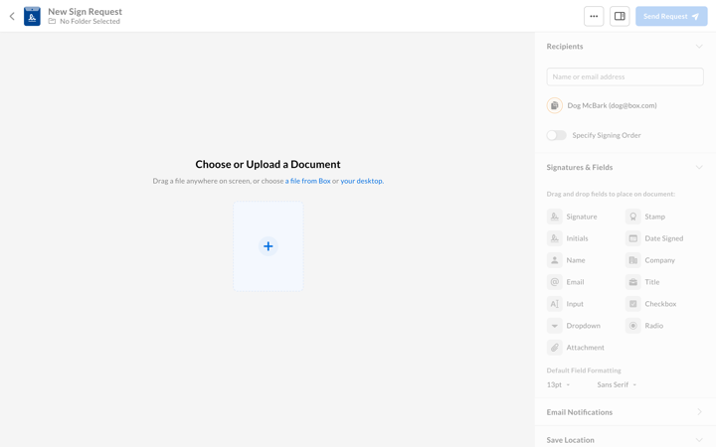 1. Open Box Sign from your Box account home window, Box **Files** window or preview mode (for more information on accessing Box Sign, see [Basic outline of sending a signature request](/en/box-sign/sending-a-document-for-signature#basic-outline-of-sending-a-signature-request)).
2. In the top-right corner, click **New Request**.
3. Upload or select from Box the documents you want to send for signature.
4. Define who will receive the request for signature (for more information, see [Who needs to sign](/en/box-sign/sending-a-document-for-signature#steps-2-and-3-adding-and-modifying-a-recipient)).
5. Choose the desired location under **Where should the request be saved?**.
6. Click **Next**.
On the next screen you can:
* add more files,
* reorder the files using the preview panel on the left side,
* manage the recipients (for more information, see [Add and modify a recipient](/en/box-sign/sending-a-document-for-signature#steps-2-and-3-adding-and-modifying-a-recipient)),
* add signatures and fields to your documents (for more information, see [Add action fields to a request](/en/box-sign/sending-a-document-for-signature#step-4-preparing-the-request)).
## Adding more files
To add more documents to your request:
* Click the blue **+** field in the left pane and select:
* **Choose from Box** or
* **Upload file**.
* Drag and drop the file into the main preview area or the thumbnails bar on the left. A blue prompt will appear in the upload bar at the bottom of the screen.
Click **Send Request** when your signature request is complete.
**Note**
Each file in the request has its own header, where a filename and number of pages are displayed. You can also rename, delete, and replace each file by selecting the needed action from the three dots menu in the header.
1. Open Box Sign from your Box account home window, Box **Files** window or preview mode (for more information on accessing Box Sign, see [Basic outline of sending a signature request](/en/box-sign/sending-a-document-for-signature#basic-outline-of-sending-a-signature-request)).
2. In the top-right corner, click **New Request**.
3. Upload or select from Box the documents you want to send for signature.
4. Define who will receive the request for signature (for more information, see [Who needs to sign](/en/box-sign/sending-a-document-for-signature#steps-2-and-3-adding-and-modifying-a-recipient)).
5. Choose the desired location under **Where should the request be saved?**.
6. Click **Next**.
On the next screen you can:
* add more files,
* reorder the files using the preview panel on the left side,
* manage the recipients (for more information, see [Add and modify a recipient](/en/box-sign/sending-a-document-for-signature#steps-2-and-3-adding-and-modifying-a-recipient)),
* add signatures and fields to your documents (for more information, see [Add action fields to a request](/en/box-sign/sending-a-document-for-signature#step-4-preparing-the-request)).
## Adding more files
To add more documents to your request:
* Click the blue **+** field in the left pane and select:
* **Choose from Box** or
* **Upload file**.
* Drag and drop the file into the main preview area or the thumbnails bar on the left. A blue prompt will appear in the upload bar at the bottom of the screen.
Click **Send Request** when your signature request is complete.
**Note**
Each file in the request has its own header, where a filename and number of pages are displayed. You can also rename, delete, and replace each file by selecting the needed action from the three dots menu in the header.