> ## Documentation Index
> Fetch the complete documentation index at: https://docs.box.com/llms.txt
> Use this file to discover all available pages before exploring further.
# Configuring Box Sign Enablement Settings
## Overview
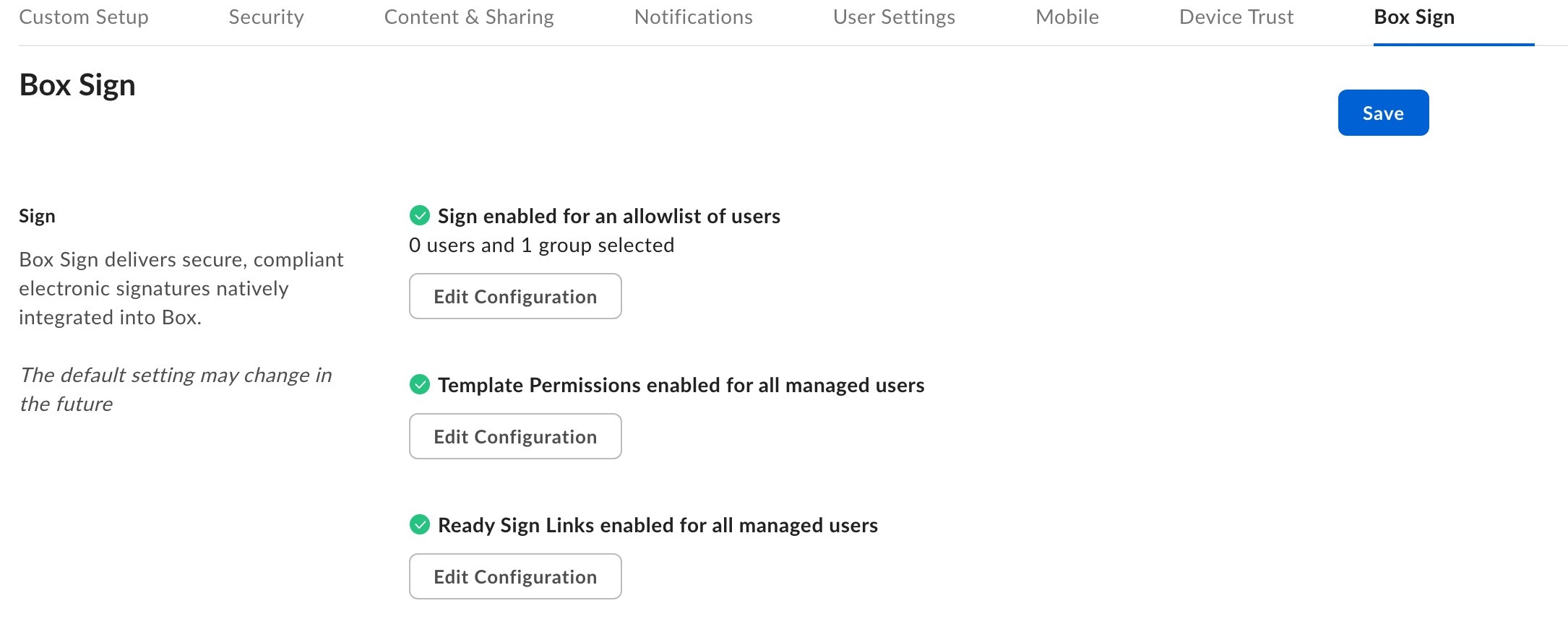
If you're an admin or co-admin with edit permissions, you can configure various options under the **Box Sign** tab in your Box Admin Console.
## Configure access to Box Sign
All signature requests sent through Box Sign present a disclosure on behalf of the requestor to each signer unless the disclosure has been disabled in the Admin Console.
See [Configuring Disclosure Settings](/en/box-sign/box-sign-for-admins/configuring-disclosure-settings) to learn more about the default disclosure, replacing the default disclosure with a custom disclosure for your organization, and disabling the presentation of any disclosure in your organization’s signature requests.
**To change which of your users have Box Sign enabled or disabled:**
1. In the left sidebar of the Admin Console, click **Enterprise Settings**.
2. In the top bar, click **Box Sign**.
3. Click **Edit Configuration** from the **Configure Sign** section.
4. Select the enablement option.
* If you enable or disable Sign for select users or groups, type the user names, email addresses or names of groups you want to allow or deny.
5. Click **Save**.
**IMPORTANT:**
If a user or group of users have Box Sign disabled, they cannot initiate signature requests.
However, such users can still use Box Sign to sign a document sent by someone else.
Additionally, if a user accesses files or folders associated with Box Sign target folders, they can see the status of sent signature requests, including the recipients, along with recipient actions on such requests.
Enabling Box Sign for specific users has the following limitations:
* You can enter up to 100 names/email addresses and up to 100 groups. If you want to enable or disable more, you have to enable or disable Sign for the entire organization.
 **To enable co-admins access to Box Sign permissions:**
1. Go to **Admin Console > Users & Groups**.
2. Click the **Managed Users** tab.
3. Click the name of the co-admin to whom you want to grant access permissions for Box Sign legal settings.
4. Open the **Role and Access Permissions** section.
5. Click **Edit**.
6. Enable all of the following Co-Admin Permissions:
* Reports and Settings
* View settings and apps for your company
* Edit settings and apps for your company
* Run new reports and access existing reports
* Sign
* View and edit Sign permissions
* View and edit Sign legal settings
7. Click **Save**.
## Configuring Box Sign templates permissions
Enable templates for users to create, edit, or delete Box Sign templates.
**To configure Box Sign template permissions for your managed users:**
1. In the left sidebar of the Admin Console, click **Enterprise Settings**.
2. In the top of the window, click **Box Sign.**
3. Click **Edit Configuration** from the **Template Permissions** section.
4. Select the enablement option.
* If you enable or disable Box Sign templates for select users or groups, type the user names, email addresses or names of groups you want to allow or deny from creating, editing, or deleting Box Sign templates.
* Users or groups with template permissions disabled for creating, editing or deleting templates, can still view and use Box Sign templates that are shared with them.
5. Click **Save**.
## Configuring Box Sign ready-sign links
This feature is only available to Enterprise Plus and Enterprise Advanced accounts.
Enable ready-sign links for users to initiate the signing process with a hyperlink using templates when the recipient's email address is unknown.
**To configure ready-sign links for your managed users:**
1. In the left sidebar of the Admin Console, click
**Enterprise Settings**.
2. From the top of the window, click **Box Sign**.
3. Click **Edit Configuration** from the
**Ready Sign Links permissions** section.
4. Select the enablement option.
* If you enable or disable Sign for selected users or groups, type
the user names, email addresses or names of groups you want to
allow or deny from creating ready-sign links.
5. Click **Save**.
## Box Sign access for developers
If your enterprise has access to Box Sign, any developer can build an app that makes requests with the Box Sign API. You can use the **Custom** **Apps** tab in the Admin Console to manage which apps have access to your enterprise. For details, see [Managing custom apps.](/en/box-admin-tools/how-to-guides-for-admins/managing-platform-apps)
**To enable co-admins access to Box Sign permissions:**
1. Go to **Admin Console > Users & Groups**.
2. Click the **Managed Users** tab.
3. Click the name of the co-admin to whom you want to grant access permissions for Box Sign legal settings.
4. Open the **Role and Access Permissions** section.
5. Click **Edit**.
6. Enable all of the following Co-Admin Permissions:
* Reports and Settings
* View settings and apps for your company
* Edit settings and apps for your company
* Run new reports and access existing reports
* Sign
* View and edit Sign permissions
* View and edit Sign legal settings
7. Click **Save**.
## Configuring Box Sign templates permissions
Enable templates for users to create, edit, or delete Box Sign templates.
**To configure Box Sign template permissions for your managed users:**
1. In the left sidebar of the Admin Console, click **Enterprise Settings**.
2. In the top of the window, click **Box Sign.**
3. Click **Edit Configuration** from the **Template Permissions** section.
4. Select the enablement option.
* If you enable or disable Box Sign templates for select users or groups, type the user names, email addresses or names of groups you want to allow or deny from creating, editing, or deleting Box Sign templates.
* Users or groups with template permissions disabled for creating, editing or deleting templates, can still view and use Box Sign templates that are shared with them.
5. Click **Save**.
## Configuring Box Sign ready-sign links
This feature is only available to Enterprise Plus and Enterprise Advanced accounts.
Enable ready-sign links for users to initiate the signing process with a hyperlink using templates when the recipient's email address is unknown.
**To configure ready-sign links for your managed users:**
1. In the left sidebar of the Admin Console, click
**Enterprise Settings**.
2. From the top of the window, click **Box Sign**.
3. Click **Edit Configuration** from the
**Ready Sign Links permissions** section.
4. Select the enablement option.
* If you enable or disable Sign for selected users or groups, type
the user names, email addresses or names of groups you want to
allow or deny from creating ready-sign links.
5. Click **Save**.
## Box Sign access for developers
If your enterprise has access to Box Sign, any developer can build an app that makes requests with the Box Sign API. You can use the **Custom** **Apps** tab in the Admin Console to manage which apps have access to your enterprise. For details, see [Managing custom apps.](/en/box-admin-tools/how-to-guides-for-admins/managing-platform-apps)
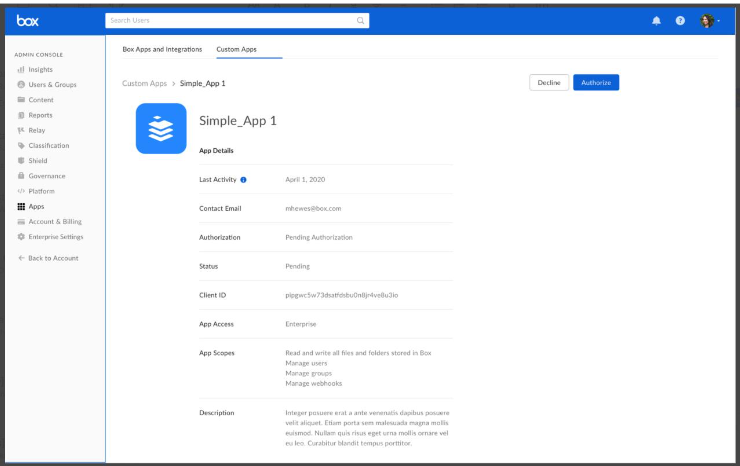 To approve apps that make Box Sign API requests, use the **Custom Apps** tab in the admin console to view app details. If the app has the **Manage signature requests** scope enabled and you approve it, you will allow this app to access Box Sign using API.
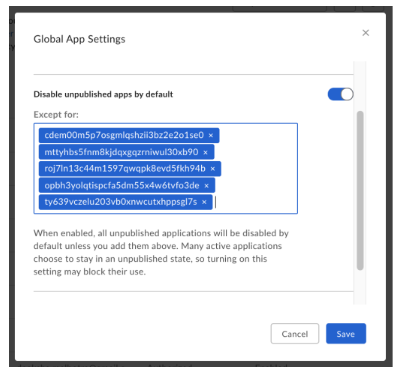
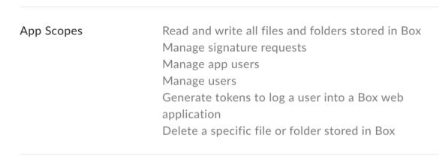 If you choose to not grant developer access to the Box Sign API, decline any apps that have the **Manage signature requests** scope enabled. Additionally, turn on the **Disable unpublished apps by default** toggle in the custom apps settings to ensure that all unpublished apps created by a developer within your enterprise require app approval.
**Note:** If you have OAuth 2.0 apps that are active within your enterprise, you need to add their client IDs to the **Disable unpublished apps by default** setting to keep them enabled.
If you choose to not grant developer access to the Box Sign API, decline any apps that have the **Manage signature requests** scope enabled. Additionally, turn on the **Disable unpublished apps by default** toggle in the custom apps settings to ensure that all unpublished apps created by a developer within your enterprise require app approval.
**Note:** If you have OAuth 2.0 apps that are active within your enterprise, you need to add their client IDs to the **Disable unpublished apps by default** setting to keep them enabled.
 ## Generating admin reports
If you want to see the activity reports regarding Sign usage, follow the instructions from [Running Reports](/en/box-admin-tools/reporting-and-insights/running-reports) section and use the **Set Filters** option to decide which Box Sign activity and information data lands in the report.
## Generating admin reports
If you want to see the activity reports regarding Sign usage, follow the instructions from [Running Reports](/en/box-admin-tools/reporting-and-insights/running-reports) section and use the **Set Filters** option to decide which Box Sign activity and information data lands in the report.