> ## Documentation Index
> Fetch the complete documentation index at: https://docs.box.com/llms.txt
> Use this file to discover all available pages before exploring further.
# Amazon S3
This document describes an [advanced tool](/en/box-shuttle/about-box-shuttle/box-shuttle-standard-and-advanced-tooling) that is not available to all users by default.
Amazon S3 (Simple Storage Service) is the proprietary storage service used on [Amazon Web Services](http://aws.amazon.com/). To set up Amazon S3, you need: Access Key, Secret (Access) Key and an S3 bucket.
## Access Keys
To get the Access Key and Secret (Access) Key, follow [these instructions](https://docs.aws.amazon.com/powershell/latest/userguide/pstools-appendix-sign-up.html).
The permissions required for the key are as follows:
```
{
"Version": "2012-10-17",
"Statement": [
{
"Sid": "VisualEditor0",
"Effect": "Allow",
"Action": "s3:ListAllMyBuckets",
"Resource": "*"
},
{
"Sid": "VisualEditor1",
"Effect": "Allow",
"Action": [
"s3:GetObjectAcl",
"s3:GetObject",
"s3:ListBucketVersions",
"s3:GetObjectVersionAcl",
"s3:GetObjectTagging",
"s3:ListBucket",
"s3:GetBucketAcl",
"s3:GetBucketLocation",
"s3:GetObjectVersion"
],
"Resource": [
"arn:aws:s3:::your-bucket",
"arn:aws:s3:::your-bucket/*"
]
}
]
}
```
## S3 Bucket
To create an S3 bucket:
1. Go to [console.aws.amazon.com](http://console.aws.amazon.com/) and log into your account.
2. Select S3 from the console menu and [create a bucket](https://docs.aws.amazon.com/AmazonS3/latest/userguide/creating-bucket.html).
## Set up Amazon S3 as source system
1. Provide a unique name for the job.
2. Select **Amazon S3**.
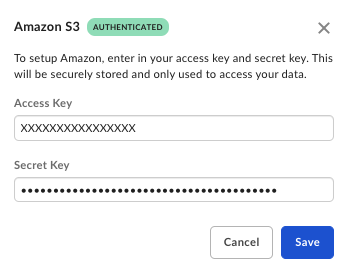 3. Provide the **Access Key** and **Secret Key** to connect to Amazon S3.\
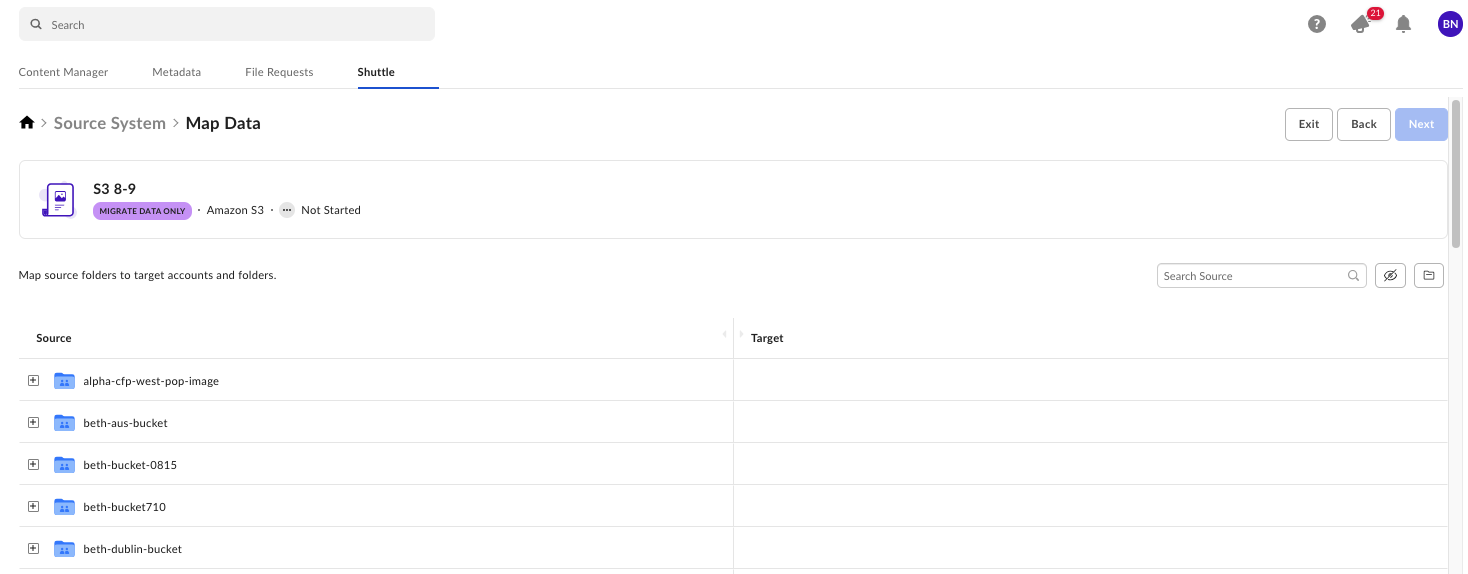
Once Box Shuttle is connected to Amazon S3, the bucket along with the files and folders will appear during the Data Mapping step.
3. Provide the **Access Key** and **Secret Key** to connect to Amazon S3.\
Once Box Shuttle is connected to Amazon S3, the bucket along with the files and folders will appear during the Data Mapping step.