

> ## Documentation Index
> Fetch the complete documentation index at: https://docs.box.com/llms.txt
> Use this file to discover all available pages before exploring further.

# Migrating Data Only

export const InlineImage = ({src, alt = "", height = "1em"}) => {
  return <img noZoom src={src} alt={alt} style={{
    display: "inline-block",
    verticalAlign: "middle",
    height: height,
    width: "auto",
    margin: "0"
  }} />;
};

<div className="article_labels_list" style={{display: 'none'}} dangerouslySetInnerHTML={{__html: "Admin , Article , Product Utilization , Established , Instruction , Box Shuttle , P5"}} />

<Note>
  This article is about Box Shuttle in the Admin Console. If you’re using legacy Box Shuttle, a standalone tool, see [legacy migration guides](/en/box-shuttle/box-shuttle-legacy).
</Note>

## Overview

Box Shuttle acts as an intermediary between various content management systems, enabling you to transfer folders, files, permissions, and standard metadata from these platforms to Box.

You have two options to migrate your data:

* **Migrate data only**: migrates files and folders from a selected source path of an account or folder to the selected target location **without** applying permissions.
* **Migrate data with permissions**: transfers files and folders and creates collaborations to reflect source permissions. This type of migration job is suitable for comprehensive management of files, accounts, and privileges throughout the entire data migration process.

This guide provides instructions on how to migrate data only. For migrating data with permissions, see [Data migration with permissions](/en/box-shuttle/analyzing-and-migrating-content/migrating-data-with-permissions).

<Frame>
  <img src="https://mintcdn.com/product-docs/rJPHDm2EtWmKO9Di/images/box-shuttle/data-migration.png?fit=max&auto=format&n=rJPHDm2EtWmKO9Di&q=85&s=6a7659abcfd55b8a94e809d57ae4757d" alt="Workflow diagram for a data-only migration, from source system through content mapping, filter and run settings, validation, simulation, and migration to the final report." width="1980" height="362" data-path="images/box-shuttle/data-migration.png" />
</Frame>

| <strong>Step</strong> | <strong>Description</strong> |
| - | - |
| 1 | Select the source system. |
| 2 | Map the source content to the target location, by hand or in a spreadsheet. |
| 3 | Specify additional content filters and other settings for the migration job.<br />Available settings can differ depending on the source system. |
| 4 | Define run settings to set up upload bandwidth value (for Windows sources only) and mirror deletions.<br />Mirror deletions can lead to accidental data loss. Box recommends that you always run simulations and review reports before you run any transfer that can delete data. |
| 5 | Check the content and settings to make sure everything is correct. |
| 6 | Run a simulation of the migration.<br />This step is optional and you can proceed directly to migration, but Box recommends it, especially if you are running a migration for the first time. A simulation confirms that all the necessary information is in place and ready for migration. |
| 7 | Once you have examined the simulation report, run the migration. When the migration is done, you can examine the resulting report. |

## Create a new job

To create a new job, select **Migrate Data** from the **New Job** drop-down menu.

## Select source system

Select the source system that holds the data you want to migrate.

If you don’t have an existing source system available, set it up using [Source system configuration](/en/box-shuttle/configuring-source-systems/about-source-system-configuration) instructions.

Box Shuttle cannot alter or modify your source data.

## Map files and folders

A settings page precedes this step and asks how you want to map. Select **Map Data manually** to map each item in Box Shuttle, as described below, or map a large number of directories at once with [bulk mapping with a spreadsheet](/en/box-shuttle/analyzing-and-migrating-content/bulk-mapping-with-a-spreadsheet).

For each source account or folder you want to migrate, select the target account and folder that receives the data. When you select a folder, Box Shuttle migrates that folder or account along with every file and folder inside it. You can, however, deselect specific subfolders or files you don’t want migrated.

<Note>
  Make sure that all Box users have confirmed their invitations. You cannot transfer data to a Box account of a user who did not accept the invitation.
</Note>

To select the target location, select **Choose Target Location** to open a panel in which you can choose the target Box account.

<Frame>
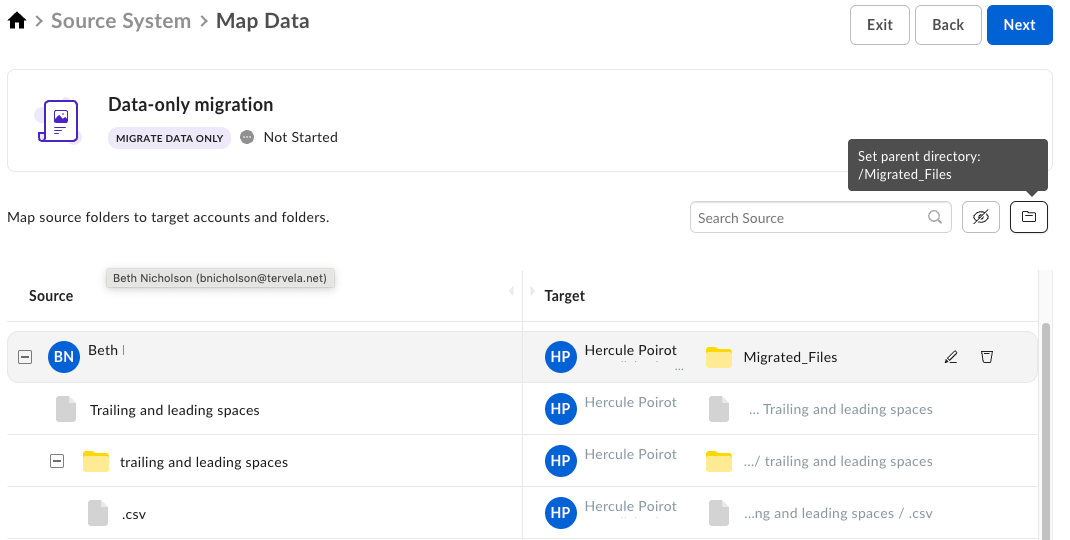
  <img src="https://mintcdn.com/product-docs/6Q7nCk1JXzHqPpg6/images/box-shuttle/map-data-mapping-beth.png?fit=max&auto=format&n=6Q7nCk1JXzHqPpg6&q=85&s=22b3943752bef64700b85a80a4fe86a5" alt="Map Data screen mapping Beth's source folders to Hercule Poirot's Migrated_Files target directory." width="1070" height="540" data-path="images/box-shuttle/map-data-mapping-beth.png" />
</Frame>

You can map the entire account, or a specific folder or file in this account. You can also create a new folder within that account. The <InlineImage src="/images/box-shuttle/null-circle-diagonal-line.png" alt="Null icon: circle with diagonal line indicating no value or unmapped item." /> icon hides the rows without any mapping defined.
## Set parent directory

You can set a parent directory that Box Shuttle creates in each target location for the migrated content.

To do so:

1. Select the folder icon <InlineImage src="/images/box-shuttle/folder-representing-directory-storage.png" alt="Folder icon representing a file directory or storage location." /> next to the search bar.
2. Enter the name for the parent directory and confirm.

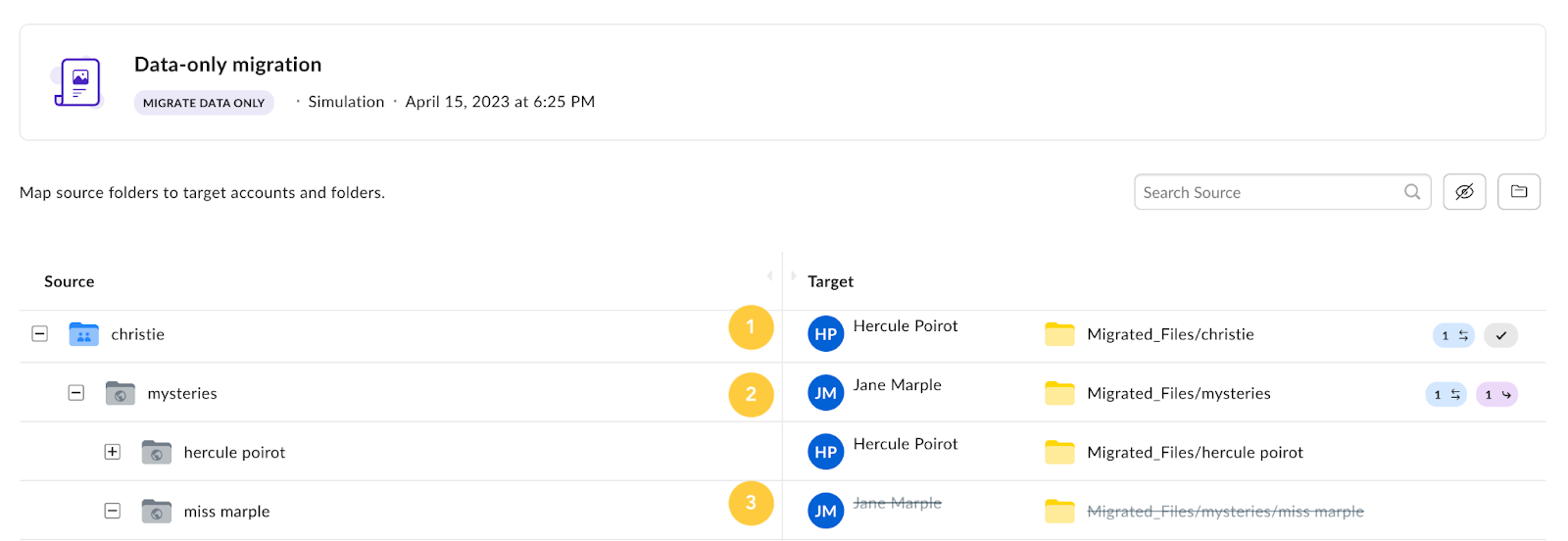
The mapping indicators next to the mapped folders help you to map the folders effectively.

Actions you perform at the child folder level are indicated at the parent folder level. For example:

1. A source folder is explicitly mapped to a folder in a target account. One of the child folders or files is also redirected to a target folder in a different account, so a redirect icon displays at the parent folder level.
2. This source folder was redirected to a different target account, and a child folder or file was skipped.
3. This folder was skipped and is not migrated.

<Frame>
  <img src="https://mintcdn.com/product-docs/6Q7nCk1JXzHqPpg6/images/box-shuttle/data-only-migration-map-mapping.png?fit=max&auto=format&n=6Q7nCk1JXzHqPpg6&q=85&s=e9f21cf7a970dd4262375faa9e4b2d2f" alt="Data-only migration Map Data screen mapping christie and mysteries source folders to target users and Migrated_Files paths." width="1600" height="552" data-path="images/box-shuttle/data-only-migration-map-mapping.png" />
</Frame>

<table>
  <thead>
    <tr>
      <th>Item</th>
      <th>Level of display</th>
      <th>Description</th>
    </tr>
  </thead>

  <tbody>
    <tr>
      <td>
        <InlineImage src="/images/box-shuttle/green-status-badge-count-checkmark.png" alt="Green status badge showing count 1 with a checkmark." height="2em" />
      </td>

      <td>Folder</td>
      <td>An item in a specific folder is explicitly included in the migration. This file is migrated, even though the folder is not.</td>
    </tr>

    <tr>
      <td>
        <InlineImage src="/images/box-shuttle/purple-badge-number-right-turn.png" alt="Purple badge with number 2 and a right-turn arrow indicating a mapping step." height="2em" />
      </td>

      <td>Folder</td>
      <td>Files in the folder were skipped. These files are not migrated.</td>
    </tr>

    <tr>
      <td>
        <InlineImage src="/images/box-shuttle/light-blue-badge-number-bidirectional.png" alt="Light blue badge with number 1 and bidirectional arrows indicating one mapped item." height="2em" />
      </td>

      <td>Folder, Account</td>
      <td>An item in the folder was redirected to a different folder or account.</td>
    </tr>

    <tr>
      <td>
        <InlineImage src="/images/box-shuttle/gray-checkmark-completed.png" alt="Gray checkmark icon indicating completed or verified status." height="2em" />
      </td>

      <td>Folder, Account</td>
      <td>A file or files in one of the child folders are explicitly included in the migration. Icon displayed when you select files in several folders.</td>
    </tr>

    <tr>
      <td>
        <InlineImage src="/images/box-shuttle/trash-can-clear-mapping.png" alt="Trash can icon for clearing a mapping." height="2em" />
      </td>

      <td>File, Folder, Account</td>
      <td>Clears the mapping from source to target.</td>
    </tr>

    <tr>
      <td>
        <InlineImage src="/images/box-shuttle/edit-pencil-underline-renaming.png" alt="Edit pencil icon with underline for renaming or editing a mapping." height="2em" />
      </td>

      <td>File, Folder, Account</td>

      <td>
        <p>Opens the list with target account folders. Use it to:</p>

        <ul>
          <li>Select a different folder</li>
          <li>Rename the folder</li>
        </ul>
      </td>
    </tr>

    <tr>
      <td>
        <InlineImage src="/images/box-shuttle/right-turn-nested.png" alt="Right-turn arrow icon indicating a nested or child item in a folder hierarchy." height="2em" />
      </td>

      <td>File, Folder, Account</td>
      <td>Skips the file in the folder. This file is not migrated.</td>
    </tr>

    <tr>
      <td>
        <InlineImage src="/images/box-shuttle/left-turn-return-navigating.png" alt="Left-turn return arrow icon for navigating to a parent directory." height="2em" />
      </td>

      <td>File, Folder, Account</td>
      <td>Includes the skipped file in the migration.</td>
    </tr>
  </tbody>
</table>

## Choose migration type

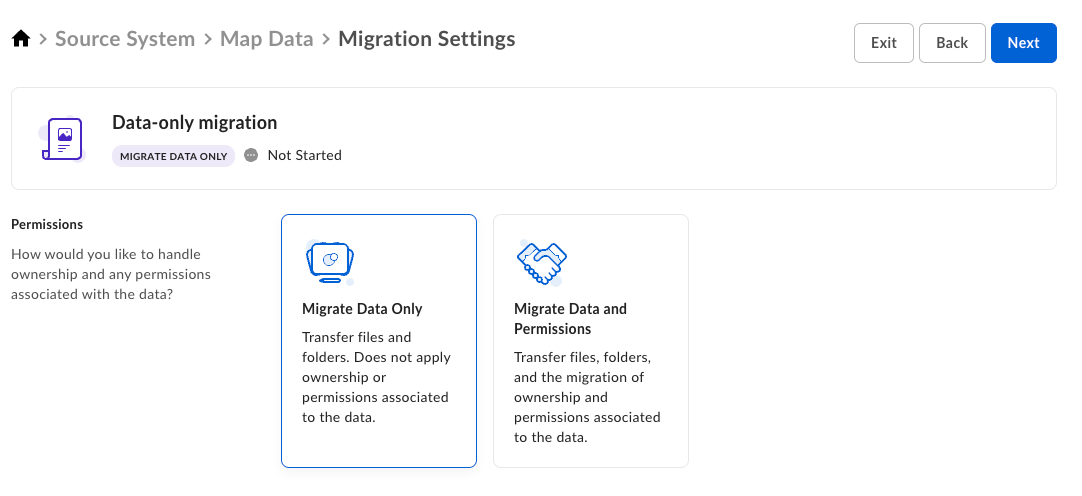
After you are done with the mapping, select **Migrate Data Only** from the available options.

<Frame>
  <img src="https://mintcdn.com/product-docs/6Q7nCk1JXzHqPpg6/images/box-shuttle/data-only-migration-settings-migrate.png?fit=max&auto=format&n=6Q7nCk1JXzHqPpg6&q=85&s=f6b334d37d5e6b78a5ca723a7b0e9b7f" alt="Data-only migration Migration Settings with Migrate Data Only selected to transfer files without permissions." width="1082" height="496" data-path="images/box-shuttle/data-only-migration-settings-migrate.png" />
</Frame>

## Define filters and additional settings

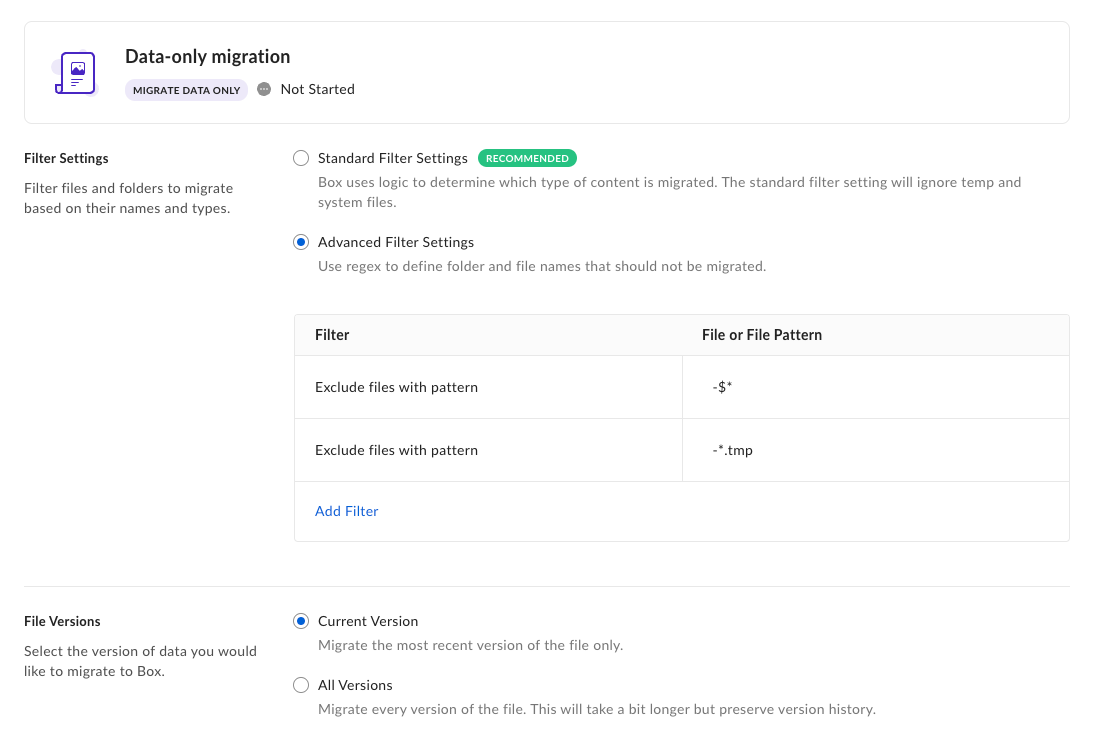
* **Filter settings** enable you to further specify which folders and files to include in the migration or exclude from the process.
  * **Standard Filter** settings ignore **temp** and **system** files, and migrate everything else.
  * **Advanced Filter** settings filter the content on the basis of a regular expression, date, or size.

* **File versions** settings enable you to choose whether to migrate the most recent version only, or all versions of the file.
  * If you select **Current Version** on the initial transfer, Box Shuttle transfers only the most recent version. Even if you select **All Versions** on a subsequent run of the job, Box Shuttle cannot transfer any versions that precede that most recent version.
  * If you need past versions, select **All Versions** on your first job run.
  * Once you start migrating data with a given version setting, do not change that setting within the job.

<Note>
  The presence of file version settings depends on the source system chosen. For example, migration from Windows files has only filter settings available for you to use.
</Note>

<Frame>
  <img src="https://mintcdn.com/product-docs/6Q7nCk1JXzHqPpg6/images/box-shuttle/data-only-migration-filter-settings.png?fit=max&auto=format&n=6Q7nCk1JXzHqPpg6&q=85&s=fb3ec5ae166ceca35de05e66b9e4d9ad" alt="Data-only migration Filter Settings with Advanced filters excluding ~$* and ~*.tmp temp file patterns." width="1093" height="750" data-path="images/box-shuttle/data-only-migration-filter-settings.png" />
</Frame>

## Define run settings

In the **Run Settings** section you can specify the following items:

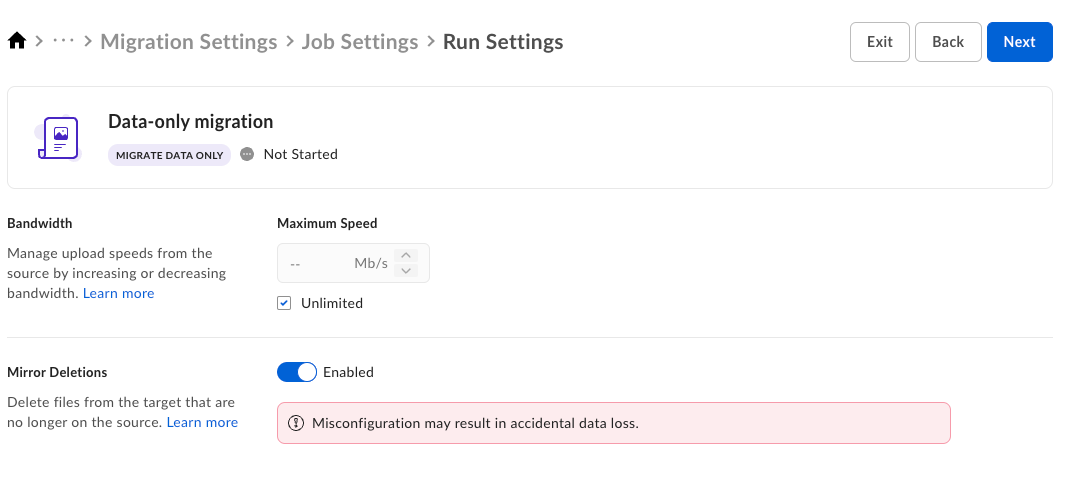
* **Bandwidth** to manage the upload speed (for Windows sources only).
* **Mirror Deletions** if you want to delete the files from the target location if they are no longer available in the source.
<Warning>
  This option removes any files from the target that do not exist on the source, even if those files never existed on the source. Use it only if no one is actively using the accounts and folders you migrate content into, because it can lead to accidental data loss. Box recommends that you always run simulations and review reports before you run any transfer that can delete data.
</Warning>

<Frame>
  <img src="https://mintcdn.com/product-docs/6Q7nCk1JXzHqPpg6/images/box-shuttle/data-only-migration-run-settings.png?fit=max&auto=format&n=6Q7nCk1JXzHqPpg6&q=85&s=1ca0e09d9710542c0245d695695656d2" alt="Data-only migration Run Settings with Unlimited bandwidth and Mirror Deletions enabled and a destructive-setting warning." width="1075" height="486" data-path="images/box-shuttle/data-only-migration-run-settings.png" />
</Frame>

## Verify data

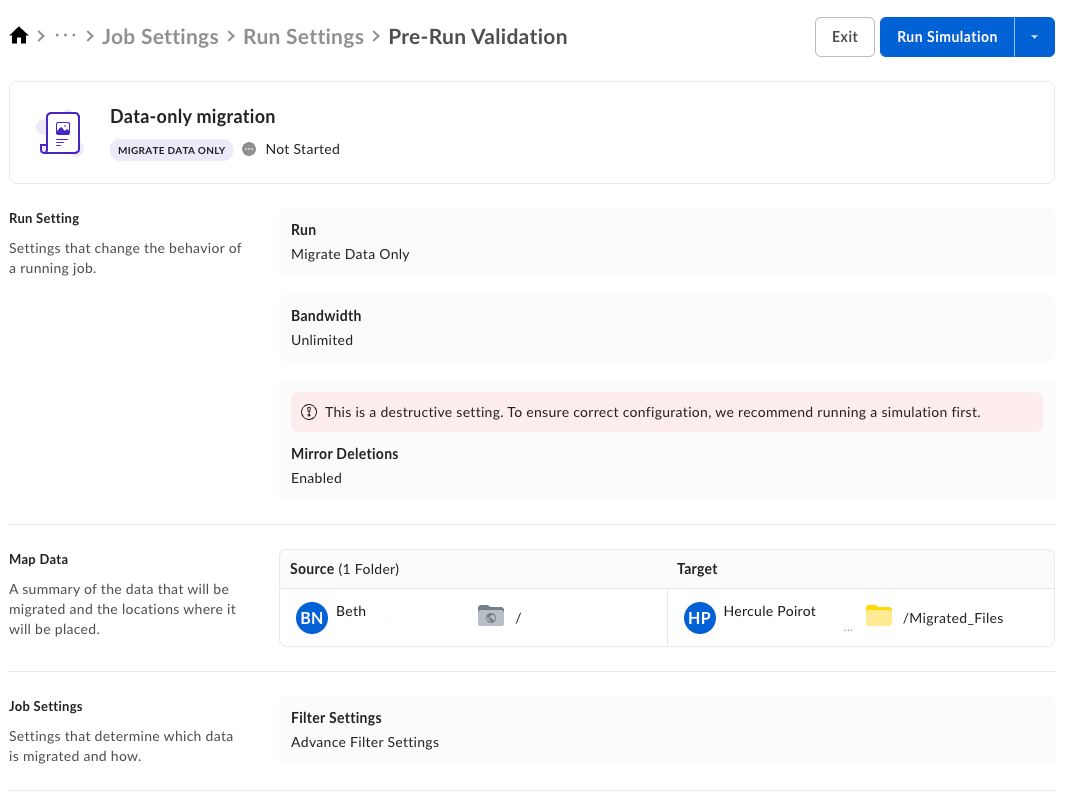
During the pre-run validation you can see the summary including the data you want to migrate and the job settings to verify if they are correct before proceeding with the migration. To make changes, select the breadcrumbs menu at the top to go back to the part you want to change.
<Frame>
  <img src="https://mintcdn.com/product-docs/r6SANzcNtU2WKtAp/images/box-shuttle/pre-run-validation-summary-data.png?fit=max&auto=format&n=r6SANzcNtU2WKtAp&q=85&s=3e19607573ff98dfffcd65f63be09874" alt="Pre-Run Validation summary for a data-only migration with Run Simulation button, bandwidth, and mirror deletion settings." width="1087" height="812" data-path="images/box-shuttle/pre-run-validation-summary-data.png" />
</Frame>

## Run simulation

Simulations give you an estimate on runtime and check for potential issues or errors before you migrate your data. This is an important step to validate your migration configuration, and Box recommends running a simulation before performing a transfer to encourage positive migration outcomes.

Some simulation incompatibilities for Box include files larger than the maximum size supported and filtered system files, such as thumbs.db or other similar extensions. Simulations detect many, but not all, of the potential errors in a transfer job.

### When to run a simulation

* After setting up your first job
* When you make job configuration changes
* If data on your source or Box target changes significantly, including data being moved or renamed
* Before migrating permissions

Selecting **Run Simulation** starts the process. This can take anywhere from a few minutes to several days, depending on how much content there is to analyze. Once a simulation is complete, view the results of the estimated job details similar to an analysis job. Preview the simulation results to make the live transfer a more seamless experience.

When the simulation job has finished, the reports tell you what files and how many bytes of data would have been transferred, and what files, if any, would be deleted. Additionally, the simulation:

* Identifies the size of content on the source, the number of files, and total bytes.
* Assesses how many files and bytes transfer during synchronization runs, and identifies which files transfer during the sync. This is helpful for evaluating whether to run the sync.
* Identifies and troubleshoots transfer errors quickly, such as Access denied, when comparing results to a direct transfer. Simulation jobs also help evaluate drive and network connectivity problems.
* Provides an estimated time to complete a data migration, and potential congestion issues impacting transfer speed.

<Note>
  This estimate is a guideline only. The actual transfer might take more or less time depending on a number of factors.
</Note>

## Run transfer

Selecting **Run Transfer** starts the migration process. After it is finished, you can examine the results.

## Schedule migration

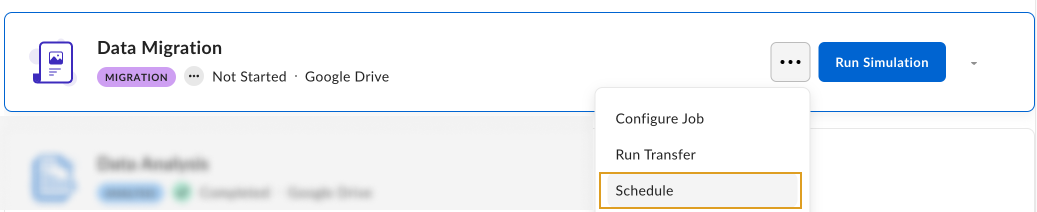
You can schedule a job to run at a given time and re-run it at configurable intervals.

<Note>
  For a Windows source system, the scheduler runs **only one job at a time**. This ensures that each job has sufficient memory, CPU, and other resources to transfer data to Box at optimal speeds.
</Note>

<Frame>
  <img src="https://mintcdn.com/product-docs/ZRmHMAkUChAmaGhq/images/box-shuttle/migration-schedule.png?fit=max&auto=format&n=ZRmHMAkUChAmaGhq&q=85&s=12cbbcc4b394cc9c5a51f16094f8601c" alt="Data Migration job with the overflow menu open, showing Configure Job, Run Transfer, and Schedule options next to the Run Simulation button." width="1037" height="212" data-path="images/box-shuttle/migration-schedule.png" />
</Frame>

For more details on scheduling, see [Scheduling jobs](/en/box-shuttle/analyzing-and-migrating-content/scheduling-jobs).

## Notifications and reporting

Box notifications keep you informed of the status and progress of your Box Shuttle jobs. Reports created after each analysis, simulation, and migration job provide detailed information about job performance estimates and migrated or analyzed files and folders. See [Introducing Box Shuttle](/en/box-shuttle/about-box-shuttle/introducing-box-shuttle) for details.