 ## View job details
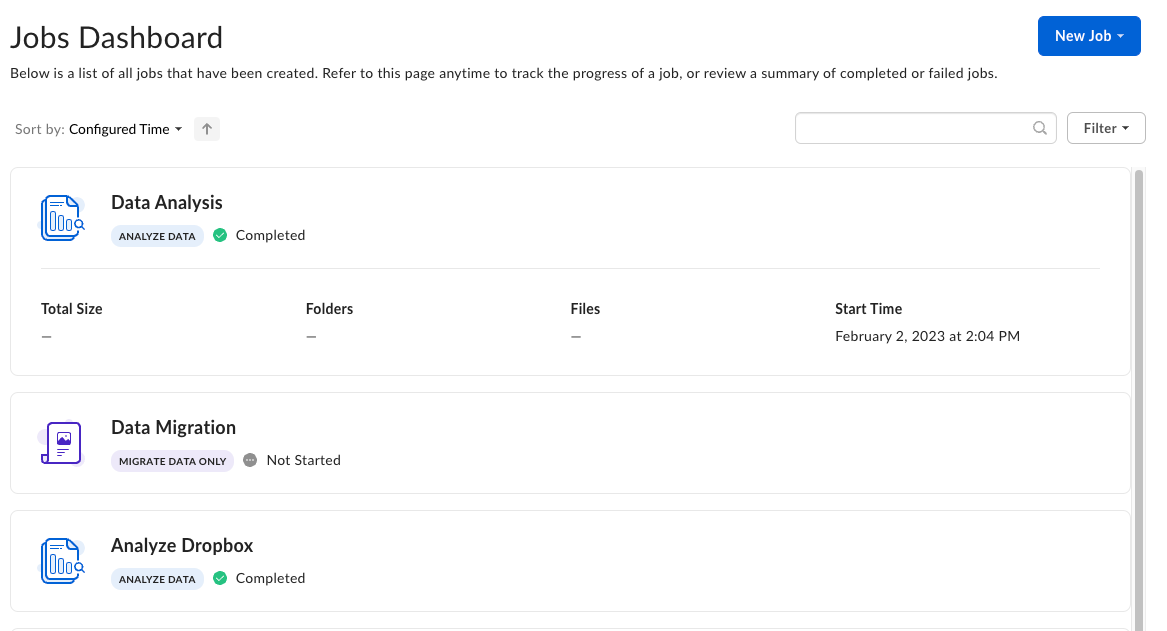
Expanding the job entry lists additional details about the total size of the transferred content, the number of folders and files, and the time the job started.
## View job details
Expanding the job entry lists additional details about the total size of the transferred content, the number of folders and files, and the time the job started.
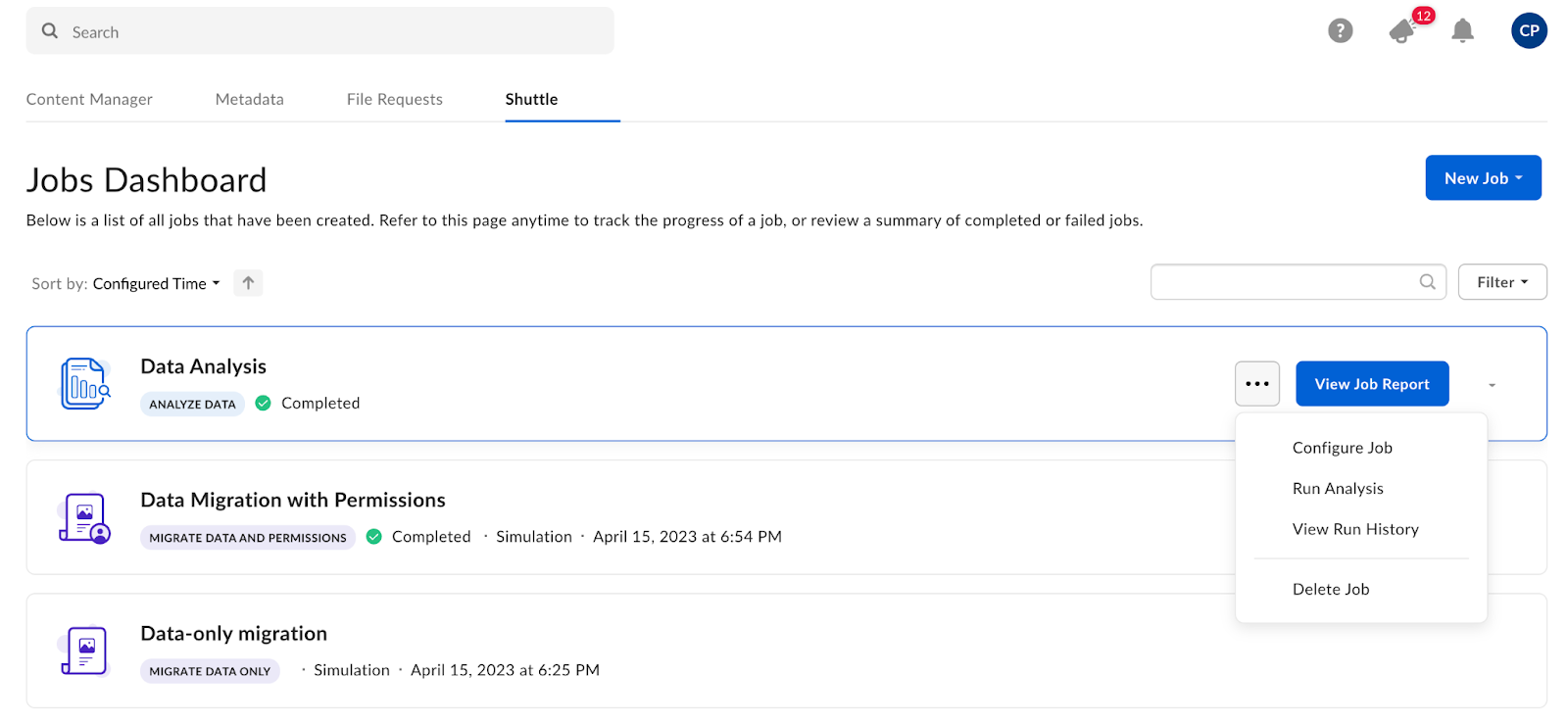 Each job features an option menu that allows you to perform actions for this job. The menu options may differ depending on the job status. Options include:
* **Configure Job** - opens the job settings allowing you to change the configuration of your job
* **Run Simulation** - runs a migration simulation before the actual transfer
* **Run Transfer** - runs a migration
* **Schedule -** creates or edits a schedule for the job to run automatically
* **View Job Report** - opens the simulation or transfer report
* **View Run History** - lists past runs that you can examine
* **Stop Job** - stops a job that is already in progress
* **Delete Job** - deletes a job
## Status transitions and job options
The menu on the right has a set of additional options you can use for your job. The table lists the options depending on job type and status.
Each job features an option menu that allows you to perform actions for this job. The menu options may differ depending on the job status. Options include:
* **Configure Job** - opens the job settings allowing you to change the configuration of your job
* **Run Simulation** - runs a migration simulation before the actual transfer
* **Run Transfer** - runs a migration
* **Schedule -** creates or edits a schedule for the job to run automatically
* **View Job Report** - opens the simulation or transfer report
* **View Run History** - lists past runs that you can examine
* **Stop Job** - stops a job that is already in progress
* **Delete Job** - deletes a job
## Status transitions and job options
The menu on the right has a set of additional options you can use for your job. The table lists the options depending on job type and status.
| Job type | Status | Job options |
|---|---|---|
| Analysis | Not started | Run Analysis Schedule Delete Job |
| Provisioning Starting Scanning Stopped | Configure Job Stop Job View Run History View Job Report | |
| Failed Timed Out Completed Completed with errors | Configure Job Run Analysis Schedule View Job Report View Run History Delete Job | |
| Migration | Not started | Configure Job Run Simulation Run Transfer Delete Job |
| Provisioning Starting Scanning | Configure Job Stop Job View Run History View Job Report | |
| Scanned Stopped Failed Timed Out | Configure Job Schedule View Run History Delete Job | |
| Completed Completed with errors | Configure Job Schedule View Job Report View Run History Delete Job |