> ## Documentation Index
> Fetch the complete documentation index at: https://docs.box.com/llms.txt
> Use this file to discover all available pages before exploring further.

# Transferring Your Workflow to Another User

<div className="article_labels_list" style={{display: 'none'}} dangerouslySetInnerHTML={{__html: "End User , Overview , Article , Product Utilization , Established , Box Relay , P5"}} />

<Note>
  This feature is available **only on Enterprise, Enterprise Plus, and Enterprise Advanced** accounts.
</Note>

If you are looking to transfer Relay Workflow ownership workflows to another user, you can initiate the process in the workflow builder page.

<Note>
  **Note: Admin Permissions**

  Because only admins can configure template publishing permissions in the admin console, only admins  can set those permissions for users. If you're an admin, be sure to enable the correct permissions prior to your users starting a workflow transfer process.

  For more information on enabling permissions as admin, refer to the [Enabling Box Relay for your Organization](/en/box-relay/administering-and-configuring-relay/enabling-box-relay-for-your-organization) article.
</Note>

Prior to starting, make sure your admin has given you publishing permission. If not, contact your admin.

<Note>
  **Note:** you can transfer only one workflow at a time to another user.
</Note>

**To transfer Relay Workflow ownership:**

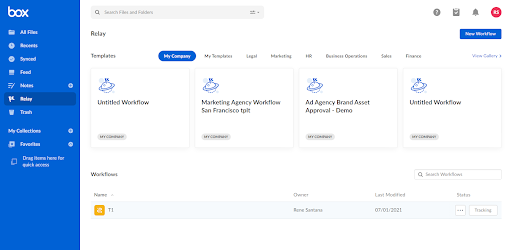
1. Open Relay from the Box Navigation menu.

<Frame>
  <img src="https://mintcdn.com/product-docs/am8R3s1XSmI2sD3k/images/box-relay/box-menu.png?fit=max&auto=format&n=am8R3s1XSmI2sD3k&q=85&s=eb8fe0d0fbeeed8701d715775c67f257" alt="box-menu-png" width="512" height="250" data-path="images/box-relay/box-menu.png" />
</Frame>

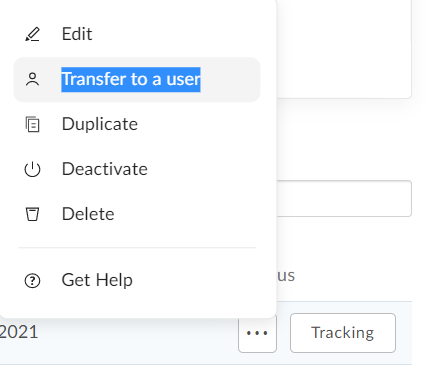
2. Hover over the workflow you want to transfer. Click the ellipsis and select **Transfer to Users.**
   <Frame>
     <img src="https://mintcdn.com/product-docs/GHR0BBqfXA3GlYyY/images/box-relay/ellipsis-menu.png?fit=max&auto=format&n=GHR0BBqfXA3GlYyY&q=85&s=6d5b4d154315b99f9715c5ceb5b463f1" alt="ellipsis-menu-png" width="426" height="380" data-path="images/box-relay/ellipsis-menu.png" />
   </Frame>
3. Enter the user receiving the Workflow ownership.
4. Review the user information before completing the process. Click **Transfer.**
   * The system alerts you if an email is incorrect or an external user is being added.

Once complete, a notification is displayed to indicate the transfer was successful.

<Frame>
  <img src="https://mintcdn.com/product-docs/GHR0BBqfXA3GlYyY/images/box-relay/mceclip1.png?fit=max&auto=format&n=GHR0BBqfXA3GlYyY&q=85&s=bbb4b7dd36b60da0def6007c75a255e5" alt="mceclip1-png" width="739" height="68" data-path="images/box-relay/mceclip1.png" />
</Frame>
