> ## Documentation Index
> Fetch the complete documentation index at: https://docs.box.com/llms.txt
> Use this file to discover all available pages before exploring further.
# A Sample Workflow - Marketing Campaign Budget Approval
Below is a sample Relay workflow that automates the process of reviewing and approving the budget for a marketing campaign. You can easily customize and apply this workflow to any process in your organization that involves a review-and-approval cycle and moving content between target folder locations.
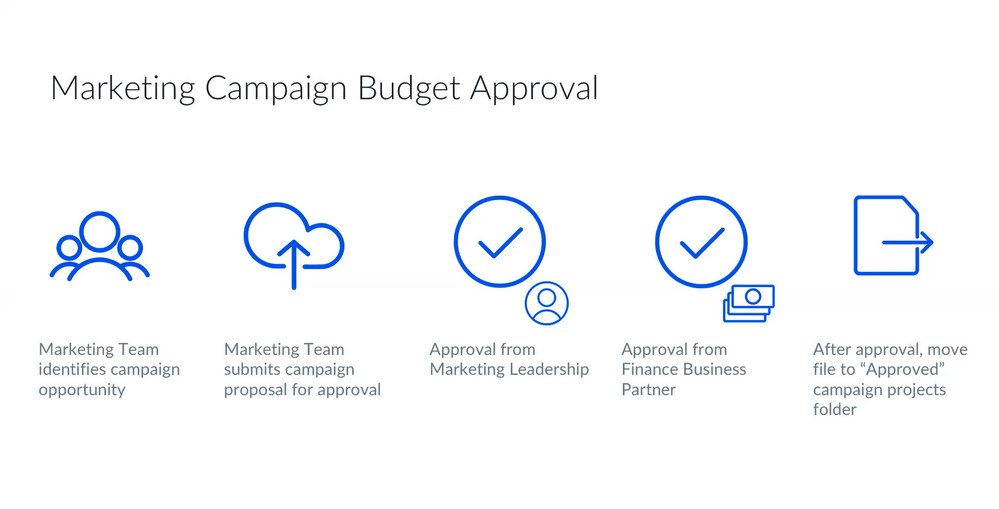
In this example, the marketing team identifies the need for a marketing campaign and assembles a proposal. Then:
* A team member submits the proposal to marketing leadership for approval.
* Marketing leadership reviews and approves the proposal and sends it to finance for approval.
* Finance reviews and approves the proposal budget.
* The fully-approved proposal moves to an "approved” folder, and the marketing team can begin working on the campaign.
 Now let's build this workflow in Relay. Despite the seemingly large number of steps listed here, when you become comfortable with using Relay you can create a workflow such as this in a matter of minutes.
Starting things off: Establishing and naming a new workflow. To do this:
1. Open your Box**Files** page. In the lefthand navigation, click **Relay** to display the **Workflows** page.
2. Click **New Workflow**. The **Workflow Builder** page displays.
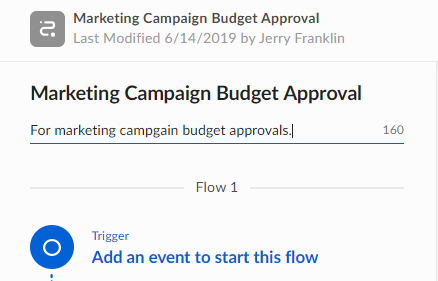
3. In the **Untitled Workflow** box, enter the name of the workflow – in this case, call it ***Marketing Campaign Budget Approval*** .
4. In the **Add a description** box, enter text that clearly explains the intent of this workflow.
Now let's build this workflow in Relay. Despite the seemingly large number of steps listed here, when you become comfortable with using Relay you can create a workflow such as this in a matter of minutes.
Starting things off: Establishing and naming a new workflow. To do this:
1. Open your Box**Files** page. In the lefthand navigation, click **Relay** to display the **Workflows** page.
2. Click **New Workflow**. The **Workflow Builder** page displays.
3. In the **Untitled Workflow** box, enter the name of the workflow – in this case, call it ***Marketing Campaign Budget Approval*** .
4. In the **Add a description** box, enter text that clearly explains the intent of this workflow.
 Now specify the trigger – the event that starts off this workflow. To do this:
1. Under **What starts this workflow?** click **A File Event**.
Now specify the trigger – the event that starts off this workflow. To do this:
1. Under **What starts this workflow?** click **A File Event**.
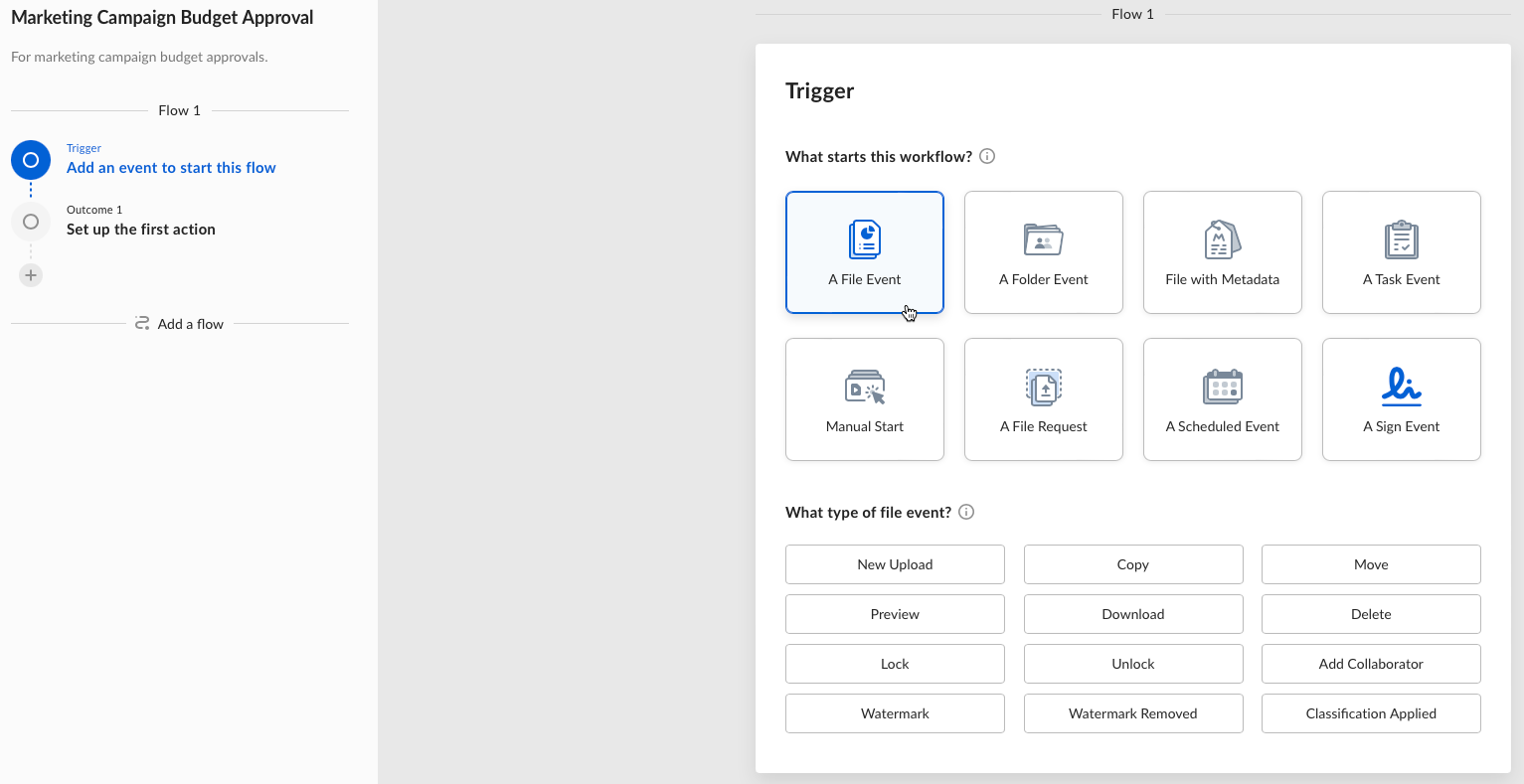 2. Under **What type of file event?** click **New Upload**.
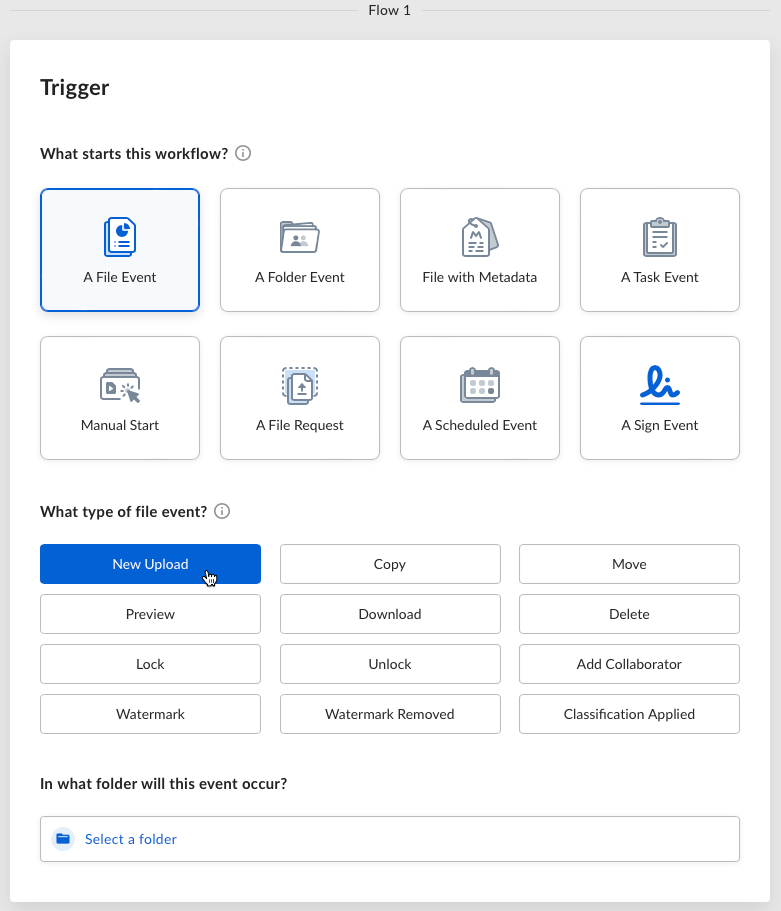 3. Under **In what folder will this event occur?** click the box and then click **Select a folder from Box**. The **Select a folder to act on** box displays.
 4. From the list of folders that displays, select **Marketing Campaign Proposals – REVIEW** and click **Select**.
 That's it. In just a few clicks, you’ve instructed Relay, if a file is uploaded to the **Marketing Campaign Proposals – REVIEW** folder, to immediately run the **Marketing Campaigns Budget Approval** workflow.
Now create the outcome you want to result from the trigger event. To do this:
1. Click **Add Metadata** in the **Outcome 1** box.
That's it. In just a few clicks, you’ve instructed Relay, if a file is uploaded to the **Marketing Campaign Proposals – REVIEW** folder, to immediately run the **Marketing Campaigns Budget Approval** workflow.
Now create the outcome you want to result from the trigger event. To do this:
1. Click **Add Metadata** in the **Outcome 1** box.
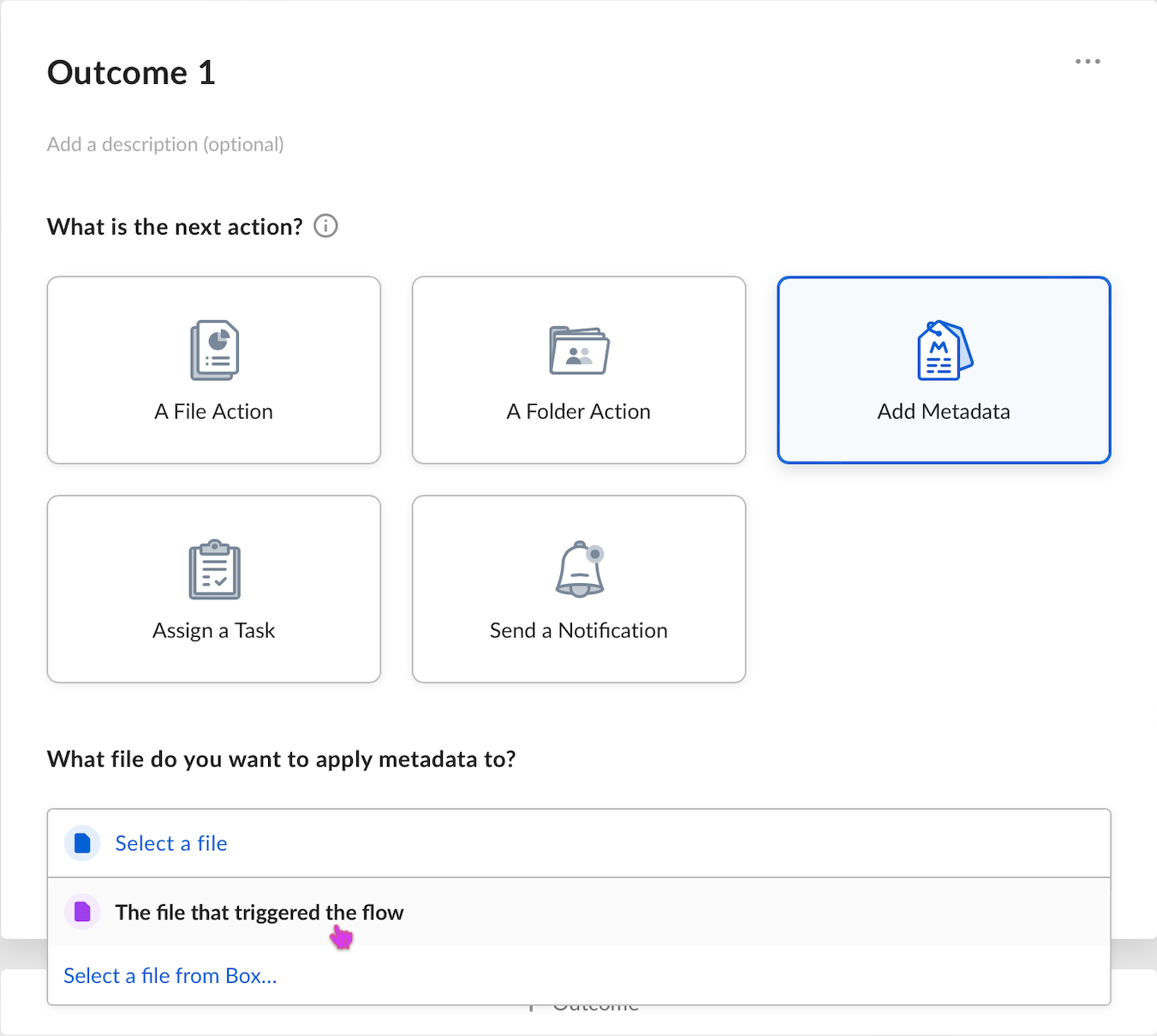
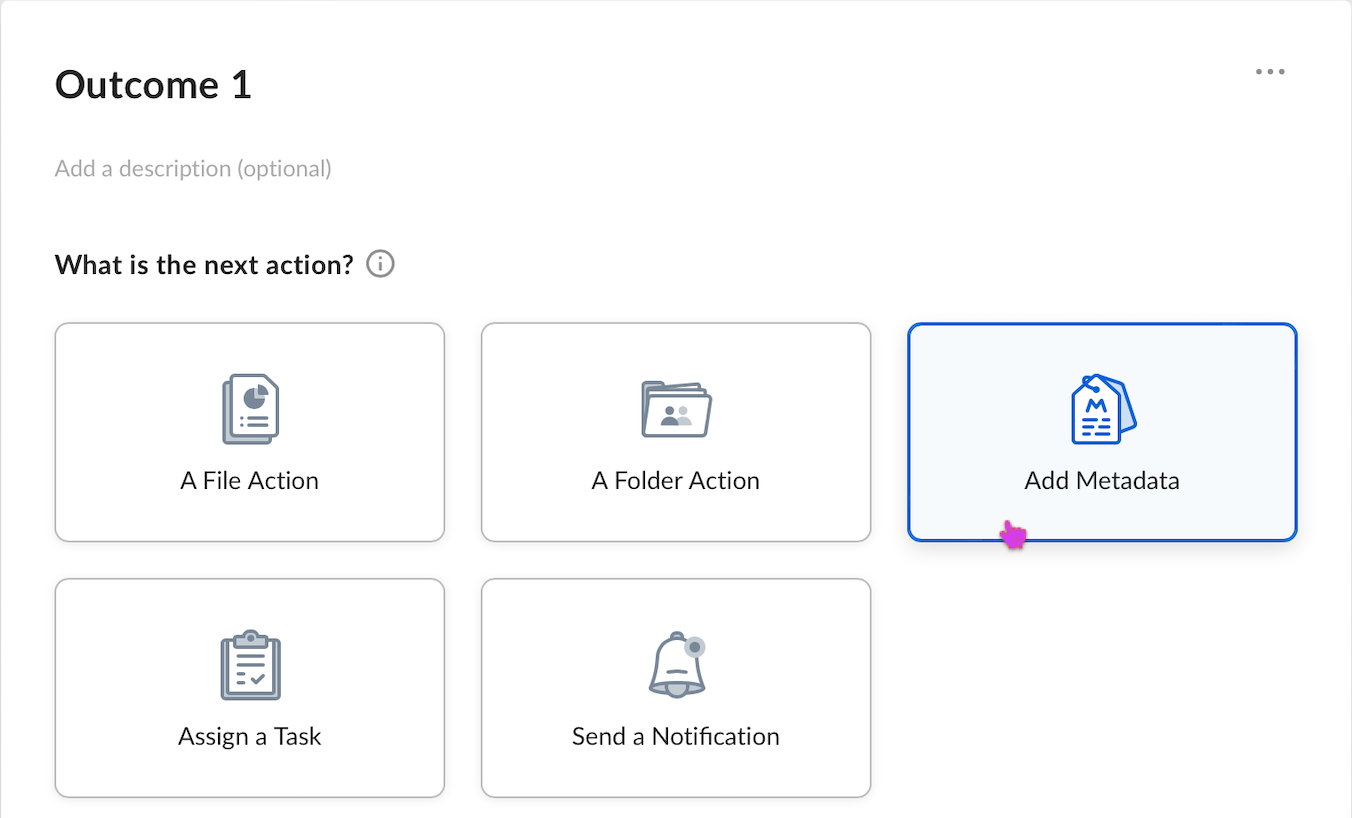 2. Click the **Select a file** box, then click **The file that triggered the flow**.
 3. Under **What metadata template would you like to apply?** click the box to display your list of metadata templates. Then click the template you want -- in this case, the **Marketing Campaign Details** template.
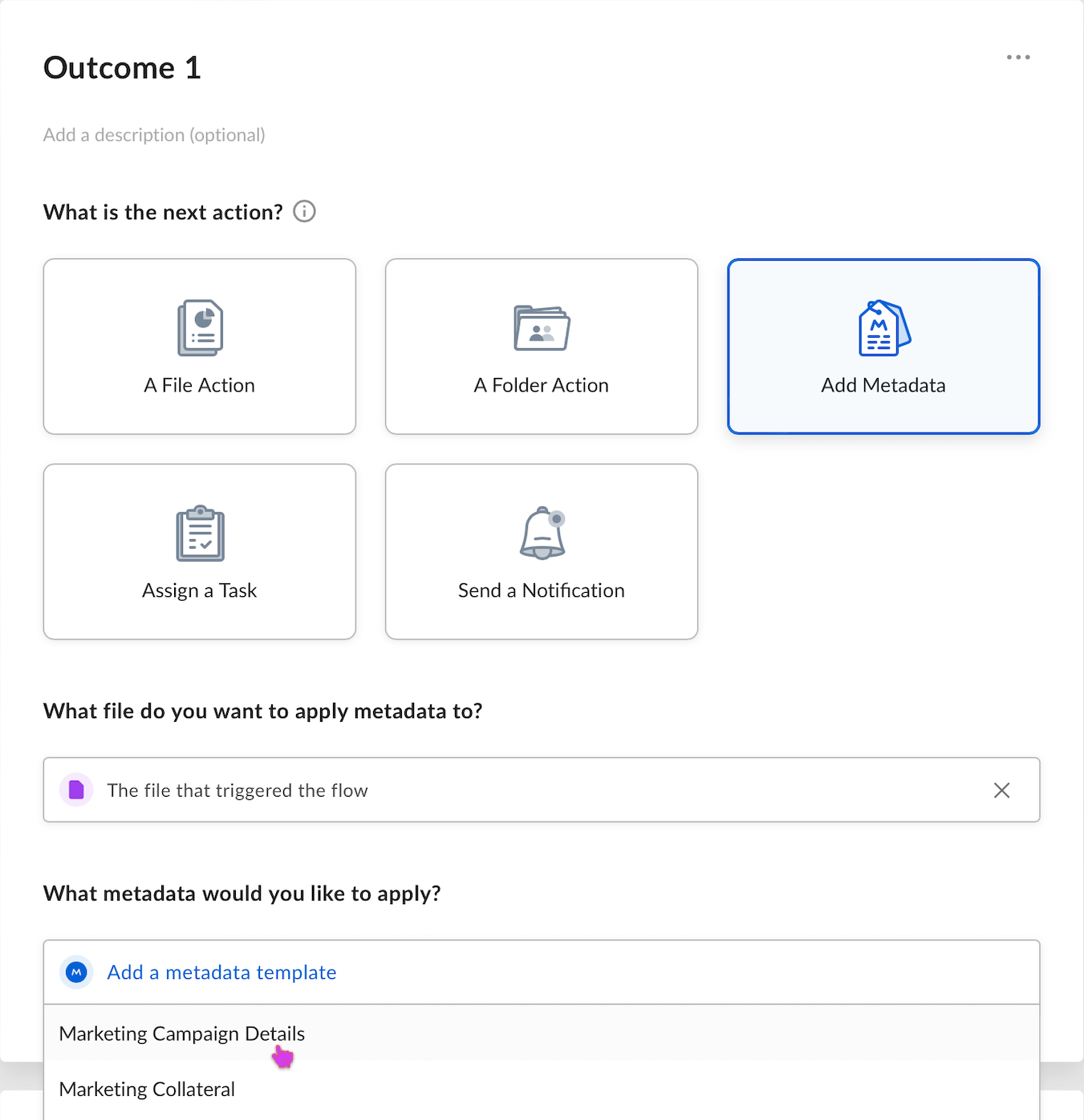 This means Relay is automatically applying the metadata template to every file that is uploaded into the **Marketing Campaign Proposals – REVIEW** folder.
Now it's time to involve your first reviewer. To do this:
1. Click **+ Outcome**. The **Outcome 2** box displays.
* Adding outcomes is how you can string together a long chain of events in a complex workflow.
2. Click **Assign a Task**.
This means Relay is automatically applying the metadata template to every file that is uploaded into the **Marketing Campaign Proposals – REVIEW** folder.
Now it's time to involve your first reviewer. To do this:
1. Click **+ Outcome**. The **Outcome 2** box displays.
* Adding outcomes is how you can string together a long chain of events in a complex workflow.
2. Click **Assign a Task**.
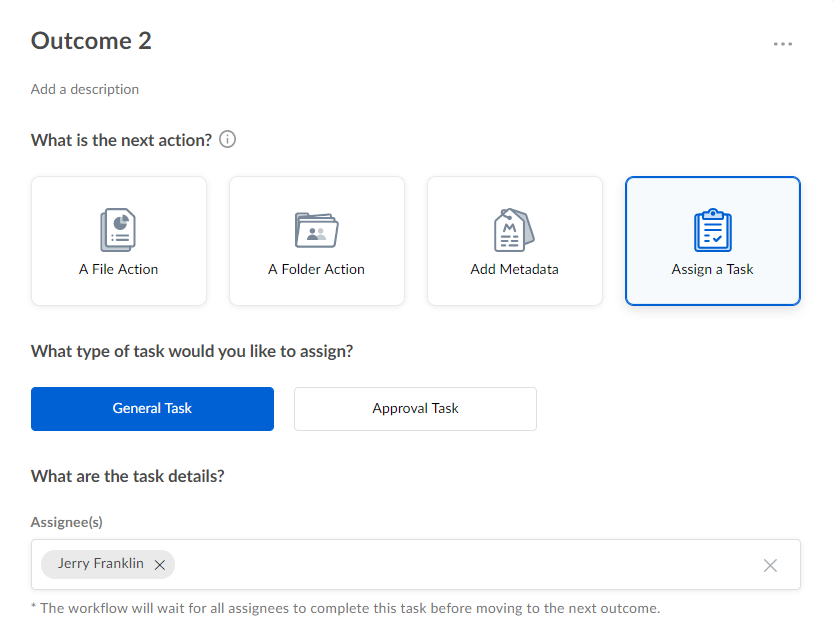
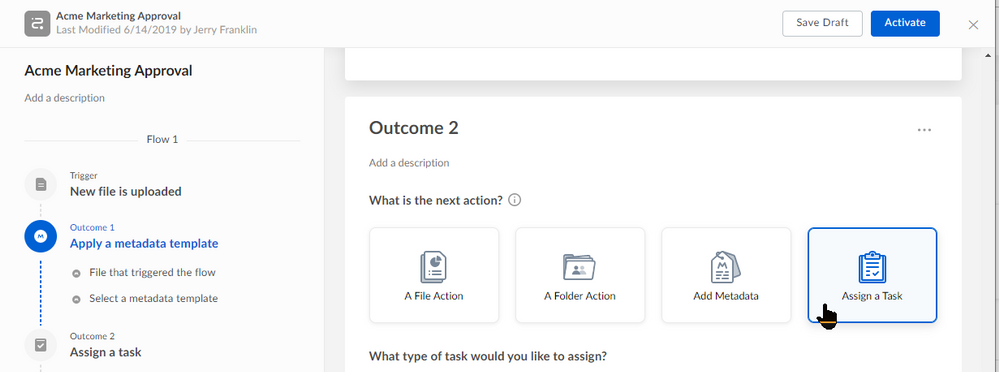 3. Under **What type of task would you like to assign?** click **General Task**.
4. Under **What are the task details?** click the **Assignee(s)** box and begin typing in the name of the assignee you want. When their name displays, click the name.
3. Under **What type of task would you like to assign?** click **General Task**.
4. Under **What are the task details?** click the **Assignee(s)** box and begin typing in the name of the assignee you want. When their name displays, click the name.
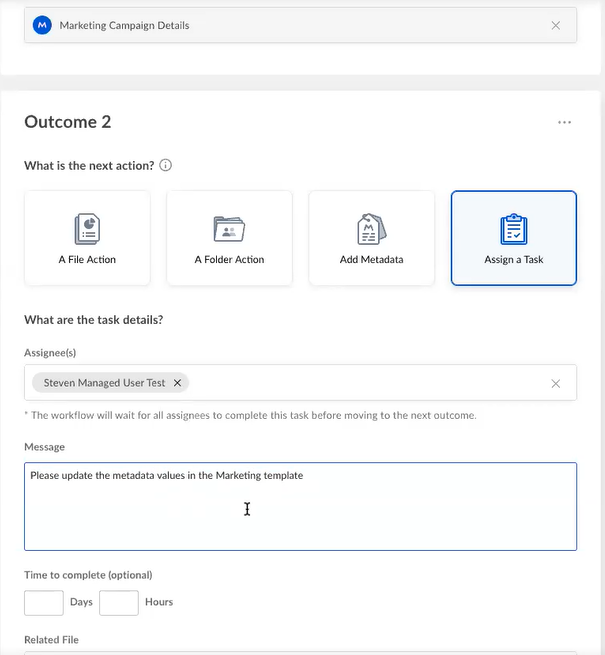
 5. In the **Message** box, type in clear instructions for the assignee – in this case, to update the metadata values in the marketing template.
 6. Under **Assign the task to a file**, click the box and then click **The file that triggered the flow**.
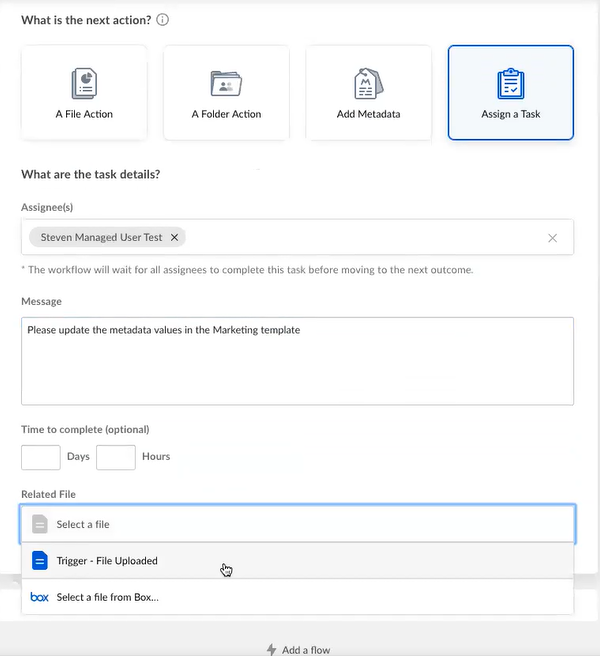 Once again, this means that each time a file is uploaded to the folder you’ve specified, the person you’ve just assigned is alerted to update the metadata on that file. This is the beginning of your approval chain.
Now move the proposal further along your approval chain. To do this:
1. Click **+ Outcome**. The **Outcome 3** box displays.
2. Click **Assign a Task**.
3. Under **What type of task would you like to assign?** click **Approval Task**.
4. Under **What are the task details?** click the **Assignee(s)** box and begin typing in the name of the assignee you want. When their name displays, click the name.
5. In the **Message** box, type in clear instructions for the assignee – in this case, to review and approve the campaign proposal.
Once again, this means that each time a file is uploaded to the folder you’ve specified, the person you’ve just assigned is alerted to update the metadata on that file. This is the beginning of your approval chain.
Now move the proposal further along your approval chain. To do this:
1. Click **+ Outcome**. The **Outcome 3** box displays.
2. Click **Assign a Task**.
3. Under **What type of task would you like to assign?** click **Approval Task**.
4. Under **What are the task details?** click the **Assignee(s)** box and begin typing in the name of the assignee you want. When their name displays, click the name.
5. In the **Message** box, type in clear instructions for the assignee – in this case, to review and approve the campaign proposal.
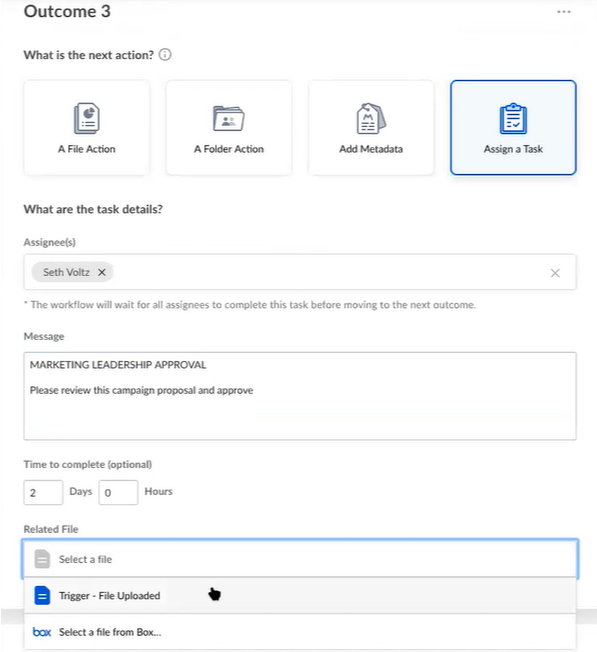
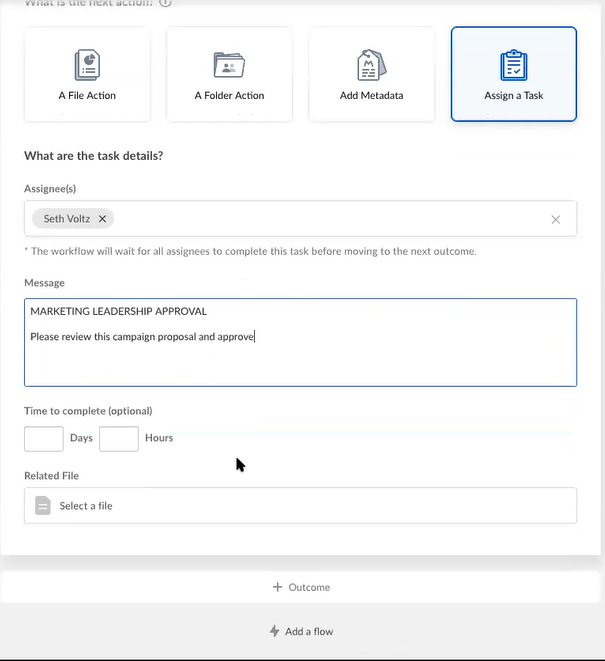 6. Optionally, if this task is time-sensitive, provide a deadline. To do this, under **Time to complete**, type in the number of **Days** and/or the number of **Hours**. In this case, in the **Days** box, type 2 . In this case, if after two days the assignee has not approved this proposal, Relay changes the status of this workflow to **Overdue**, and notifies the assignee that the task is overdue.
7. Under **Assign the task to a file**, click the box and then click **The file that triggered the flow**.
6. Optionally, if this task is time-sensitive, provide a deadline. To do this, under **Time to complete**, type in the number of **Days** and/or the number of **Hours**. In this case, in the **Days** box, type 2 . In this case, if after two days the assignee has not approved this proposal, Relay changes the status of this workflow to **Overdue**, and notifies the assignee that the task is overdue.
7. Under **Assign the task to a file**, click the box and then click **The file that triggered the flow**.
 Now get Finance to approve the proposal. To do this:
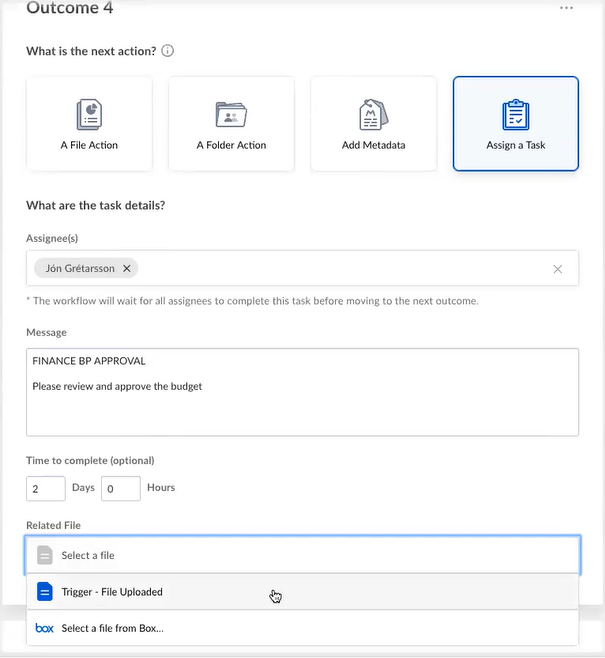
1. Click **+ Outcome**. The **Outcome 4** box displays.
2. Click **Assign Task** > **Approval Task**, and as you’ve just done before, select an assignee, type in any relevant instructions and, optionally, a deadline, and identify the related file.
Now get Finance to approve the proposal. To do this:
1. Click **+ Outcome**. The **Outcome 4** box displays.
2. Click **Assign Task** > **Approval Task**, and as you’ve just done before, select an assignee, type in any relevant instructions and, optionally, a deadline, and identify the related file.
 Now identify the last outcome – what should happen when the proposal receives its final approval.
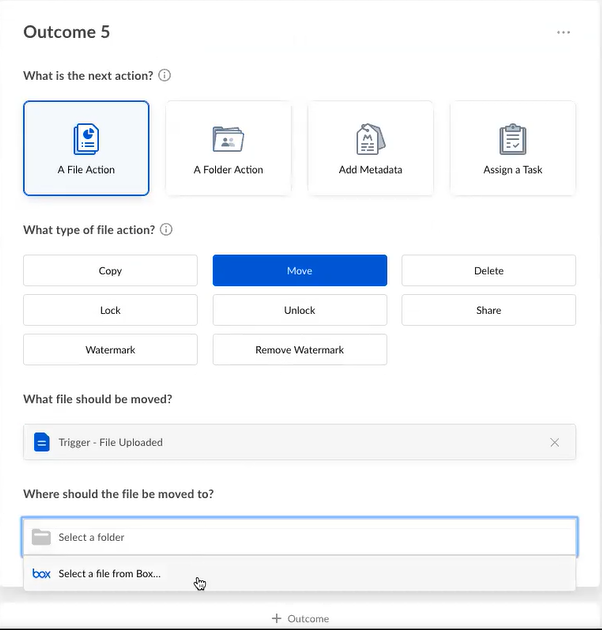
1. Click **+ Outcome**. The **Outcome 5** box displays.
2. Under **What is the next action?** click **A File Action**.
3. Under **What type of file action?** click **Move**.
4. Under **What file should be moved?** click **The file that triggered the flow**.
Now identify the last outcome – what should happen when the proposal receives its final approval.
1. Click **+ Outcome**. The **Outcome 5** box displays.
2. Under **What is the next action?** click **A File Action**.
3. Under **What type of file action?** click **Move**.
4. Under **What file should be moved?** click **The file that triggered the flow**.
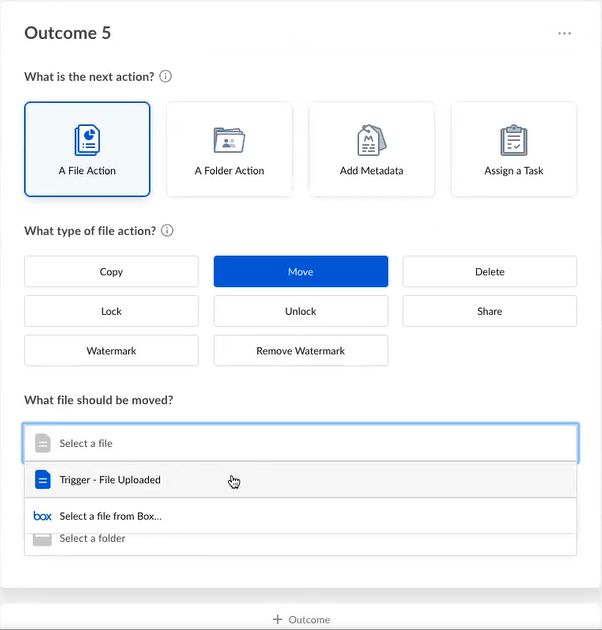 5. Under **Where should the file be moved to?** click the box, then click **Select a file from Box.**
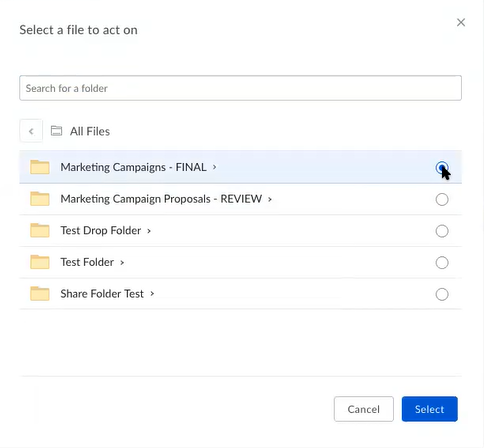
 6. When the **Select a folder to act on** box displays, next to the folder you want, click the button and then click **Select**. You’ve just instructed Relay to upload the completely approved file to the Marketing Review folder.
 For the entire time you're building your workflow, Relay displays the flow, in linear fashion, down the lefthand side of your screen. Here is the flow you've just completed:
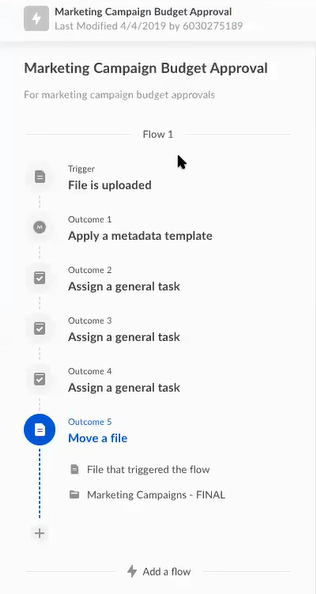 This at-a-glance view makes it easy for you to see what you're building, and identify whether it is in fact what you want or if you've made an error or omitted a step.
If the workflow matches what you are envisioning, you have one more choice to make. You can either:
* Save the workflow as a draft -- OR --
* Activate it.
To activate your workflow:
1. Click **Activate**.
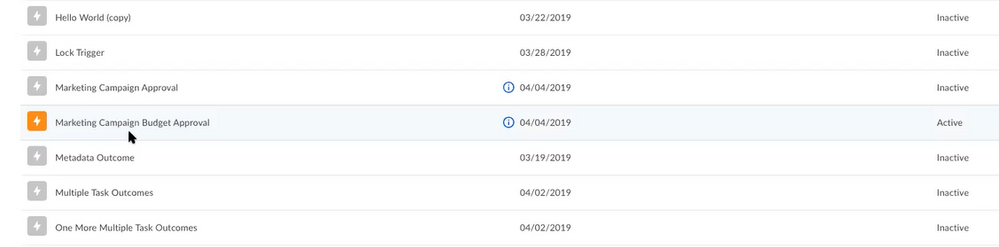
2. Return to your **Workflows** page. The workflow you just created displays as orange (that is, active). Now the workflow runs each time someone drops a file into the designated folder.
This at-a-glance view makes it easy for you to see what you're building, and identify whether it is in fact what you want or if you've made an error or omitted a step.
If the workflow matches what you are envisioning, you have one more choice to make. You can either:
* Save the workflow as a draft -- OR --
* Activate it.
To activate your workflow:
1. Click **Activate**.
2. Return to your **Workflows** page. The workflow you just created displays as orange (that is, active). Now the workflow runs each time someone drops a file into the designated folder.