> ## Documentation Index
> Fetch the complete documentation index at: https://docs.box.com/llms.txt
> Use this file to discover all available pages before exploring further.
# Tracking Version History in Box Notes
While you're working in Box Notes, we automatically save your changes as a new version roughly every 5 minutes or at the first update after at least 5 minutes of inactivity. You can access past versions of a Box Note by clicking the **More Options** menu (the **ellipsis** in the top right corner), then clicking **Version History**.
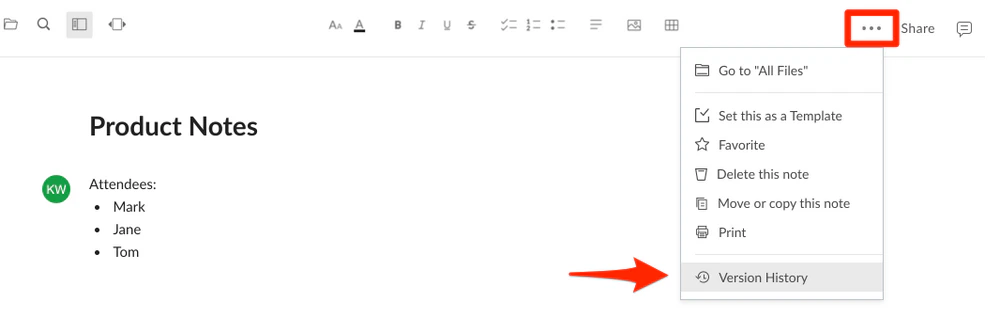 A version history panel will open to the right of your Box Note with the current version at the top of the list. For each version, you will be able to see the date and time the version was saved and the editor associated with that version.
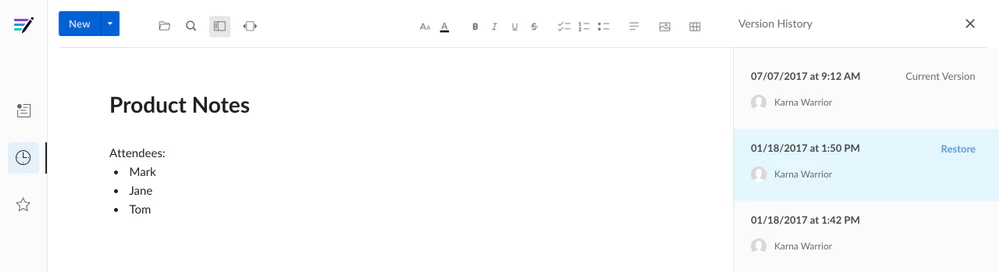 You can select any past version to view it, and you can click **Restore** for any of the past versions listed to make that version current. This action will not cause any history to be lost. The restored version will be added on to the existing version history as the current version.